
Editing videos directly in your browser offers convenience, speed, and accessibility—especially for creators who don’t want to install heavyweight software. Whether you’re a seasoned videographer or just starting out, the cloud‑based tools below deliver the core features you need while keeping your workflow lightweight and cost‑effective.
What Is an Online Video Editor?
An online video editor—also known as a cloud editor—is a browser‑based platform that lets you trim, splice, add effects, and export videos without installing any applications. Most providers offer a free tier, and premium plans unlock advanced tools and higher export resolutions.
Why Edit Videos Online?
- Affordability: Many cloud editors provide a free plan with essential tools, lowering the barrier to entry compared to flagship desktop software.
- Lightweight: No local installation means less strain on your computer’s resources, making it ideal for laptops or older PCs.
- Anywhere Access: Collaborate in real time by sharing cloud‑hosted projects, eliminating the need for large file transfers.
Choosing the Right Online Editor
With dozens of options, consider these factors before committing:
Budget
Determine whether you need a free tool or a paid plan. Paid plans usually start between $9 and $20 per month and unlock higher resolutions, longer export times, and advanced features.
Ease of Use
Beginners may prefer a simple drag‑and‑drop interface, while advanced users often need multi‑track editing and detailed controls.
Video Quality
Make sure the editor supports 4K export if your projects require it.
Key Features
Essential tools include:
- Trimming, cropping, resizing, and color correction
- Audio adjustments and soundtrack integration
- Multi‑track timeline for video and audio layers
- Export in multiple formats (MP4, MOV, AVI, 3GP)
- One‑click social sharing or direct platform export
- Automation options such as AI‑driven trimming or captioning
7 Best Free & Paid Online Video Editors in 2026
1. Riverside
Price: Free plan available; paid plans start at $15/month, offering 4K video and 48 kHz audio.
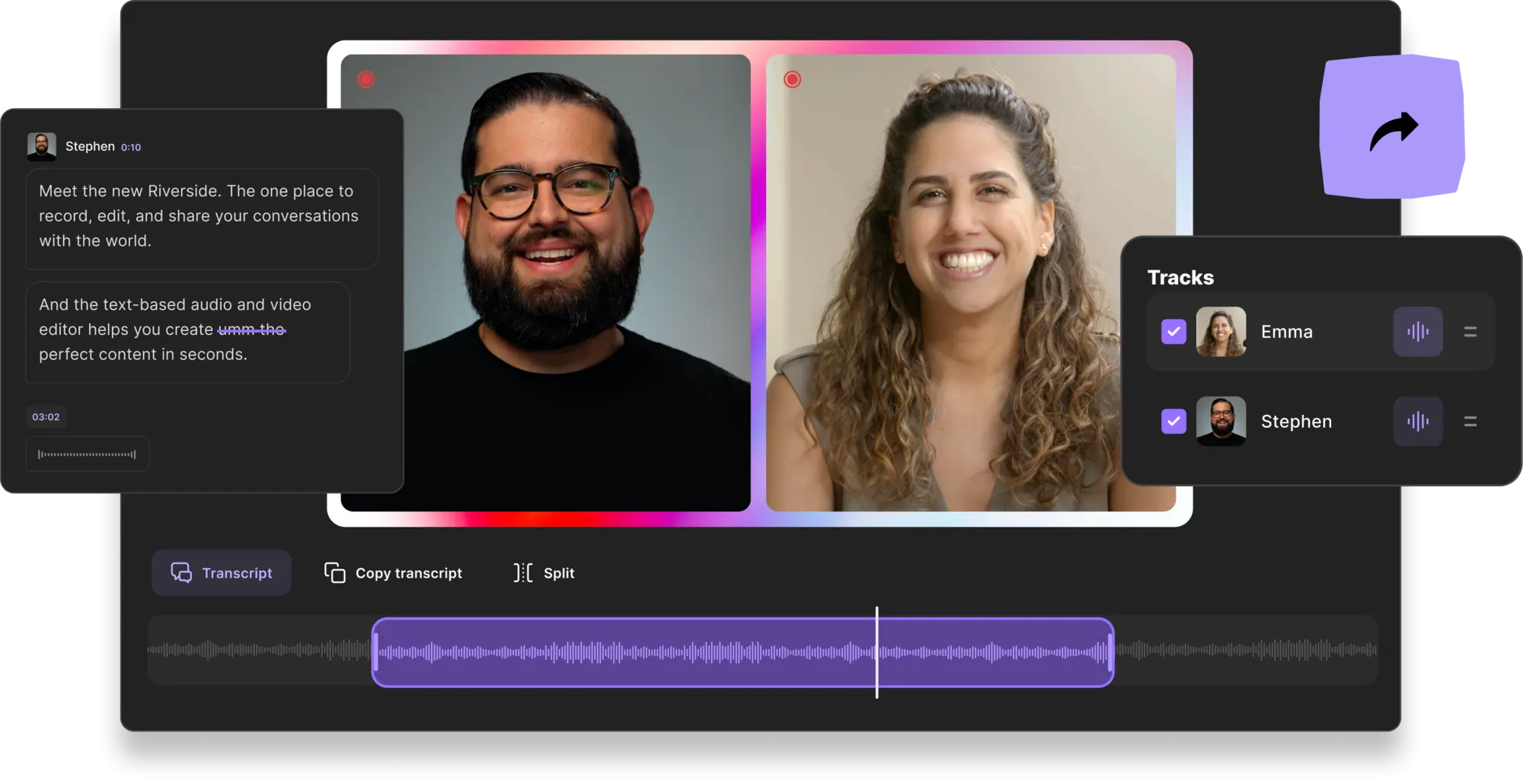
Riverside combines live recording with an intuitive, text‑based editor. By recording locally, the platform eliminates bandwidth issues, while separate audio and video tracks give editors granular control. AI transcription turns your transcript into a searchable editing timeline—delete a line in the text, and the corresponding clip vanishes. Search by keyword, auto‑generate captions, and use the Magic Clips feature to pull key moments for social media snippets.
- Text‑based editing for speed and precision
- AI transcription and speaker detection
- Custom branding and background noise removal
- Separate tracks for optimal quality
- Magic Clips for instant content repurposing
- Live editing via virtual soundboard
- Direct sharing and live‑streaming options
Pros: All‑in‑one recorder and editor, automatic cloud backup, customizable backgrounds, seamless export to Premiere Pro or Descript.
Cons: Currently limited to browser use; no mobile app yet.
2. InVideo
Price: Free up to 40 minutes of export; paid plans start at $15/month for watermark removal and mobile access.
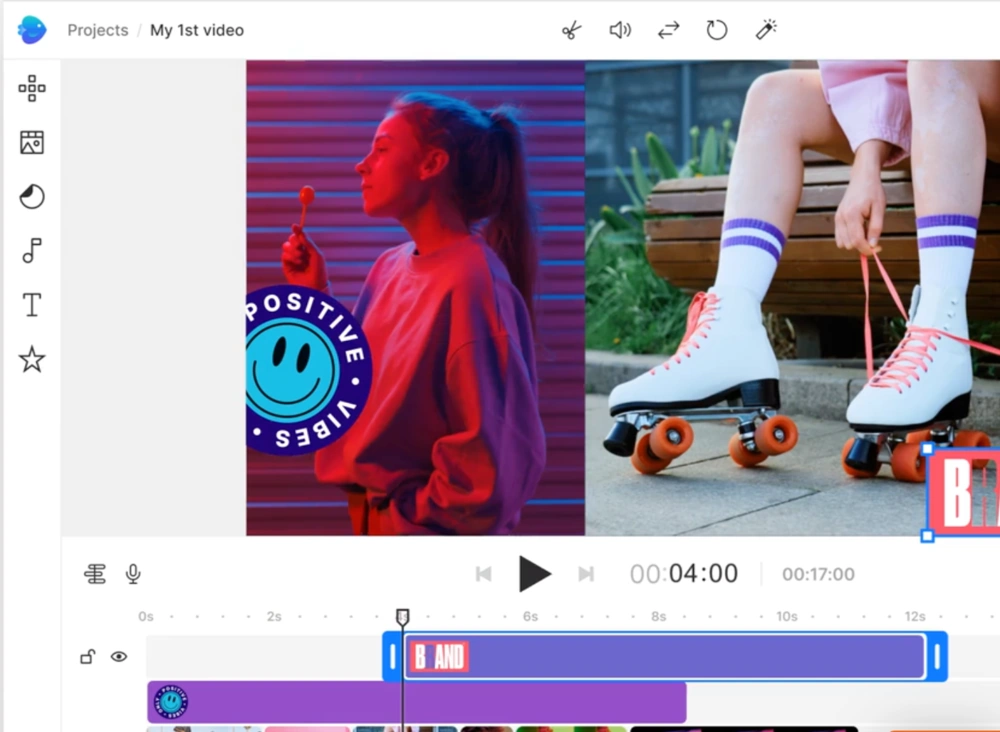
InVideo’s drag‑and‑drop interface and library of over 5,000 templates make it ideal for quick, polished videos. The platform also offers a vast media library—8 + million video clips and music tracks—and brand kits for consistent visuals.
- Extensive template and effect library
- Large stock media collection
- Brand kit customization
- Team collaboration tools
Pros: User‑friendly, rich asset library.
Cons: Some users report occasional bugs; learning curve can be steep for complex projects.
3. Clipchamp
Price: Free unlimited watermark‑free exports up to 1080p; paid plans start at $11.99/month for premium filters, a brand kit, and cloud backup.
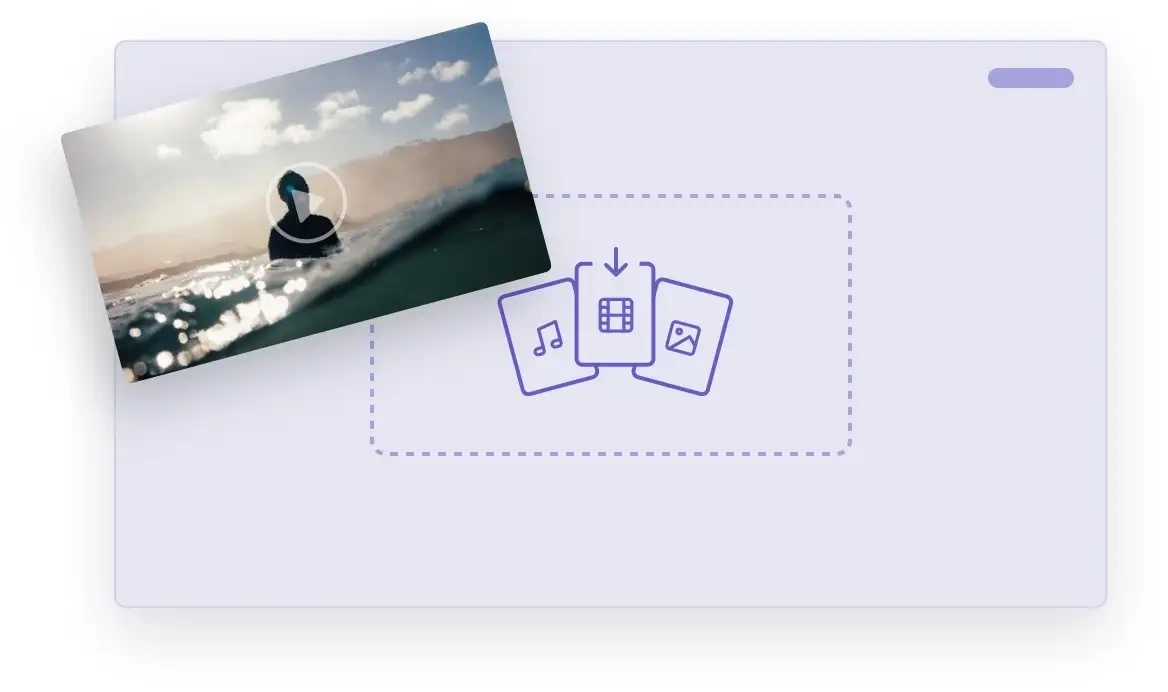
Clipchamp offers a robust, no‑installation editor that supports templates, trimming, text, music, and color adjustments. It also features a text‑to‑speech generator and straightforward export options.
- Drag‑and‑drop timeline
- Built‑in templates, visuals, and music
- Color and opacity controls
- Text‑to‑speech capability
Pros: Large content library, easy to use, solid free tier.
Cons: Bulk editing can feel sluggish.
4. Adobe Creative Cloud Express

Price: Free basic plan with 2 GB storage; paid plans begin at $9.99/month for a vast asset library, scheduling, custom branding, and 100 GB storage.
Adobe Express delivers a lightweight, web‑based editor that still offers many of the familiar tools Adobe users expect. With simple cropping, trimming, and resizing, you can produce polished videos and social media assets quickly.
- Multiple output formats
- Basic editing—crop, trim, resize
- Photo & PDF editing capabilities
- Automated background removal
Pros: Intuitive, extensive templates, direct sharing.
Cons: Limited free subscription; advanced features locked behind a paywall.
5. WeVideo
Price: Free up to 5 minutes of publishing time per month, 1 GB cloud storage, and 480p resolution; paid plans start at $9.99/month for unlimited publishing, 4K output, and more storage.
WeVideo targets business teams with a blend of editing, screen recording, and multimedia design tools. While the free tier is restrictive, the paid plans give you access to a sizable media library and animation features.
- Editing tools: trim, split, merge, flip, crop, resize
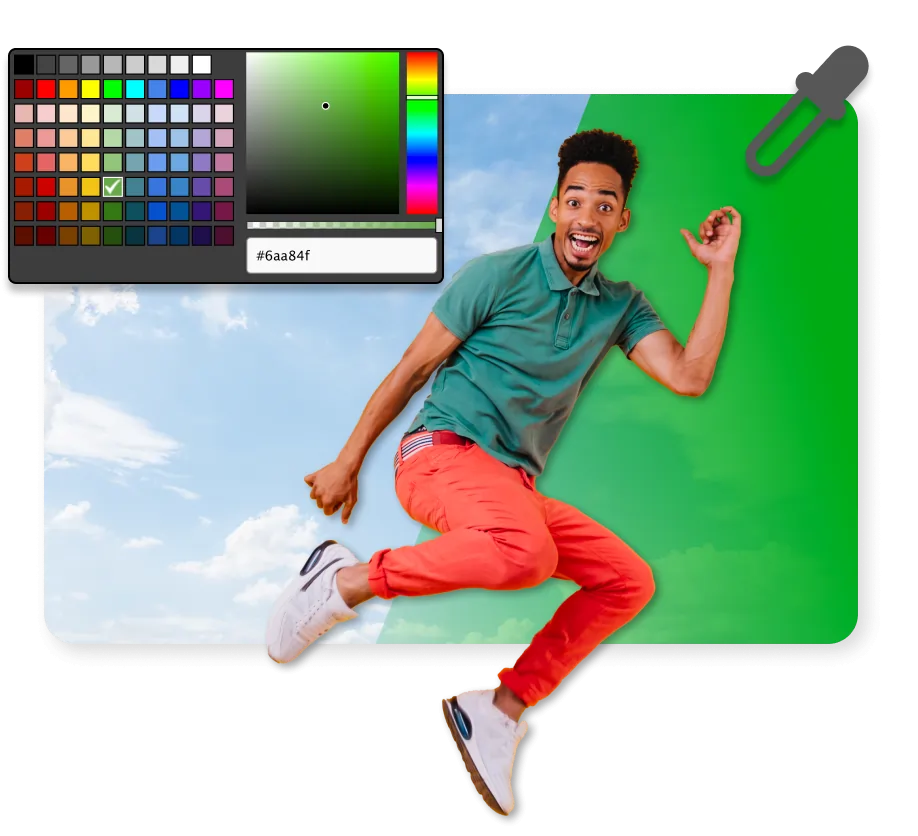
- Content creation: screen recorder, meme maker, green screen
- Library of over 1 million royalty‑free clips
- Animation tools for dynamic visuals
Pros: Simple interface, large library, cross‑platform support.
Cons: Free plan limited; lower resolution output.
6. Kapwing
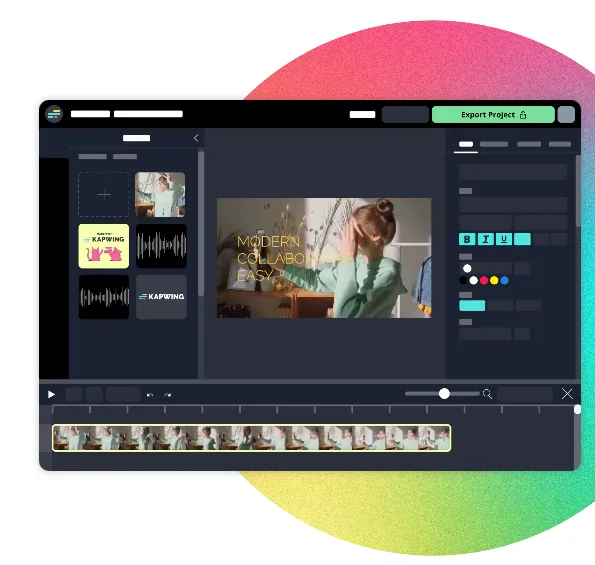
Price: Free unlimited watermarked exports, videos up to 7 minutes, and 720p quality; paid plans start at $16/month for watermark removal, 60‑minute videos, 4K export, and more.
Kapwing’s cloud editor excels at quick edits, GIF creation, and subtitle addition. Its non‑linear timeline allows flexible rearrangement, while the automated subtitle generator speeds up captioning.
- Non‑linear editing: split, trim, reorder clips
- Text, audio, animation overlay options
- Export to MP4, MOV, AVI, 3GP
- Automatic subtitle generation
Pros: User‑friendly, great for social media, intuitive tools.
Cons: Free version limited by watermark and length; occasional bugs reported.
7. Wave.video
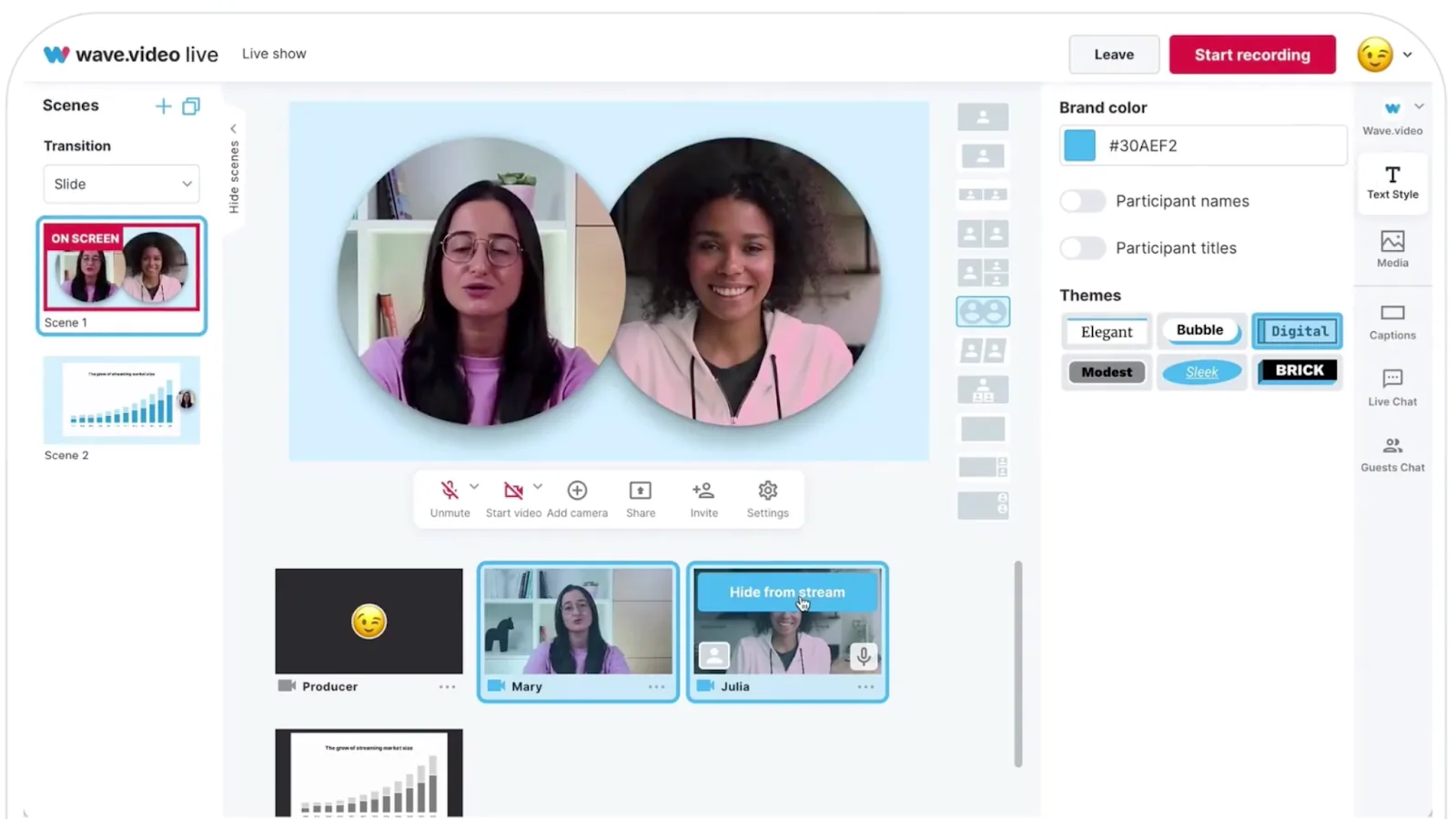
Price: Free 15‑minute watermarked videos; paid plans start at $16/month for live‑streaming and extended features.
Wave.video offers a full‑stack solution: edit, host, and stream from a single platform. The cost escalates for longer videos, but the Business plan at $48/month unlocks full‑length uploads.
- Basic editing: crop, trim, resize, merge
- Text, animated text, overlays, graphics
- GIF and meme creation
- Live streaming and hosting capabilities
Pros: Easy to use, extensive stock library.
Cons: Pricing for >15‑minute videos can be high.
Choosing the Best Editor for Your Needs
- Top Editor for YouTubers: Riverside or Adobe Express offer professional quality and scalable features.
- Best Text‑Based Editor: Riverside’s transcript‑driven workflow cuts editing time by up to 3×.
- Best Free, Watermark‑Free Option: Clipchamp provides a robust free tier for budget‑conscious creators.
- All‑in‑One Recorder & Editor: Riverside, Adobe Express, or WeVideo are solid choices.
FAQs
Where can I edit videos online for free?
Popular free editors include Riverside, InVideo, Clipchamp, Adobe Express, Kapwing, and Wave.video. Each offers a free tier with essential features.
Does Google offer a video editor?
Google Photos includes basic trimming, cropping, and color adjustments for mobile devices.
Is Adobe video editing free?
Adobe Express provides a free plan that supports video editing, though advanced features require a subscription.
What do top YouTubers use?
Professional creators typically rely on Adobe Premiere Pro, Apple Final Cut Pro, or iMovie for full‑feature editing, supplementing with cloud tools for quick cuts.
Ready to transition from browser‑based tools to desktop software? Explore our comprehensive list of the best editing suites for every level and budget.