
Video cropping lets you eliminate unwanted background or adjust your footage to meet the specific layout requirements of any platform. Without the right tool, the process can be tedious and time‑consuming.
Fortunately, the market offers a variety of free and paid solutions—some integrated into full‑featured editors, others designed solely for cropping. The key is to pick the right one for your needs.
Below is our curated list of the best video cropping software for 2026, covering both free and premium options.
What Is Video Cropping?
Video cropping allows you to define the frame size of your footage, selecting which portion of the image you want to keep. Whether you’re aligning your clip with the aspect ratio of a social media platform or zooming in on a subject, cropping helps you present your content exactly how you envision it.
Which Software Can I Use?
There are many tools available—some are web‑based, others require a download. Choosing the right software ensures you preserve quality, save time, and meet your project’s specific requirements.
How to Choose a Video Cropper
When evaluating options, consider these factors:
Quality
For high‑definition footage, the cropping tool must maintain visual clarity without pixelation. Look for software that preserves the original resolution.
Functionality
Seek a tool that offers intuitive controls and a range of frame‑size presets. This reduces editing time while giving you flexibility.
Cost
Many programs are free, while others require a subscription or one‑time purchase. Balance your feature needs against your budget.
10 Best Free & Paid Video Cropping Software
Here are the top picks for both free and paid solutions.
5 Best Free Video Cropping Software
Looking for a zero‑cost solution? Try these tools.
1. Online Video Cutter
Price: Free
Compatibility: Web‑based
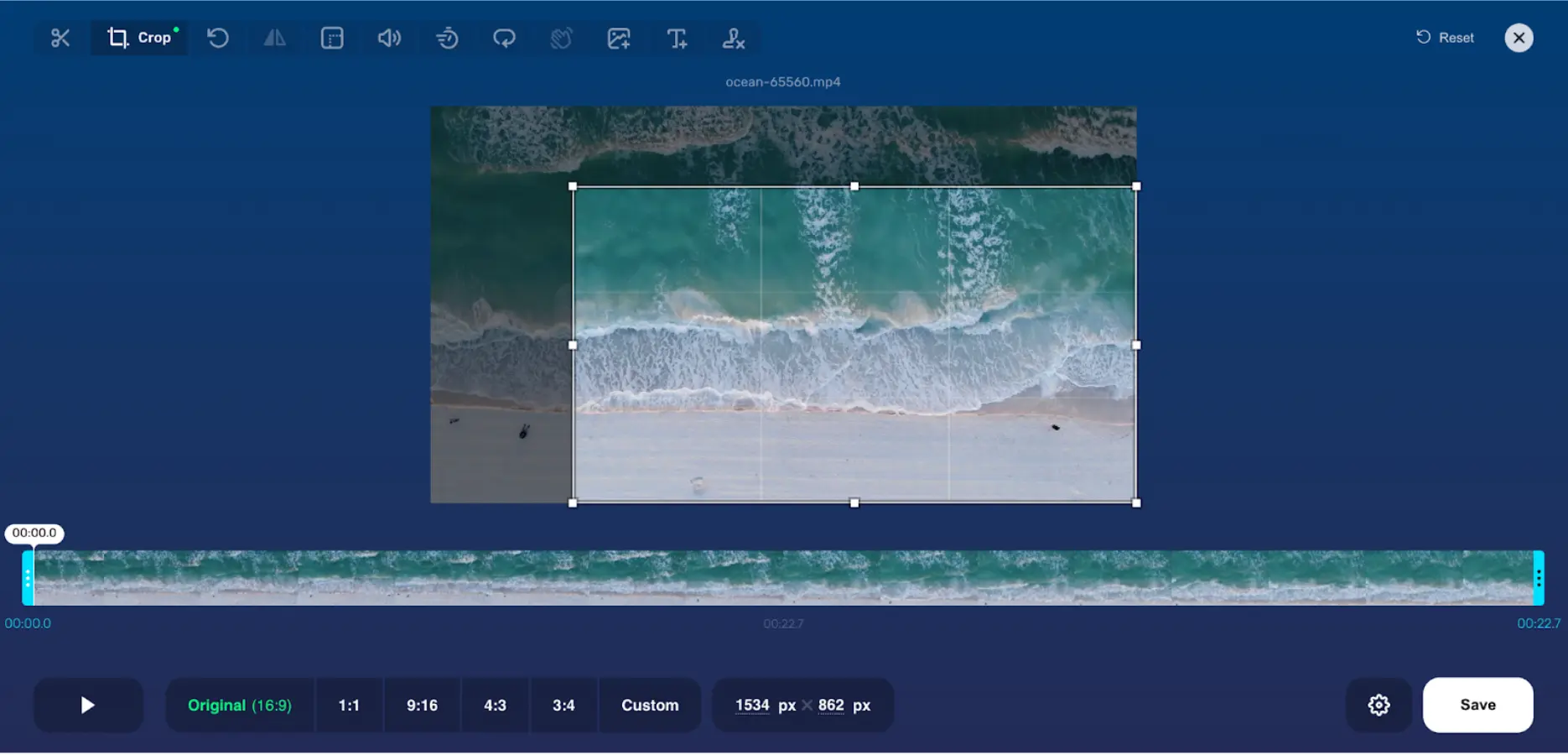
Online Video Cutter offers a straightforward, browser‑only interface. Upload your clip, trim or crop, and download—all without installing anything. The platform also deletes your files automatically after processing, ensuring privacy.
Key Features
- Full web‑based editing—no downloads required
- Both trimming and cropping capabilities
- Automatic file deletion for security
How to Crop with Online Video Cutter
Choose ‘Open File’, select your video, click the crop icon, then drag the bounding box to the desired frame.
2. Free Video Cropper
Price: Free
Compatibility: Windows
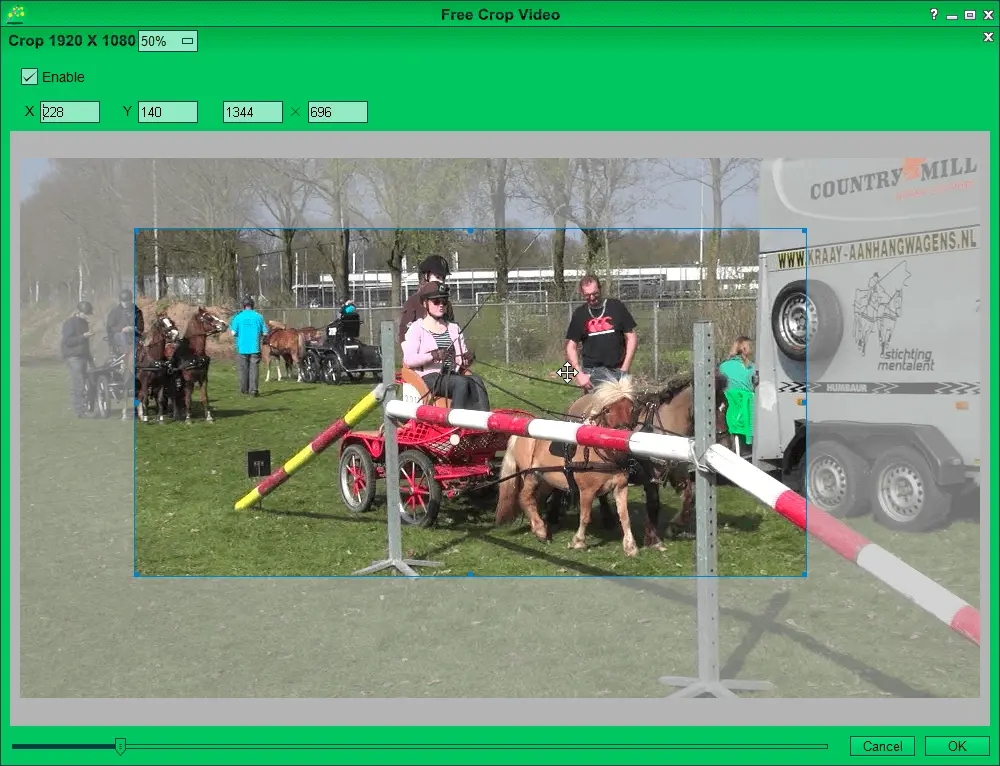
Part of the Easy Video Maker suite, Free Video Cropper supports many formats and offers a simple, distortion‑free cropping experience. Ideal for beginners.
Key Features
- Completely free cropper tool
- Wide format support
- Beginner‑friendly interface
How to Crop with Free Video Cropper
Download and install, open the app, upload your video, then use the cropping tool to specify dimensions before saving.
3. Clideo
Price: Free
Compatibility: Web‑based
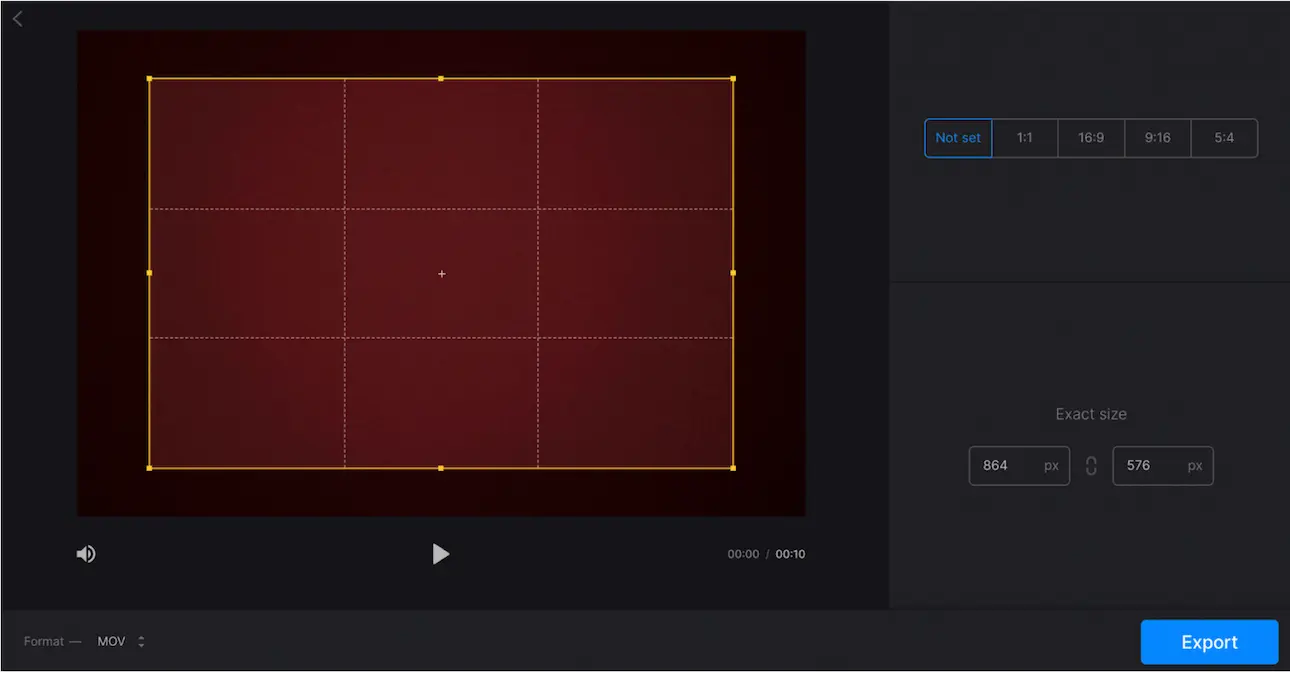
Clideo provides a quick, secure platform for cropping videos with an intuitive interface—great for novices.
Key Features
- Social‑media templates for instant cropping
- Supports all major video formats
- User‑friendly editing controls
How to Crop with Clideo
Upload your file, choose an aspect ratio from the right‑hand panel or drag the frame, then export.
4. Apple Photos
Price: Free
Compatibility: iOS & macOS
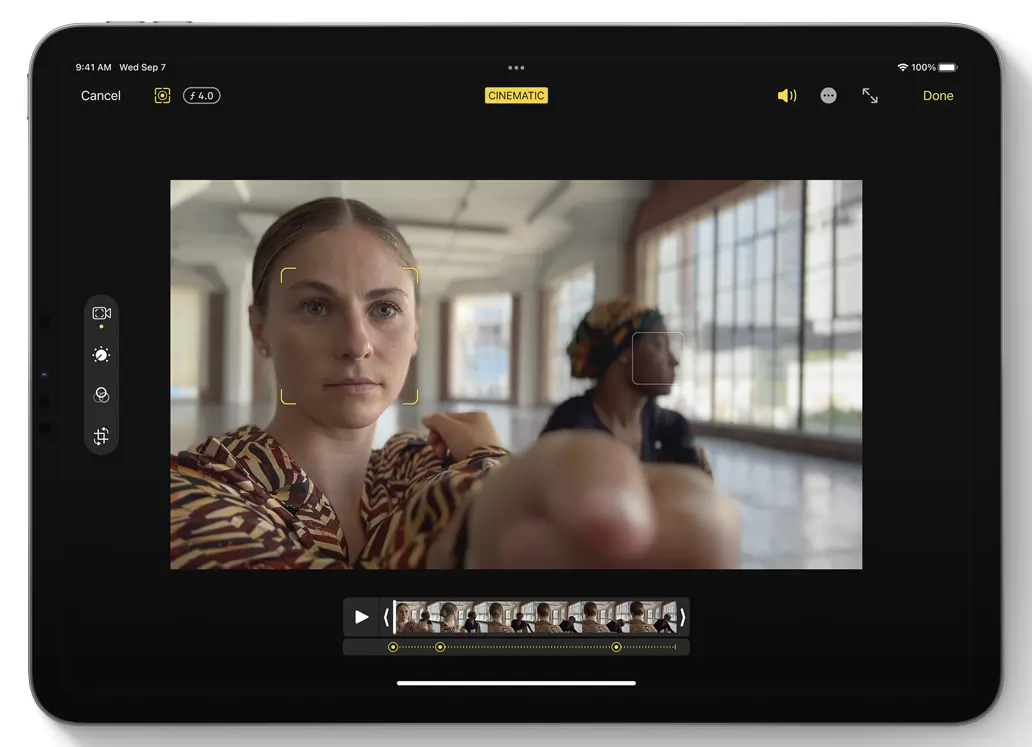
Apple Photos offers native cropping tools that require no additional downloads, making it a convenient choice for Apple users.
Key Features
- Built‑in cropping and basic edits
- Click‑and‑drag interface suitable for beginners
- Consistent across iOS and macOS
How to Crop with Apple Photos
Open the video, tap Edit, then select the crop icon and adjust the frame.
5. Google Photos
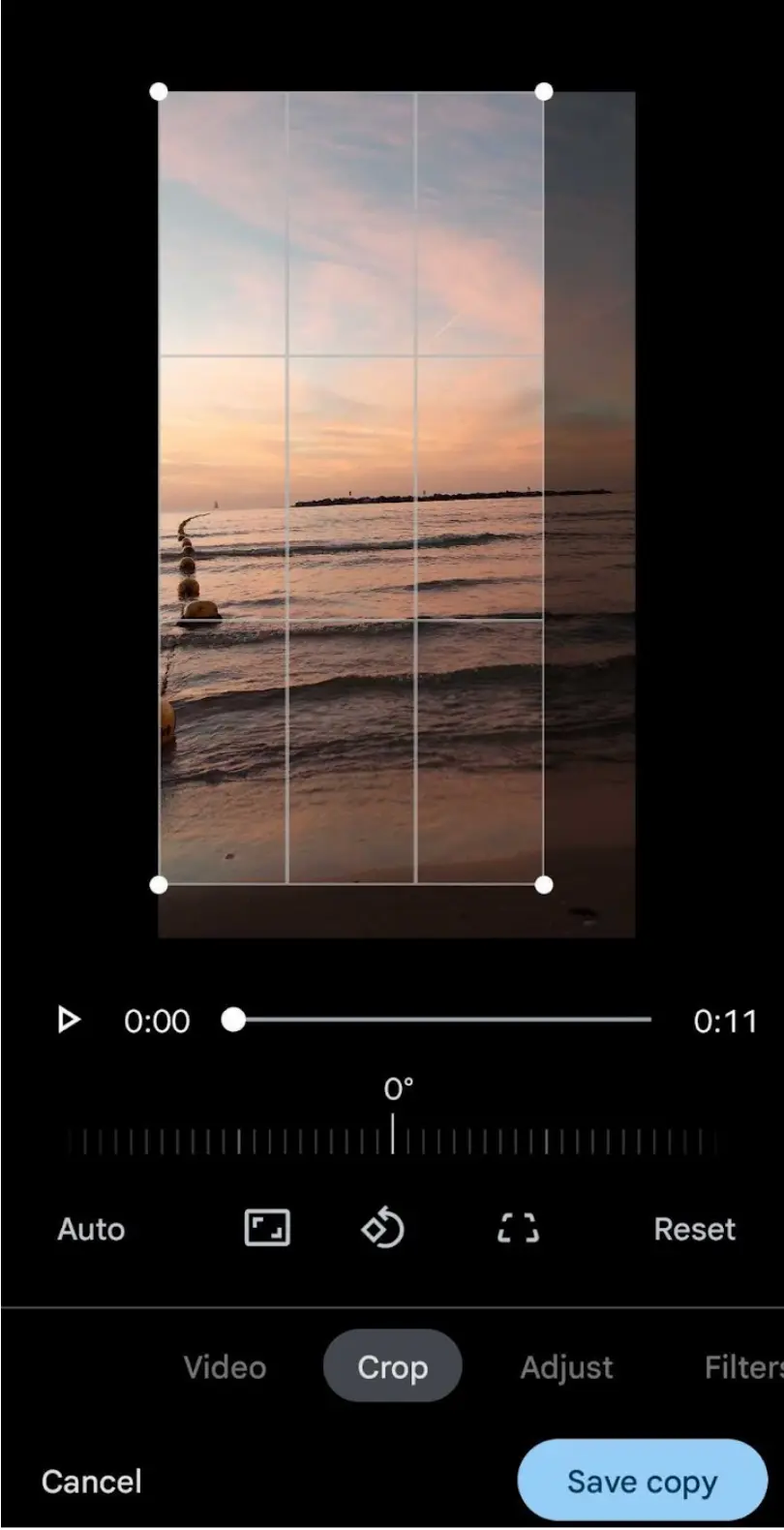
Price: Free
Compatibility: Android
Google Photos provides a straightforward, mobile‑friendly cropping experience with cloud backup.
Key Features
- Native, no‑download editing tools
- Cloud storage integration
- Simple, intuitive interface
How to Crop with Google Photos
Open the video, tap Edit, choose the Crop tab, then drag the frame to set the desired dimensions.
5 Best Paid Video Cropping Software
For those willing to invest in premium quality, these paid options deliver advanced features and superior output.
1. Riverside
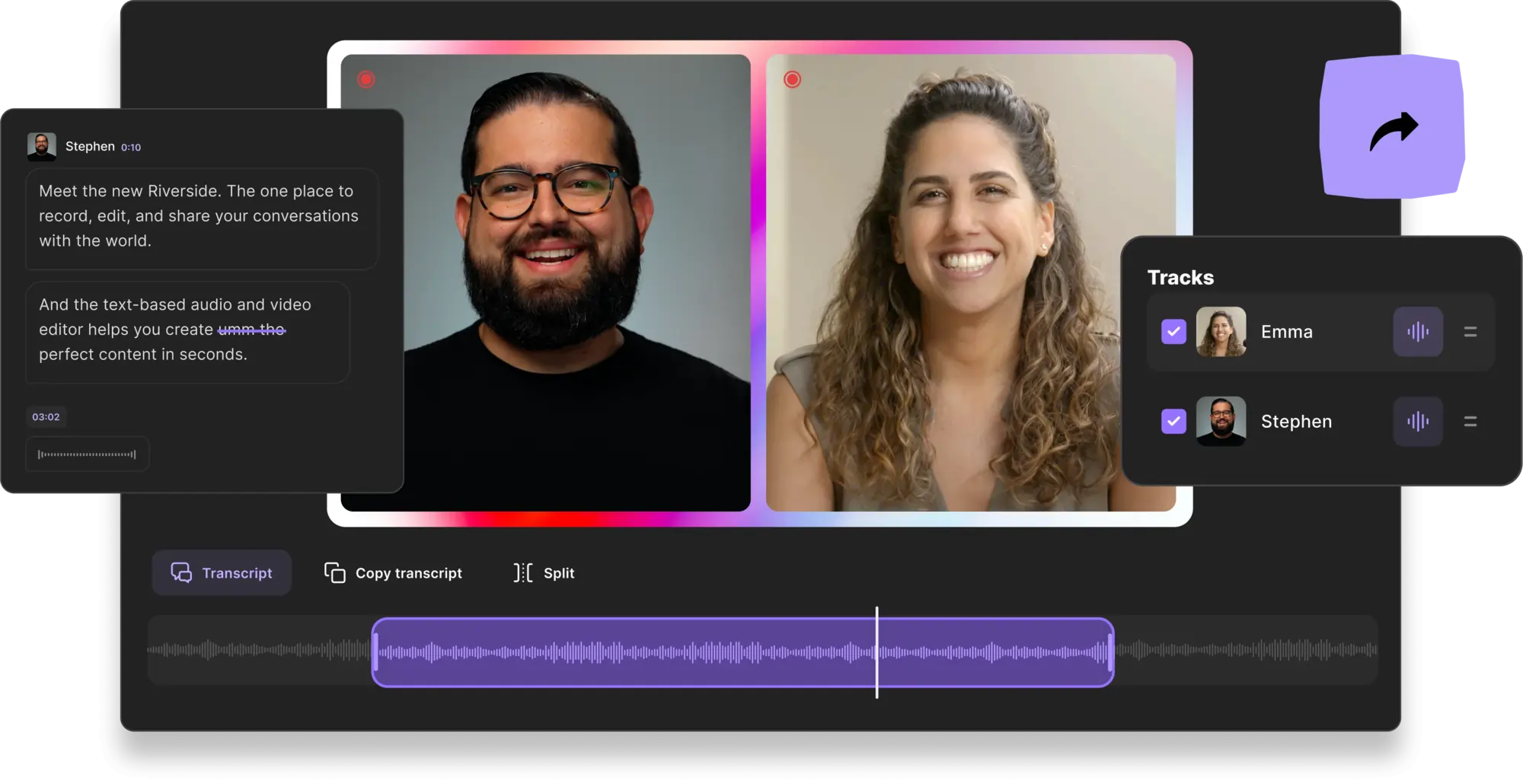
Price: Free plan to $24/month
Compatibility: Web‑based
Riverside is an all‑in‑one platform that captures up to 4K video and offers a simple, text‑based editor powered by AI transcriptions. Cropping is integrated with customizable layouts that match common social‑media dimensions.
Key Features
- 4K recording with 48kHz audio
- Social‑media aspect‑ratio templates
- Text‑based editing via AI transcriptions
- Automated layout, background, and branding tools
- Magic Clips for turning long recordings into short, shareable snippets
How to Crop with Riverside
Record, then navigate to the editor and choose an aspect ratio that matches your target platform.
2. Kapwing
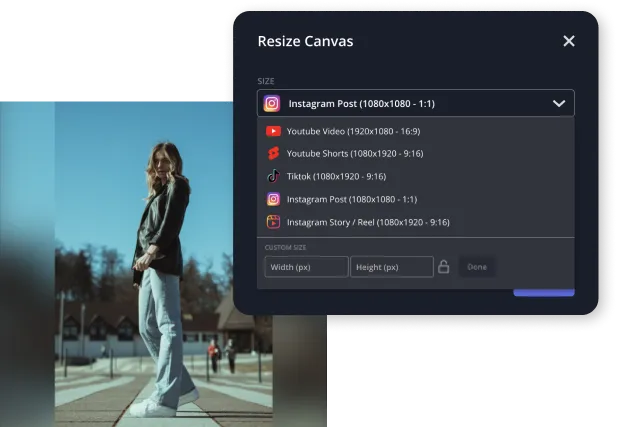
Price: Free to $16/month
Compatibility: Web‑based
Kapwing offers a clean interface with custom and preset aspect ratios. Exporting maintains the highest visual quality.
Key Features
- User‑friendly editing interface
- Custom and preset aspect ratios
- Integration with other editing tools
How to Crop with Kapwing
Upload a video, use the right‑hand panel to select an aspect ratio or drag the frame, then export.
3. Moviemator
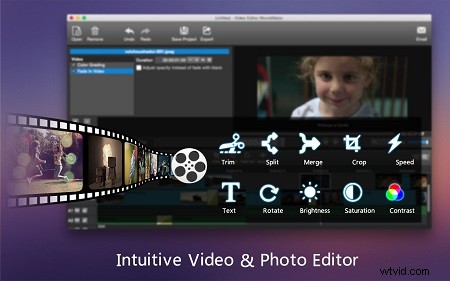
Price: $29.99
Compatibility: macOS & Windows
Moviemator delivers advanced editing tools and extensive format support, giving users full control over frame adjustments.
Key Features
- Advanced editing suite
- Intuitive frame adjustment
- Wide format and platform compatibility
How to Crop with Moviemator
Install, upload your clip, select cropping, set your desired aspect ratio, then export.
4. Zippo Apps Video Editor
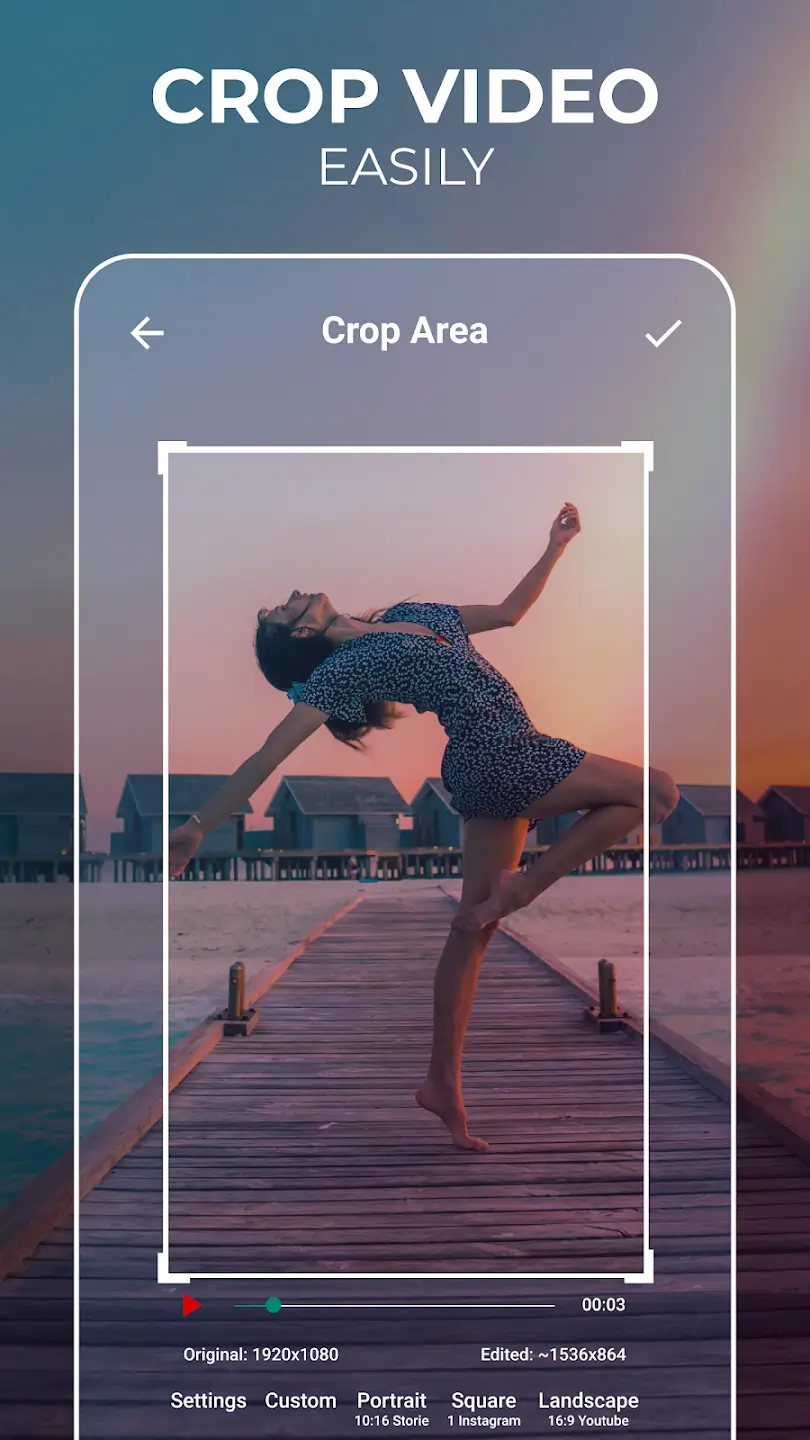
Price: Free to $149.99
Compatibility: Android
This Android app offers professional results with both preset and custom size options, plus a suite of other editing tools.
Key Features
- Intuitive editing workflow
- Preset templates and custom frames
- Easy export to social media
How to Crop with Zippo Apps
Install, open the app, upload your video, then use the cropping menu to apply a preset or custom size before exporting.
5. Filmora
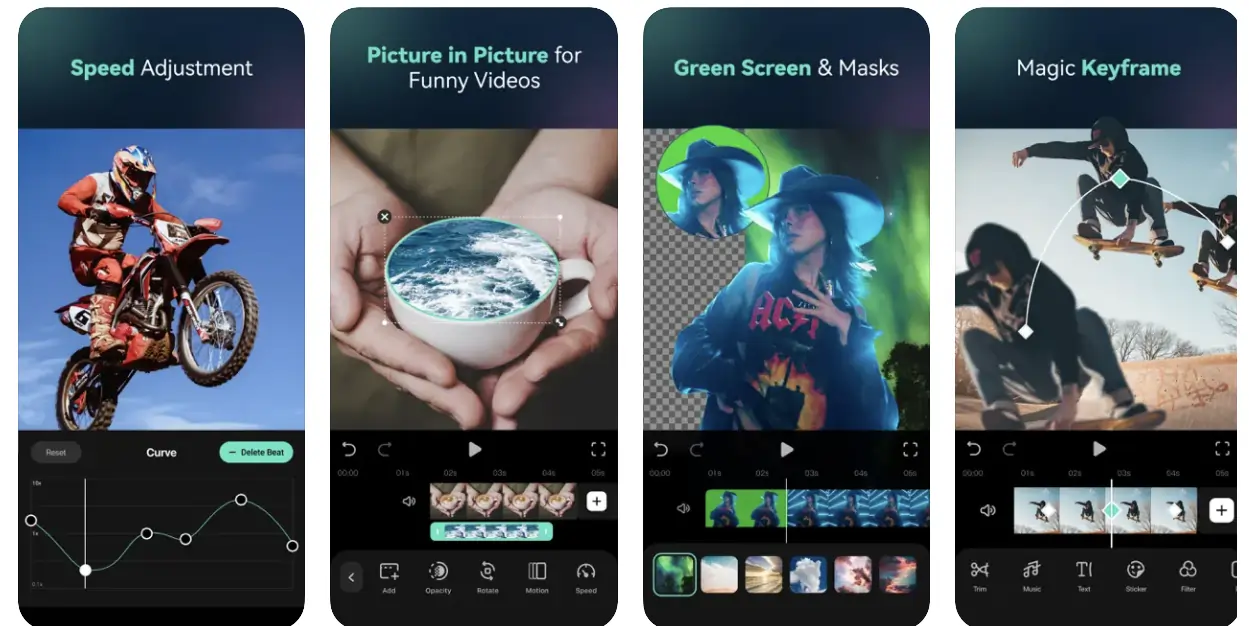
Price: Free to $69.99
Compatibility: iOS
Filmora is celebrated for its ease of use and robust editing controls, including precise frame‑size adjustments.
Key Features
- Comprehensive editing toolbox
- Simple, intuitive interface
- Supports multiple formats and publishing options
How to Crop with Filmora
Download the app, upload your video, select the crop tool, input the desired dimensions, then save and export.
Choosing the Right Video Cropper
The best tool depends on your workflow. If you need an all‑in‑one recording and editing solution, Riverside is our top recommendation. For Mac users, Riverside’s web platform or free options like Clideo work well. Windows users can rely on Free Video Cropper for basic needs, while professionals may prefer Moviemator or Filmora for deeper control.
Best Free Croppers Without Watermarks
Google Photos and Apple Photos deliver watermark‑free edits, making them ideal for users who want a clean final product without additional costs.
Best Mobile Cropping Apps
Apple Photos serves iOS devices, whereas Android users benefit from Google Photos or the paid Zippo Apps for advanced features.
How to Seamlessly Crop Videos with Riverside
Riverside combines high‑quality recording with a powerful editor that lets you crop automatically or manually. Follow these steps:
Step 1: Log into Riverside and open your project from the studio dashboard.
Step 2: Click Go to Editor at the top right.
Step 3: Choose an aspect ratio—9:16 for stories, 1:1 for social posts, or 16:9 for full‑length content.
Step 4: Use the text‑based editor to trim or create shareable clips, adjust background, and auto‑fine‑tune audio.
Step 5: Click Export to download or share your finished video.
Frequently Asked Questions
How Can I Crop a Video on My Computer for Free?
Select a free tool from our list that matches your operating system, then follow the provided instructions.
How Do I Selectively Crop a Video?
Tools with click‑and‑drag cropping allow you to choose custom frames, offering more flexibility than preset ratios.
Can I Crop Videos in Windows Media Player?
Yes—open the file, navigate to the Edit menu, and use the Crop tab to set your desired aspect ratio.
Ready to elevate your video content? Try Riverside today.