
Adjusting Video Aspect Ratios Made Simple
Mastering the correct aspect ratio is essential for delivering a polished viewing experience across platforms. This guide walks you through the fundamentals of aspect ratios and offers step‑by‑step instructions for top Windows and Mac editors.
Why Aspect Ratio Matters
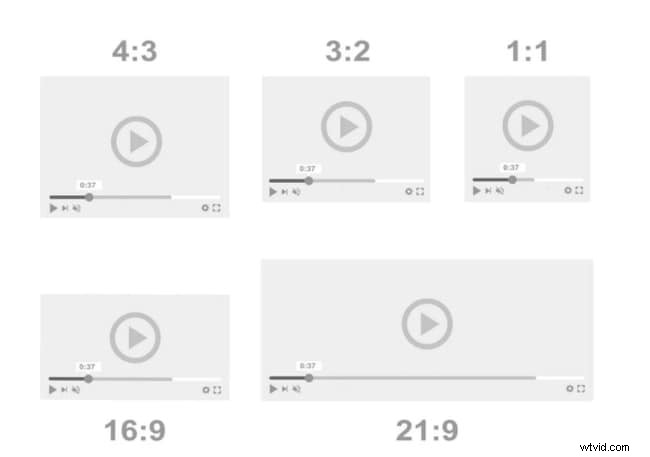
Aspect ratio defines the proportional relationship between a video’s width and height. Using the wrong ratio can result in unwanted black bars, cropping, or distortion—issues that detract from viewer engagement and may even affect brand perception.
With social media, streaming services, and various devices each favoring different ratios, adapting your footage becomes a frequent necessity.
Common Aspect Ratios and Their Ideal Platforms
- 16:9 – Standard widescreen; default for most video players and monitors. Recommended resolution: 3840×2160 (4K).
- 1:1 – Square; ideal for Instagram and Facebook feeds.
- 9:16 – Vertical; perfect for Stories, Snapchat, and Instagram Reels.
- 21:9 – Cinematic widescreen; used in specialty theaters and high‑end presentations.
- 5:4 – Landscape; suitable for Facebook and Twitter landscape posts.
- 4:5 – Portrait; works well for Twitter and Facebook portrait uploads.
- Facebook Cover Video – 21:9 is the recommended ratio.
Aspect Ratio vs. Resolution
While the aspect ratio describes width-to-height proportions, resolution specifies the total pixel count. A higher resolution delivers sharper detail but does not automatically correct an incorrect aspect ratio. Adjusting both elements together ensures optimal quality and compatibility.
Top 5 Tools to Change Video Aspect Ratio on Windows and Mac
1. VideoProc Converter
VideoProc is a versatile, cross‑platform editor that offers lossless ratio adjustments, cropping, and extensive format support.
- Download, install, and open the program.
- Add your video via the + Video button and select the desired output format.
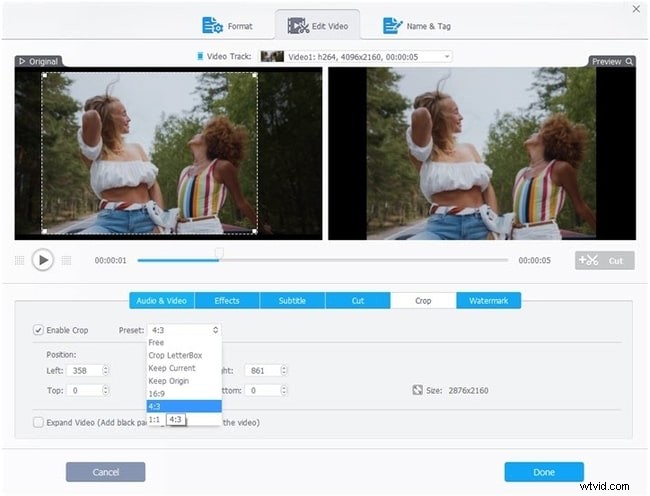
- Adjust the ratio by resizing (change resolution in the Codec section) or by using the Crop toolbar.
- Choose an output folder and click RUN to process.
2. AnyMP4 Video Converter Ultimate
This tool supports a wide range of formats and offers both preset and manual ratio adjustments.
- Open the app and add files with +Add Files.
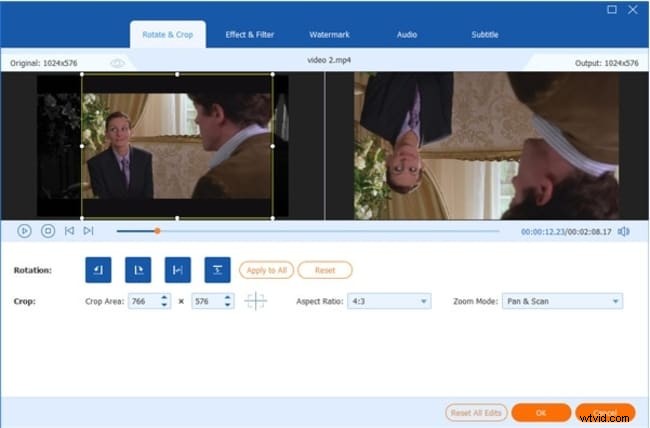
- Click the Edit icon, navigate to Crop, and select the ratio from the dropdown. Manual resizing is also possible.
- Set the output folder, format, and click Convert All to begin.
3. MediaCoder
A long‑standing transcoder that lets you tweak video properties, including aspect ratio, with a focus on efficiency.
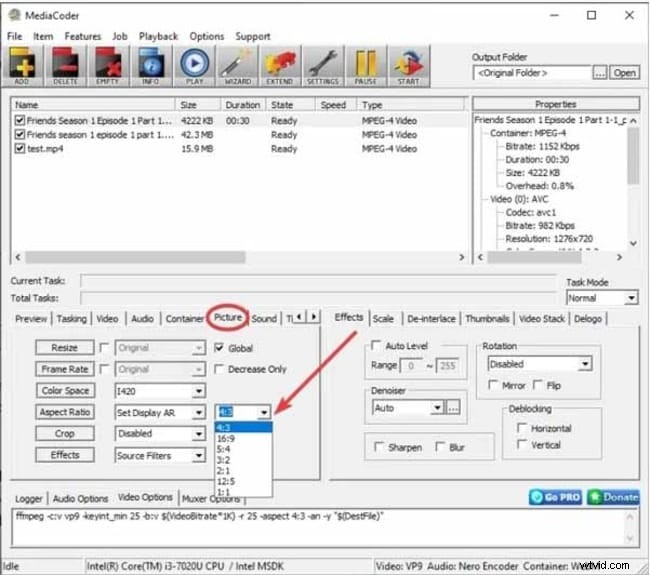
- Launch the program and add a file via the File tab.
- Navigate to the Picture tab at the bottom.
- Select the desired ratio from the Aspect Ratio menu.
- Choose the destination folder and start the conversion.
4. iMovie (Mac Only)
Apple’s native editor provides a straightforward way to adjust ratios without third‑party software.
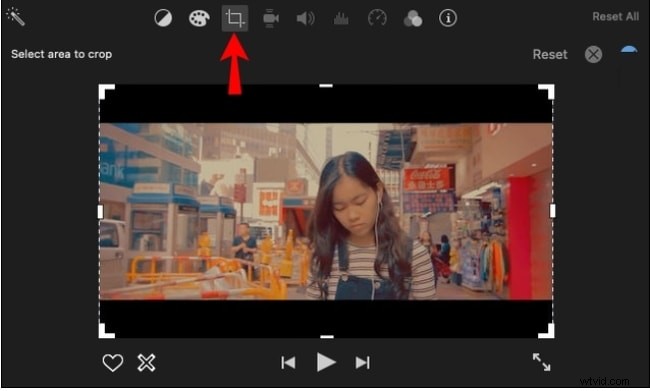
- Open iMovie and click Create New → Movie.
- Import your footage with Import Media and select the Crop tool.
- Drag the crop handles to achieve the desired ratio and confirm with the checkmark.
- Export via Share and choose the target location.
5. Wondershare Filmora
Filmora offers multiple methods to set the aspect ratio—directly at project start, during editing, or upon export.
Starting with the interface:
- Open Filmora and choose the desired ratio (16:9, 4:3, 1:1, 9:16) on the launch screen.
- Create a new project and add your video.
- Proceed with editing; the project’s ratio remains consistent.
- Export and save the final file.

Additional Filmora Features
Beyond the initial setting, you can also adjust the ratio within Project Settings, Editing, or Export stages. For auto‑reframing, Filmora’s AI tools automatically adjust framing for different social platforms.
These steps apply to MP4 and most common video formats.