
Thanks to Instagram, we can share moments and memories with the world, and Story Highlights offer a unique way to extend the life of our favorite content.
Story Highlights allow you to put your favorite stories in a group, ensuring your followers can view them beyond those usual 24 hours that regular stories last.
Whether you're promoting your business or new products, or you're an influencer sharing adventures, this feature is a powerful new way to let your audience watch everything.
Today, we'll discuss how to create Instagram Story Highlights and introduce you to this fantastic tool to make even more engaging and fun content.
In this article
-
- Tap the New Highlight Button
- Select the Stories for Your Highlight
- Name Your Highlight and Edit Your Highlight Cover
- Review Your Highlight
-
- Method 1: Use the Auto Highlight Feature
- Method 2: Use the Advanced Smart Scene Cut Feature
How to Set Story Highlights using the Instagram Platform
Creating Story Highlights directly in the Instagram app is very simple and allows you to make and organize your content exactly how you want. Here's a guide with steps so you can start right away.
It's important to know that you need at least one story posted to your profile before you create a highlight. After you post your story, just navigate to your Instagram profile by tapping your profile picture or username at the corner of the screen. That will take you to your profile page.
1. Tap the New Highlight Button

On your profile page, there's a circle near your profile picture with the word New under it. Simply tap this circle to create your highlight.
It gives you the chance to review your stories and pick which ones you want to become highlights.
2. Select the Stories for Your Highlight
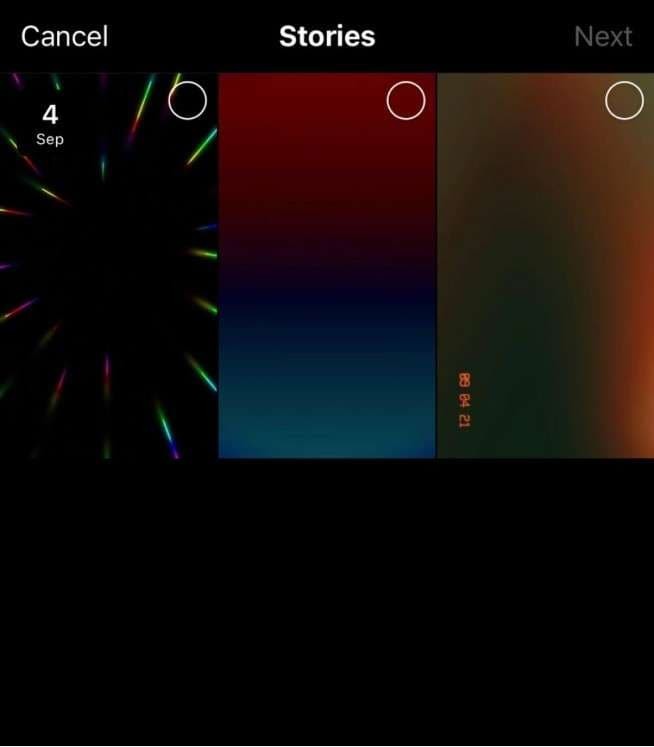
Scroll through your past stories and select the ones you want to add to the highlight. Once you've selected what you need, just tap Next in the right corner of the screen.
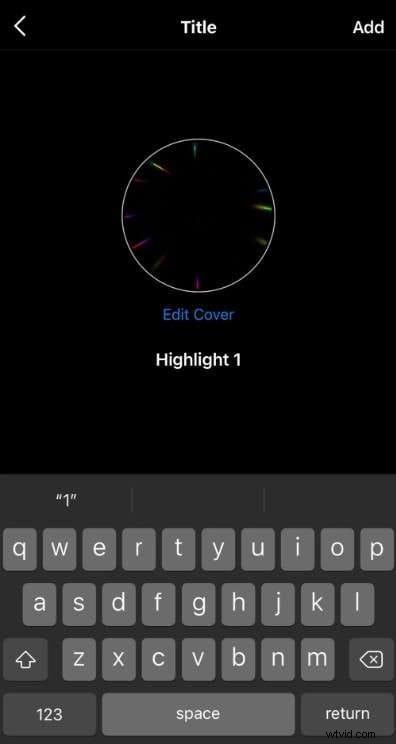
3. Name Your Highlight and Edit Your Highlight Cover
Instagram will let you give your highlight a name. Choose a short and descriptive name that will tell your audience what the highlight is about. After you name it, just tap Add to proceed. But, before you do, you can tap Edit Cover to choose a custom cover photo before clicking Add.
You can select a still image from your highlight or upload a new one that you think is better. The cover will appear as a circle thumbnail on your profile, so it must align with your aesthetic and brand style.
4. Review Your Highlight
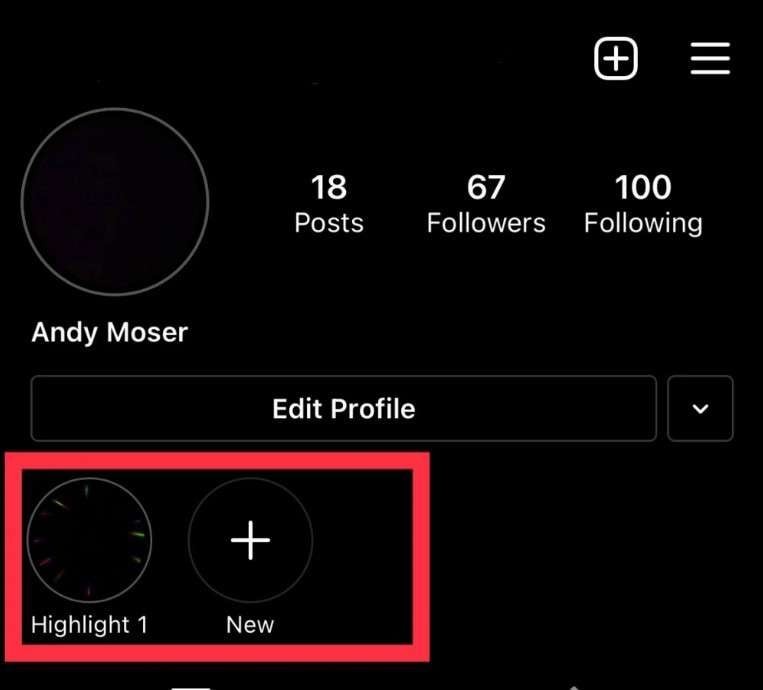
You've named your highlight, picked a cover image, and now it's live! It will appear as a circle on your profile under your bio.
Bonus: How to Create A Highlight Video for Your Instagram Story?
Instagram limits videos to 15 seconds, and creating an Instagram Story from a long video can be challenging. However, there is excellent news because Wondershare's Filmora provides premium tools that will improve your workflow.


Let's check out the two most powerful features this software offers for creating highlight videos.
Method 1: Use the Auto Highlight Feature
Filmora's Auto Highlight feature is a fantastic tool that automatically picks the most exciting moments from your video.
This high-level but easy-to-use tool is great when you want to save time while still making the best footage for YouTube Shorts or TikTok. It's known for its user-friendliness, so just follow the steps below.
- Import the video to the timeline.
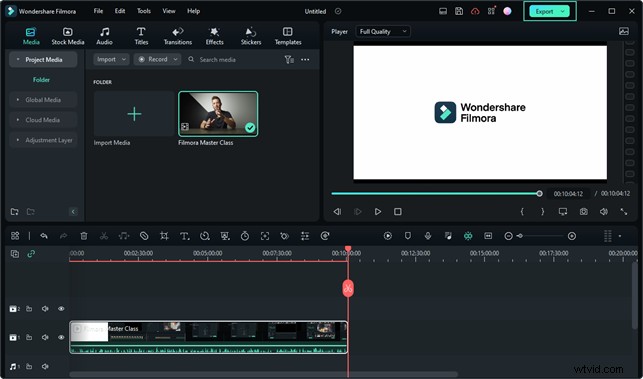
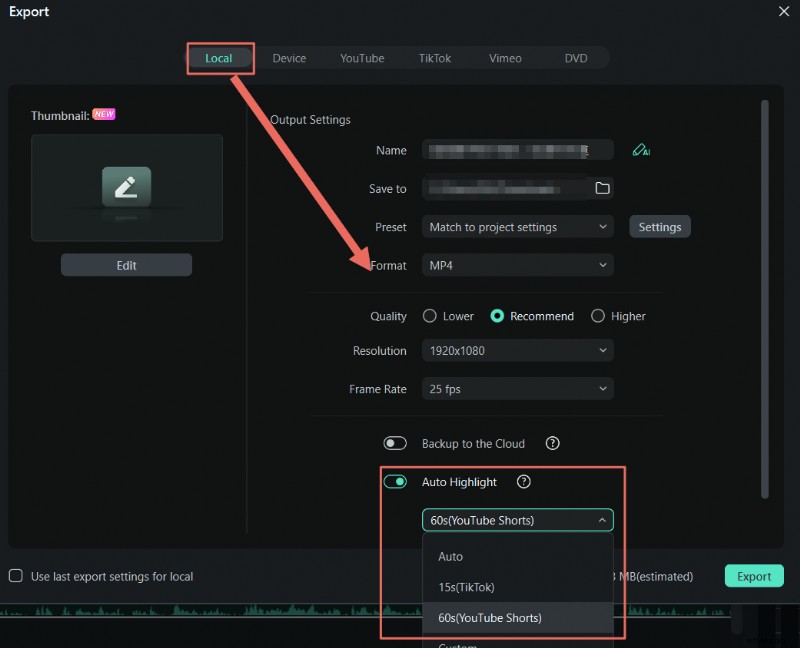
- Enable Auto Highlight. You can simply select what you want to export, whether it's with Auto, 15s Tiktok, or 60s Youtube Shorts option. There's an option to customize the highlight, so explore and have fun.
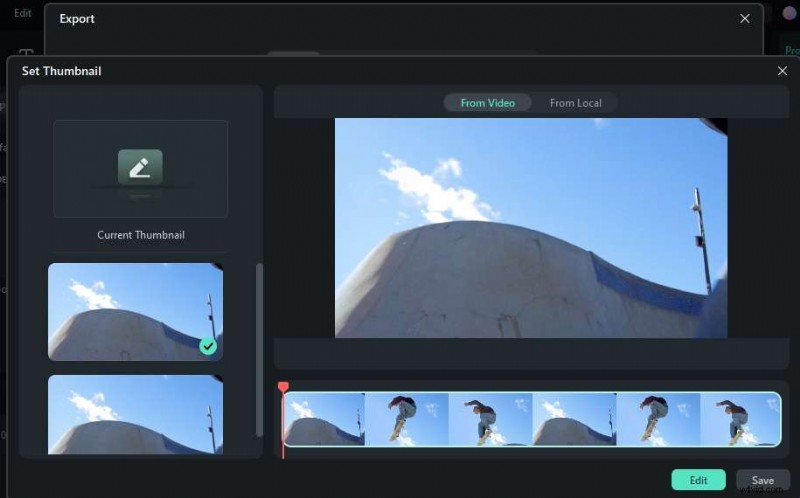
- Click Edit and choose a thumbnail that you think is best.
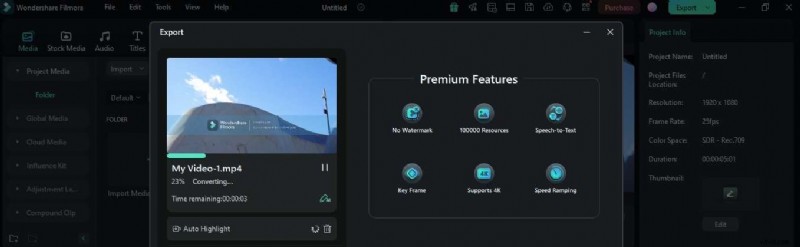
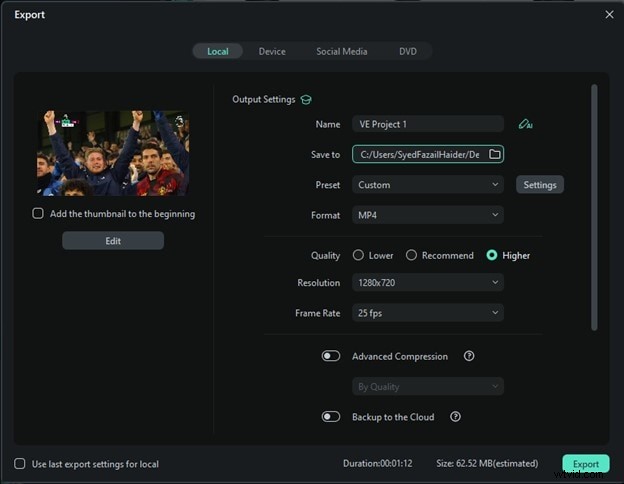
- Once you're happy with the highlight video, Export it in your preferred format and choose where you want to upload it next.
- Upload your highlight video to Instagram as a story and save it as a highlight.
You'll now have a video that's available for your followers to watch anytime they want.
Method 2: Use the Advanced Smart Scene Cut Feature
Smart Scene Cut is a video editing tool that helps you identify and extract the most important parts of your video. It's usually used during the rough cut phase to detect, sort out, and pull out the best moments and scenes from longer videos. Once extracted, you can add them to the main editing timeline and not waste any time.
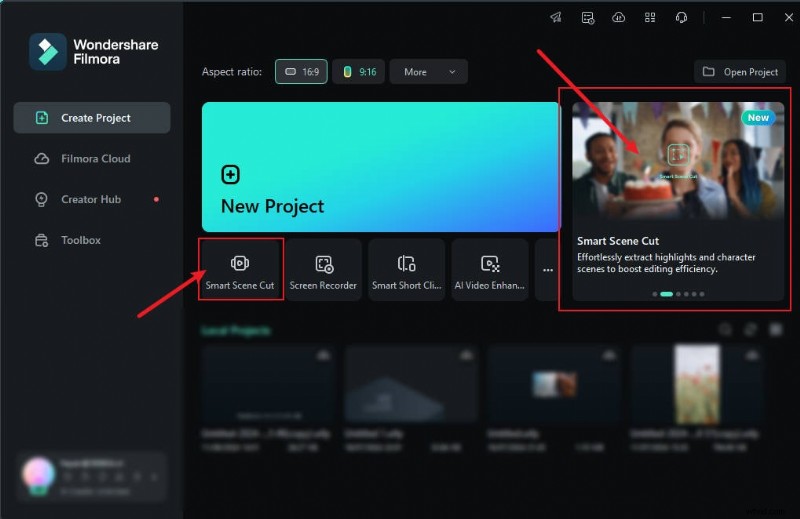
- On the main page, pick the video aspect ratio that matches the footage you want to import.
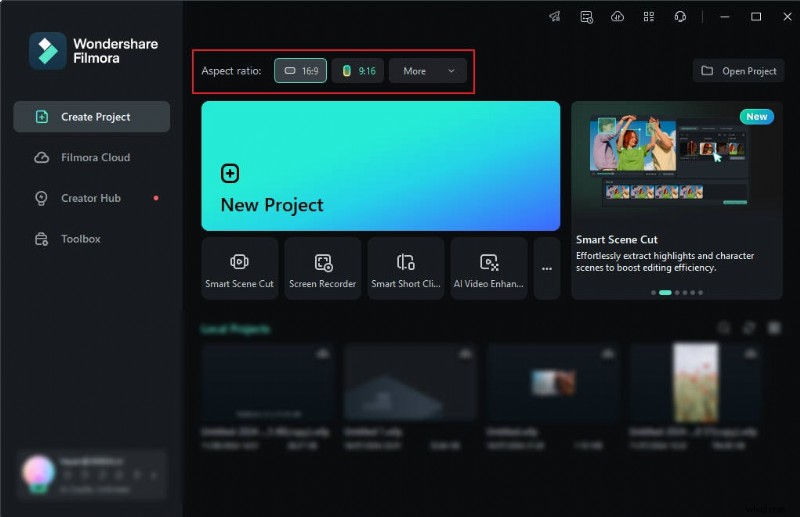
- Click on the two available Smart Scene Cut options from the main page to open the feature directly.
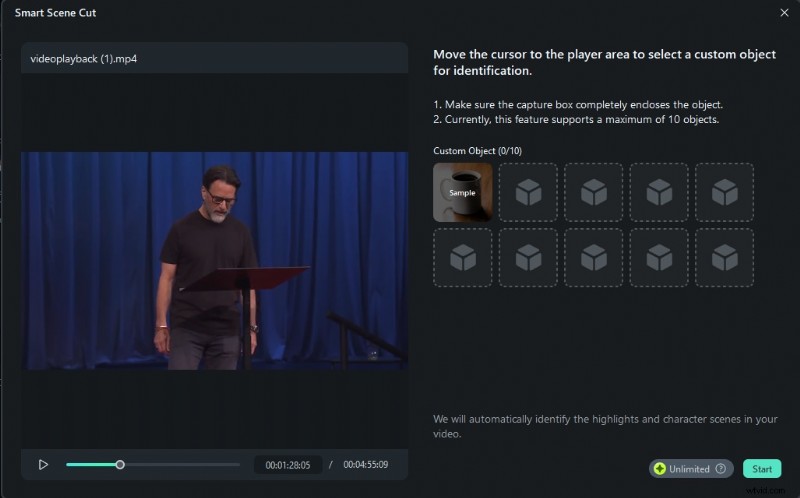
- You can pick up to 10 objects for identification. The tool will automatically extract clips based on your selected objects. When you feel good about it, click Start.
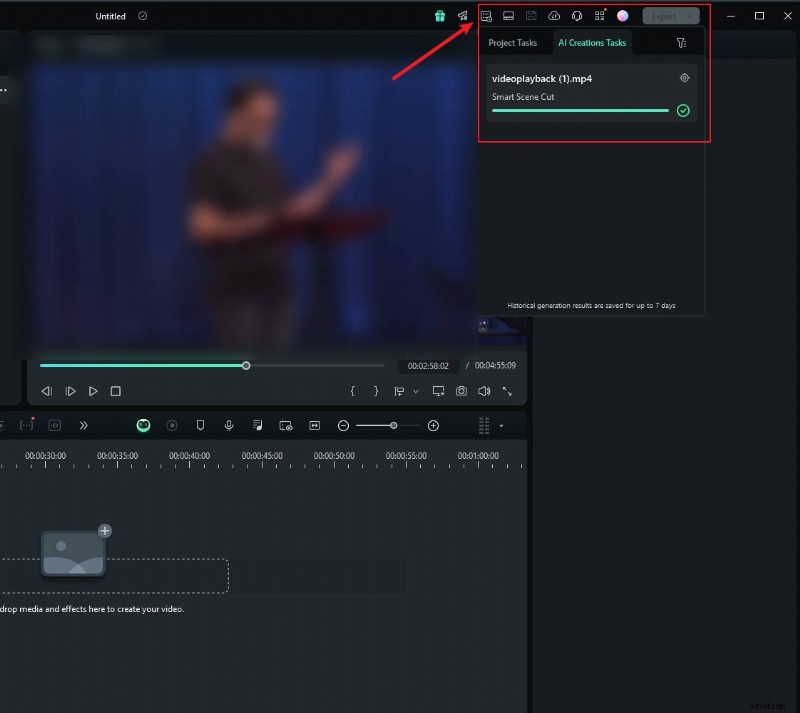
- To view the results, go to the Media Folder, where you'll spot a button in the left corner of the video. Clicking it will show you all of the completed clips. Double-click the video to go to the editing page.
- On the results page, you can choose Highlight Scene, Character Scene, or Custom Object.
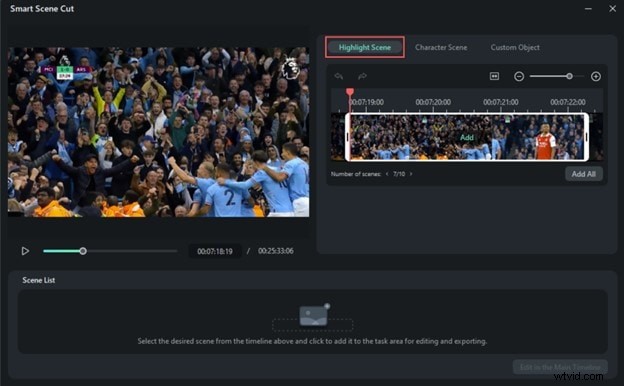
- Once you've selected all your scenes, click Edit in the Main Timeline to edit them even further if you like.
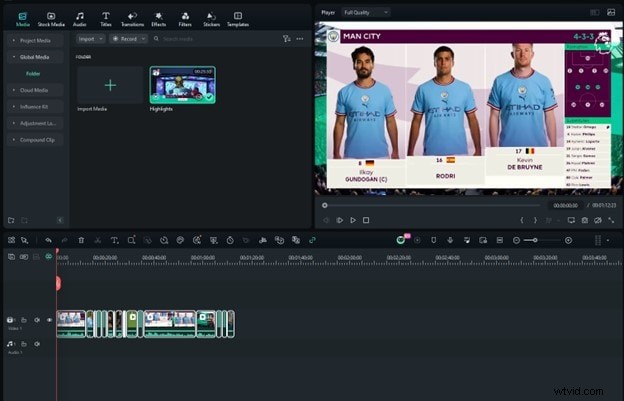
- Choose the export location and format you like, adjust other settings, and click Export.
Conclusion
Instagram Highlights have become an essential feature for preserving and organizing content on Instagram.
You can create highlights that will show your followers every moment you want in just a few easy steps. For those who want to elevate their presence even further, Filmora's Auto Highlight and Smart Scene Cut AI features are high-end tools that will create more dynamic and engaging highlights.
With Instagram Highlights and Filmora's professional editing tools, you can create memorable and modern content that will engage your followers more than ever, skyrocketing your online presence.