
Introduction
Pixel aspect ratio (PAR) is the hidden factor that determines how an image or video appears on any screen. Whether you’re editing photos, producing videos, or designing a responsive website, understanding PAR can save you time, avoid distortion, and ensure consistent quality across devices.
What Is Pixel Aspect Ratio?
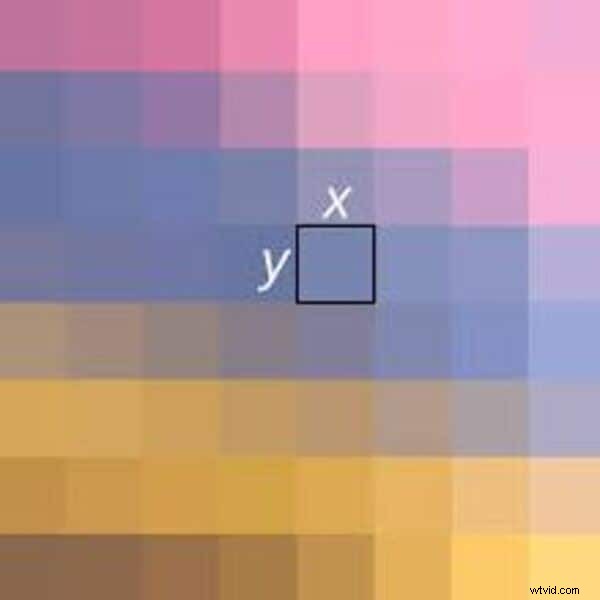
Every digital image is made of tiny units called pixels. PAR describes the relative width and height of each pixel. A 1:1 ratio means pixels are perfect squares; a 2:1 ratio means the pixel is twice as wide as it is tall.
Note: PAR does not dictate the actual physical size of a pixel—only its shape. In practice, a 1:1 PAR guarantees that the image will stay square regardless of the resolution or the device it’s displayed on.
How to Calculate Pixel Ratios
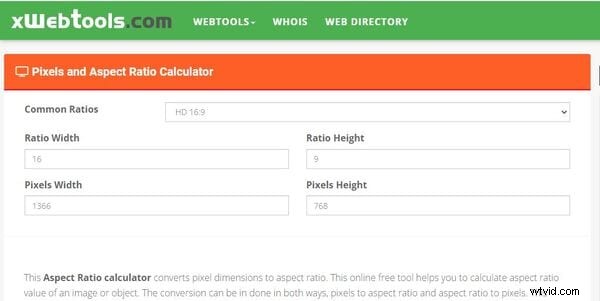
Online tools make the calculation straightforward. For example, the Pixel Ratio Calculator allows you to enter either the pixel dimensions or the desired aspect ratio, and it returns the complementary value.
The calculator’s interface includes tabs for Common Ratios, Ratio Width, Ratio Height, Pixels Width, and Pixels Height. Input the known values, and the tool automatically computes the unknowns.
Pixel Ratio in Adobe Premiere Pro and Wondershare Filmora
Adobe Premiere Pro
Premiere Pro lets you set both the frame aspect ratio (e.g., 16:9 or 4:3) and the pixel aspect ratio when you create a project. Once set, the PAR is fixed for that project, though you can change the sequence’s aspect ratio during editing. The software automatically corrects for the source file’s PAR, but if a clip looks stretched, you can manually override the setting.
Wondershare Filmora
Filmora offers a more flexible workflow. You can adjust the aspect ratio at any stage—initial launch, project settings, auto‑reframe, editing, or export. It supports standard ratios like 16:9, 9:16, 4:3, 1:1, and 21:9.
Filmora’s intuitive interface makes it ideal for quick conversions. After setting the ratio, you can export directly to platforms such as YouTube, Apple TV, Vimeo, or mobile devices.
How to change aspect ratio in Filmora:
- At launch: choose from the dropdown.
- Under Project Settings: adjust the width and height.
- Using Auto‑Reframe: automatically fit the frame to the desired ratio.
- During editing: modify each clip’s settings.
- During export: select the target aspect ratio.

Pixel, Display, and Storage Aspect Ratios Explained
- Pixel Aspect Ratio (PAR) – Defines pixel shape; usually 1:1, but can be 4:3 for legacy formats.
- Display Aspect Ratio (DAR) – How an image appears on a specific device (e.g., 16:9 for widescreen TVs).
- Storage Aspect Ratio (SAR) – Encoded video’s width/height relationship; used to keep frames consistent across playback.
The relationship is: SAR × PAR = DAR, ensuring the final display matches the intended proportions.
Impact on UI/UX Design
Aspect ratios influence every visual element on a website or app. A 1:1 image forced into a rectangular box can appear stretched, breaking the design harmony and frustrating users. Designers must adjust proportions or use responsive techniques to maintain quality across devices.
Even subtle mismatches can degrade user experience, reduce engagement, and create negative impressions. Accurate PAR calculations, coupled with tools like the pixel ratio calculator, help designers deliver crisp, properly scaled visuals.
Key Takeaways
- Pixels are the building blocks of digital images; PAR defines their shape.
- Online calculators convert between pixel dimensions and aspect ratios effortlessly.
- Both Adobe Premiere Pro and Filmora support flexible PAR settings for professional editing.
- Understanding PAR, DAR, and SAR ensures consistent visual quality across media.
- Proper aspect ratio management is essential for effective UI/UX and responsive design.