
Do you ever feel that your videos run longer than necessary, causing viewers to lose interest before the key message lands? The solution lies in strategic trimming—cutting to the essential scenes that keep your audience engaged.
In this article we’ll cover the science behind ideal video length, show you how to use Wondershare Filmora to trim with precision, and explain common pitfalls of overly long videos.
In this article
- Video Length Requirements: How Long Should Your Videos Be?
- Cut Your Video Length with Ease: Wondershare Filmora!
- Common Problems with Long Videos and How to Avoid Them
Part 1: Video Length Requirements – How Long Should Your Videos Be?
Retention starts with duration. Recent research shows the average human attention span for video content is about 47 seconds. Audiences expect a hook within the first few seconds, or they’ll move on.
Here are platform‑specific benchmarks for engaging video length:
- Facebook: 2–15 minutes
- Instagram: 1 minute or less for in‑feed videos, 2–6 minutes for IGTV, 1–10 slides for Stories
- Twitter: 45 seconds
- YouTube: 10 minutes
- LinkedIn: 30 seconds
- Pinterest: up to 30 minutes
- Snapchat: 3–10 seconds for video ads
Use these guidelines to decide where to trim, ensuring your content stays within the sweet spot for each platform.
Part 2: Cut Your Video Length with Ease – Wondershare Filmora!
Wondershare Filmora is a versatile editor praised for its intuitive interface and powerful features, making it suitable for both beginners and seasoned editors.
Key Features
- Trim & Split: Smoothly cut frames and combine clips with a single click.
- Scene Detection: Auto‑separates video into segments by detecting shot transitions.
- Auto‑Beat Sync: Aligns multiple clips to a rhythmic beat for dynamic edits.
- Compound Clip Editing: Edit several videos simultaneously within one project.
- Effects & Transitions: Professional‑looking overlays and transitions to enhance visual appeal.
Pros & Cons
- Pros: User‑friendly interface, fast rendering, extensive library of effects.
- Cons: Advanced features limited in the free version.
Step‑by‑Step Guide to Trimming with Filmora
Step 1: Install & Launch Filmora
Open the program and click “Import” to add your media files.

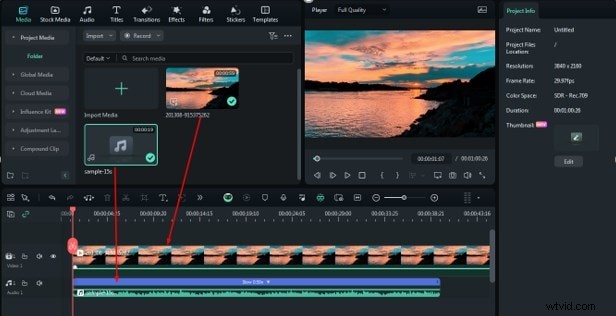
Step 2: Add Media to the Timeline
Drag your video and audio files directly onto the timeline.
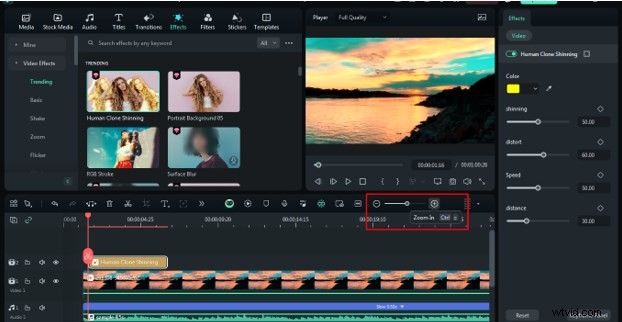
Step 3: Zoom In & Out
Use the timeline zoom controls to get a detailed view of your footage.
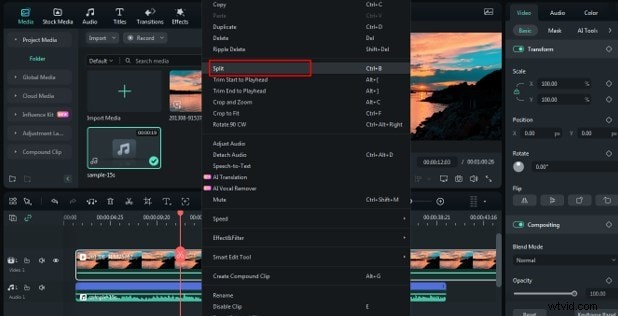
Step 4: Trim the Video
Right‑click the clip, select “Split,” and adjust the start and end points to isolate the desired segment.
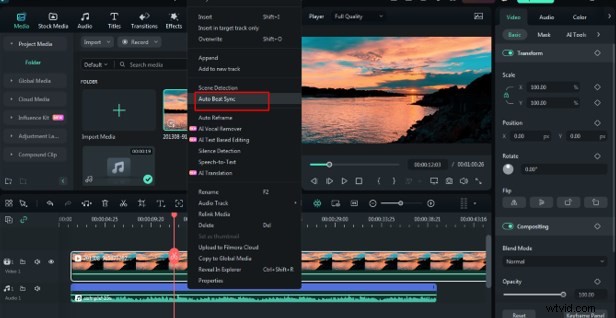
Step 5: Auto‑Beat Sync
Right‑click a track, choose “Auto‑Beat Sync,” and tweak the settings in the pop‑up panel.
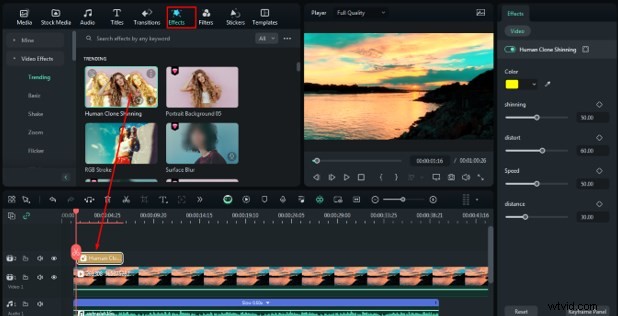
Step 6: Add Effects & Transitions
Drag any effect or transition from the library onto your clip or upload custom assets.
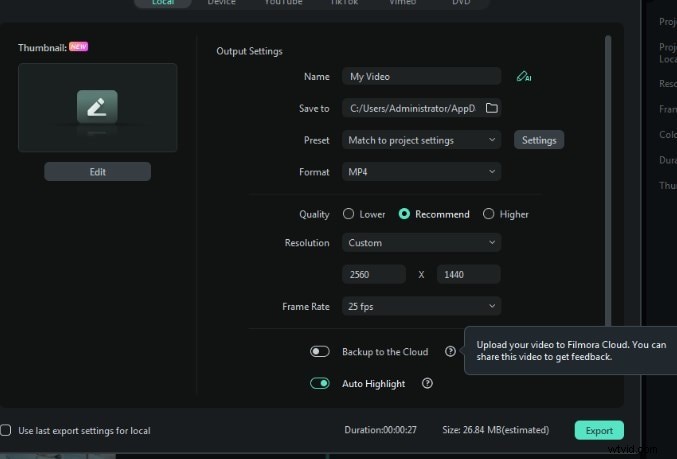
Step 7: Export Your Video
Select your preferred resolution, frame rate, and format, then click “Export.”
Follow these steps to efficiently trim your footage while preserving the narrative flow.
Part 3: Common Problems with Long Videos and How to Avoid Them
Excessive length can erode viewer engagement. Here are the most frequent issues:
- Audience Drop‑off: With so many competing videos, viewers will exit if the core message isn’t delivered quickly.
- Lower Engagement: Longer videos reduce the likelihood of likes, comments, and shares.
- Hard to Find Information: Tutorials or product demos become less useful if viewers can’t locate key points.
By trimming strategically, you can mitigate these problems and deliver concise, high‑impact content.
Conclusion
In a world saturated with video content, mastering the art of trimming is essential. With the clear guidelines above and the powerful yet user‑friendly tools in Wondershare Filmora, you can create videos that captivate and convert.
Start trimming today to maximize the impact of every second of your content.