
Create a Professional PowerPoint Slideshow: Step‑by‑Step Guide
PowerPoint is the industry standard for delivering polished, engaging presentations. Whether you’re preparing a classroom lecture, a corporate pitch, or a photo‑rich event, this guide walks you through every stage of creating a seamless slideshow.
1. Start a New Presentation
- Open Microsoft PowerPoint. From the start screen, select File > New and choose Blank Presentation.
- Save immediately: click the
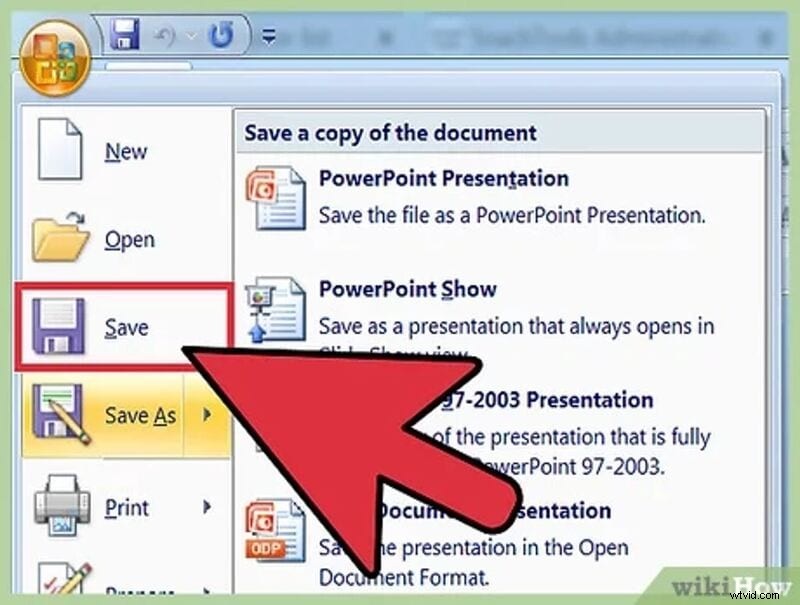 icon, name your file, and choose a secure folder.
 - Set a clear title slide: insert a title and subtitle, add an image if desired, and format the layout for readability.
2. Add and Arrange Slides
- Insert new slides via Home > New Slide or right‑click the thumbnail panel.
- Choose a layout that matches the content—e.g., Title & Content, Two Content, or Blank.
- Drag slides in the Slide Sorter view to reorder for optimal flow.
3. Import Images and Media
- For photos, select Insert > Pictures > This Device and choose your files.
- To embed videos, click Insert > Video > This Device and select the clip.
- Adjust size and position; use the Format Picture tab to add borders or shadows.
4. Enhance with Transitions & Animations
Navigate to the Transitions tab to apply subtle slide changes. Use Animations for object‑level motion, but keep it purposeful—avoid excessive effects that distract.
5. Add Audio (Optional)
- Click Insert > Audio > Audio on My PC to add background music or narration.
- To record directly, choose Insert > Audio > Record Audio, name the clip, record, and review before finalizing.
- Place the audio icon in a consistent spot on each slide for easy navigation.
6. Set Automatic Playback
In the Slide Show tab, enable Loop continuously until Esc to have your slideshow play on repeat. Use Rehearse Timings if you need precise slide durations.
7. Save as a Self‑Running Slideshow
- Click File > Save As and choose a location.
- Select PowerPoint Show (*.ppsx) from the “Save as type” dropdown.
- Double‑click the .ppsx file to launch the presentation directly in full‑screen mode.
8. Play and Share
Open the .ppsx file on any machine with PowerPoint installed, or use File > Export > Create a Video to generate an MP4 that can be shared online.
With these steps, you can craft a clean, professional slideshow that engages any audience.