
Do you have a fast‑paced clip that looks blurry or choppy? Whether it’s an action sequence, a sports highlight, or a dynamic interview, increasing the frame rate to 60 FPS can make the motion buttery smooth and the video feel more immersive. Below, we walk through five reliable solutions that will help you convert any video to 60 FPS, from desktop editors to mobile apps and online converters.
In this article
- Why Convert Video to 60 FPS?
- Three Methods to Convert Video to 60 FPS on PC & Mac
- Two Online Converters for 60 FPS
Part 1. Why Convert Video to 60 FPS?
Even if you didn’t record at 60 FPS, you can still benefit from doubling the frame rate. A 30 FPS clip can appear jittery, especially when it contains rapid motion or when you want to slow it down later. By converting to 60 FPS, the video becomes smoother, the motion more fluid, and the viewing experience far more engaging.
When you plan to use slow‑motion or cinematic effects, a higher frame rate is essential. Without it, the result can look grainy or artificial. Converting to 60 FPS preserves the natural motion and keeps your audience captivated.
- Top 8 effective SUB to SRT converters for Online, Windows & Mac
- How Do I Convert Zip File into Srt File?
Part 2. Three Methods to Convert Video to 60 FPS on Windows/Mac
Below are three proven tools that let you change any video’s frame rate to 60 FPS. Each offers unique features, so choose the one that best matches your workflow.
1. Wondershare Filmora – Desktop & Mobile
Filmora is a full‑featured video editor that supports frame‑rate adjustment, resolution control, and a suite of visual enhancements. Whether you’re on a laptop or editing on your phone, Filmora makes it easy to increase a clip’s FPS.
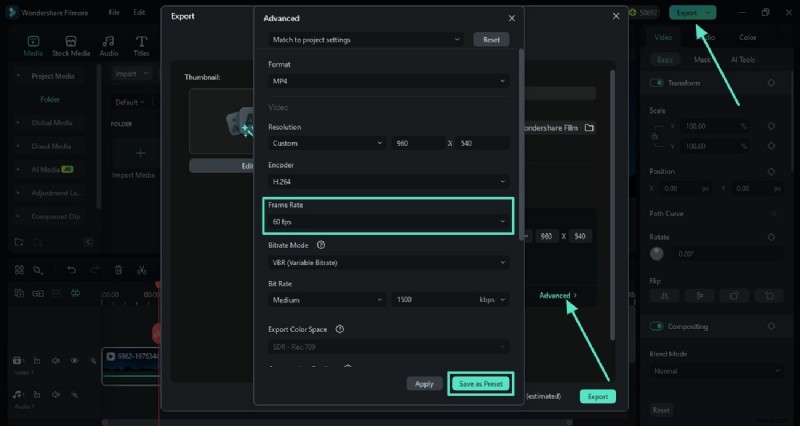
Desktop Workflow
- Import your clip into a new project.
- Navigate to File > Project Settings and set the Frame Rate to 60 FPS.
- Make any additional edits (trim, color‑grade, add titles).
- Export: click Export > Advanced and confirm the frame rate is set to 60 FPS before saving.
Mobile Workflow (iOS/Android)
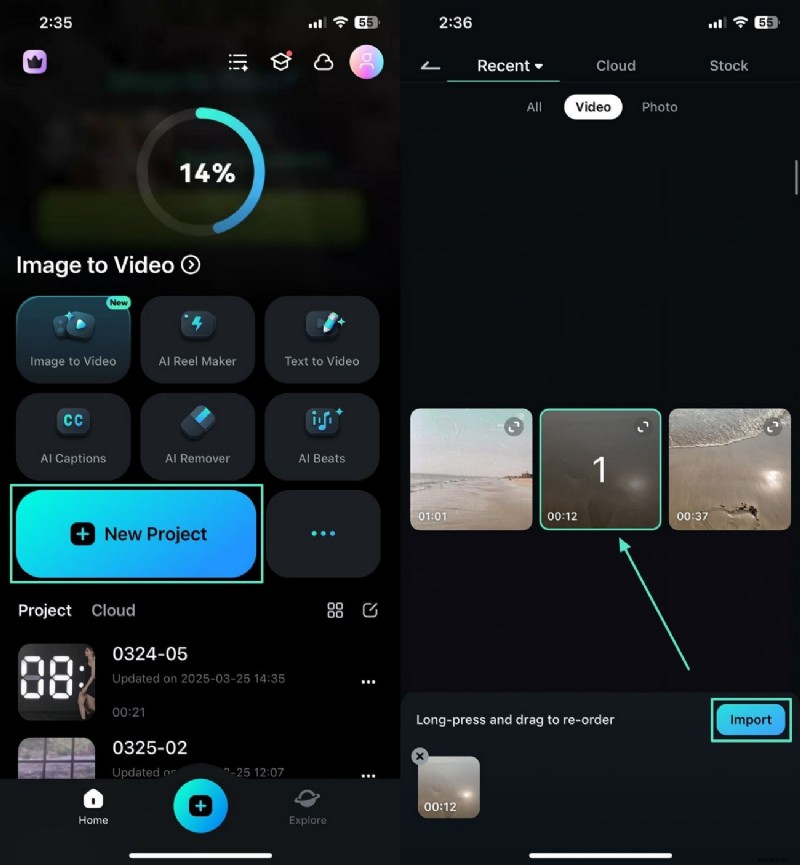
- Open Filmora App and tap New Project to import your video.
- Use the bottom toolbar to apply effects or adjust color.
- Add text or titles via the Text tab.
- When ready, tap Export and select 60 FPS from the options.
Filmora’s intuitive interface and powerful editing tools make it a favorite for creators who need quick, high‑quality results.
2. SmoothVideo Project (SVP)
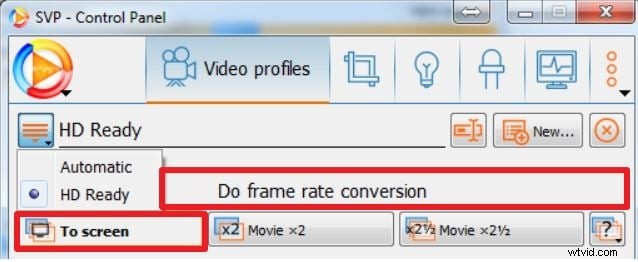
SVP uses frame interpolation—adding intermediate frames—to convert videos to 60 FPS (or higher). It can run in real‑time, overlaying the enhanced playback directly on your media player.
- Install SVP and launch the SVPcode plugin.
- Select Browse to choose the video you want to transcode.
- Pick the 60 FPS profile and set compression to Basic or Advanced.
- Click Start and wait for the conversion to finish.
3. Freemake Video Converter
Freemake supports over 500 formats and can process multiple videos simultaneously. It’s a great choice for users who also want to trim, merge, or add audio to their clips.
- Open Freemake and click +Video to import your file.
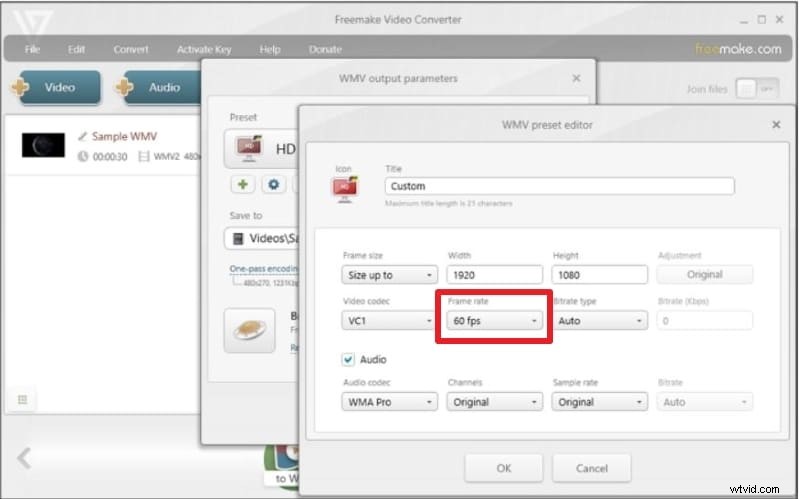
- Double‑click the desired output format and open the Settings window.
- Set the Frame Rate dropdown to 60 fps.
- Choose the output folder and hit Convert.
Part 3. Two Online Converters for 60 FPS
When you’re on the go or prefer a cloud solution, these web tools let you adjust the frame rate without installing software.
1. Veed.io
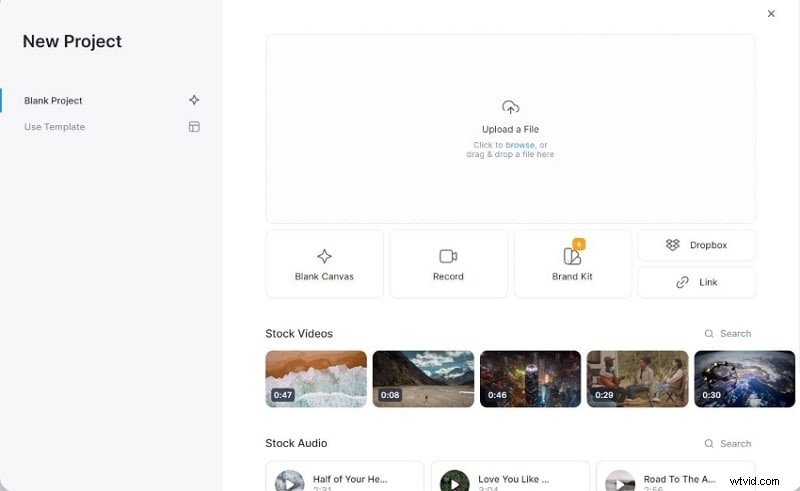
Veed.io offers a clean interface and a suite of editing features, including noise reduction and aspect‑ratio adjustment.
- Visit veed.io and click Get Started.
- Upload your video or drag it into the window.
- Choose Export > Advanced and slide the Framerate Limit to 60.
- Click Export Video and wait for the process to complete.
- Download the finished file (sign‑in required).
2. Online‑Convert
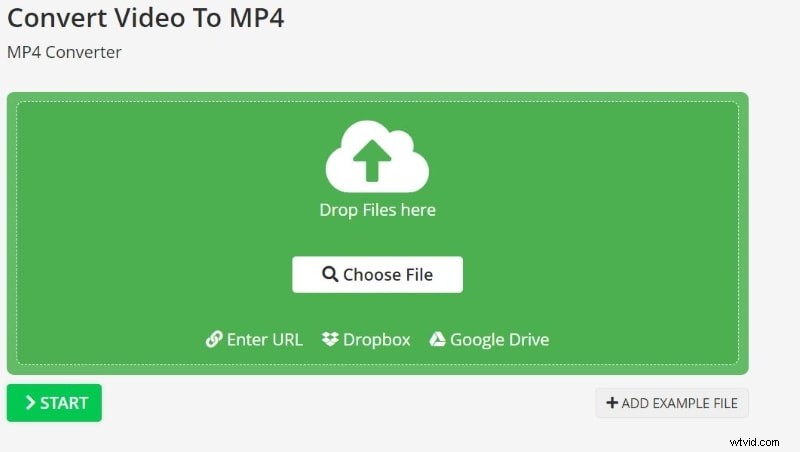
Online‑Convert is a straightforward file‑conversion service that supports frame‑rate changes but lacks editing capabilities. It’s ideal if you already have an edited clip that you simply need to resample.
- Open online-convert.com and select Video Converter.
- Drag your file into the green box or choose a source from Google Drive, Dropbox, or a URL.
- Under Change frame rate, type 60.
- Click Start and download the converted file once it’s ready.
Conclusion
Converting your video to 60 FPS is a simple way to enhance motion quality and deliver a more professional experience. Whether you use a powerful desktop editor like Filmora, a real‑time enhancer like SVP, or an online service such as Veed.io, the result is the same: smoother, clearer footage that keeps your audience engaged. Give it a try and feel the difference yourself.
⭐️⭐️⭐️⭐️⭐️ – The Best AI‑Powered Video Editing Software and App