
Discover the top 10 iPad slideshow apps that let you design polished, engaging presentations on the go.
Whether you’re sharing memories, marketing a product, or delivering a business pitch, a compelling slideshow can elevate your message. Below, we evaluate the most popular iPad apps, highlighting key features, pros, and cons to help you choose the right tool for your needs.
Part 1: Top 10 iPad Slideshow Apps
PicPlayPost
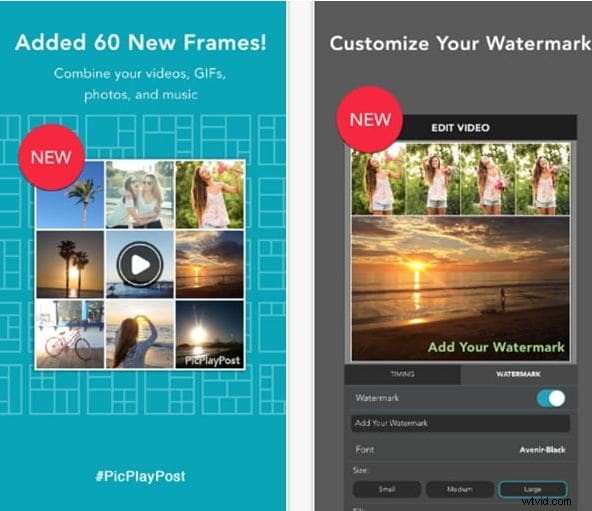
PicPlayPost combines an intuitive drag‑and‑drop interface with a robust media library, allowing you to mix photos, videos, GIFs, and audio into a single project. It supports up to nine media items per slide and offers a variety of filters and effects. The free version includes a watermark and limited music options, but the basic interface is friendly for beginners.
SlideLab
SlideLab excels at photo‑centric slideshows. Its editor preserves image aspect ratios and provides thousands of transitions and filters. Users can import music from the iPad or SlideLab’s library, and share directly to Instagram, Facebook, or other platforms. Note: Exporting to Instagram or Facebook may restrict audio imports from iTunes.
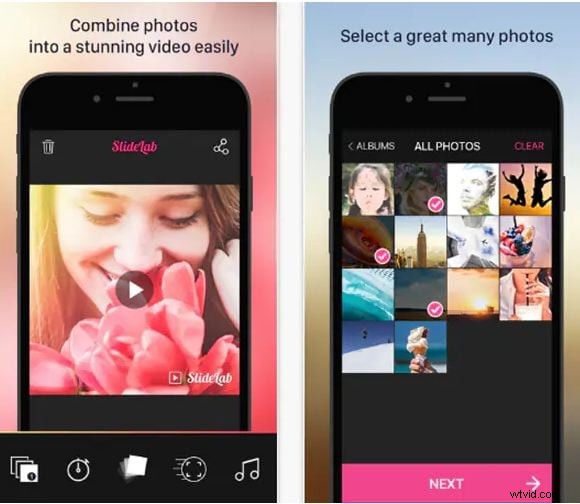
Photo Slideshow Director
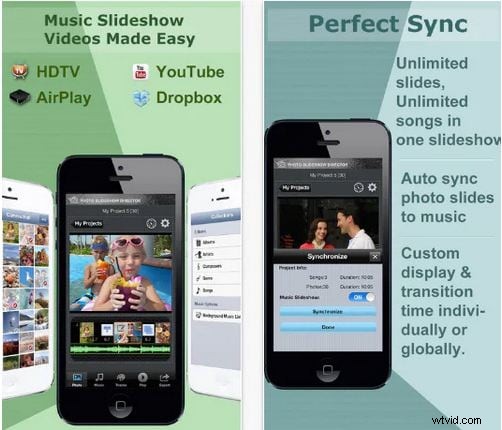
Known for its affordability, this app offers a full‑HD export and an interactive interface that guides you through each step. It supports audio, video, and photo layers, but users report occasional glitches and performance issues on older iPads.
PicFlow
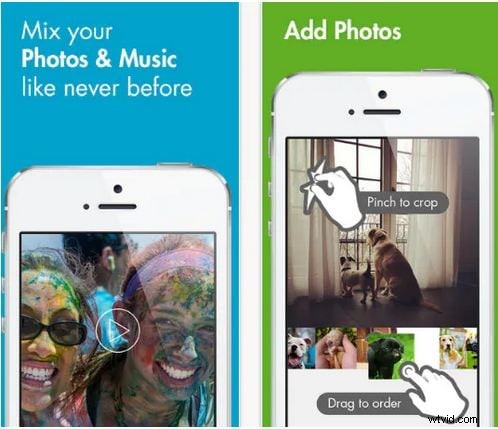
PicFlow allows precise control over slide timing and offers a selection of 18 transition styles. Audio can be imported from the iPod, and the app supports direct export to the Camera Roll. The free version limits the frame rate to 30 fps and offers fewer features.
iMovie
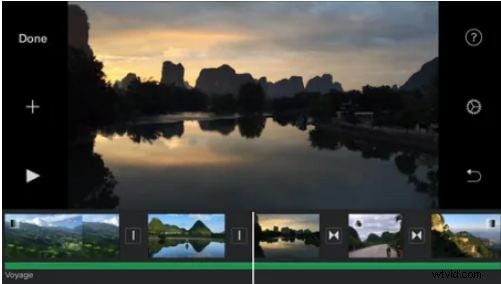
Apple’s iMovie is a powerful, free option that supports complex edits, titles, and audio tracks. It offers a rich library of themes and effects but can be restrictive for advanced parametric adjustments and is only available on iOS/Mac.
PIXGRAM – Music Photo Slideshow
PIXGRAM is ideal for beginners, allowing you to create music‑backed slideshows with simple drag‑and‑drop. It supports file‑size flexibility and social export, though it lacks an integrated music library and advanced editing tools.
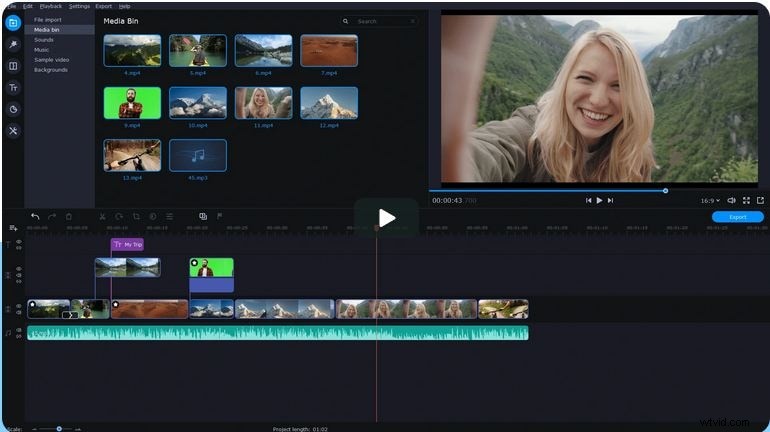
Movavi Clips
Movavi Clips offers a clean workflow: import media, add transitions, and mix audio via an in‑app mixer. The free version leaves a watermark, but upgrading removes it and unlocks additional stickers and features.
Animoto Slideshow Creator
Animoto provides a library of licensed music and 100+ themed templates. It delivers high‑quality HD output, but the app is paid and may be pricey for occasional users.
Official download: https://animoto.com/

EverChanging
EverChanging offers a clean interface with a focus on quick creation. It allows slide timing adjustment and animated transitions but has a limited set of editing tools compared to its peers.

Slide Maker
Slide Maker includes a built‑in photo editor and a library of royalty‑free music. The free tier caps projects at 10 media items; a subscription unlocks unlimited usage and simplifies the export process.

Part 2: Building Slideshows with iPad’s Native Photos App
The Photos app is a reliable, zero‑cost solution for quick slideshow creation. Below is a concise step‑by‑step guide.
Step 1 – Launch Photos
Open the Photos icon from your home screen.
Step 2 – Create an Automatic Slideshow
- Random Selection: In the Library tab, select photos by date or choose all.
- Memory Album: Tap the For You tab, select a memory, then hit Play.
- Custom Album: Create a new album via the + button, add photos, then open it and choose Slideshow from the ellipsis menu.
After selecting the album, you can customize the theme, music, transition, and duration in the Options menu.
Step 3 – Edit the Slideshow
Pause the slideshow, tap the Options button, and adjust theme, music, transition style, and duration slider. Enable Repeat for looping.
Step 4 – Play and Share
Tap Start Slideshow to view. You can then export the slideshow to your camera roll or share directly to social platforms.
Part 3: Frequently Asked Questions
- What should I consider before starting? Define your presentation’s purpose, outline key points, and ensure a logical flow.
- How much text is appropriate? Keep text minimal; use large, legible fonts and contrasting colors.
- What is an ideal slide count? Match the number of slides to the depth of your content; avoid overcrowding.
- How to choose images? Use high‑resolution photos; avoid blurry or low‑quality shots that dilute professionalism.
- What about audio and video? Save media locally to avoid buffering. Prioritize clear, high‑quality files.
Bonus: Advanced Slideshows with Wondershare Filmora
For users seeking robust editing capabilities beyond the Photos app, Wondershare Filmora offers an intuitive, cross‑platform editor. It supports all major media formats, provides advanced zoom, pan, and crop tools, and features an extensive library of effects, transitions, and music templates. Voice‑over recording and screen capture are also available.
Conclusion
Creating slide shows on the iPad is straightforward—whether you use the built‑in Photos app or a dedicated third‑party solution. The apps listed above cover a spectrum of needs from quick, casual projects to professional, polished presentations. For budget‑conscious creators, the Photos app or free tiers of the listed apps are excellent choices; for advanced users, investing in a premium app like Filmora or Animoto can pay off with richer features.