
Master EZGIF: Create, Convert, and Crop GIFs with Ease
EZGIF is a lightweight yet powerful online editor that lets you create, edit, and optimize GIFs quickly.
Choose from a wide array of effects, filters, and text options to customize your animations.
Step‑by‑step tutorials are available on the official channel, ensuring a smooth learning curve.
All you need to know about EZGIF’s creator tools is presented here!
Table of Contents
Part 1: How to Create a GIF with EZGIF
GIFs bring dynamic expression to digital communication. With EZGIF’s intuitive interface, you can create stunning animations in just a few clicks.
About the EZGIF GIF Maker
EZGIF’s online GIF maker is among the most popular tools today. It’s free, fast, and works seamlessly on Windows and macOS. You can also edit videos, trim clips, and remove backgrounds—all in one place.
It supports nearly every common video and image format, so you’re not limited by file types.
Follow these steps to build high‑quality GIFs:
Step 1: Launch the Tool
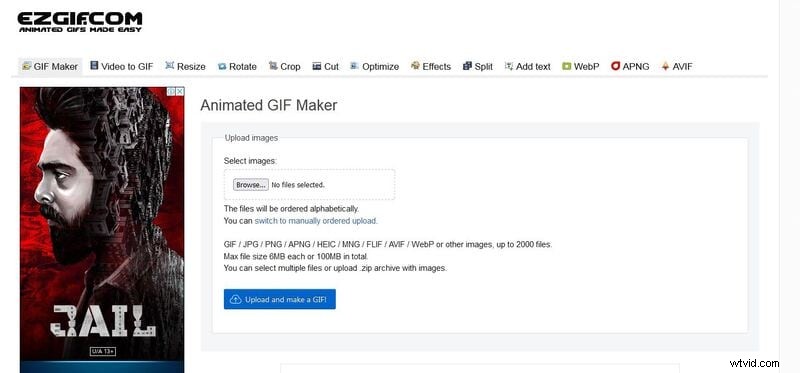
Open the EZGIF maker in your browser and click “GIF Maker” on the top toolbar.
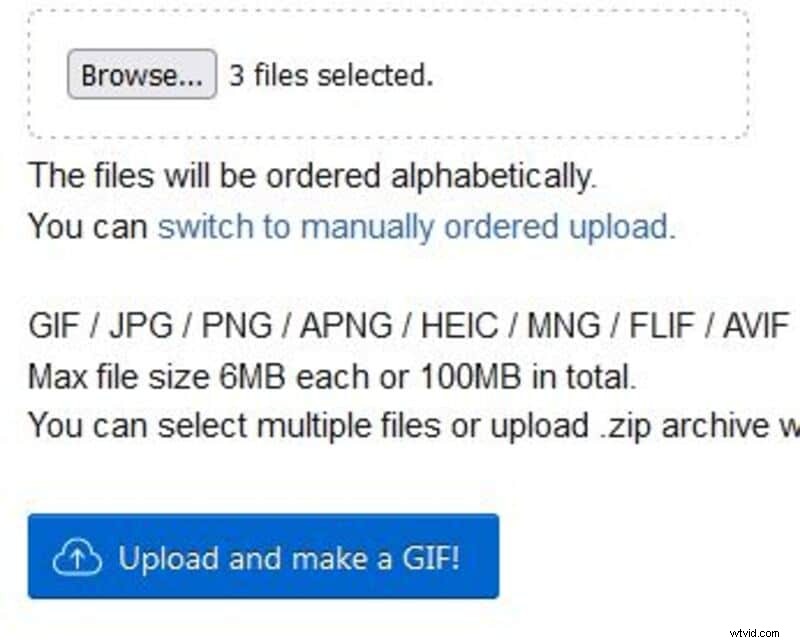
Step 2: Upload Your Media
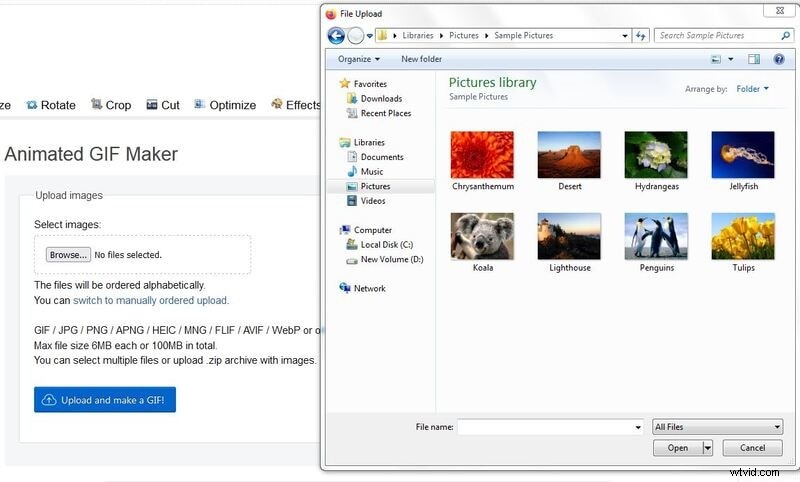
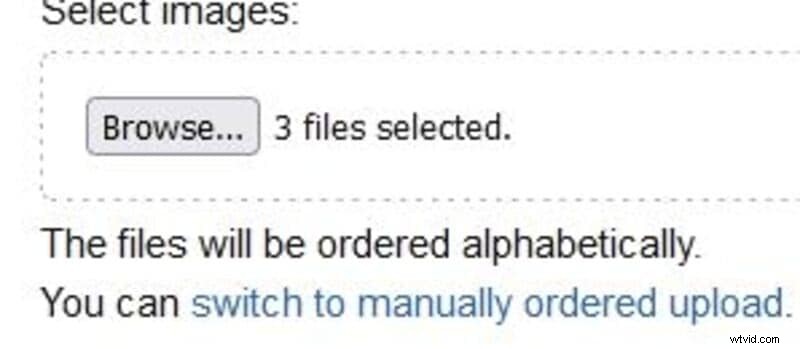
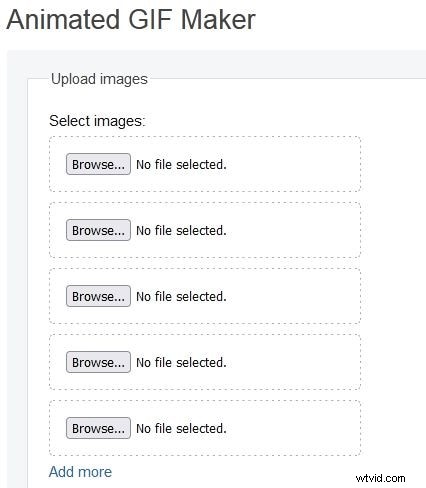
Click “Browse” to select a video or a series of still images from your device. Drag them into the timeline or let them upload alphabetically. Keep the total file size under 100 MB.
Step 3: Generate the GIF
Click “Upload and Make a GIF.” A preview appears, and you can now apply effects, filters, or text.
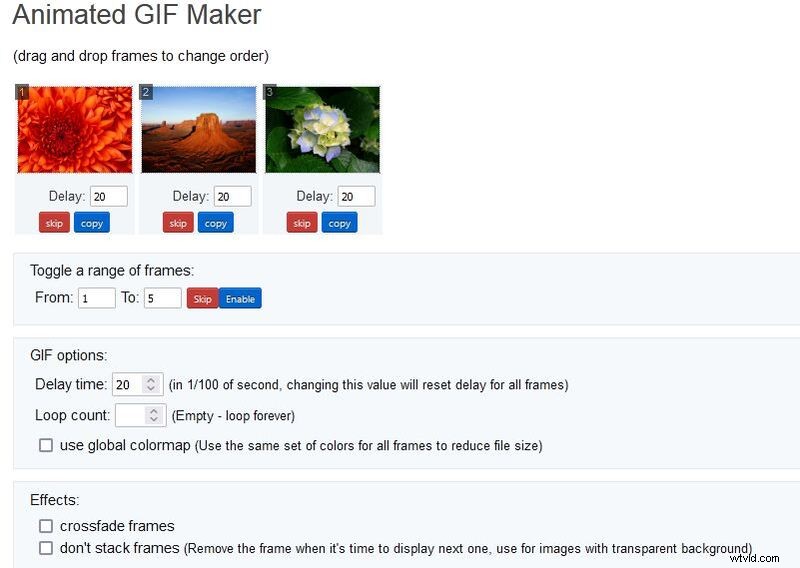
Step 4: Fine‑Tune Your Animation
For still images, use drag‑and‑drop to reorder frames. When working from video, adjust the play duration to get the perfect loop.
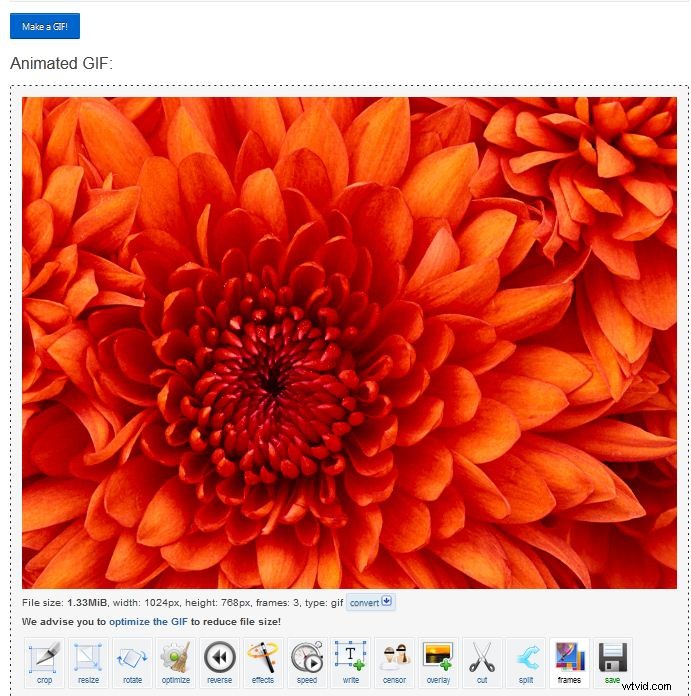
Step 5: Finalize and Save
Once satisfied, click “Make a GIF.” You can then tweak the final version using the toolbar below the preview. Click “Save” to download the file to your device.
Part 2: Convert Video to GIF with EZGIF
EZGIF also offers a dedicated “Video to GIF” converter. The process is quick, and you can customize the output to your liking.
Step 1
Visit ezgif.com and select “Video to GIF” from the top menu.
EZGIF Video to GIF Converter Link:

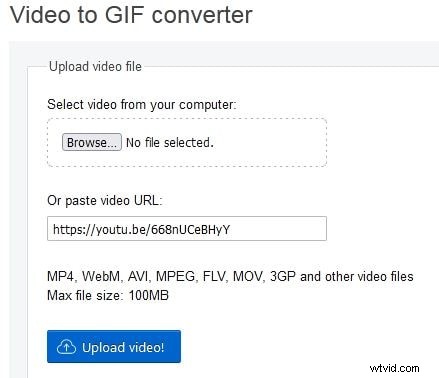
Step 2
Upload a local file by clicking “Browse” or paste a video URL in the address box, then click “Upload Video.”
Step 3
Set the start and end points to define the clip’s duration.
Step 4
Click “Convert to GIF” and wait for the process to finish. The resulting GIF appears in a popup window. Click “Save” to download.
Part 3: Crop Video with EZGIF (and Filmora)
Beyond GIF creation, EZGIF can crop video clips directly in the browser. Below is a quick guide.
Step 1: Launch the Crop Tool
Navigate to the “Crop Video” tab on EZGIF’s homepage.
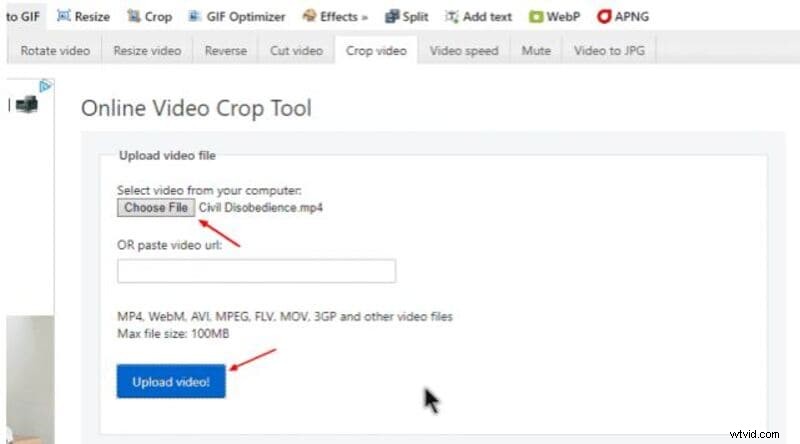
Step 2: Upload Your Video
Choose “Choose File” or paste a URL, then click “Upload Video.”
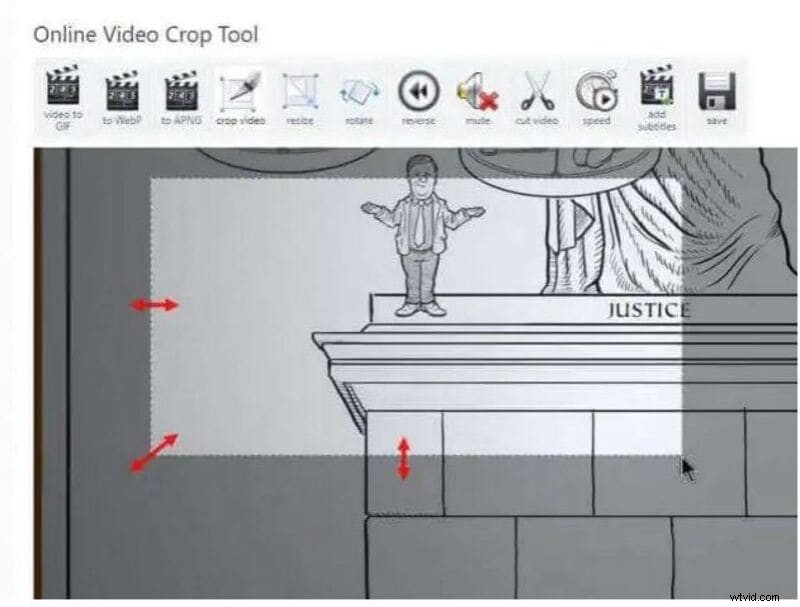
Step 3: Adjust Borders
Drag to highlight the desired section. The highlighted area is shown within a frame.
Step 4: Final Adjustments
Resize, set aspect ratio, and choose the output format (original or MP4). Click “Crop Video.” The conversion takes a few seconds.
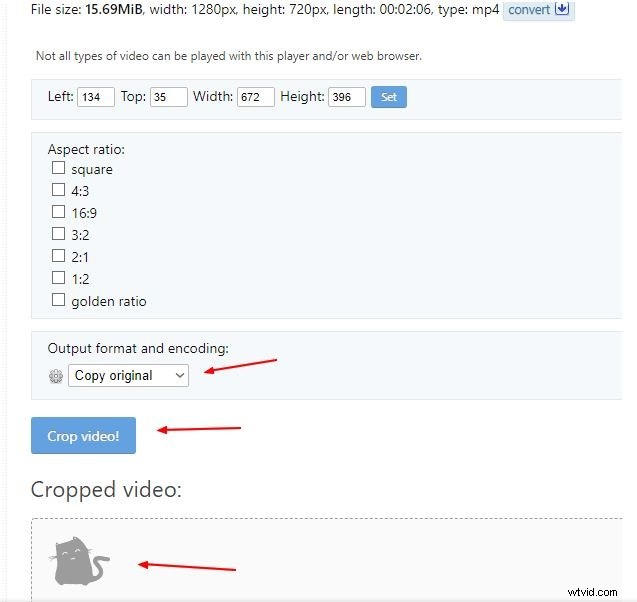
Step 5: Download
When the process completes, click “Save” to download the cropped clip.

If you prefer a desktop solution, Filmora offers robust video editing, including cropping, with an intuitive interface and a library of effects. It’s free to use and supports both Mac and Windows.
Filmora Crop Video Tool Direct Link:
Step 1
Download and install Filmora, then open the editor timeline.
Filmora Crop Video Tool Direct Link:
Step 2
Right‑click a video on the timeline and choose “Crop and Zoom” (or click the crop icon).
Step 3
In the popup, select a preset aspect ratio or click “Custom” to drag the rectangle over the clip.
Wondershare Filmora is trusted by 5,481,435 users worldwide.
Build unique custom animations effortlessly, focus on storytelling, and let Filmora’s auto features handle the details.
Key Takeaways
• EZGIF is a versatile, free online tool for creating, converting, and cropping GIFs and video clips.
• The process is fast and user‑friendly, making it ideal for beginners and professionals alike.
• For desktop editing, Filmora offers advanced features and a vast effects library.