
How to Add Titles to Your Videos on Any Device with Filmora

Whether you’re producing a long‑form documentary, a tutorial, or a social‑media clip, titles are essential. They introduce segments, highlight key points, and keep viewers engaged. In this guide we walk you through adding titles with Wondershare Filmora on both mobile and desktop platforms, and we also highlight three popular alternatives.
Why Choose Filmora?
Wondershare Filmora blends a user‑friendly interface with powerful features. Its AI‑powered tools—such as background music generation, object removal, and image‑to‑video conversion—save time and enhance production value. The program ships with a rich library of templates, animated stickers, and transition effects, making it ideal for creators of all skill levels.
Step‑by‑Step Instructions
On Mobile (Android & iOS)
- Launch Filmora and tap New Project. Import the video you want to edit.
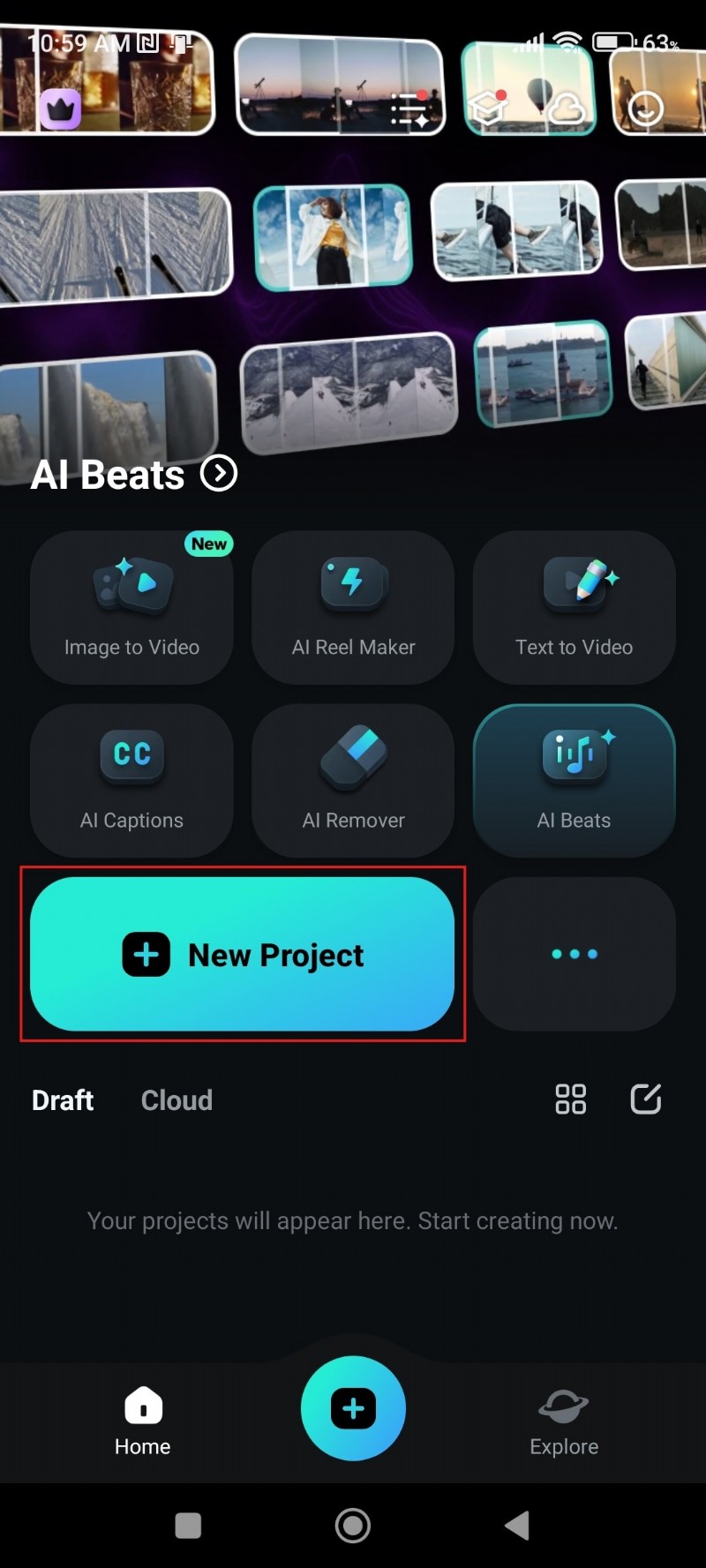
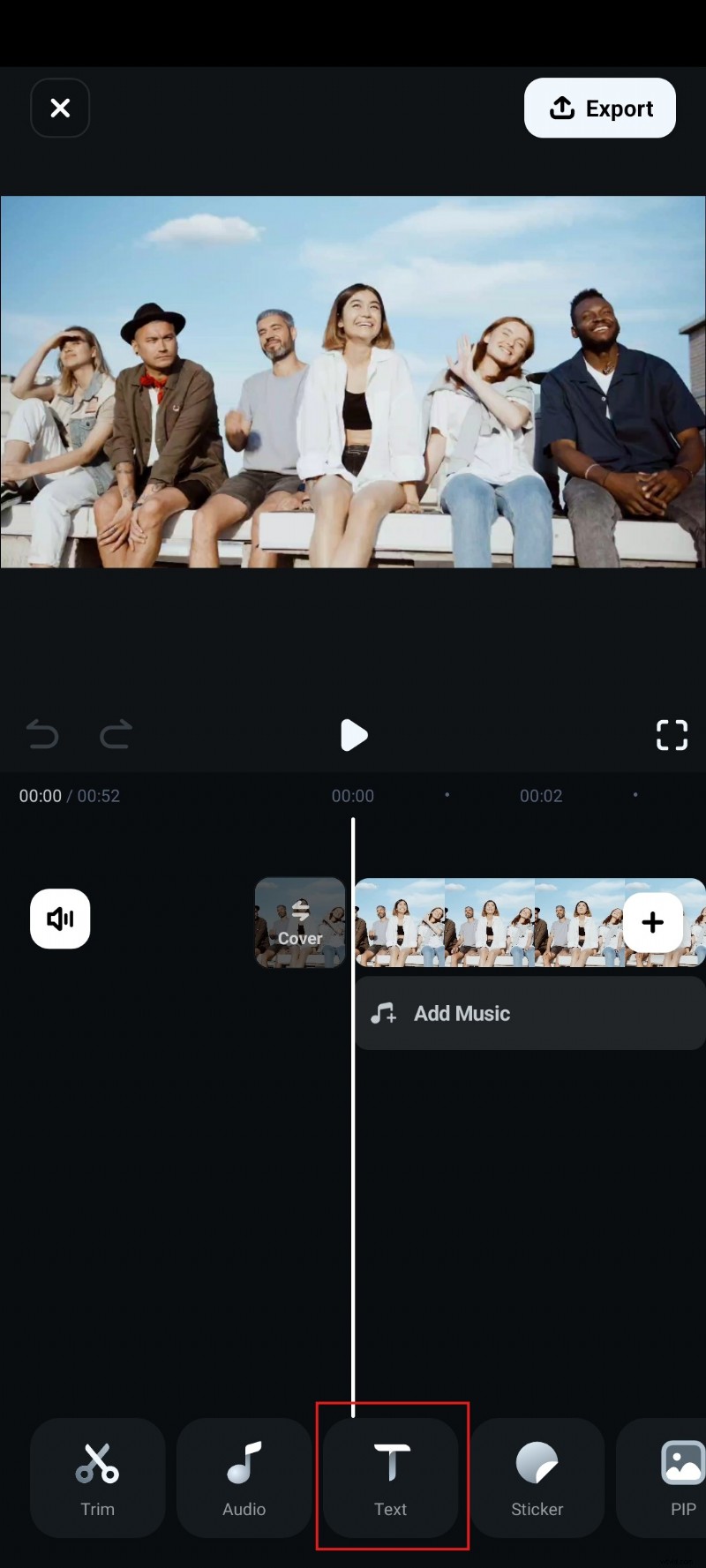
- Tap the Text tab at the bottom of the screen.
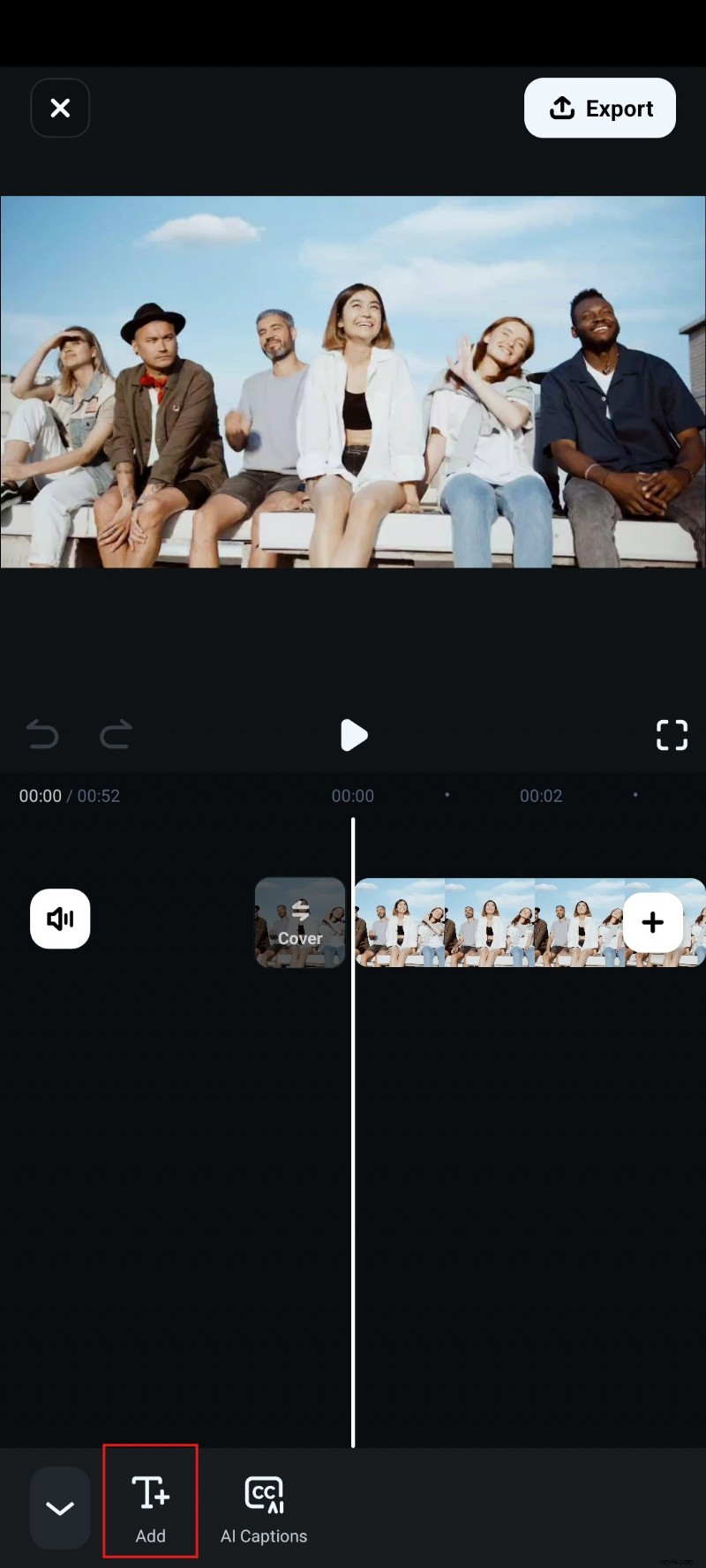
- Tap Add and type your title.
- Choose a Style and a Font from the options that appear.
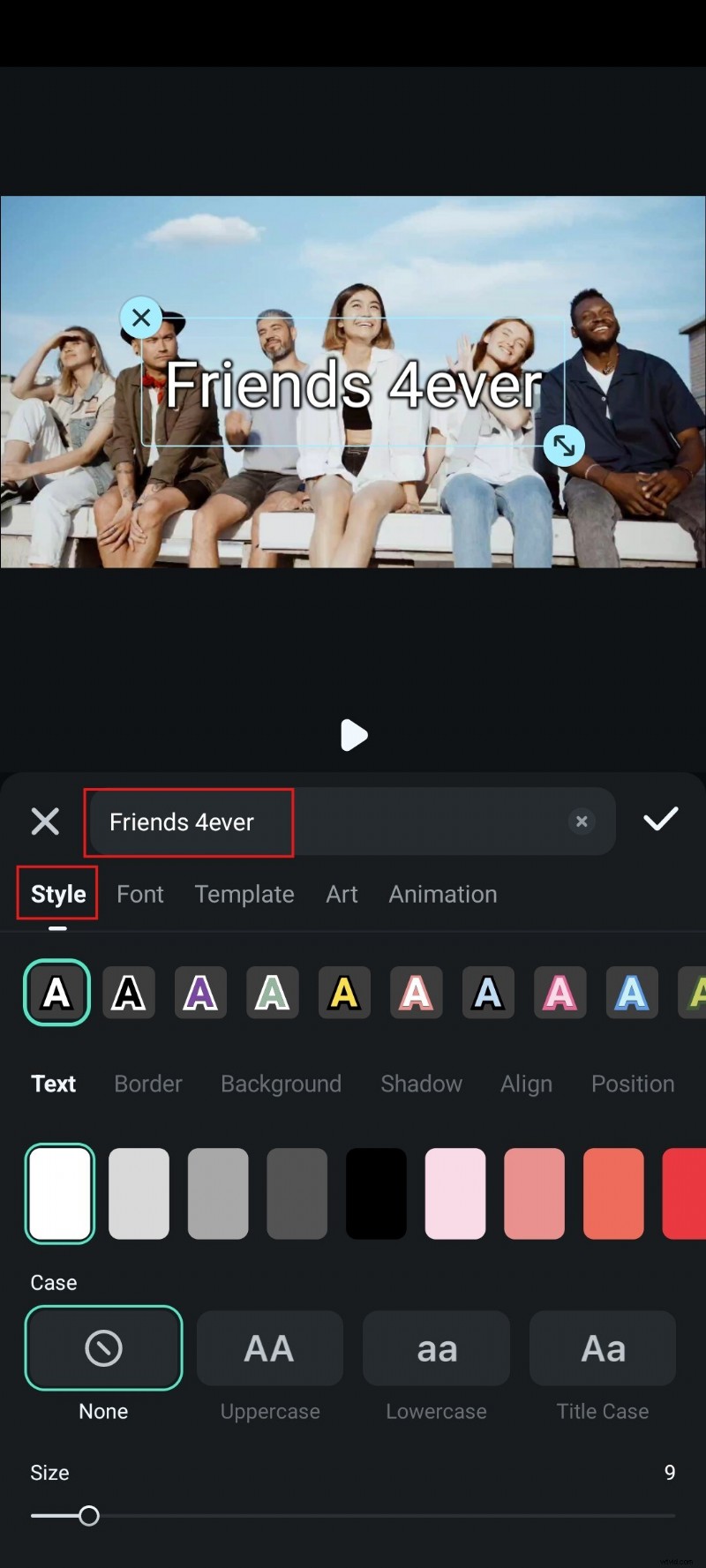
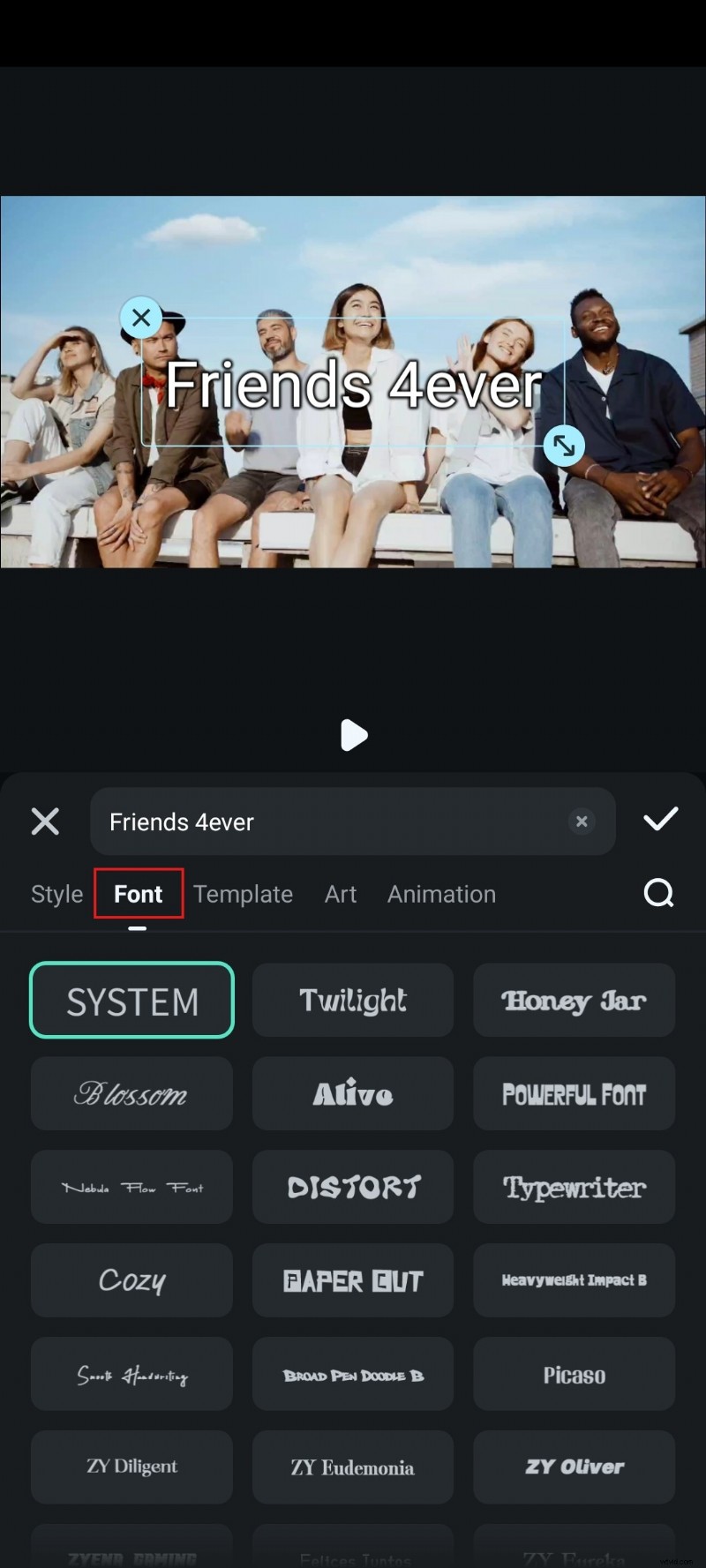
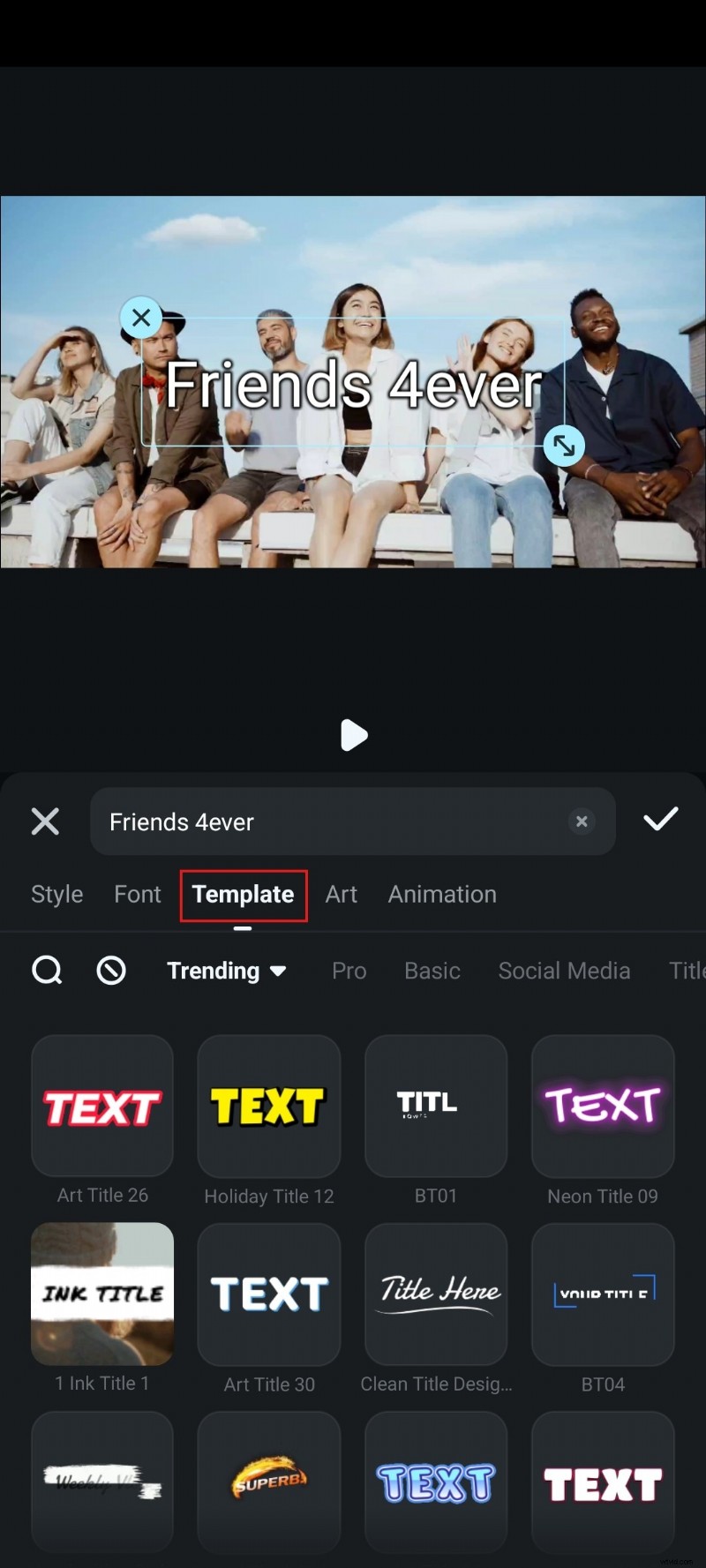
- Optional: Browse Templates for pre‑designed title designs.
- Enhance with Art and Animation selections.
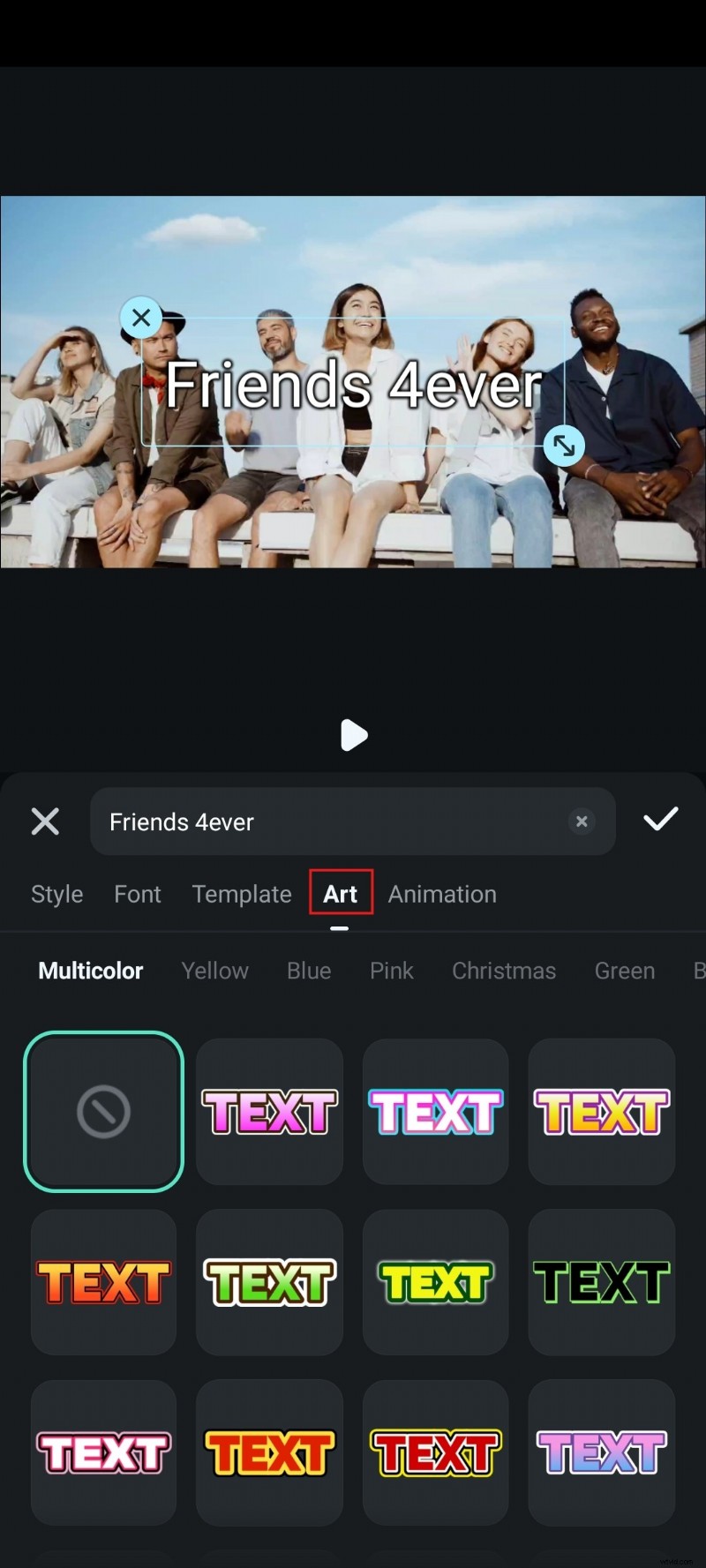
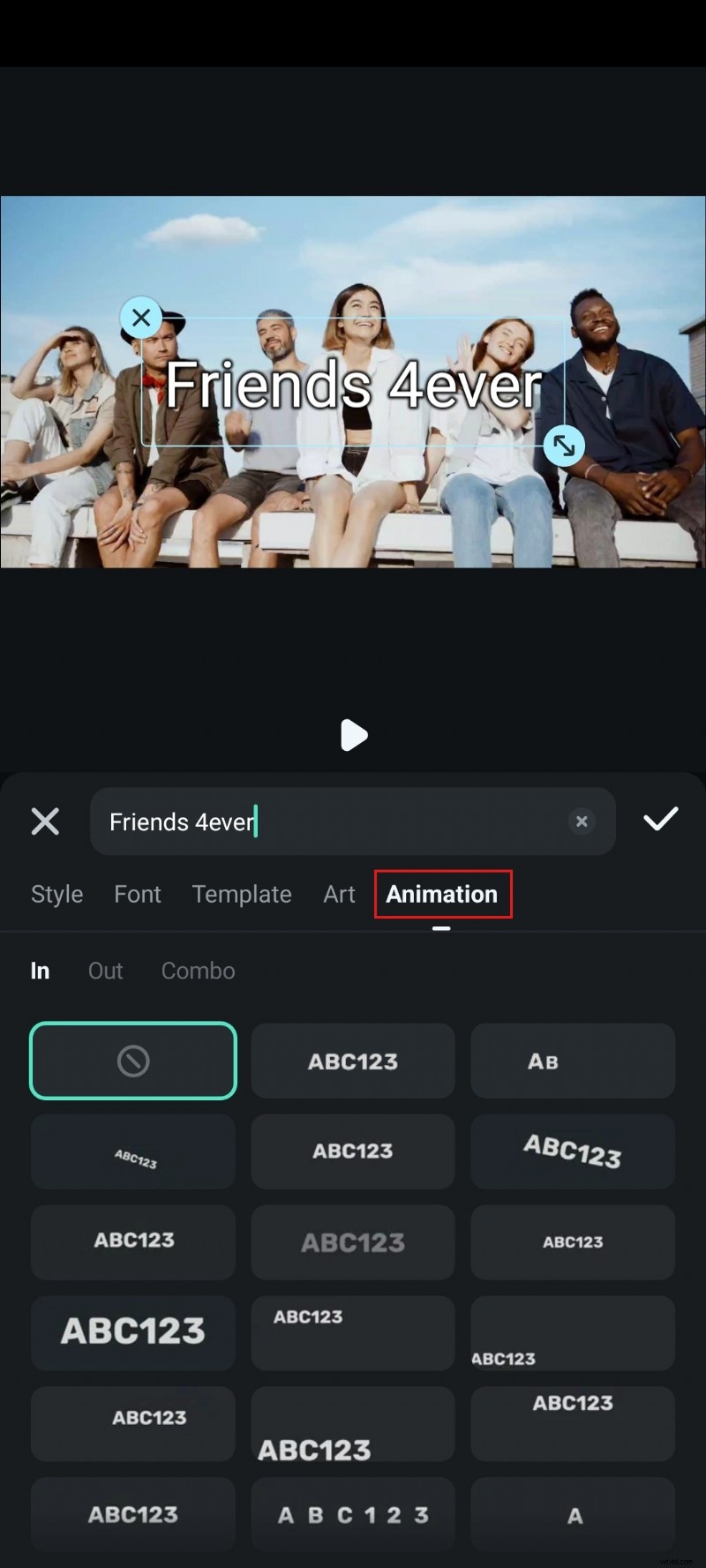
All screenshots in this section were taken on an Android device; the same steps apply to iOS.
On Desktop (Windows & macOS)
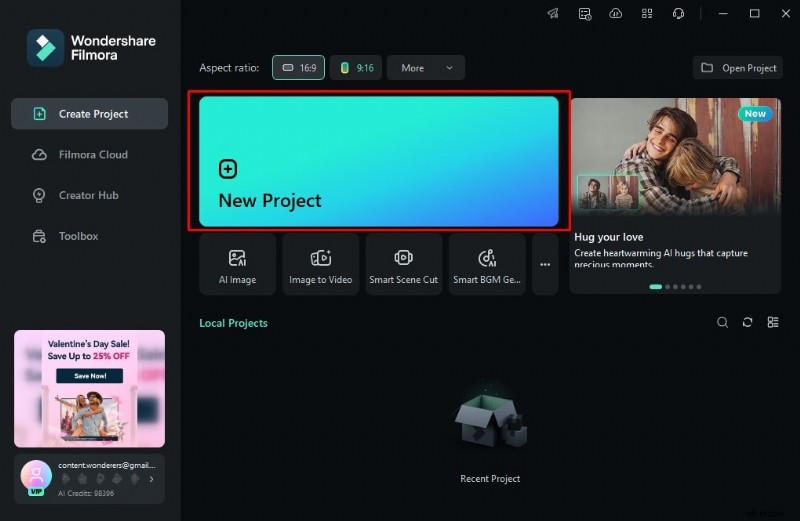
- Open Filmora and click New Project.
- Click Import to load your video file.
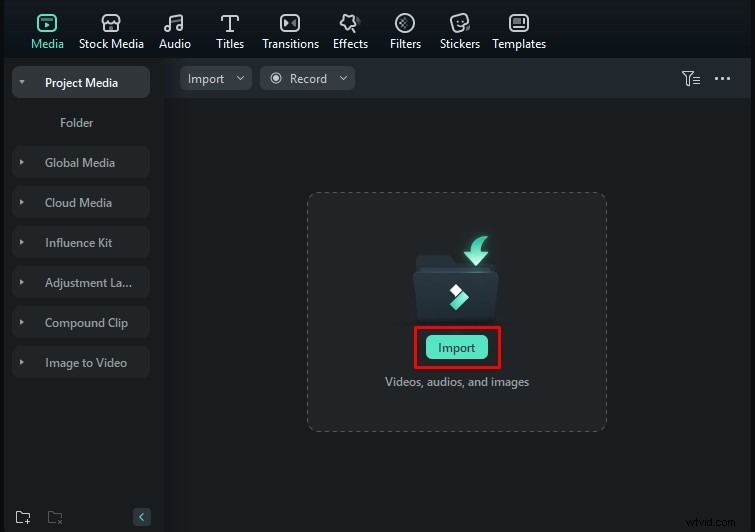
- Drag the clip onto the timeline.

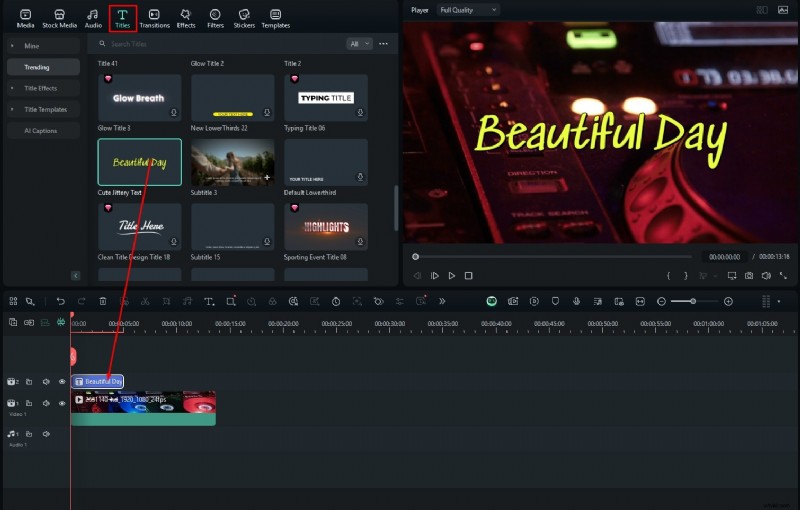
- In the Titles panel, drag a title style to the timeline.
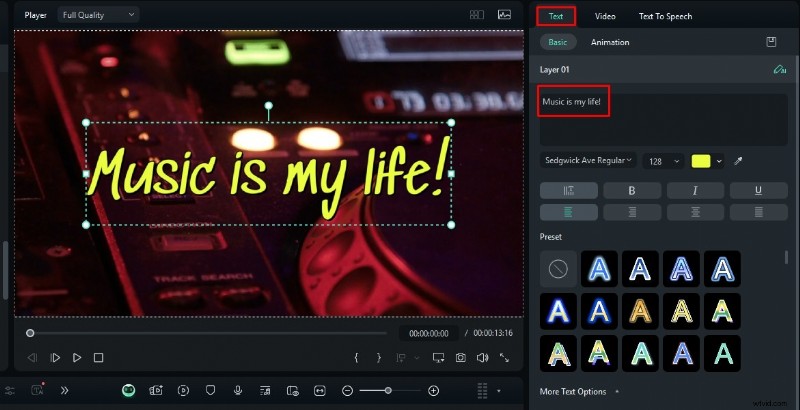
- In the right‑hand Text panel, enter your desired text and customize with the same options as on mobile.
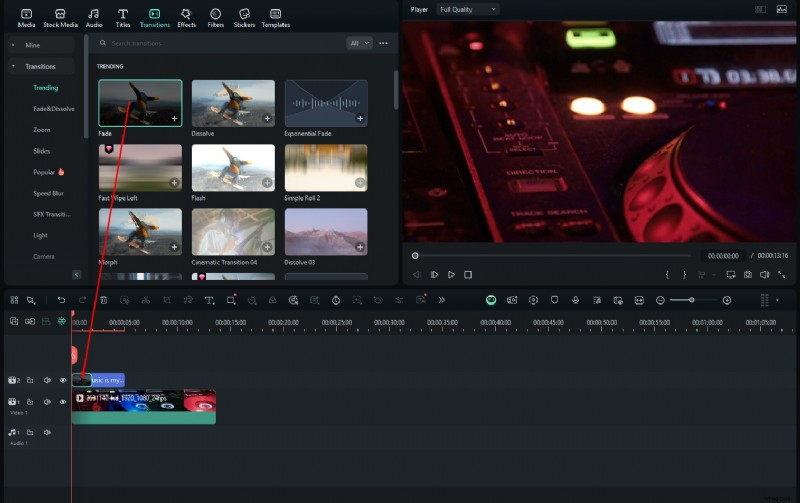
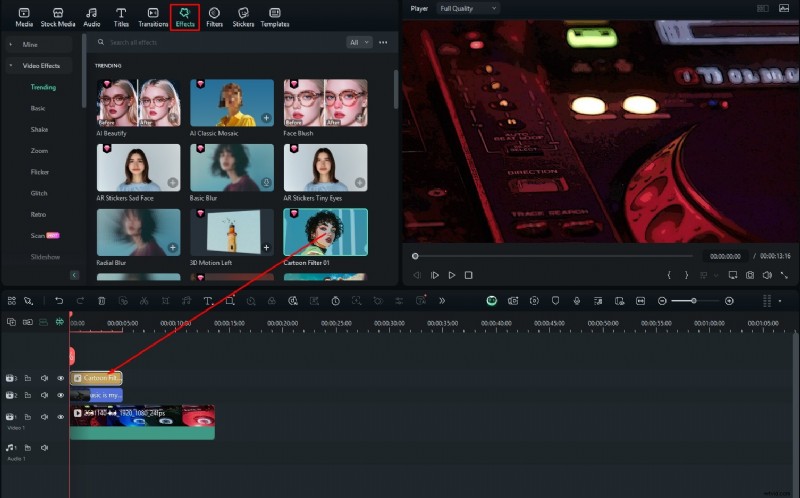
- For additional flair, add Transitions and Effects from their respective panels.
Core Features That Enhance Title Creation
- Templates Library – Quickly seed projects with professionally designed title sequences.
- Animated Stickers – Add dynamic stickers to reinforce branding or call‑to‑action cues.
- AI Toolbox – Convert still images to video, auto‑generate background tracks, and remove unwanted objects with a single click.
Other Title‑Adding Tools Worth Exploring
If Filmora doesn’t fit your workflow, consider these alternatives:
Descript
Descript is a free web‑based editor that automatically syncs subtitles and allows you to insert title cards during playback.
VEED.io
VEED.io offers a range of editing options, including title insertion and subtitle generation optimized for TikTok and YouTube Shorts.
Canva
Canva excels at graphic design. While it produces high‑quality title graphics, you’ll need to export them and import them into a video editor for final placement.
Conclusion
With Filmora’s intuitive tools, you can add polished titles to any video on both mobile and desktop devices in just a few minutes. Whether you choose Filmora or one of the alternatives, you now have the knowledge to enhance your content and captivate your audience.