
Are you seeing a random single frame of the “Media Pending” error screen on your Premiere timeline? Here are some quick ways to fix the problem.
In the last couple of Premiere releases, I’ve often encountered a strange bug: after pre-rendering my timeline, there is one single frame of a “media pending” error flashing up at random places in the timeline.
This occurs more often with particularly render-intensive timelines, especially ones with multiple nested sequences or dynamically linked AE compositions. As someone who habitually pre-renders my timeline so I don’t have laggy playback, this bug has been plaguing my recent edits. So, I spent some time finding the best ways to fix it.
While I haven’t been able to figure out specifically what’s causing the issue, with enough poking around, I found a couple of reliable solutions. If this error has been bothering you, too, here’s how to fix it.
What Is a Media Pending Error?

A “media pending” error is when Adobe Premiere loses the connection to your clips and fails to play your timeline in the preview window. It can also occur when the “media pending” window appears randomly throughout a clip. This bug emerges from a few factors: it might be a graphics-heavy timeline that is bogging down Premiere, or you have a dynamic link to an After Effects project that Adobe is having a hard time connecting to. It’s a tough situation to grind through, since it slows down your workflow and in general just makes you mad.
While dealing with this situation, I spent a lot of time wondering if it was a problem with my computer or with Adobe. While my first thought was that my computer didn’t have enough horsepower to get through my timeline, after some research, it turns out it’s just a normal bug that you can deal with by appeasing the program somehow. Let’s dive into the fix.
Solution 1: Disable Then Re-Enable
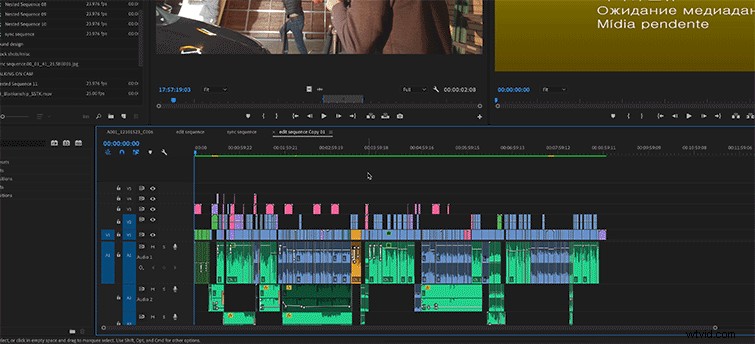
After testing some different methods, this is the most reliable way to fix the issue:
- Select your entire sequence — either by clicking and dragging, or, with your timeline tab selected, hit Command+A to select all.
- Right-click on a piece of footage or audio in your timeline, and select “enable” — this will disable all of the media on your timeline.
- Now, right-click in that same spot, and click “enable” again. This will bring everything back to normal and re-enable your clips.
The only difference is that all of the media pending errors will be gone.
Solution 2: Add a Cut
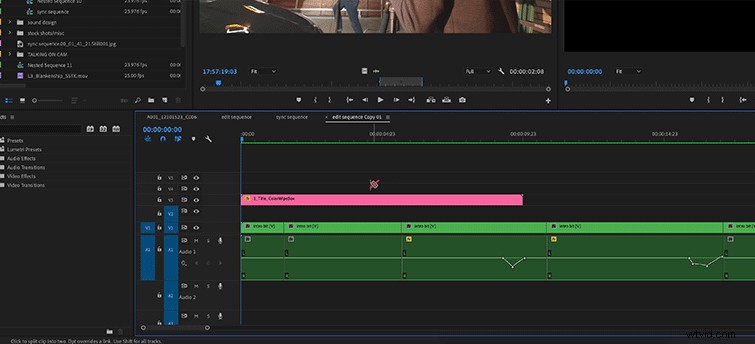
Another really simple way to fix the problem is to locate the clip that is giving you the trouble. As I said before, this is usually a nested sequence or dynamically linked graphic from After Effects. Now just add a cut.
That’s it. Just make a cut somewhere in that specific clip. This will also usually fix the “pending media” error.
Solution 3: Add One Frame
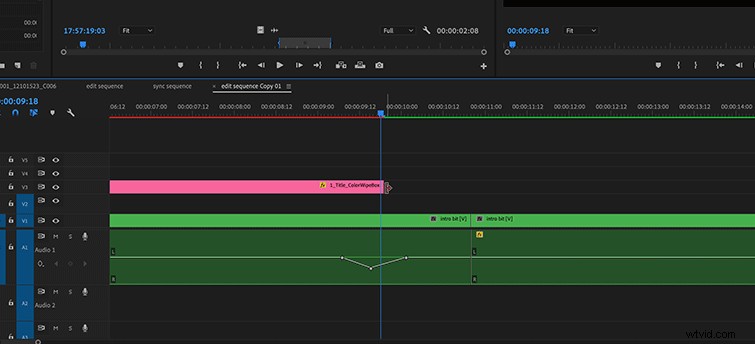
This is definitely a last-resort solution, since it will require you to alter your edit. If the other two approaches don’t work, I’ve found that extending the problem-causing clip by one frame at either the beginning or the end will fix the issue.
Like I said, I’m still not completely sure what causes this issue, but it has been consistently occurring for me across multiple machines and multiple Premiere versions, so I’m assuming some of you have run across the issue as well.
It seems that forcing Premiere to look for the assets again in some fashion fixes the problem. Why? Beats me.
This post was originally published in February, 2019. It has been updated to reflect changes in the industry.