
Speech‑to‑Text (STT) is now a built‑in feature of Microsoft PowerPoint, letting you dictate slides, add captions, and create multilingual presentations with ease. This guide walks you through enabling STT on Mac and Windows, configuring real‑time translation, and even turning your slides into video with subtitles.
Table of Contents
- Enabling Speech‑to‑Text in PowerPoint
- Dictating in PowerPoint on Mac
- Real‑time Speech‑to‑Text Translation
- Creating PowerPoint Videos with STT and Subtitles
- Frequently Asked Questions
1. Enabling Speech‑to‑Text in PowerPoint
PowerPoint’s STT feature is powered by Microsoft’s speech recognition engine. Before you can dictate, you must turn the feature on in your operating system.
On macOS
- Open System Preferences → Keyboard.
- Select Dictation and toggle it On. Enable Enhanced Dictation for offline use.
- Choose your language and set a shortcut (default is fn × fn).

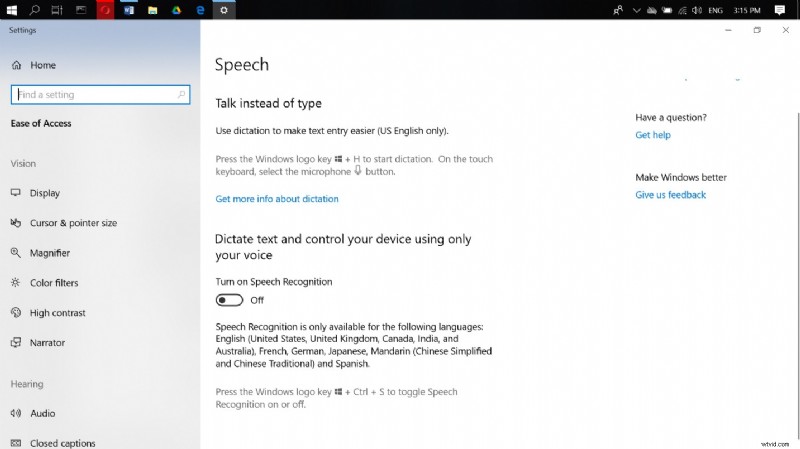
On Windows
- Press Windows + H to launch the dictation toolbar.
- Alternatively, go to Settings → Time & Language → Speech and enable Speech Recognition.
- In PowerPoint, click the microphone icon in the toolbar to start dictating.
2. Dictating in PowerPoint on Mac
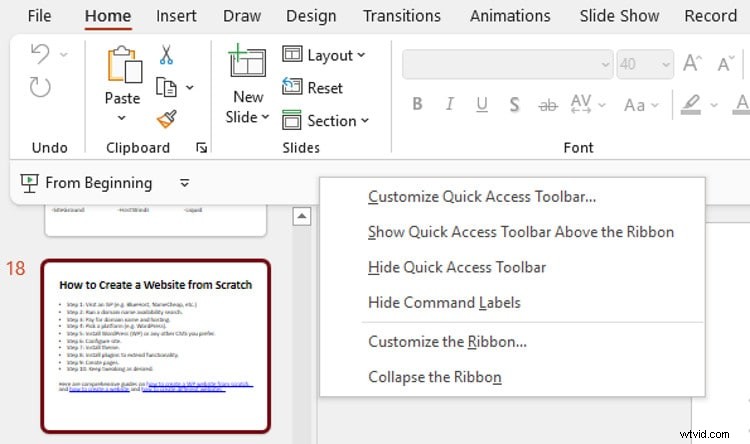
Once dictation is enabled, add the microphone button to the Quick Access Toolbar for convenience.
- In PowerPoint, click Customize Quick Access Toolbar (top-left).
- Choose All Commands from the drop‑down.
- Search for “Speak” and add it.
Click the microphone icon and speak naturally. Speak clearly, avoid mumbling, and minimize background noise. Use the Dictionary under Settings → Languages → Personal Word List to add custom terms.
3. Real‑time Speech‑to‑Text Translation
PowerPoint can display subtitles in multiple languages while you present.
- Start a Slide Show.
- Go to Subtitle Settings → Speech Settings.
- Select the language you will speak (e.g., English) and the target subtitle language (e.g., Spanish).
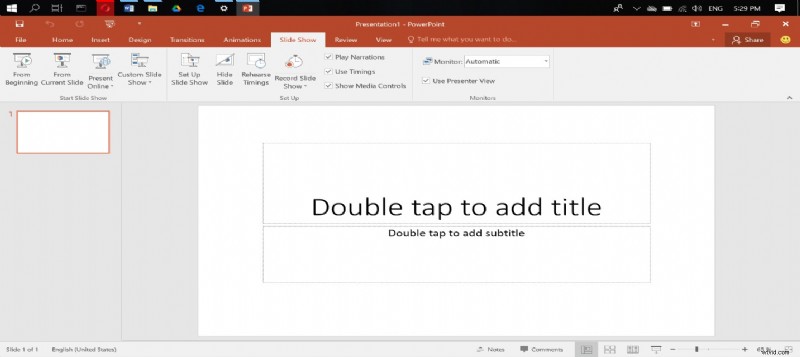
These settings apply to both Presenter View and Slideshow View, ensuring your audience sees accurate captions in real time.
4. Creating PowerPoint Videos with STT and Subtitles
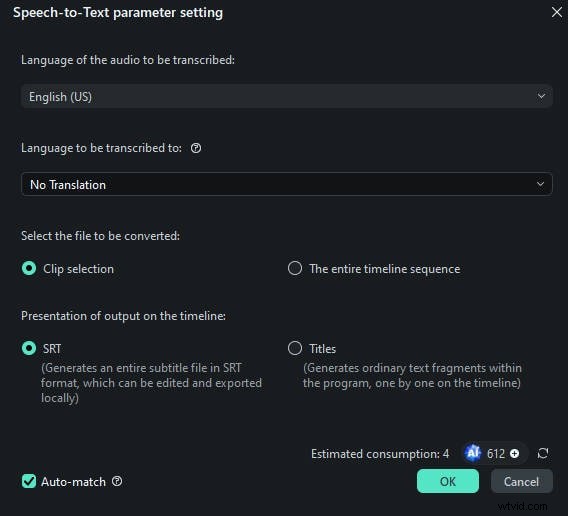
For video production, Wondershare Filmora’s Speech‑to‑Text tool offers one‑click transcription in 27 languages.
Advantages
- Instant bilingual subtitles.
- One‑click transcription.
- Enhanced editing speed.
Steps in Filmora
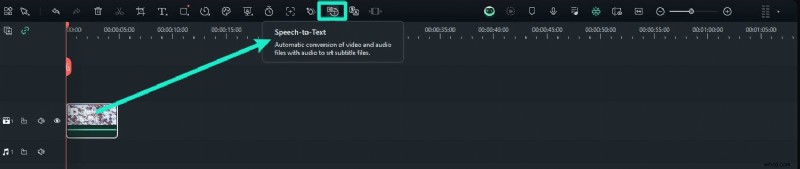
- Drag your audio into the timeline.
- Click the Speech‑to‑Text icon.
- Choose source and target languages.
- Generate subtitles and export.
5. Frequently Asked Questions
Does Speech‑to‑Text require the Internet?
It can work offline if you enable Enhanced Dictation on macOS or download the language pack on Windows. Internet is only needed for initial setup or cloud‑based features.
Is there a subscription fee?
PowerPoint’s STT is free for all Office 365 subscribers. Additional features in third‑party tools may have licensing costs.
Do I need an external microphone?
Built‑in microphones suffice for most users, but a high‑quality external mic improves accuracy, especially in noisy environments.
Is STT better than typing?
STT is an efficient alternative for quick content creation, but typing remains the preferred method for detailed editing.