

Jan 06, 2026 • Proven solutions
Aspect ratio determines the proportional relationship between a video’s width and height. Whether you’re preparing content for YouTube’s 16:9 landscape, TikTok’s 9:16 vertical, or Instagram’s 1:1 square, mastering the art of ratio adjustment ensures your footage looks perfect on every platform.
Although most devices record in their native ratio, iMovie offers a flexible cropping system that lets you reshape your video without sacrificing quality. In this guide, we walk through the most reliable methods for changing aspect ratios on macOS, iPhone, and iPad, plus an overview of Wondershare Filmora as a powerful alternative.
Why Adjusting Aspect Ratio Matters
- Platform compliance: YouTube, TikTok, Instagram, and Facebook each prefer specific ratios to optimize viewing experience.
- Visual storytelling: The right ratio highlights your subject and keeps unwanted background elements out of frame.
- Export flexibility: iMovie preserves your chosen ratio across all export settings, preventing unwanted letterboxing or pillarboxing.
Changing Aspect Ratio in iMovie on macOS
iMovie does not feature a dedicated “Aspect Ratio” toggle, but the Crop tool delivers the same result.
- Open a project and import your clip: Drag your video into the timeline or use File > Import Media.
- Select the clip: Click the clip in the timeline to activate the toolbar.
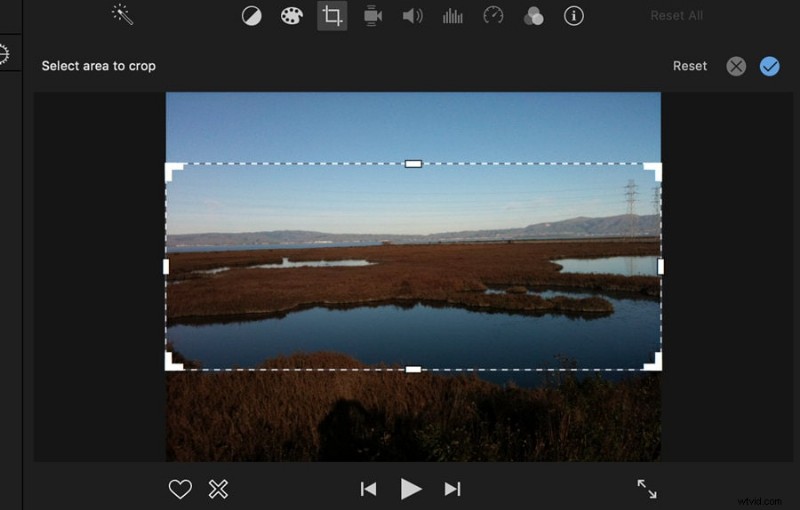
- Activate Crop to Fill: Click the crop icon (a square with diagonal lines) in the top toolbar.
- Set the desired ratio: In the crop window, choose from presets such as 16:9, 4:3, 1:1, or 9:16. You can also type a custom ratio.
- Adjust the frame: Drag the edges to focus on your subject, then click Apply.
- Export the final video: Go to File > Share > File and choose your preferred resolution (up to 4K). The chosen ratio remains intact.
Changing Aspect Ratio in iMovie on iPhone
- Open the project or create a new one: Launch iMovie and select the video you wish to edit.
- Tap the zoom icon: Located in the upper‑right corner.
- Resize with fingers: Pinch to zoom in or out, positioning the subject within the frame.
- Tap Done: The video now reflects the adjusted ratio.
Changing Aspect Ratio in iMovie on iPad
- Open iMovie and load your clip.
- Tap the zoom icon.
- Use two fingers to adjust size.
- Tap Done when satisfied.

Alternative: Wondershare Filmora for Advanced Resizing
Filmora offers a more extensive set of aspect ratio presets and AI‑powered auto‑reframing, ideal for quick multi‑platform output.
- Auto Reframe: Choose from 16:9, 9:16, 1:1, 4:3, 21:9 and let the AI maintain your subject.
- Crop & Resize: Manually adjust or input custom dimensions.
- Cross‑platform: Available on Windows, macOS, iOS, and Android.
Download a free trial from the official site and see the difference for yourself.
FAQs About Changing Aspect Ratio in iMovie
- 1. What is the standard aspect ratio for YouTube?
- 16:9. YouTube automatically rescales non‑standard ratios, which can introduce quality loss or black bars.
- 2. What resolution does iMovie support?
- iMovie supports up to 4K resolution and frame rates above 30 fps.
- 3. Can I crop a video in iMovie?
- Yes. Use the Crop to Fill tool to adjust framing.
- 4. How do I change movie dimensions in iMovie 10?
- Adjust the size during export by selecting File > Share > File and choosing the desired dimensions.
- 5. How do I compress videos in iMovie?
- Choose Share > File and select a preset for Facebook, Email, Vimeo, etc. For messaging apps, opt for a lower resolution to reduce file size.
Final Thoughts
Aspect ratio is a foundational element of video composition. By mastering iMovie’s cropping tools—or leveraging Filmora’s auto‑reframing—you can ensure every clip meets platform standards while preserving visual impact.
For a deeper dive, explore our other tutorials on optimizing video quality and mastering advanced editing techniques.
Liza Brown
Writer & video enthusiast
@LizaBrown