
For Mac users, QuickTime Player is the default video player that comes pre‑installed with macOS. While it can play a video once, there are many occasions—short clips, music videos, or demonstration footage—when you’ll want the file to play continuously.
Step‑by‑Step: Loop a Video in QuickTime Player
QuickTime Player plays media only one time by default. Instead of manually replaying the file, you can enable a loop mode.
1️⃣ Open the video you wish to loop in QuickTime Player.
2️⃣ From the menu bar, select View → Loop.
3️⃣ Alternatively, use the keyboard shortcut ⌥⌘L (Option + Command + L). Once activated, the video will restart automatically at the end until you pause or close the player.

Alternative Tools for Looping Video on Mac
If you need to embed looping footage in a larger project or wish to export a video that repeats indefinitely, you’ll want a video editor. Below are two popular options—one free and one premium.
1. iMovie
Apple’s iMovie, also pre‑installed on macOS, offers a straightforward way to repeat a clip within a project.
1️⃣ Launch iMovie and choose Create New → Movie.
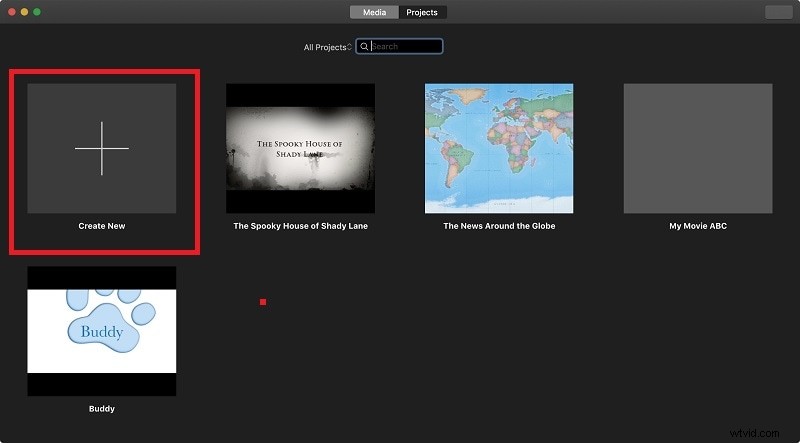
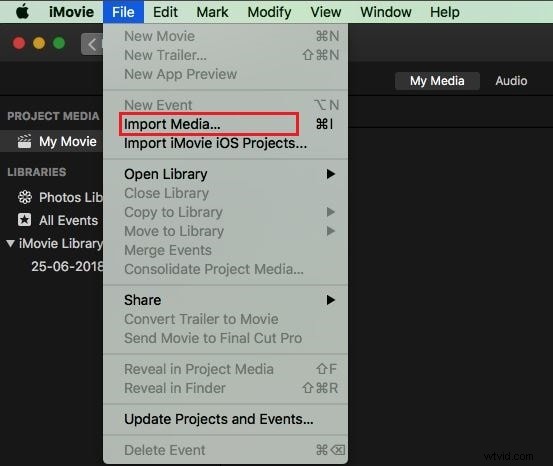
2️⃣ Import your footage via File → Import Media, or select a file from your Photos library.
3️⃣ Drag the clip onto the timeline. Duplicate it by dragging or copying/pasting so the clips follow one another with no gaps. This creates a continuous loop.

4️⃣ When satisfied, export the finished file via File → Share → File.
2. Filmora for Mac
For more advanced editing—including transitions between loops—Wondershare Filmora provides a polished, premium experience.
1️⃣ Install and launch Filmora, then start a New Project.
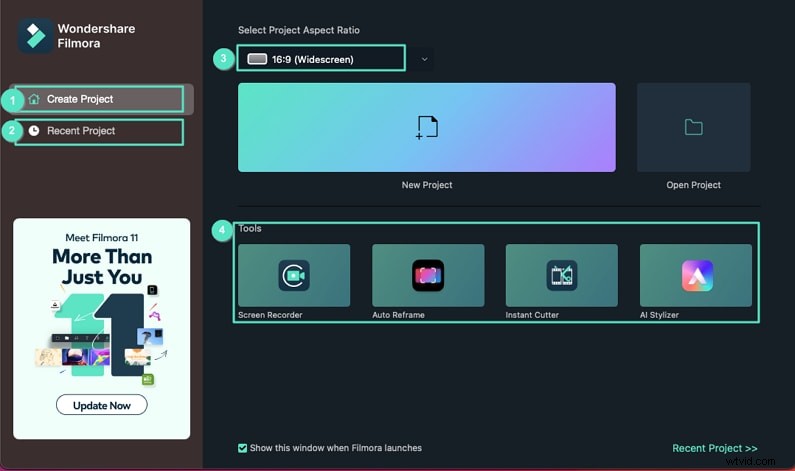
2️⃣ Drag your video into the Project Media area, then onto the timeline.
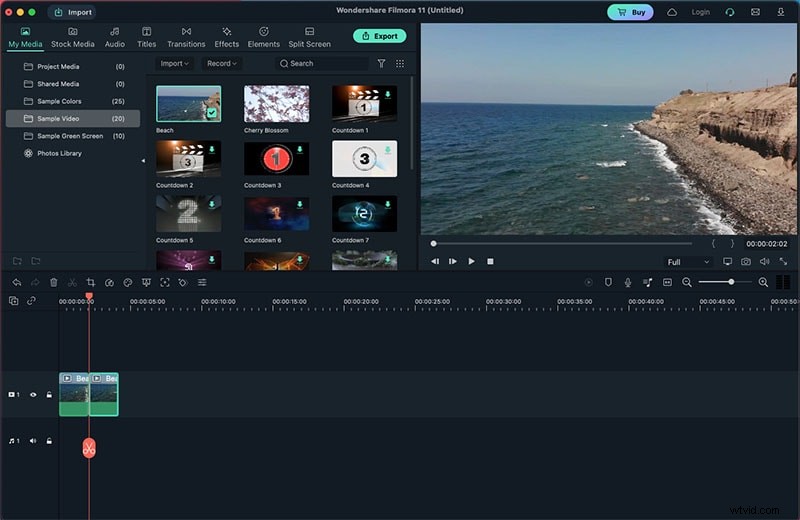
3️⃣ Append a copy of the clip right after the first instance, ensuring there are no gaps. You can also copy‑paste for convenience.
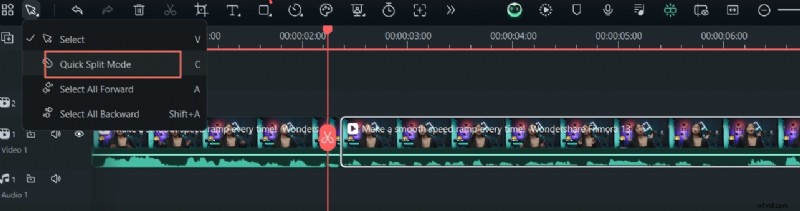
4️⃣ Preview the loop in Filmora’s Viewer. Once you’re happy, click Export to save the file in your preferred format.
Frequently Asked Questions
How do I make my video player loop?
On macOS, the default player is QuickTime. Enable loop by selecting View → Loop. Other players like VLC also have a Loop toggle in their View menu or toolbar.
How can I loop a YouTube video on Mac?
Open the YouTube video, right‑click (or control‑click) on the player, and choose Loop from the context menu.
Can QuickTime Player loop audio files?
Yes. Play the audio file and enable loop via View → Loop. Some users report a brief gap at the start of each repeat, but the feature works the same as for video.
Conclusion
Looping media—whether for casual playback or embedded in a project—is a common need. QuickTime Player makes it simple to repeat a file on demand, and both iMovie and Filmora give you the flexibility to create a permanently looping video for export.