
Just as video effects elevate ordinary footage, dynamic text effects transform plain titles into memorable visuals. By blending color, texture, and style, these effects create striking on‑screen text that captivates viewers and enhances storytelling. Many of the most popular styles are available as presets, allowing editors to apply them instantly.
Adobe After Effects is the industry standard for creating custom text animations, but the learning curve can be steep. Knowing which effects consistently perform well will help you choose the right one for your project and streamline the editing process. Below, we highlight the top 10 text effects you should master.
In this article
-
- Underwater Text Effect
- Flame Text Effect
- Glitch Text Effect
- 3D Text Effect
- Comic Book Text Effect
- Blurry Fade on Text Effect
- Type‑On Text Effect
- Animate Along a Path
- Slide Text Effect
- Stripe Text Effect
- How to Create Text Effects
Part 1. Popular Text Effects
Whether you’re watching a blockbuster, a web series, or a social‑media clip, certain text styles recur across the industry. We’ve compiled the most relevant effects that resonate with contemporary audiences.
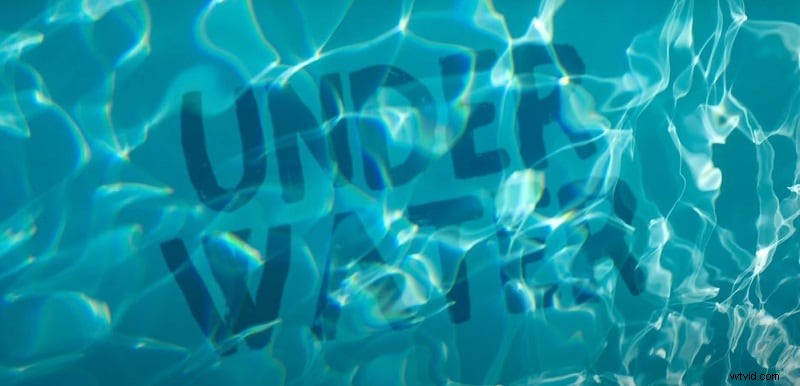
1. Underwater Text Effect
Opening a scene with a beach or ocean view is visually arresting, and adding an underwater text effect elevates the title to a new level of intrigue. The effect makes the text appear suspended or emerging from the water, often rendered in a darker blue against a lighter background. Distortions that mimic ripples add realism, and variations include floating bubbles or a translucent gel overlay.
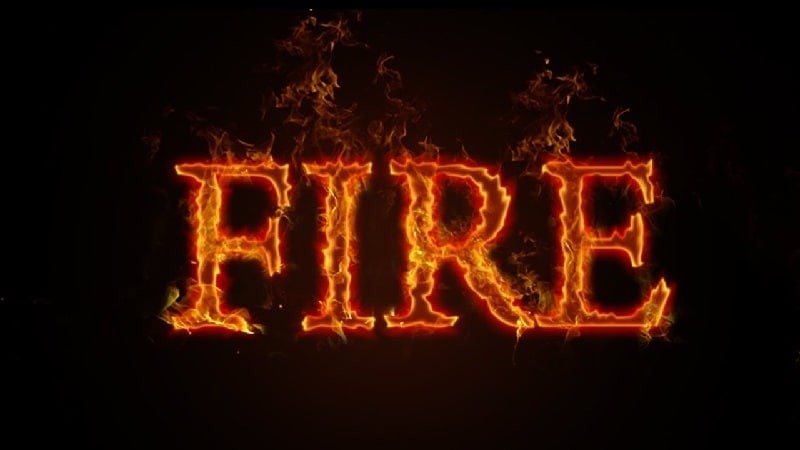
2. Flame Text Effect
Flame text is a staple in action and thriller titles, delivering an immediate sense of intensity. The text is typically set against a dark or fiery backdrop, with flames either surrounding or engulfing the characters. Some variations confine the fire within the text, creating the illusion that the letters are burning, while others feature dynamic flicker that gives the impression of an erupting blaze.
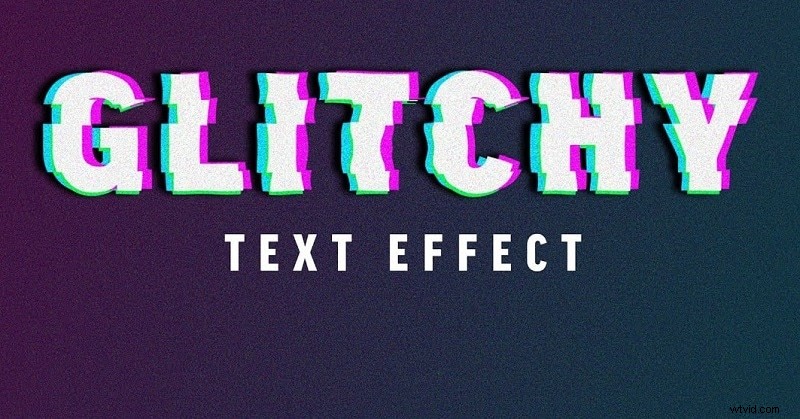
3. Glitch Text Effect
Glitch text offers a retro‑futuristic vibe that’s perfect for sci‑fi or tech‑centric content. The technique splits the text into segments and applies subtle horizontal or vertical displacement, mimicking a corrupted signal. A contrasting light‑colored font on a dark background, combined with shadow and blur, amplifies the effect. Short, diagonal lines can be added for extra emphasis, and 3D text can further enhance the visual impact.
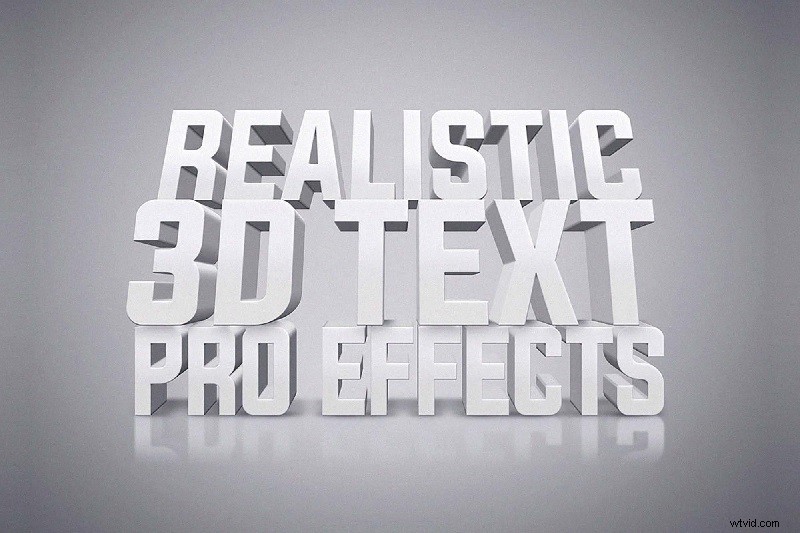
4. 3D Text Effect
3D text has long been a versatile choice, adaptable to any genre or style. From bold, full‑screen titles to subtle holographic overlays, the possibilities are endless. You can create the illusion of text emerging from a wall, floating in mid‑air, or even dissolving into particles. The key is customization—adjust lighting, depth, and movement to match the narrative tone.
5. Comic Book Text Effect
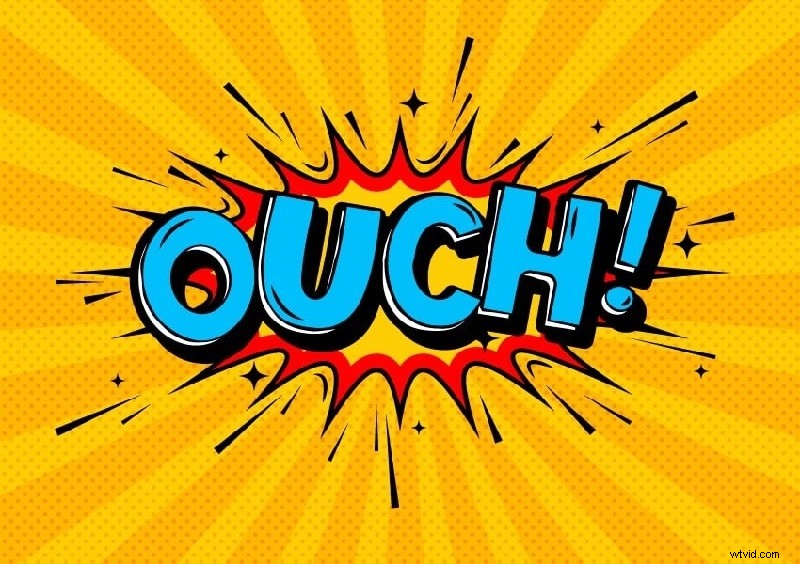
Channeling the spirit of classic comic books, this effect brings a playful, superhero flair to video titles. Text is often rendered in bold, comic‑style fonts with a distinct outline, accompanied by a colorful background and occasional burst or “BAM” graphic. This style works especially well for animated segments, transitions, or interview intros.
6. Blurry Fade on Text Effect
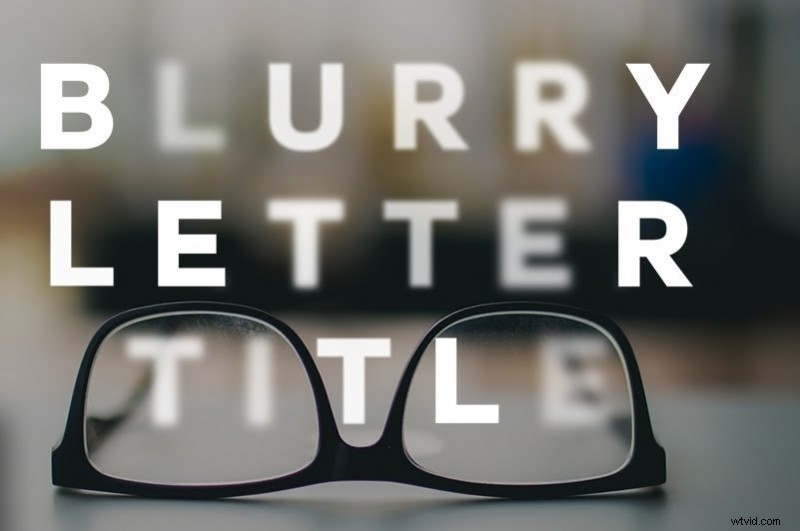
The blurry fade effect mimics the focus shift of a camera lens, drawing attention to the focal word while blurring the surrounding text. This subtle yet effective technique is ideal for highlighting key phrases or guiding viewers’ eyes during transitions. It can be combined with a simple fade to add an extra layer of sophistication.
7. Type‑On Text Effect
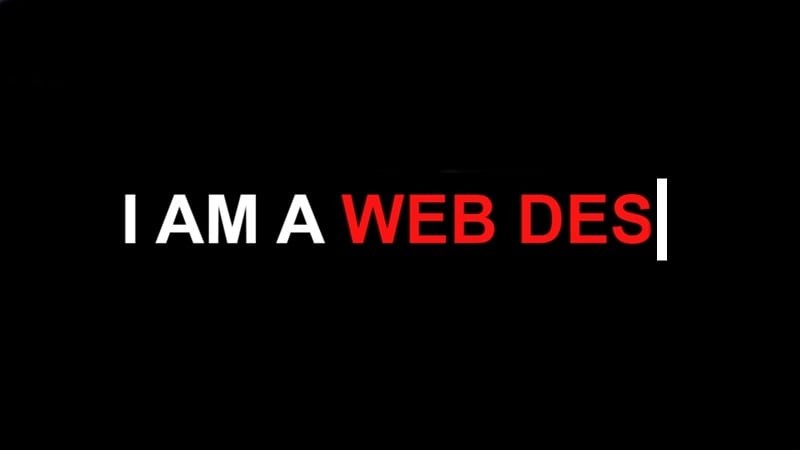
Often referred to as the typewriter effect, this animation displays characters sequentially, complete with a blinking cursor for realism. It’s perfect for narrating dialogue or emphasizing important statements. Advanced variations include typing, deleting, and re‑typing to create dynamic emphasis.
8. Animate Along a Path
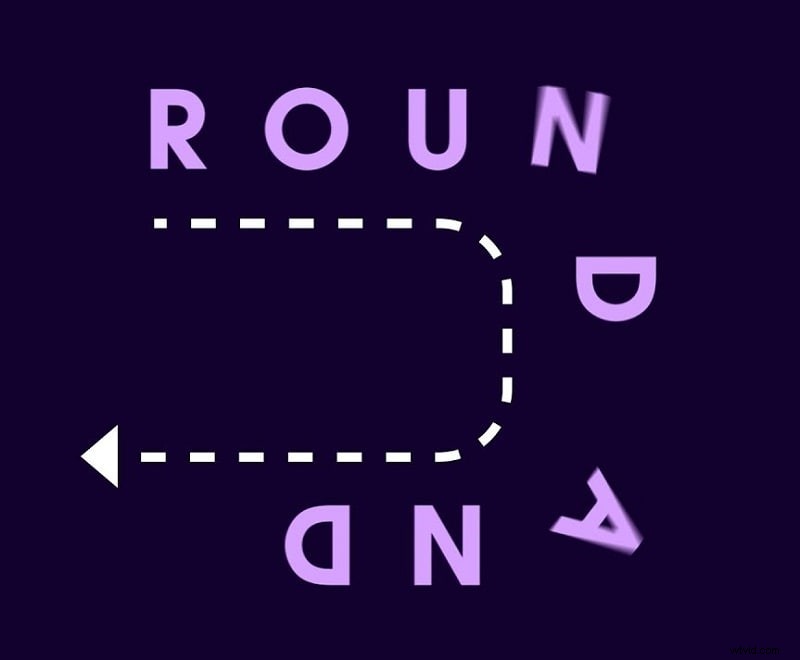
Custom animation along a defined path lets you choreograph text movement precisely. Whether you want a line to glide across the screen, loop around a shape, or follow a complex trajectory, this effect delivers creative control. It’s frequently used for opening credits, animated subtitles, or spotlighting recurring phrases.
9. Slide Text Effect
Slide text is common in informational videos, where text glides in from a corner or edge. Coupled with a highlighted background, it ensures legibility and adds a kinetic feel to the narrative. This effect is especially useful for news tickers, fact boxes, or quick bullet points.
10. Stripe Text Effect
Similar to slide, stripe text introduces titles with decorative bars on either side, creating a striking frame. The simplicity of the style allows for easy adaptation across genres, and adding internal stripes can amplify visual interest. It’s ideal for opening sequences and segment transitions.
Part 2. How to Create Text Effects?
While After Effects remains the gold standard for custom text animation, its steep learning curve can deter beginners. Wondershare Filmora offers an intuitive alternative with a comprehensive library of ready‑made text effects. With Filmora, you can apply, tweak, and even create custom effects without prior experience.
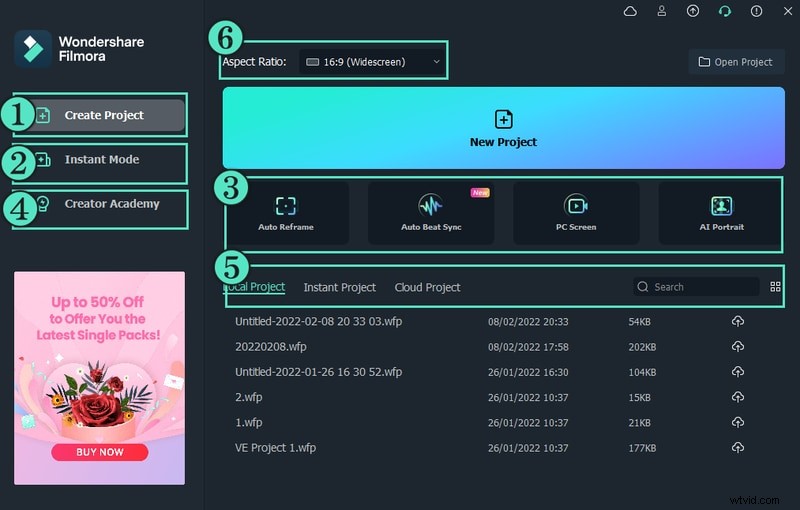
Step 1: Download and install Filmora for Windows or macOS. Launch the application and select New Project.
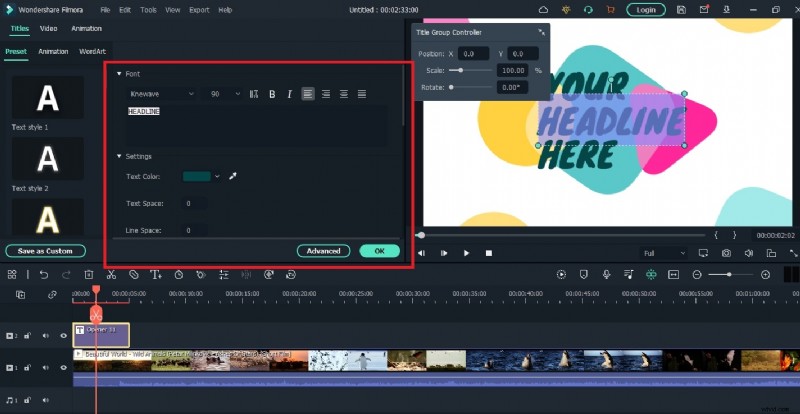
Step 2: Import your footage into the Project Media folder, drag it onto the timeline, and navigate to the Titles menu. Here you’ll find a range of static and animated text presets.

Step 3: Choose a template, drop it onto the timeline, and reposition it as needed. Double‑click the text layer to edit the content. Use the Advanced panel to fine‑tune the animation, color, and other parameters.
The Bottom Line
These ten text effects are the cornerstone of modern video storytelling. If you’re comfortable with After Effects, the tutorials online will help you master them. For those seeking a faster workflow, Filmora delivers a user‑friendly experience without compromising creativity.