
If you’ve landed on this page, you’re likely searching for a reliable method to convert MKV files to MP4.
MKV (Matroska Video) is a popular container format frequently used for movies, screen recordings, or anime downloads. While it can hold multiple video, audio, subtitle tracks and metadata, its larger file size and limited device support often make it inconvenient for quick sharing or playback.
Converting MKV to MP4—an industry‑standard, lightweight format—solves these issues. Below, we’ll walk you through the differences between the two formats and recommend the best tools, both desktop and online, to achieve a loss‑free conversion.
Part 1: MKV vs MP4 – Understanding the Differences
Before converting, it’s helpful to understand the core distinctions between MKV and MP4. Both are widely adopted, yet they cater to different needs.

MKV functions as a flexible container that can store an unlimited number of video, audio, subtitle tracks, and metadata—all in one file. However, MKV files are typically larger and may require specific players or software to play.
MP4 is a lightweight, highly compatible format that works across virtually every device and platform. It usually contains a single video and audio track, making it easier to manage and load quickly.
Quick comparison:
| MKV | MP4 | |
| File type | Container format | Multimedia format |
| Compatibility | Limited (requires specific players) | Very high (works on most devices) |
| File size | Larger | Smaller and more efficient |
| Ideal for | Archiving movies with extras or subtitles | Streaming, sharing, editing |
MKV to MP4 conversion becomes essential when:
- You downloaded a movie or show in MKV but it won’t play on your phone or tablet.
- You need to upload a video to a social platform that doesn’t support MKV.
- Your video editor doesn’t recognize MKV files.
- The file is too large and lags during playback or editing.
- You’re sharing the video with someone who uses only basic media players.
Part 2: Best MKV to MP4 Converter for Desktop
For a comprehensive desktop solution, Wondershare Filmora stands out. It supports a wide range of formats—including MKV and MP4—and bundles powerful editing tools, allowing you to trim, cut, enhance, or add subtitles before converting.
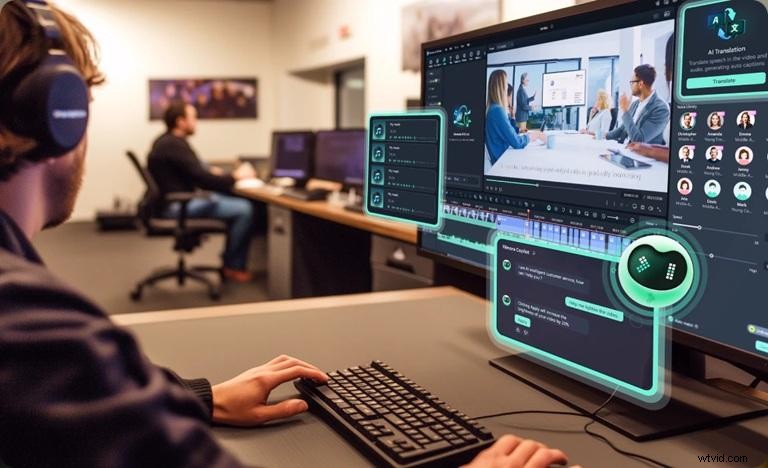
Filmora’s Advanced Video Compressor lets you reduce file size without sacrificing quality. With it, you can convert, edit, and compress all in one workflow.
How to Convert MKV to MP4
Step 1 – Start a New Project and Import Your Video
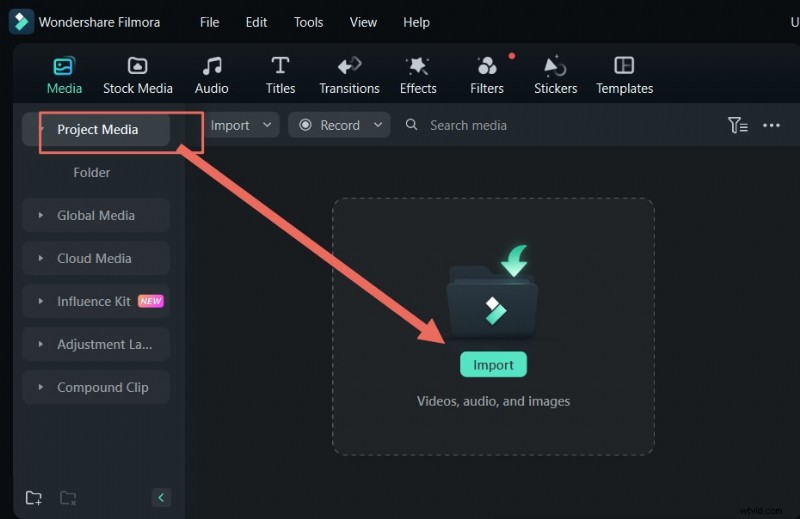
Launch Filmora, click “New Project,” and then import your MKV file by dragging it into the Media Library or using the Import button. Drag the clip onto the timeline when ready.
Step 2 – Make Edits (Optional)
Before conversion, you can refine the clip: trim sections, crop the frame, adjust audio levels, add subtitles, or apply filters. Filmora’s AI Video Enhancer can sharpen visuals and reduce noise automatically.
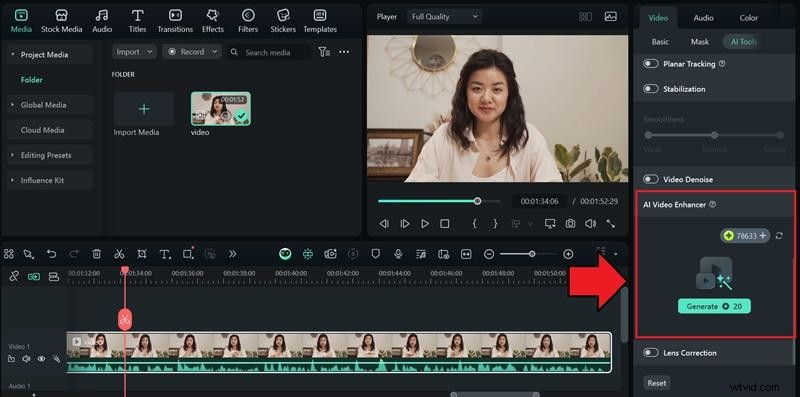
- Select the clip on the timeline.
- Navigate to Video > AI Tools.
- Choose AI Video Enhancer and click Generate.
Step 3 – Export and Begin Conversion
Click “Export,” choose MP4 as the output format, and adjust resolution or bitrate as needed. Enable Advanced Compression for a smaller file while maintaining quality.
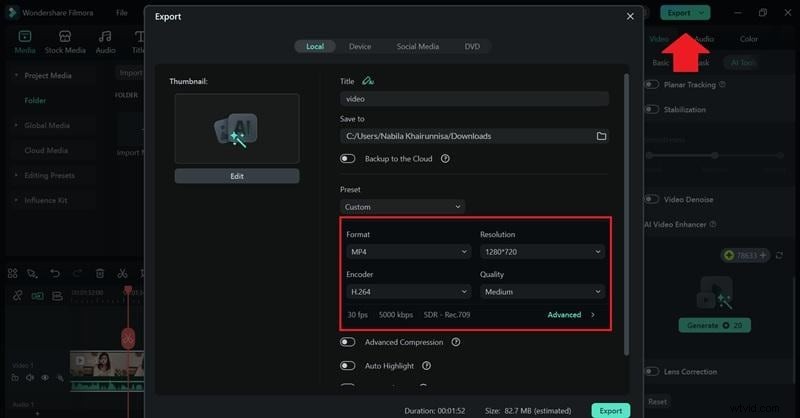
When satisfied, click “Export” again to start the conversion. Filmora will process the MKV file and produce a high‑quality MP4.
Part 3: Convert MKV to MP4 with Online Converters
Online tools are ideal for quick conversions without installing software. Below are the most reliable options, each with its own strengths.
1. CloudConvert
CloudConvert supports over 200 formats, including MKV to MP4. It offers granular control over resolution, codec, file size, and subtitle options.
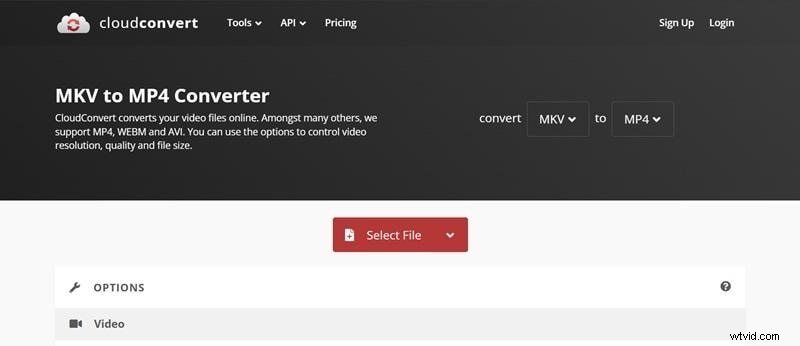
- Custom settings (bitrate, resolution, etc.)
- No sign‑up required for small conversions
- Integrates with Google Drive, Dropbox, and more
- Ad‑free interface
- Batch file conversion support
Limitations: 10 free conversions per day, slower speeds for large files.
Pricing:
- Free with restrictions
- Paid plans start at $9/month
- Pay‑as‑you‑go credits available
How to Convert:
- Visit cloudconvert.com.
- Set MKV as input, MP4 as output, then upload your file.
- Adjust settings as desired (codec, resolution, subtitles, watermark).
- Click Convert and download the finished MP4.
2. FreeConvert
FreeConvert offers a straightforward, free conversion of up to 20 files per day without registration. It supports over 1500 file types.
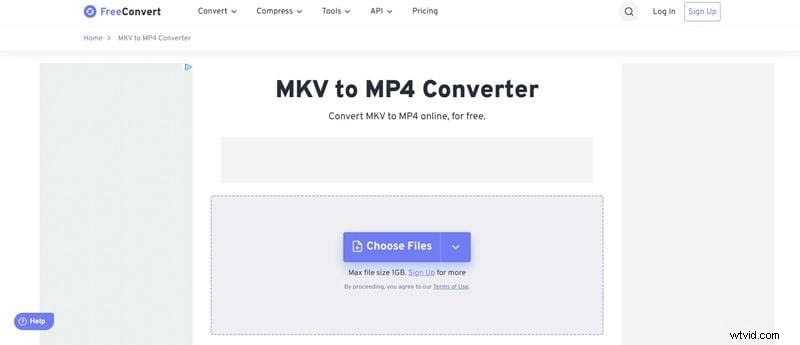
- Simple editing tools (trim, compress, resolution)
- 256‑bit SSL encryption
- Automatic file deletion after a few hours for privacy
- Batch conversion support
Limitations: 1 GB file size cap, ads, 5‑minute processing time per file.
Pricing:
- Free with limits
- Paid plans start at $12.99/month
How to Convert:
- Open the FreeConvert website.
- Upload your MKV file, set output to MP4.
- Optionally adjust settings via the gear icon.
- Click “Convert to MP4” and then download.
3. Zamzar
Zamzar is a veteran in online conversion, offering a simple MKV‑to‑MP4 workflow. No account needed for basic use, though registration unlocks larger files and faster speeds.

- Clean, ad‑free interface
- Supports hundreds of formats
- Email notifications when conversion completes
Limitations: 50 MB file size on free plan, limited customization.
Pricing:
- Free with restrictions
- Paid plans start at $12/month
How to Convert:
- Navigate to Zamzar.com.
- Upload your MKV file and select MP4 as output.
- Click “Convert Now.”
- Download the MP4 once finished.
4. Restream
While primarily a live‑streaming platform, Restream offers a free MKV‑to‑MP4 converter, ideal for repurposing recorded broadcasts.
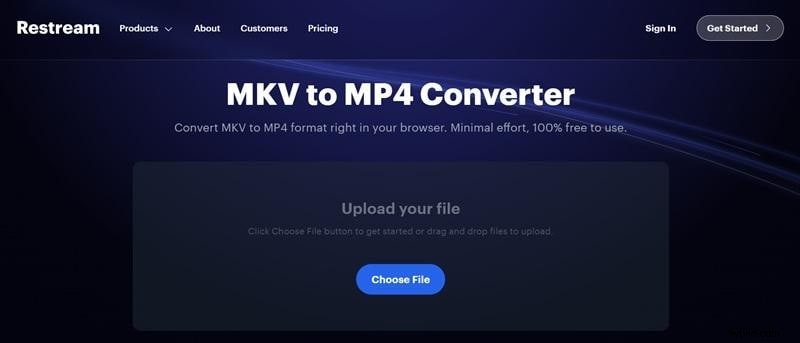
- Designed for streamers converting past content
- Converted videos can be shared or downloaded directly
Limitations: Requires a Restream account; free tier offers limited cloud storage.
Pricing:
- Free with limits
- Paid plans start at $19/month
How to Convert:
- Sign in to Restream and go to the video converter page.
- Upload your MKV file and set MP4 as output.
- Start conversion; once ready, locate the file in Video Storage.
- Click the three dots and select “Download.”
5. VEED.IO
VEED.IO is an online editor that also handles format conversion. It’s useful when you need quick edits—like trimming or adding text—alongside the MKV‑to‑MP4 change.

- Built‑in editing tools
- Advanced resolution, aspect ratio options
- Cloud storage uploads supported
Limitations: Free exports include a watermark; file length and export quality capped without a subscription.
Pricing:
- Free with restrictions
- Paid plans start at $19/month
How to Convert:
- Open VEED.IO’s MKV‑to‑MP4 converter.
- Upload your MKV file.
- Select MP4, adjust settings if needed, then click “Convert.”
- Download the result.
6. Convertio
Convertio supports MKV‑to‑MP4 and thousands of other formats. No account needed for basic use, but the free tier limits uploads to 100 MB.
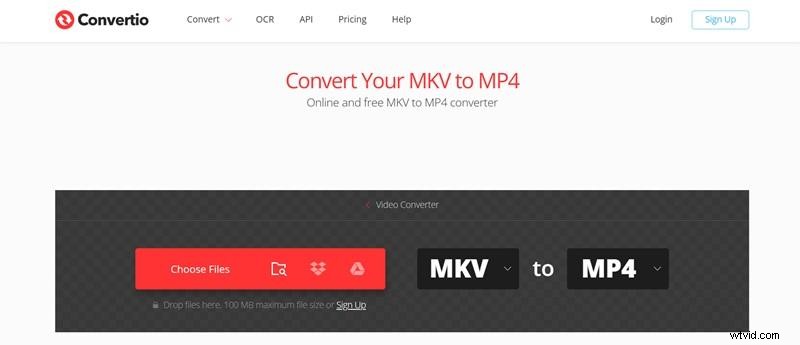
- Advanced settings (codec, profile, etc.)
- Fast for small‑to‑mid sized files
- Batch conversion available
Limitations: 100 MB free limit, no built‑in editing.
Pricing:
- Free with limits
- Paid plans start at $9.99/month
How to Convert:
- Visit Convertio’s website.
- Import your MKV file from your computer or cloud.
- Choose MP4 as the target format.
- Click Convert and download the MP4.
FAQs
-
Will converting MKV to MP4 reduce video quality?
Not necessarily. With proper settings or a lossless conversion mode, quality remains near identical. Heavy compression can degrade clarity, but tools like Filmora’s Video Enhancer or Advanced Compression can mitigate this.
-
What’s the difference between converting and re‑encoding?
Converting changes the container (MKV to MP4), while re‑encoding alters the internal codec, potentially affecting quality or file size.
-
Can I convert MKV to MP4 on my phone?
Yes. Use any of the online converters via your mobile browser, or download a mobile app that supports format conversion.
-
Why is my converted MP4 still not playing on some devices?
Even if the file is MP4, the internal video or audio codec might be unsupported. Choose standard codecs—H.264 for video, AAC for audio—during conversion to maximize compatibility.
Conclusion
MKV to MP4 conversion is essential when device compatibility, file size, or editing constraints become an issue. For the best quality and flexibility, we recommend using Wondershare Filmora, which combines conversion with robust editing features. For quick, no‑install solutions, the online converters listed above offer reliable performance and a range of options.
Start your conversion today and enjoy high‑quality MP4 videos that play everywhere.
Get Started for Free – Windows 7 or later (64‑bit) / macOS 10.14 or later