
Professional video creators are raking in billions on platforms like YouTube and TikTok, which inspires newcomers to produce their own content. However, standing out isn’t as simple as shooting a clip. A polished, animated subscribe button graphic is essential for capturing viewer attention and driving channel growth.
This guide walks you through creating a fully animated, high‑quality subscribe graphic using Wondershare Filmora. We’ll cover everything from initial design to final export, so you can add a professional touch to every video.
What Is a Subscribe Channel Graphic?
A subscribe channel graphic is a visual prompt—typically a button or overlay—that encourages viewers to subscribe to your channel. It usually includes your channel name, a “Subscribe” label, and icons like a bell or thumbs‑up. Below is a typical example:
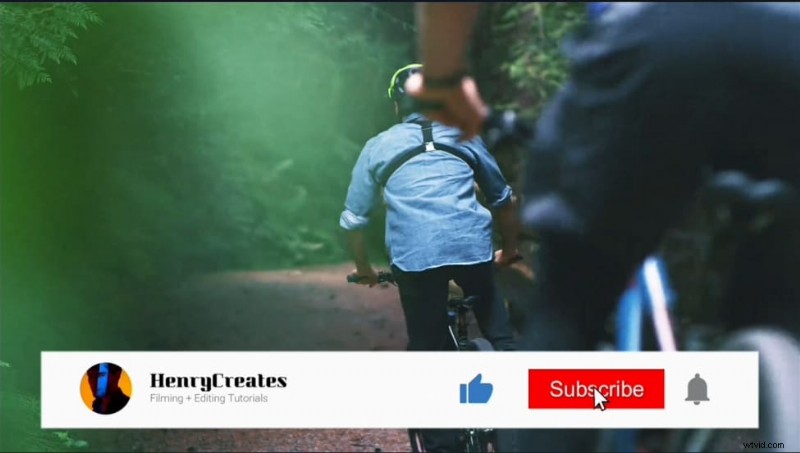
While many creators include such graphics, the challenge lies in crafting one that looks professional and flows smoothly with the video’s aesthetic.
Step‑by‑Step: Creating an Advanced Subscribe Graphic
1. Download and Install Wondershare Filmora
Begin by downloading Filmora from the official site. Once installed, launch the application and create a new project. Filmora’s intuitive interface and extensive template library make it ideal for beginners and experts alike.
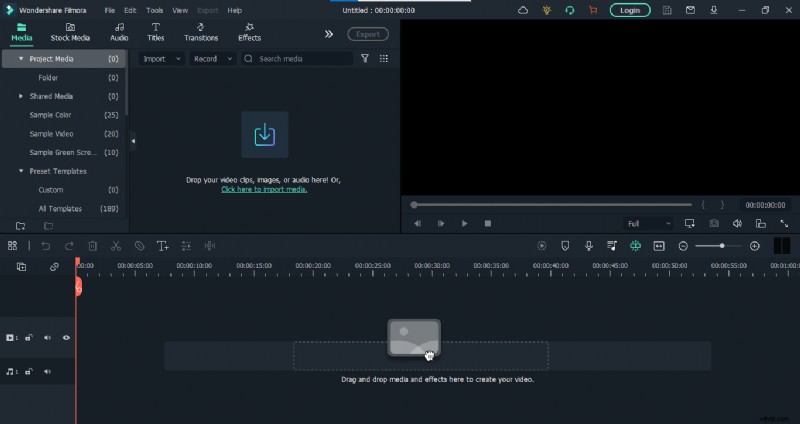
2. Build the Graphic’s Structure
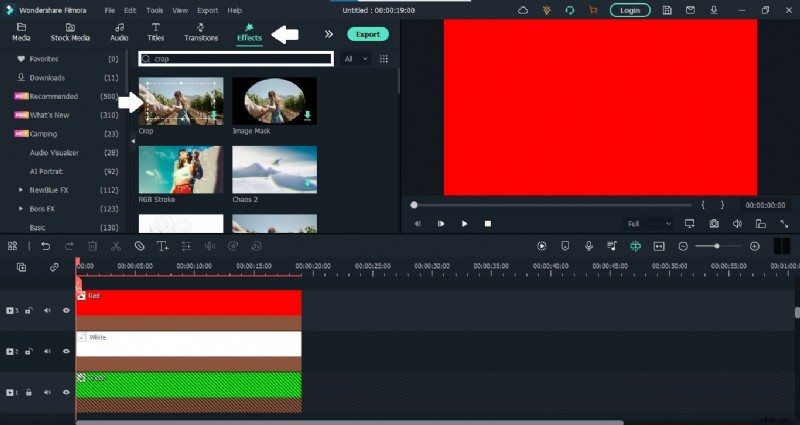
- Add Color Layers
- Navigate to the Media panel and drag a sample green color into the timeline. This will serve as the base layer.
- Lock the layer to prevent accidental edits.
- Add white and red layers above the green one.

- Crop the Color Layers
- Search for the Crop effect and apply it to the white and red layers.
- Use the safe zones to shape each layer into the desired graphic outline.
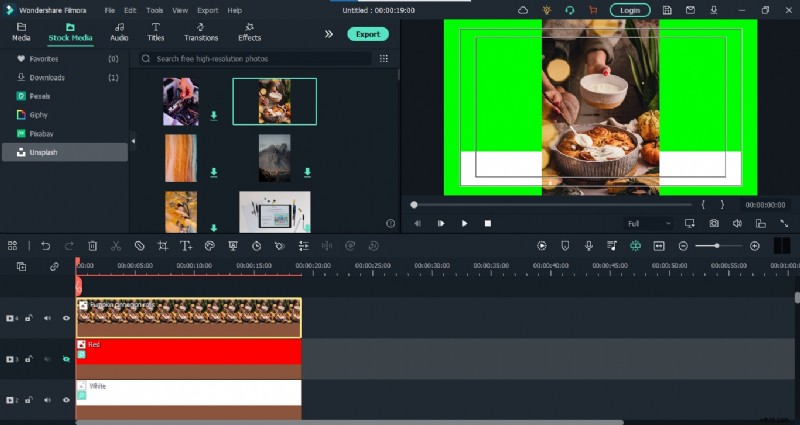
- Insert a Channel Photo
- Upload your channel avatar or a relevant image.
- Apply a circular mask and adjust size to fit the white layer.
- Add Text Elements
- Insert a title for your channel name on the white layer.
- Add a second title for the “Subscribe” label on the red layer.
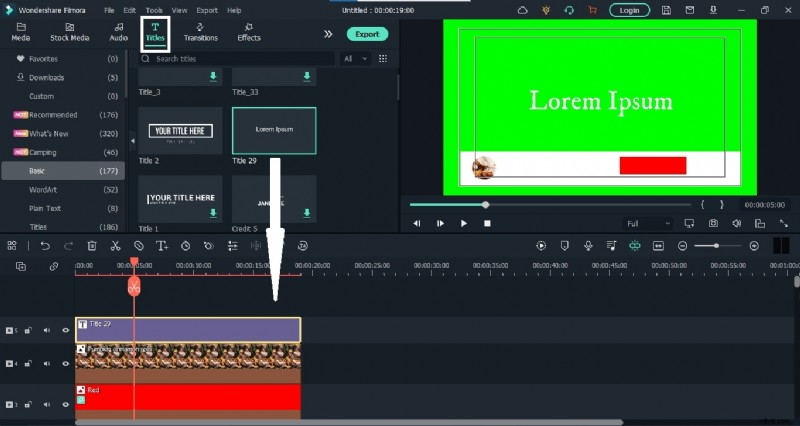
- Insert Icons
- Search the Elements panel for a bell icon and add it near the “Subscribe” text.
- Include a thumbs‑up and mouse cursor icon for interactive animation.
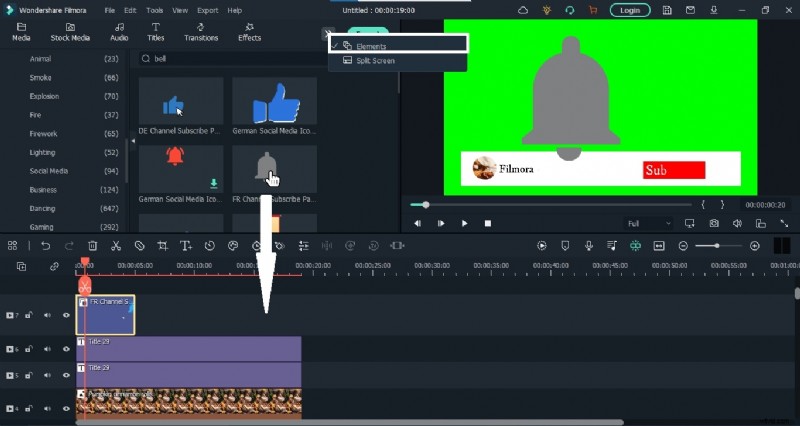
3. Animate the Graphics
Use keyframes to bring each element into view from below the frame, then animate text with a type‑writer effect for a polished look.
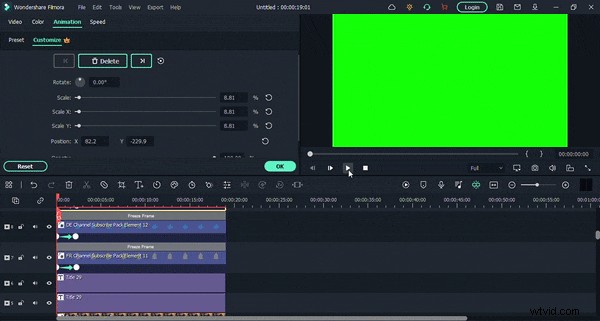
4. Animate the Mouse Cursor
Place the cursor icon over each interactive element—thumbs‑up, bell, and subscribe text—using keyframes to simulate a click‑through experience.
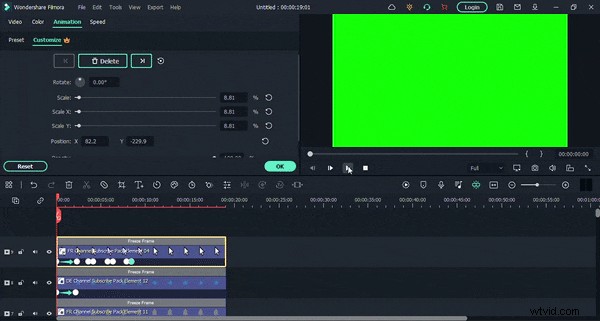
5. Exit Animation and Final Adjustments
Reverse the entrance animation for each layer to create a seamless exit. Fine‑tune text timing and export the final GIF.
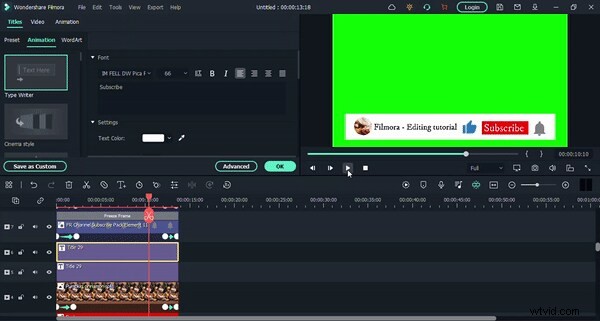
To use the graphic, import it into your video project and enable the green screen option to remove the background. Place the overlay at the desired point in your footage, and your viewers will see a crisp, animated subscribe prompt.
Conclusion
Crafting a subscribe channel graphic is no longer a task reserved for high‑budget studios. With Wondershare Filmora’s powerful tools, you can create a compelling, animated prompt that boosts engagement and subscription rates—no matter your experience level.