
Whether you’re an educator, student, a sales associate or small business, video presentations with picture-in-picture video or video overlays will be very useful tools for you.
We know it’s not always possible to give presentations live and in person, so we have created an effective way for you to make a face-to-face connection with your remote audience members.
Appear on-screen alongside your presentation content by creating video presentations using our online webcam recorder. We'll explore:
Why are video presentations with webcam recorder becoming more popular?
How to utilize your Webcam Recorder to its maximum potential
How to create a video presentation using webcam recorder [step-by-step guide]

Why are video presentations with webcam recorder becoming more popular?
Sometimes we just can’t all be in the same room at once. Busy schedules, different time zones, transport difficulties, you name it. Video presentations with a webcam recorder can take the stress out of not being able to make it in person.
Not only are video presentations more time-efficient and cost-effective but they are also a preferred learning technique amongst the community.
95% of viewers say they retain a message when they watch it in video form, compared to 10% when reading it in a textbook.
Video presentations made with a webcam recorder are more interactive and advanced versions of standard Powerpoint presentations. Keep viewers entertained, motivated, informed, and leave a lasting impression.
Utilize your Webcam Recorder to its maximum potential
Even though you aren’t presenting in person, eye contact is just as important! By adding in a webcam recorder video overlay to your presentation will assist viewers to still connect with you via your facial expressions and body language, making your speech more humanized and memorable. Powerpoint slides can sometimes become boring and lack engagement if not executed properly. A webcam recorder enables you to form a virtual face to face experience between yourself and the viewers. This will grow credibility and trust. Our Expert’s Guide to Webcam Recording can further assist you for all your webcam recorder and video production queries.
How to create a video presentation using webcam recorder [Step-by-step]
This step by step guide is suitable for small businesses, teachers, students or salespeople. If you’re presenting from a remote location this is the perfect tutorial for creating an engaging video presentation with webcam.
Step 1. Get started by creating a Clipchamp account
Log into your existing Clipchamp account, or sign up for free.

Step 2. Create video presentations with a new project
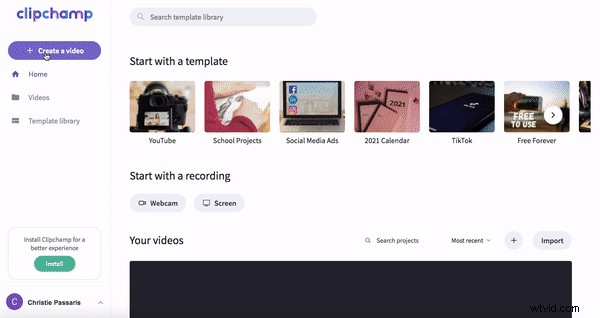
Select the Create a video button on the left side bar. Choose between the five different video formats and select the one best suited to your project. We recommend using our widescreen 16:9 ratio for a video presentation. Widescreen 16:9 ratio is suitable for uploading on YouTube, Vimeo and other video sharing platforms.
Step 3. Add your Video Presentation
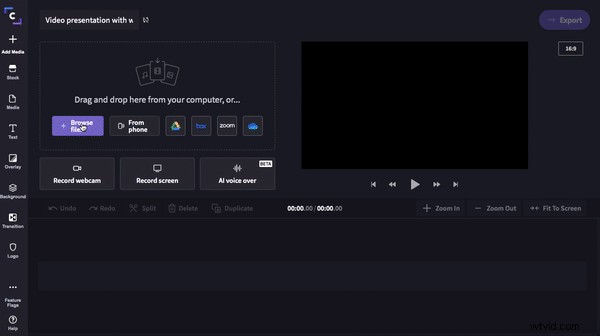
Click on Browse Files or the Media tab to add your video presentation into your library. Your presentation can be made with any program you’d like, but must be saved as an MP4 file. Select your video presentation and click Open. Your presentation will now appear in your library. Drag and drop your presentation onto the timeline.
Step 4. How to record video on Mac webcam
Firstly, split your computer screen into two, so you can view your presentation and video editor or, print out your presentation slides so you know what you want to say.
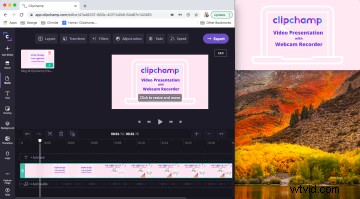
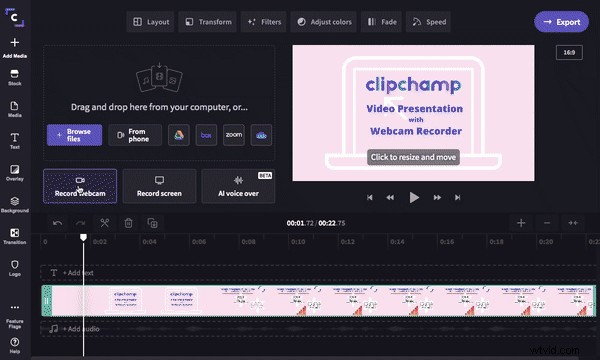
Click Add Media then click on Record Webcam. The webcam recorder will automatically open. Click on the Red Record button to start webcam recording and creating your video overlay. Click on the same button (it’s now turned into a purple circle with a square inside) to stop recording. If you’re having trouble, head over to our more detailed tutorial.
Once you are happy with your webcam recording, two options will appear. Retake Recording or Add to Project. Click on Add to Project and your video overlay will appear in your video library. An autosave will appear on your screen, giving you the option to save your new video recording onto your computer.
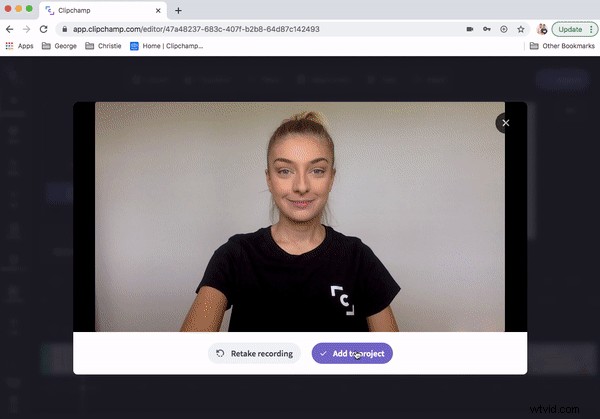
This webcam recorder software and process is the exact same for Mac and Windows users.
Step 5. How to overlay a video on a video
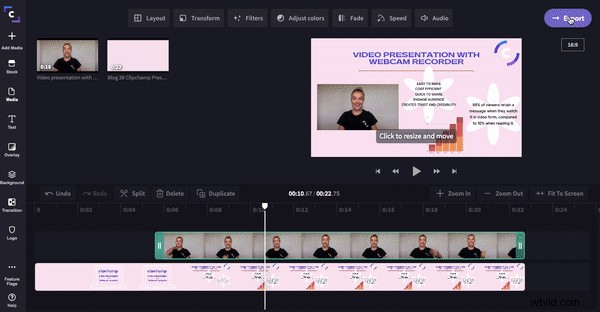
Drag and drop your webcam video onto your timeline above your presentation video. You have now created a video overlay or picture-in-picture. Click on the video preview and four white dots on each corner will appear. Click and drag the white dots to make your video smaller. You can also move your video freely around the screen and place where it will not interfere with the presentation. Your video presentation will now have video and audio.
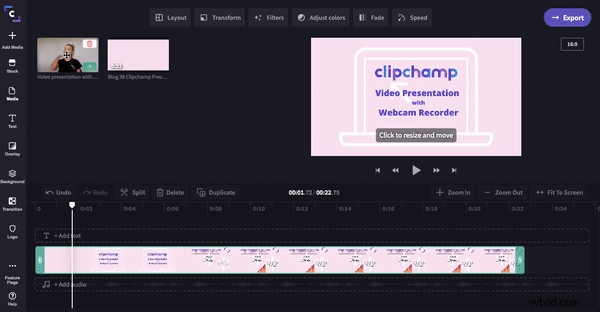
If you’re wanting further information on picture-in-picture, check out our How to Create Picture in Picture Videos blog.
Step 6. Save your video presentation with new video overlay
Finished video editing? It’s now time to save and export your video presentation. Click on the purple Export button in the top right corner of the video editor. A pull out screen will appear. Click on 720p and compression for the fastest sending speed whilst still remaining high quality. Your video presentation can be easily shared with audio and video via email, social media, embed links or viewable links.
That’s a wrap!
You should now be able to create engaging video presentations with your webcam. If you’re looking for more video presentation ideas or video presentation templates, head on over to our template library with thousands of ready to use templates to choose from. Happy editing!