
Video editing is more than a hobby—it's a craft that refines raw footage into a polished narrative. Whether you’re correcting errors, enhancing visuals, or shaping a story, mastering the right tools and shortcuts can dramatically improve your workflow and output quality.
Part 1: Key Checkpoints for Rapid Editing
01. Organise Your Footage
Before you hit the timeline, sort and label your media files. A tidy media bin reduces search time and keeps the editing process focused.
02. Set Up Your Timeline
Choose the appropriate resolution and frame rate for your project. Pre‑defining these settings saves time and ensures consistent playback across devices.
03. Identify Crucial Moments
Review clips thoroughly to locate pivotal scenes. Marking these early means you won’t waste time hunting them later.
04. Apply Transitions and Adjust Audio
Use simple transitions to maintain flow, and synchronise audio levels to match the visual pacing.
05. Preview and Export
Always preview your edit to catch mistakes. Then export using the format that best suits your distribution channel.
Part 2: Why Wondershare Filmora Is the Ideal Editing Companion
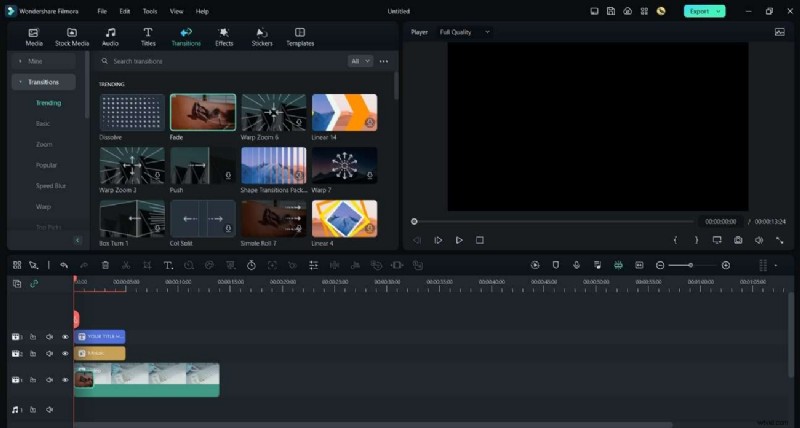
Filmora blends affordability with professional features, making it a top choice for creators of all levels. Its intuitive, timeline‑based interface lets you craft stories effortlessly while supporting a wide array of file formats.
Core Features that Set Filmora Apart
- AI Smart Cutout removes unwanted background elements automatically.
- AI Image generates visuals from text prompts, ideal for quick concept art.
- ChatGPT integration helps craft compelling titles, descriptions, and captions.
- Keyframe‑based speed control delivers cinematic motion effects.
- Dynamic title editor offers modern typography, illustrations, and animations.
Part 3: Essential Keyboard Shortcuts for Lightning‑Fast Editing
Keyboard shortcuts are the backbone of efficient editing. Below is a comprehensive list tailored for Filmora users. Each shortcut is designed to cut down time on repetitive tasks and keep your creative flow uninterrupted.
| Function | Shortcut |
|---|---|
| Preference | Ctrl+Shift+, |
| Keyboard Shortcut | Ctrl+Alt+K |
| Exit | Alt+F |
| New Project | Ctrl+N |
| Open Project | Ctrl+O |
| Save Project | Ctrl+S |
| Save As | Ctrl+Shift+S |
| Archive Project | Ctrl+Shift+A |
| Import Media | Ctrl+I |
| Record Voice‑Over | Alt+R |
| Add Folder | +Alt+N |
| Undo | Ctrl+Z |
| Redo | Ctrl+Y |
| Cut | Ctrl+X |
| Copy | Ctrl+C |
| Paste | Ctrl+V |
| Duplicate | Ctrl+D |
| Delete | Del |
| Ripple Delete | Shift+Del |
| Close Gap | Alt+Del |
| Select All | +A |
| Copy Effects | Ctrl+Alt+C |
| Paste Effects | Ctrl+Alt+V |
| Select Clip Range | X |
| Cancel Range | Shift+X |
| Nudge Left | Alt+Left |
| Nudge Right | Alt+Right |
| Nudge Up | Alt+Up |
| Edit Properties | Alt+E |
| Split | Ctrl+B |
| Trim Start to Playhead | Alt+[ |
| Trim End to Playhead | Alt+] |
| Crop to Fit | Ctrl+F |
| Crop & Zoom | Alt+C |
| Rotate 90° CW | Ctrl+Alt+Right |
| Rotate 90° CCW | Ctrl+Alt+Left |
| Group | Ctrl+G |
| UnGroup | Ctrl+Alt+G |
| Uniform Speed | Ctrl+R |
| Add Freeze Frame | Alt+F |
| Detach Audio | Ctrl+Alt+D |
| Mute | Ctrl+Shift+M |
| Stabilisation | Alt+S |
| Chroma Key | Ctrl+Shift+G |
| Red Marker | Alt+1 |
| Orange Marker | Alt+2 |
| Yellow Marker | Alt+3 |
| Green Marker | Alt+4 |
| Cyan Marker | Alt+5 |
| Blue Marker | Alt+6 |
| Purple Marker | Alt+7 |
| Grey Marker | Alt+8 |
| Select All Clips of Same Color | Alt+Shift+ |
| Render Preview | Enter |
| Add Keyframes | Alt+Left Click |
| Prev Keyframe | [ |
| Next Keyframe | ] |
| Motion Tracking | Alt+X |
| Color Match | Alt+M |
| Insert | Shift+QI |
| Overwrite | Shift+O |
| Replace | Alt+Mouse Drag |
| Rename | F2 |
| Reveal in Explorer | Ctrl+Shift+R |
| Apply | Alt+A |
| Quick Split | C |
| Select | V |
| Open Audio Stretch | S |
| Exit Audio Stretch | Shift+S |
| Add to Favorites | Shift+F |
| Adjust Bezier Curve | Alt+Mouse Drag |
| Split Edited State | Shift+Enter |
| Merge Up | Backspace |
| Merge Down | Alt+Q |
| Play/Pause | Space |
| Stop | Ctrl+\ |
| Full Screen/Restore | Ctrl+Alt+S |
| Prev Frame/Left | Left |
| Next Frame/Right | Right |
| Prev Edit/Up | Up |
| Next Edit/Down | Down |
| Next Second | Shift+Right |
| Prev Marker | Shift+Up |
| Next Marker | Shift+Down |
| Project Start | Home |
| Project End | End |
| Clip Start | Shift+Home |
| Clip End | Shift+End |
| Zoom In | Ctrl+= |
| Zoom Out | Ctrl+_ |
| Zoom to Fit | Shift+Z |
| Prev Select | Ctrl+Left |
| Next Select | Ctrl+Right |
| Timeline Scroll | Alt+Scroll Up/Down |
| Timeline Scroll V | Scroll Up/Down |
| Mark In | I |
| Mark Out | O |
| Clear In/Out | Ctrl+Shift+X |
| Add Marker | M |
| Edit Marker | Shift+M |
| Help | F |
| Export | Ctrl+E |
Conclusion
Filmora’s keyboard shortcuts transform raw footage into a polished story with minimal effort. By integrating the checkpoints outlined above and mastering the shortcuts, editors can dramatically boost speed, precision, and creative control. Whether you’re a beginner or a seasoned professional, these tools enable you to produce cinematic‑level videos efficiently and reliably.