
While there are many screenshot tools that help you extract frames from video, most screenshot tools don't offer good quality. What's more, you will have a problem finding the perfect frame because they require you to use the video player of your choice, and that tool on its own doesn't offer frame-by-frame support.
This article will learn how to extract frames from video with our video editing software Filmora and save the edges into high resolution PNG images. So that you can use the video snapshots to create a meme or gif or create a new video with these fun moments frames.
How to Extract Frames from a Video and Save to High-Quality Images/Videos [One-Click]
Combined with the fact that exporting to a specific format can be either cumbersome or just unavailable, then you will fully understand why it's important to use a video editor just like Wondershare Filmora to extract those frames safely and with no quality loss in the end.
You can extract images from video in Filmora with just one click with an intuitive interface. Most importantly, you will get precise frames, no annoying lags. All you need to do is install the software and follow instructions to start extracting. Download Filmora to have a try!
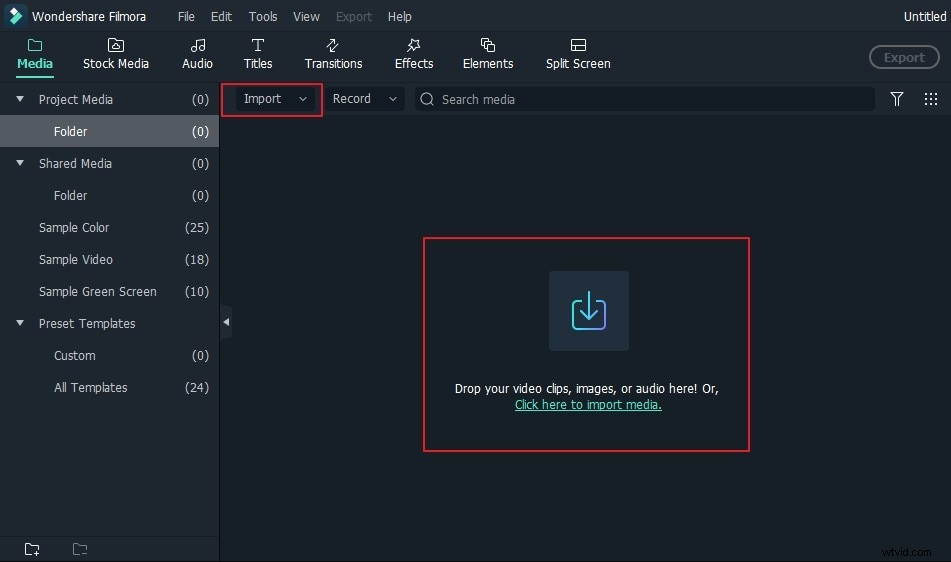
Step 1: Import your video clip to Filmora
Import the media file first either by using the app or via drag and drop on the media library window. Videos will show as thumbnails in the library, so you can choose the one you need without a problem.
If you want to extract the frame and get the same resolution as the original, click the video thumbnail in the Media Library and then click the Play button in the Preview Window. Click the Camera icon to extract the frame, and the extracted frames will be saved automatically to the media library.
Step 2: Extract frames from video Frame by Frame
In some cases, you may need to preview the video frame by frame and extract the perfect action in the video. In this case, you need to drag the video from the media library to the timeline panel.
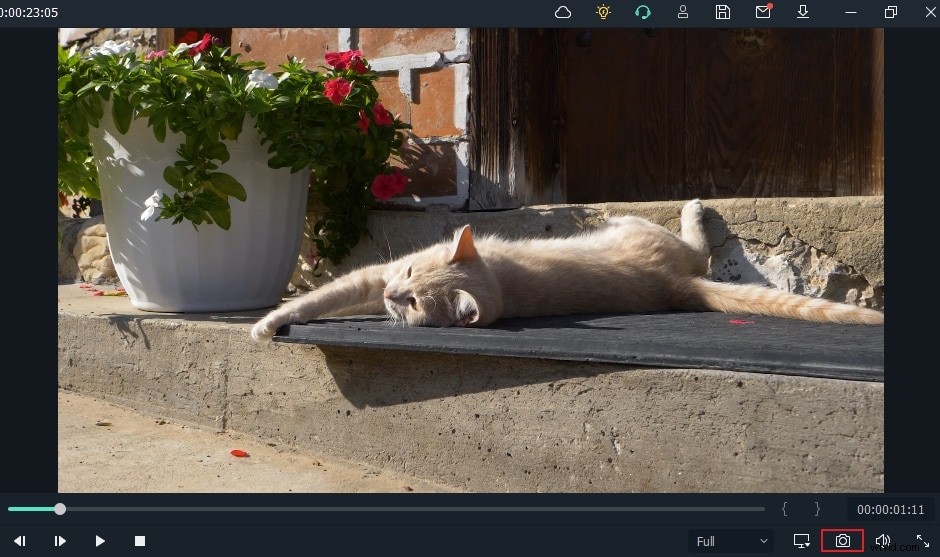
Press the blank bar in the keyboard to start the preview. Take a screenshot when the video is playing simply by pressing the Snapshot icon or pressing CTRL+ALT+S.
You can use the Left or Right arrow button on the keyboard to playback the video frame by frame and save the frame in image format.
Where to find the extracted images in Filmora?
To find frames taken from the video, right-click the screenshot in the media library and then select Reveal in Explorer to check the saved image. Filmora video frame extractor is totally free to use when extracting frame images from videos, there'll be no watermark in the extracted images.
New to Filmora video editor? Check the secrets for enhancing video editing performance in Filmora.
Edit Extracted Frame Image
Since the extracted image frames will be displayed in the media library, you can add these photos to videos, or make a YouTube thumbnail, or make a Picture-in-Picture video.
You can choose to mask it, add in specific effects, and deliver some motion to make it more appealing. There are many customization options to choose from, and it all comes down to you.
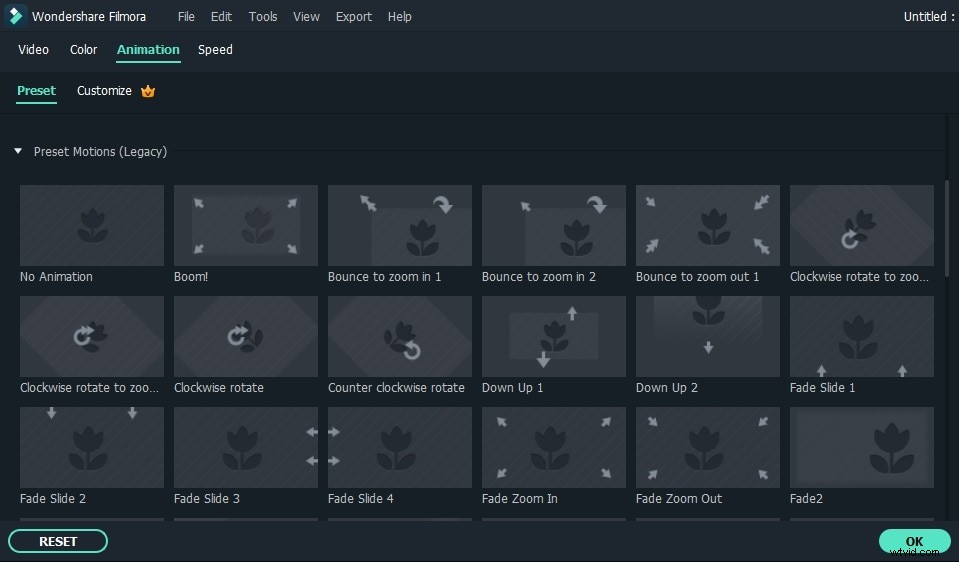
After you are satisfied with the results, you will be able to export your video content. Click Export to start the export process, then choose the desired output format. You can easily customize the output file resolution and other settings depending on the format you choose.
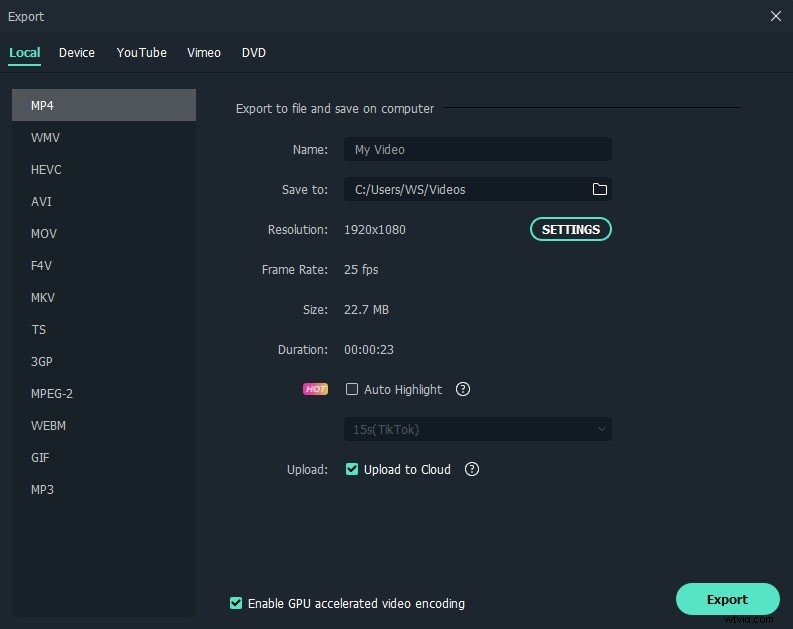
In conclusion, using Wondershare Filmora to extract frames from video is not only very simple, it also offers an amazing set of opportunities. We recommend you try out the app immediately and you will surely have no problem extracting the desired frames.
Below is the video tutorial about how to Extract Frames From Video With High Quality and Save to Images in Filmora
Advantages of Using Wondershare Filmora to Extract High Quality Frames:
- Extract the frames from any format file and remain the same quality as the original video.
With Filmora video editor, you don't have a problem to extra frames from video. It has a wide support for various video formats. What's more, it supports 4K resolution. Thus, you can extract the same 4K frame and save it in 4K image. It offers great attention to detail, focusing on the exact moment you want to extract from it. At the same time, you can also access features like Flash and Hold and Snapshot that make the experience more refined and interesting.
- Edit the extract frames directly.
Filmora allows you to edit the extracted frames directly, which will make the entire process of extracting frames from videos simpler. You know the result and Filmora video editor offers you all the tools you need to perform a perfect extraction and video editing.
Check The Ultimate Guide for Beginners About How to Edit Videos in Filmora >>
- Export and share widely.
After extracting frames from the video or editing it in Filmora, you will need to export your files online or backup media. Wondershare Filmora helps you export to mobile, DVD, or Blu-Ray. It even allows you to publish your work on Vimeo or YouTube if you want, it all comes down to you, and the results will be great because of that.