
Capturing cherished memories in a visually compelling slideshow can instantly evoke emotion and nostalgia. Whether you’re reminiscing about a recent adventure, creating a heartfelt gift, or simply curating a personal archive, a polished slideshow with thoughtfully chosen music can make all the difference.
On the iPhone, you can produce professional‑looking slideshows with minimal effort. Below we outline the three most effective approaches—leveraging a powerful third‑party editor, the native Photos app, and iMovie—along with expert tips to elevate your final product.
Table of Content
- Filmora – The Ultimate Slideshow Builder
- Photos – Quick and Easy Built‑In Option
- iMovie – Advanced Customization for Experienced Users
- Step‑by‑Step Guides for Each App
- Essential Tips for Music and Visual Flow
- Conclusion & Recommendations
The Top 3 Methods to Make a Slideshow on iPhone
Creating a photo‑based video on an iPhone is straightforward when you have the right tools. While the device ships with useful native solutions, a dedicated editor like Wondershare Filmora unlocks a deeper creative potential.
| App | Pros | Cons | Key Features | Ease of Use |
| Wondershare Filmora | Runs smoothly on iPhone; unlimited slideshow length; AI‑powered enhancements | Advanced features require a paid plan | Royalty‑free music library; AI music generation; thousands of effects and filters | ⭐⭐⭐⭐⭐ |
| Photos | Pre‑installed; free; convenient for quick edits | Limited customization | Memory videos; filters; category‑based slideshows | ⭐⭐⭐⭐⭐ |
| iMovie | Free; more customization than Photos; rich themes and filters | Steeper learning curve on iPhone | Background editing; unique fonts; overlay effects | ⭐⭐⭐⭐ |
How To Make a Slideshow on iPhone Using Filmora (Recommended & Easy)
Wondershare Filmora’s iPhone app delivers a professional editing experience in a compact package. Powered by AI, it offers cinematic tools, auto‑captions, music generation, text‑to‑speech, and voice‑changing effects—all without compromising device performance.
Whether you choose a pre‑made template or start from scratch, Filmora lets you include an unlimited number of photos and videos, set custom durations, and layer thousands of creative assets.
Using Filmora Templates
- Download the Filmora app from the Apple App Store and register.
- Open the app, tap New Project on the homepage, then select Template in the popup.
- Browse the template gallery and pick one that matches your vision.
- Tap Select and replace the placeholder media with your own photos and videos.
- Press Go to launch the editor.
The bottom toolbar gives you instant access to text, effects, music, and filters, enabling you to refine your slideshow within minutes.
Building From Scratch
- Open Filmora, tap New Project, then choose New.
- Select all desired media and hit Import (image:
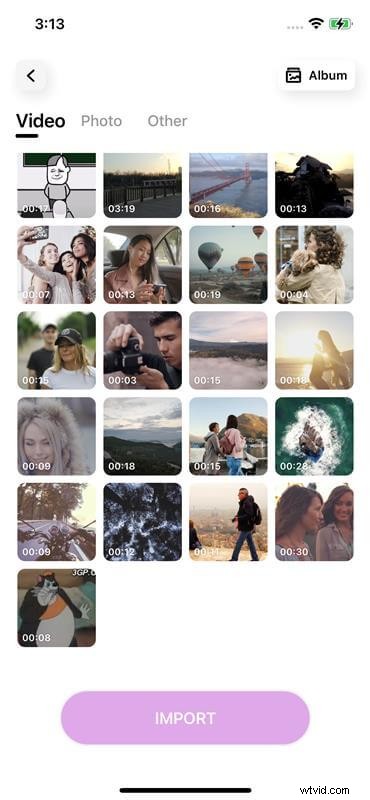 ).
). - Drag clips in the timeline to reorder as needed.
- Tap the Music icon, download a track, and press + to add it.
- Alternatively, choose iTunes to pull a song from your library.
Additional tools—sound effects, voice‑overs, and creative overlays—are available via the toolbar.
How To Make a Slideshow on iPhone Using Photos (Built‑In App)
For quick, no‑frills slideshows, the Photos app is an excellent choice. Its auto‑generation feature creates polished presentations when you have enough images in a specific album or event.
To manually craft a slideshow with music:
- Open Photos, tap Select, and choose your images.
- Tap the More icon and select Slideshow (image:
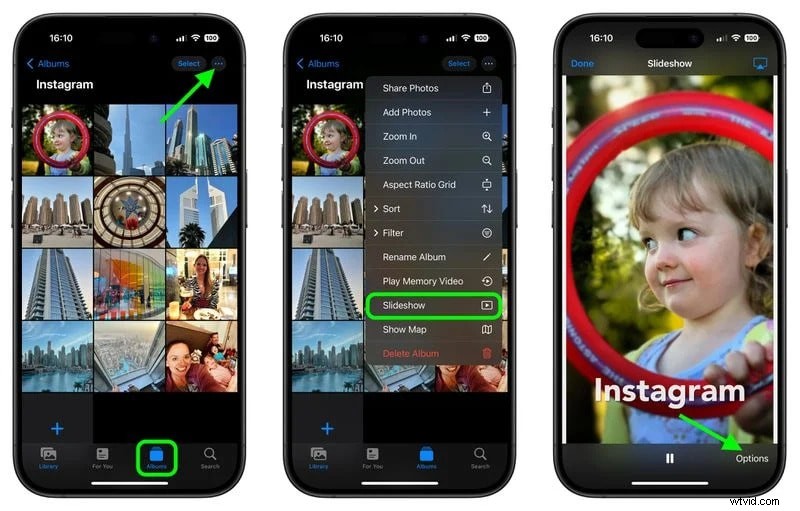 ).
). - Tap the screen to open Options.
- Adjust speed, background music, and theme, then tap Done (image:
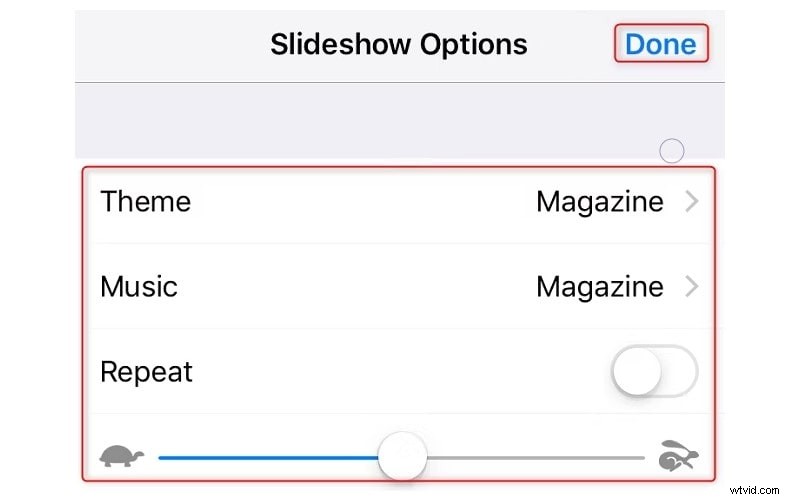 ).
).
How To Make a Slideshow on iPhone Using iMovie (Built‑In App)
iMovie offers a richer set of customization tools than Photos while remaining accessible on iPhone. It excels with themed transitions, custom fonts, and overlay effects, though it can be more complex to navigate.
To create a music‑enhanced slideshow:
- Launch iMovie, tap the + icon, and choose Movie.
- Select your photos in the desired order, then tap Create Movie (image:
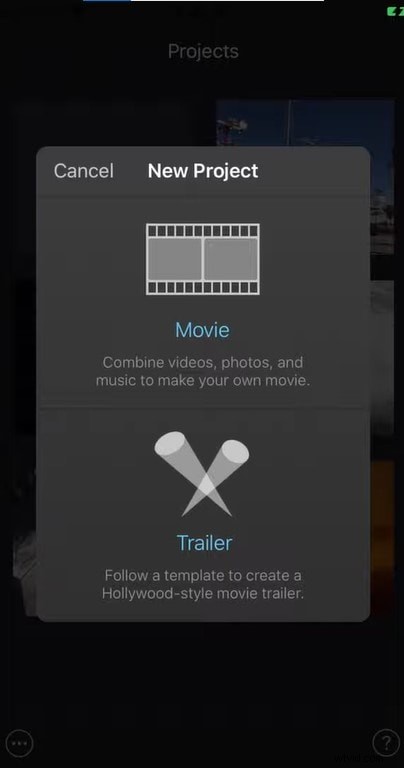 ).
). - In the timeline, tap the space between photos to set transitions (image:
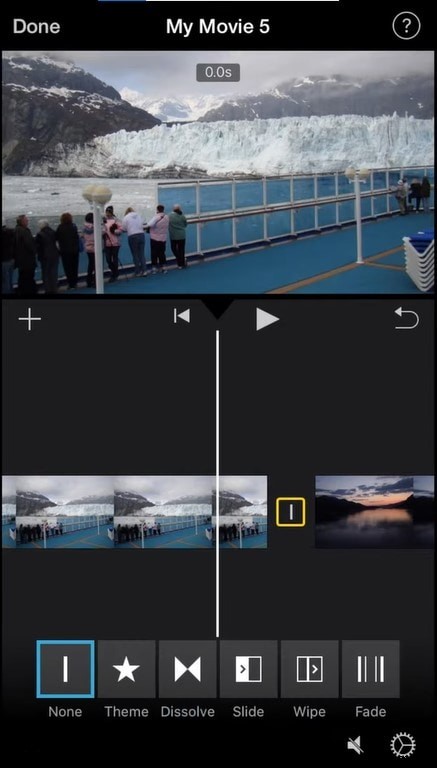 ).
). - Tap a photo, choose Text, and enter your caption.
- Add music via + → Audio → Soundtracks and pick your track.
Further refinements—fade‑ins/outs, repositioning, and transition tweaks—can be made within the editor.
Tips for Creating Slideshows With Music on Your iPhone
- Mute video audio tracks if you’re overlaying background music to avoid volume clashes.
- Limit each photo to a few seconds; extended durations risk disengaging viewers.
- Ensure text‑heavy slides are displayed long enough for reading.
- Use transitions and effects sparingly; subtlety retains focus.
- Apply consistent filters or color grades for visual cohesion.
Experiment with different styles, test multiple versions, and let your creative instincts guide the final polish.
Conclusion
Producing a memorable slideshow on an iPhone is surprisingly accessible, whether you opt for the native Photos app, the versatile iMovie, or the feature‑rich Filmora. For users seeking a high‑quality, customizable experience, Filmora stands out as the premier choice. For quick, everyday projects, Photos and iMovie offer solid, free solutions.