
Have you ever uploaded a video to YouTube, only to find it sideways? Whether you’re a creator looking to fix an upload or a viewer trying to watch a mis‑oriented clip, the solution is straightforward if you know where to look.
In this guide, we share up‑to‑date, expert instructions for correcting video orientation—whether you’re editing on a PC, Mac, or mobile device.
Table of Contents
- Quick Answer: How to Rotate a YouTube Video
- For Creators: Permanently Rotating Before Upload
- Fixing an Uploaded Video
- For Viewers: Temporary Rotation While Watching
- Troubleshooting Common Issues
Part 1: Quick Answer—How to Rotate a YouTube Video
Vertical Video Syndrome (VVS) can make content difficult to view. The most common causes are phone recordings turned wrong‑side‑up, scanned footage, or downloaded clips with incorrect orientation.
- Creators: YouTube Studio no longer offers a rotation tool. Rotate the file on your computer or mobile before uploading.
- Viewers: Rotate your device or use a browser extension on PC to view the video correctly.
Read on for detailed steps.


Part 2: For Creators—How to Permanently Rotate YouTube Videos
2.1 The Golden Rule: Rotate Before You Upload
Years ago, YouTube allowed in‑studio rotation, but that feature has been removed. After uploading, orientation changes are no longer possible.
The only reliable method is to edit the file locally with professional software, then re‑upload.
Wondershare Filmora: The Preferred Tool for YouTube Video Rotation
Filmora offers a blend of ease and power: a user‑friendly interface for beginners and advanced features for seasoned editors. One‑click rotation lets you rotate by 90°, 180°, 270°, or any custom angle.
Export presets are tailored for YouTube, ensuring optimal format, resolution, and quality. Plus, Filmora provides full editing capabilities—trim, merge, add text, transitions, music, and AI‑powered enhancements like Auto Reframe and Video Enhancer.
Ready to elevate your content? Download Filmora today and create professional videos in minutes.
- Intuitive UI for all skill levels
- One‑click rotation
- YouTube‑ready export presets
- Comprehensive editing suite
- AI‑enhanced tools
How to Rotate a YouTube Video in Wondershare Filmora
Step 1: Import Your Video
Open Filmora on your PC or mobile, tap Import, and locate the file. You can drag‑drop or use the Import button.

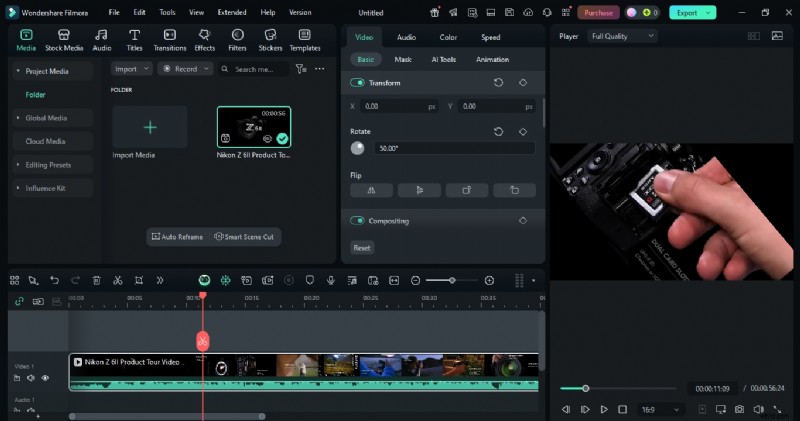
Step 2: Rotate the Clip
Drag the video onto the timeline. In the Basic section, choose Video → Rotate and enter the desired angle. The preview updates instantly.
Step 3: Export
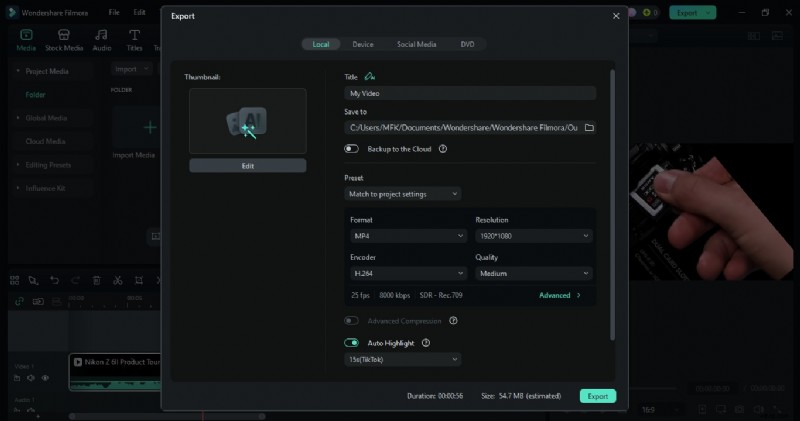
Click Export, select the YouTube preset, choose resolution, and save the file. Your video is now correctly oriented for upload.
2.2 Emergency Fix: Correct an Uploaded Video
When a video is already live but incorrectly oriented, the only fix is to edit offline and re‑upload.
- Remove the incorrect version. If the video has high engagement, consider unlisting temporarily.
- Use editing software—Filmora, iMovie, or Adobe Premiere Pro—to rotate and refine the clip.
- Re‑upload with the same title, tags, and description to preserve SEO value.
- Update any external links, playlists, or embedded URLs. Add a brief changelog in the description if needed.
Part 3: For Viewers—How to Rotate a Video While Watching
3.1 Mobile Devices
Many mobile apps auto‑rotate the screen, but if a YouTube video remains sideways, adjust the following:
- Enable auto‑rotate: iPhone – Control Center → Rotation Lock off; Android – Notification bar → Auto‑rotate.
- Physically rotate your phone to match the video orientation.
- Optional: Use third‑party players (MX Player, VLC) if the YouTube app fails to adjust.
Note: This only changes the viewing orientation on your device; the original video remains unchanged for others.
3.2 Desktop PCs
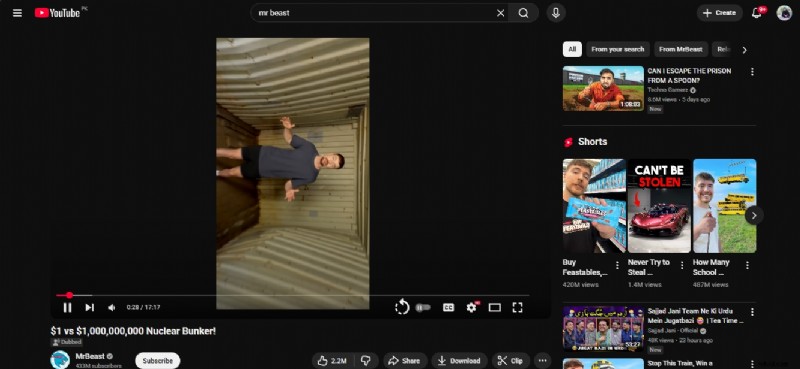
YouTube does not offer in‑player rotation, but several workarounds exist:
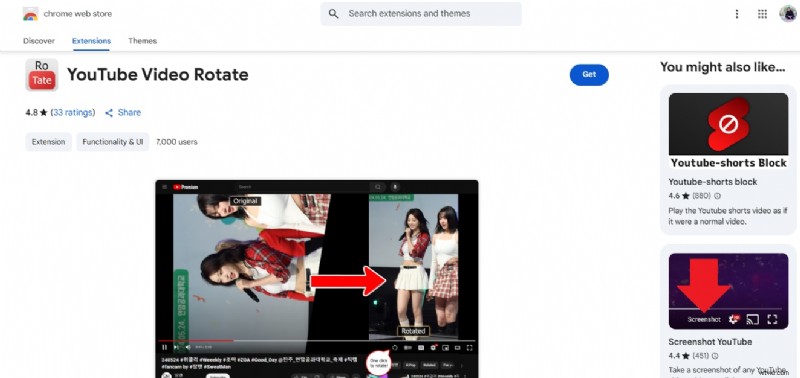
- Browser extensions—e.g., YouTube Video Rotate—add a button to rotate the player by 90°, 180°, or 270°.
- Screen rotation via your monitor settings.
- Download the video and play in a local player (VLC, MPC‑Player).
The YouTube Video Rotate extension is lightweight (15.96 KiB), privacy‑friendly, and supports hot‑key rotation (press 'R').
Using the Extension on Windows
- Install from the Chrome Web Store.
- Open any YouTube video; the Rotate button appears below the player.
- Click to rotate 90°. Repeat for 180° or 270°.
Part 4: Troubleshooting Common Rotation Issues
4.1 Quality and Aspect Ratio
- Black bars or stretching: Ensure the editing software preserves the original aspect ratio or trim to fit.
- Quality loss: Export at the highest quality, preferably using the original file rather than a compressed version.
- Export settings: Use MP4 with H.264 codec, 1080p or higher for YouTube.
4.2 When Rotation Fails
- Codec incompatibility: Convert to a widely supported format (MP4) before rotating.
- Metadata issues: Let the editor rewrite metadata upon export.
- Extension conflicts: Disable other extensions or switch browsers if the rotate function is unreliable.
Addressing these factors guarantees a professional, seamless viewing experience across devices.
Conclusion
Correcting video orientation is essential for a polished channel. Creators should rotate and edit files before uploading, using tools like Wondershare Filmora. Viewers can quickly adjust orientation via device settings or browser extensions. When an uploaded video is mis‑oriented, the safest approach is to edit offline, re‑upload, and update all related links.
By managing aspect ratio, quality, codec compatibility, and export settings, you’ll ensure your content looks sharp and viewer‑friendly on any platform.