
Mastering speed adjustments in After Effects lets you repurpose long‑form footage for social platforms, create dynamic fast‑motion sequences, and maintain visual quality. This guide walks you through three industry‑standard methods—Time Stretch, Keyframes, and Time Remapping—so you can tailor playback speed with precision.

“I’d like to repurpose my long‑form video content to fit the specific duration and timing requirements on social media networks, and add fast‑motion effects without losing quality.” The answer is simple: After Effects is the industry’s go‑to tool for speed manipulation.
In this article
- Can After Effects speed up videos?
- Top three speed‑adjustment methods
- Using the Time Stretch Tool
- Using Keyframes
- Using Time Remapping
- Pros and Cons of speeding up videos in After Effects
- Alternative: Wondershare Filmora
- How to speed up videos in Filmora
- Conclusion
Can After Effects Speed Up Videos?
Absolutely. After Effects offers a range of tools that let you change playback speed, timing, and pacing, creating engaging fast‑motion visuals that meet the strict constraints of platforms like TikTok, Instagram Reels, and YouTube Shorts.
Beyond simple speed changes, the program enables custom‑crafted playback profiles that enhance storytelling and viewer engagement—transforming ordinary footage into polished, professional‑grade content.
Using the Time Stretch Tool
This is the most straightforward method, ideal for newcomers. Follow these steps:
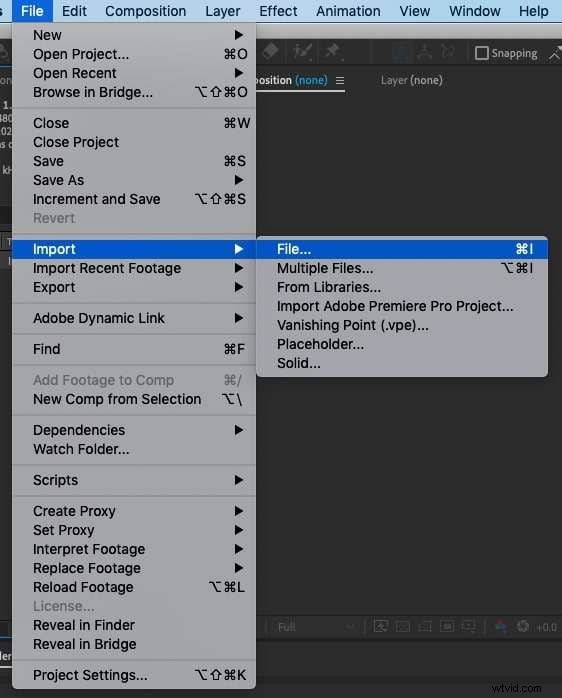
Step 1: Open After Effects and import your clip via File > Import > File.
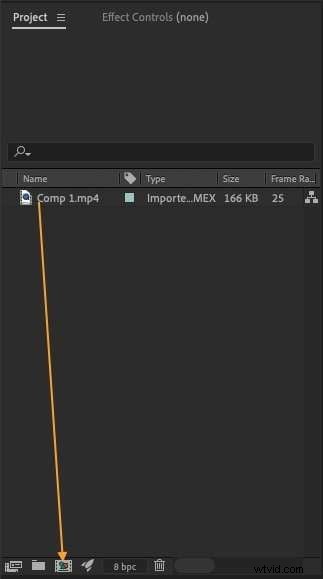
Step 2: Drag the clip into the Composition panel and select it in the timeline.
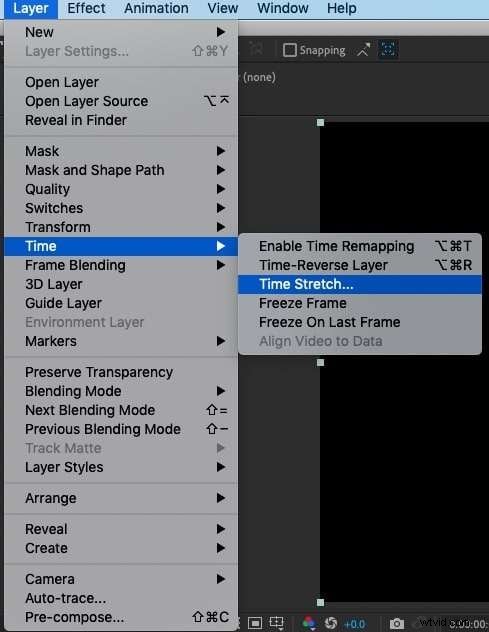
Step 3: Navigate to Layer > Time > Time Stretch.
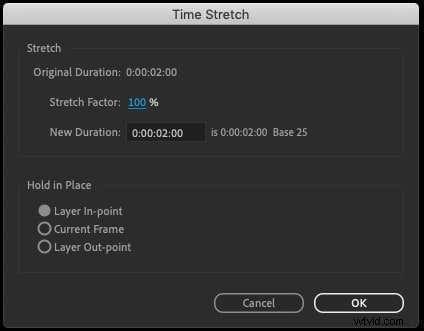
Step 4: In the dialog, set the Stretch Factor to the desired percentage. Doubling speed is achieved by changing 100% to 200%. Click OK to apply.
Using Keyframes
Keyframes offer granular control over speed changes, allowing you to accelerate only portions of a clip.
Step 1: Import the clip and place it on the timeline.
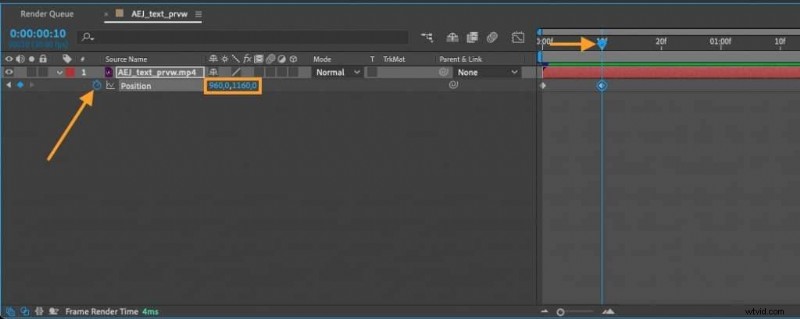
Step 2: Press P to reveal the Position property.
Step 3: Click the stopwatch icon to create a keyframe at the current time indicator.
Step 4: Move the time indicator to the desired endpoint and adjust the Position value to create linear motion.
Step 5: Tighten the spacing between the two keyframes to increase playback speed.
Using Time Remapping
Time Remapping gives you a visual timeline to map speed variations across a clip.
Step 1: Import the clip and drag it onto the timeline.
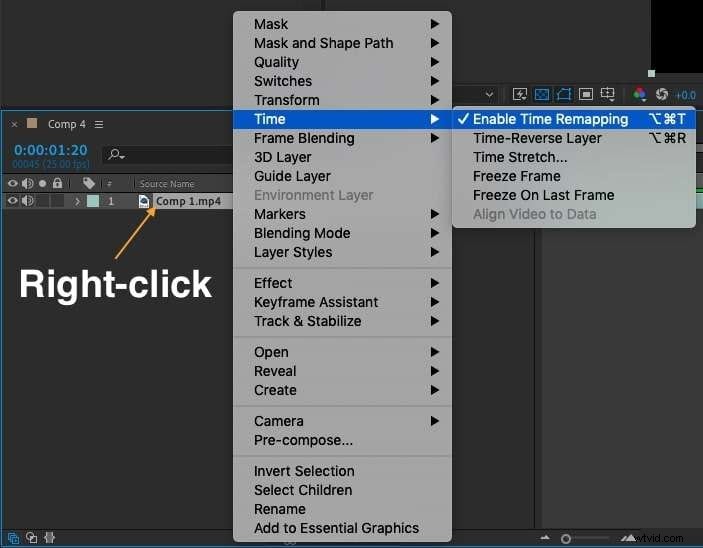
Step 2: Right‑click the layer, then choose Time > Enable Time Remapping.
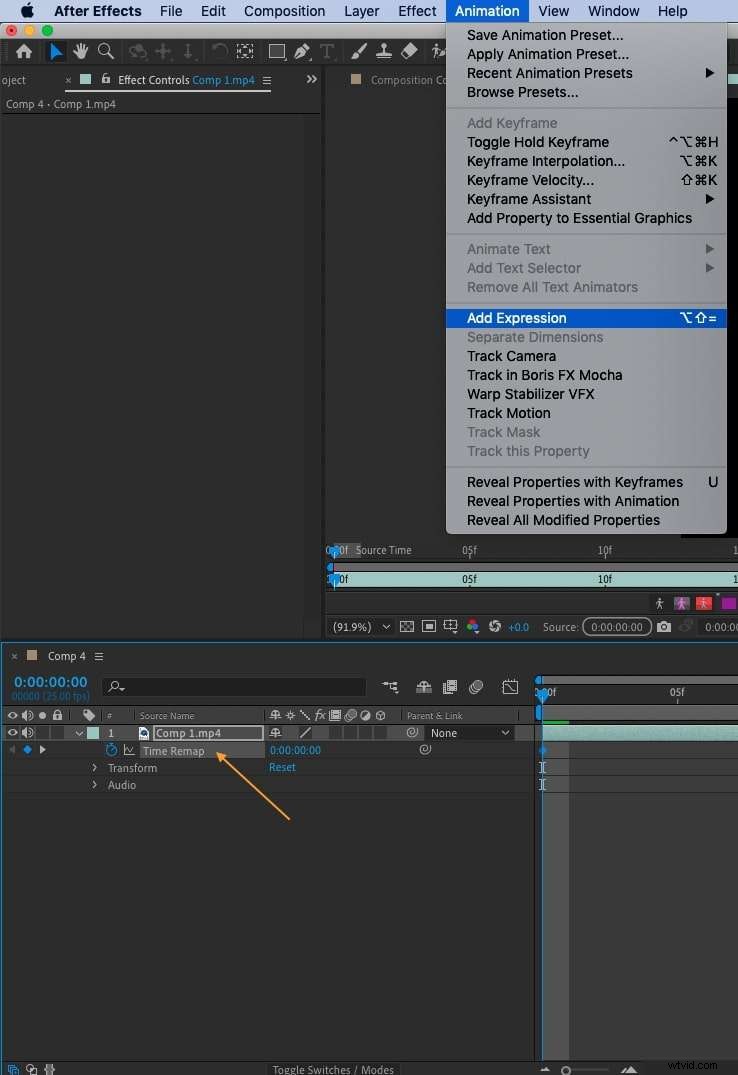
Step 3: Expand the Time Remap property, then click Animation > Add Expression.
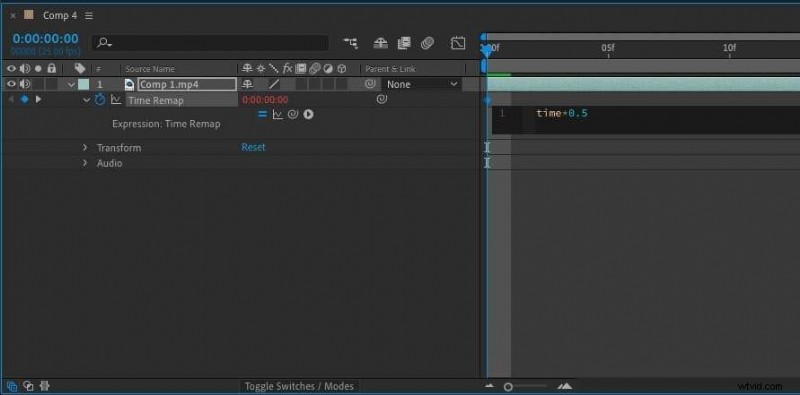
Step 4: In the Expression field, type time2 to double the playback speed, or adjust the expression to achieve the desired rate.
Pros and Cons of Speeding Up Videos in After Effects
Pros
- Three robust techniques—Time Stretch, Keyframes, Time Remapping—offer flexibility for any project.
- Intuitive interface reduces learning time for speed adjustments.
- Keyframes allow sophisticated, frame‑by‑frame speed tweaks.
- Time Remapping grants fine‑grained control over pacing across a clip.
- Custom speed profiles enable creative storytelling.
- Fast‑motion effects can be crafted without compromising visual quality.
Cons
- Increasing speed can reduce the perceived richness of the original footage.
- Audio pitch may shift upward; separate audio tracks may be required to preserve pitch.
- Advanced features, such as Time Remapping, can be intimidating for beginners.
- Some workflows demand additional tweaks and settings that add complexity.
An Alternative to Consider: Wondershare Filmora
While After Effects excels in advanced manipulation, its dense interface can be daunting. For users seeking a streamlined experience, Wondershare Filmora offers a powerful yet approachable platform.
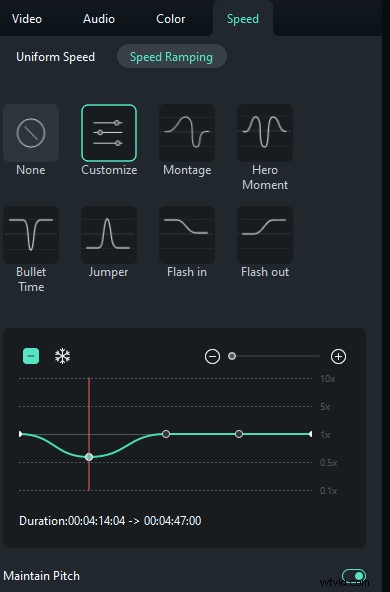
Filmora delivers uniform speed control, six pre‑built speed‑ramping templates, and AI‑powered enhancements—all while preserving audio pitch and video quality.
How to Speed Up Videos in Filmora
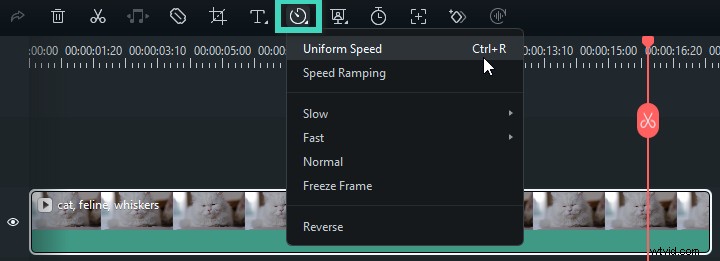
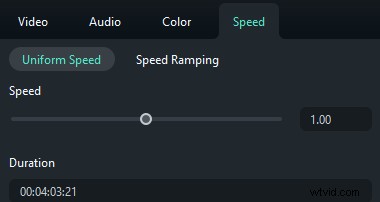
1. Launch Filmora and create a new project. 2. Import your clip and drag it to the timeline. 3. Select the clip, click the Speed icon, and choose Uniform Speed. 4. Adjust the slider to the right to increase speed, or input a precise value in the Duration field. 5. For nuanced control, use Speed Ramping to set custom speeds on specific sections. Access presets such as Montage or Hero Moment, then customize as needed. 6. Preview, save custom ramping settings, and export your finished video.
Conclusion
After Effects provides unparalleled control over playback speed, empowering creators to elevate footage from mundane to captivating. Whether you choose Time Stretch, Keyframes, or Time Remapping, each method offers unique advantages for achieving the desired visual impact.
For those who prefer a gentler learning curve, Filmora offers an accessible alternative that maintains quality while delivering powerful speed‑adjustment features. Explore both tools to determine which best aligns with your workflow and creative vision.