
In video production, the opening seconds can make or break viewer engagement. A polished intro sets the tone, grabs attention, and leaves a lasting impression. That’s why investing extra effort into crafting an interactive, dynamic intro is essential.
This article explores the strengths of the KineMaster Intro Maker, walks you through a detailed tutorial on how to build an intro with the app, and presents Wondershare Filmora as a powerful desktop alternative.
In this article
-
- Chroma Key
- Magic Remover
- Transparent Backgrounds
- Image Quality Enhancer
- Video Setting Adjustments
- Color Filters
- Audio Editor
- Downloadable & Customizable Media Assets
- Key Features & Step‑by‑Step Guide
- Filmora – A Desktop Alternative
- Conclusion
Is KineMaster a Great Intro Maker?
Creating an engaging intro demands more than basic editing—advanced visual effects, smooth transitions, and precise audio sync are key. KineMaster delivers a comprehensive toolkit that empowers creators to produce high‑quality intros quickly.
Chroma Key
If you’ve shot footage against a green screen, KineMaster’s Chroma Key feature seamlessly composites your clip with any background, enhancing visual polish.
Magic Remover
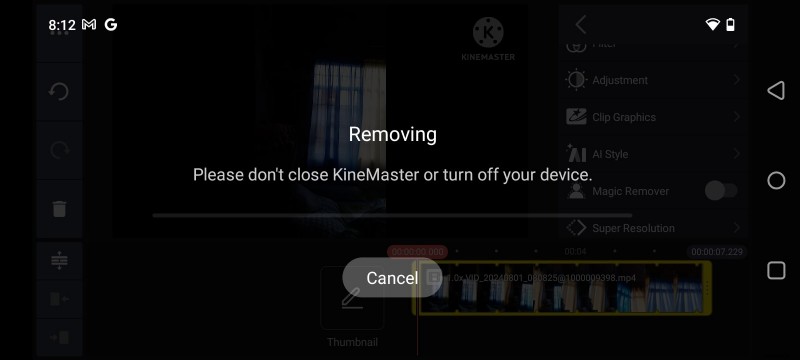
Need to eliminate backgrounds without a green screen? The Magic Remover tool uses AI to isolate subjects in seconds, saving time and ensuring clean cuts.
Transparent Backgrounds
With the Transparent Backgrounds option, you can create alpha‑channel videos directly from your device—ideal for overlaying logos or animated elements.
Image Quality Enhancer
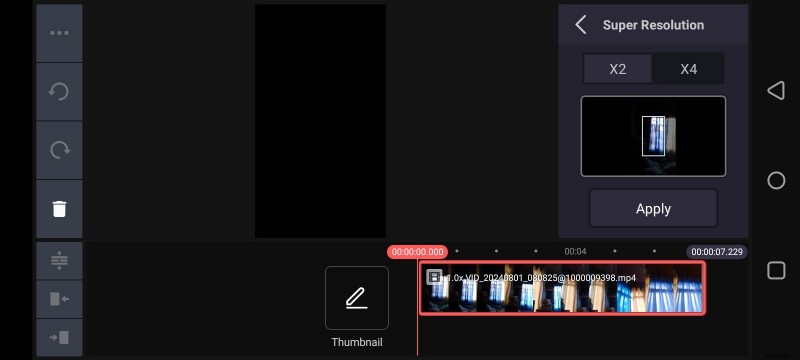
Blurred or low‑resolution images can be sharpened with the AI‑powered Image Quality Enhancer, giving your intro a crisp, professional look.
Video Setting Adjustments
Fine‑tune contrast, brightness, hue, saturation, temperature, shadows, and highlights to achieve the exact color profile your intro needs.
Color Filters
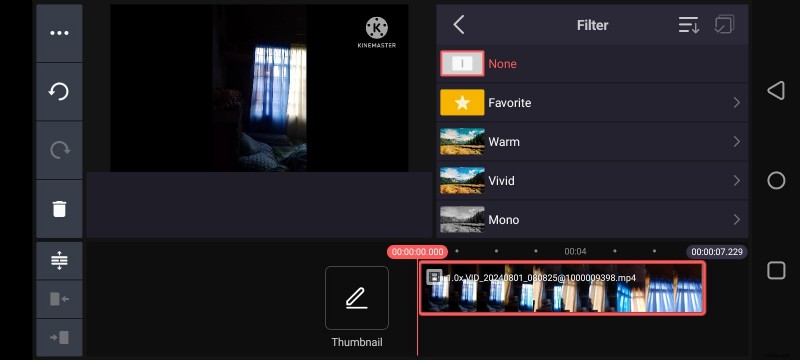
Quickly apply a range of color filters to give your footage a consistent aesthetic without manually adjusting each parameter.
Audio Editor
Audio can make or break an intro. KineMaster offers pitch control, volume adjustment, reverb, and vocal modulation, letting you craft a soundtrack that complements your visuals.
Downloadable & Customizable Media Assets
Access a library of royalty‑free stickers, graphics, clip‑arts, fonts, and transitions. Most assets are licensed for commercial use, so you can incorporate them freely into your projects.

KineMaster’s intuitive interface turns complex editing into a streamlined process. Follow the step‑by‑step tutorial below to create an intro in minutes.
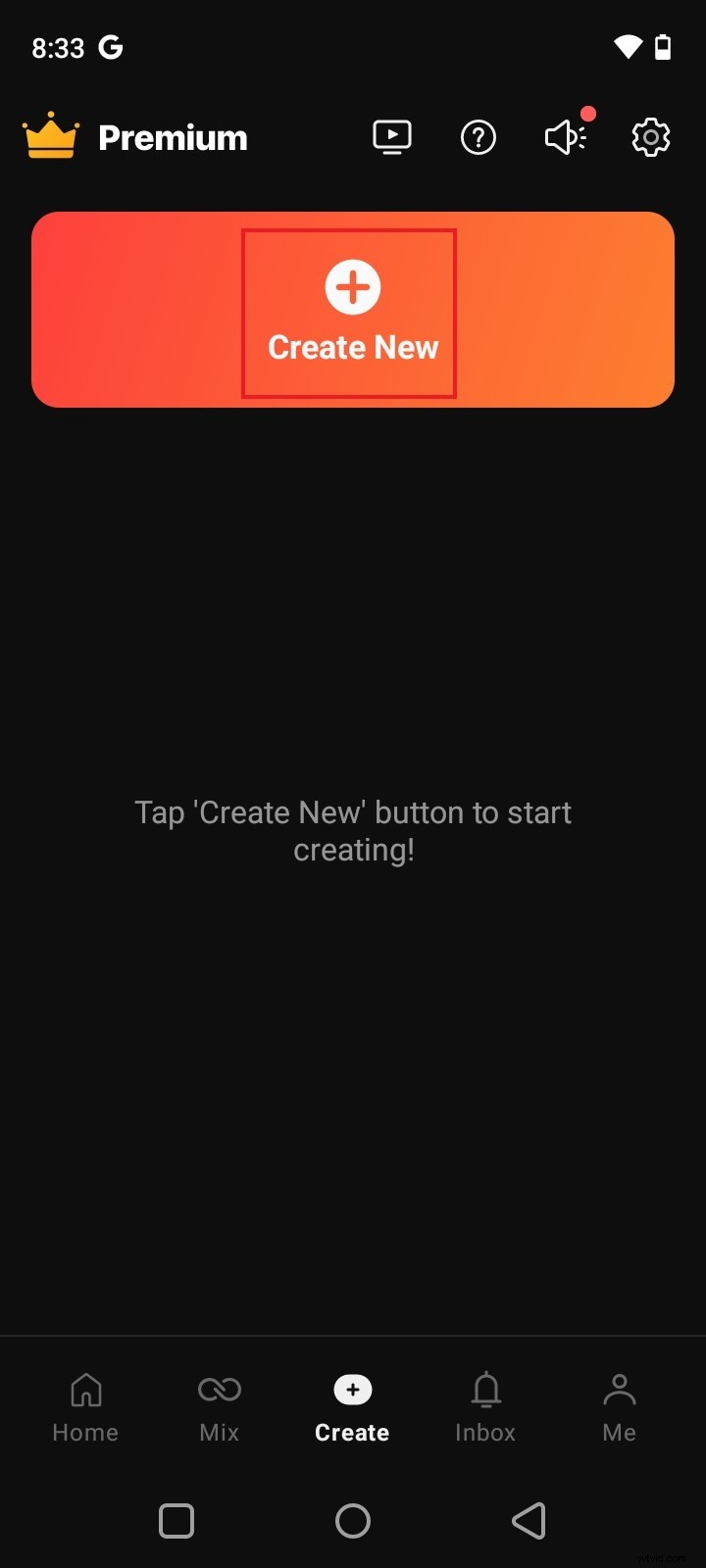
Step 1: Open KineMaster on your mobile device and tap Create New once the dashboard loads.
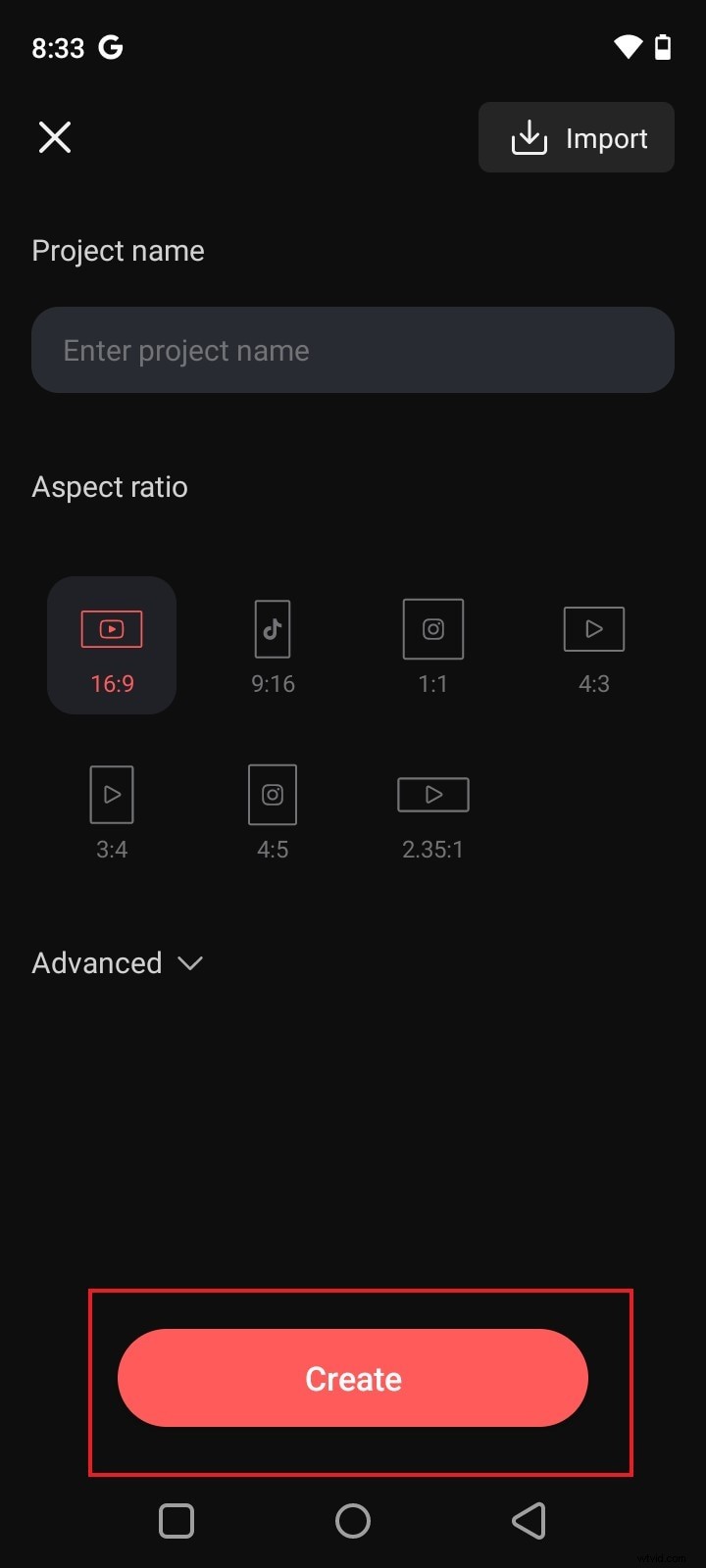
Step 2: Name your project and choose the desired aspect ratio. For advanced settings, tap Advanced before confirming.
Step 3: In the Media tab, import your footage, images, and other assets. Local files appear instantly on the timeline; online assets may take a moment to download.
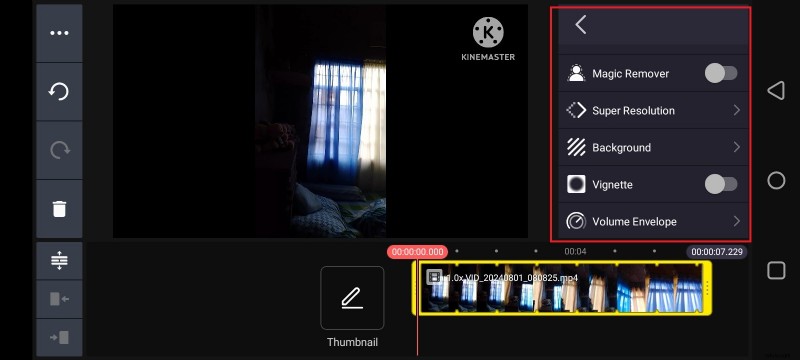
Step 4: Edit each clip by selecting it on the timeline. Use Trim/Split, Filters, AI Style, Magic Remover, Super Resolution, or Background settings to refine visuals.
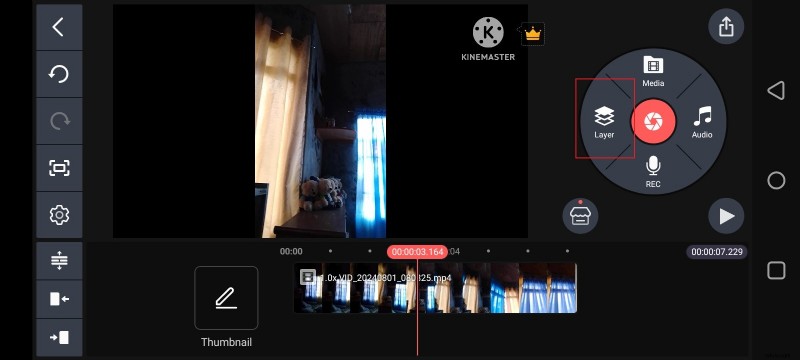
Step 5: Add layers—stickers, text, transitions, or animations—by tapping Layer on the dashboard. Customize each element’s properties and position it on the timeline.
Step 6: Incorporate background music via the Audio button. Align tracks to match visual cues and transitions.
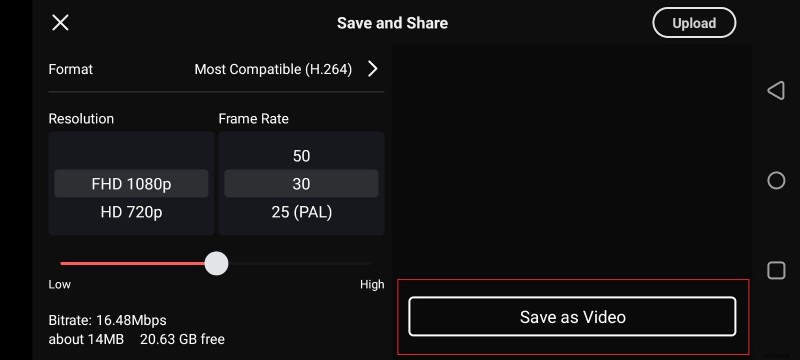
Step 7: Preview your intro by tapping Play. When satisfied, tap the Share icon, select resolution and frame rate, and hit Save As Video to render and store the final file.
Note: This guide covers the core functions. KineMaster offers many more advanced tools—experiment to unlock its full potential.
Wondershare Filmora: The Best KineMaster Intro Maker Alternative
Desktop users may find KineMaster limiting. Fortunately, Wondershare Filmora provides a robust, feature‑rich editing experience suitable for any intro project.

Key Features
- AI‑Powered Tools – AI Video Object Remover, AI Sticker Generator, AI Music Generator, AI Smart Cutout, and more.
- Professional‑Grade Editing – Precise cutting, layering, color grading, and effects.
- Extensive Template Library – Hundreds of intro templates ready to customize.
- Flexible Export Options – Supports MP4, MOV, AVI, MKV, GIF, MP3, and more formats.
Step‑By‑Step Guide
Creating an intro in Filmora follows a similar logic to KineMaster but with desktop convenience.
Step 1: Download and install Filmora from the official website.
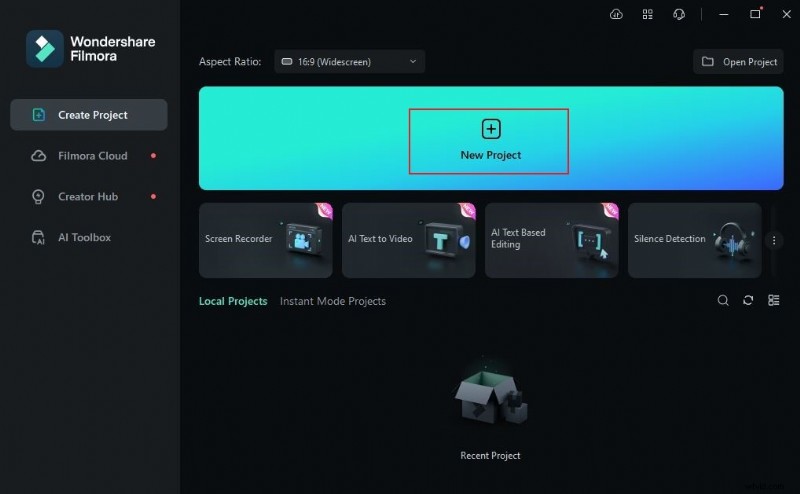
Step 2: Launch the app and click New Project from the dashboard.
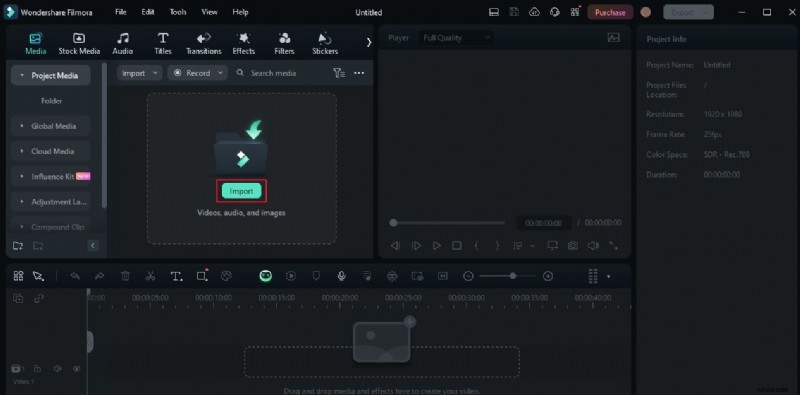
Step 3: Import media via the Import button in the Media tab. Drag files into the timeline when ready.
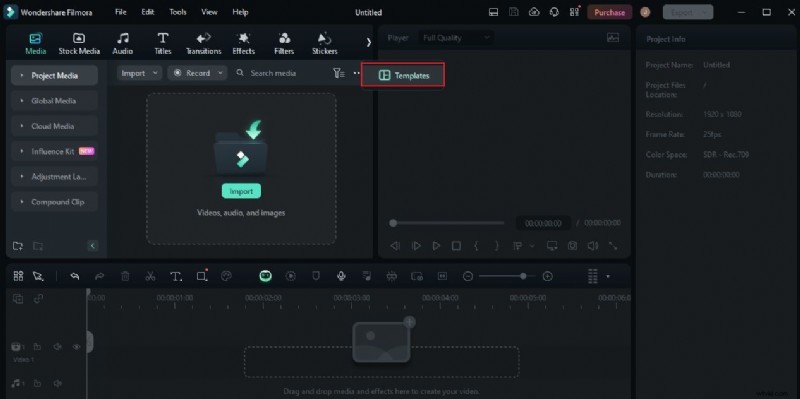
Step 4: Access the Elements panel, select Templates > More Options > Templates, then search for "Intro Video". Choose a template, download, and drop it onto the timeline.
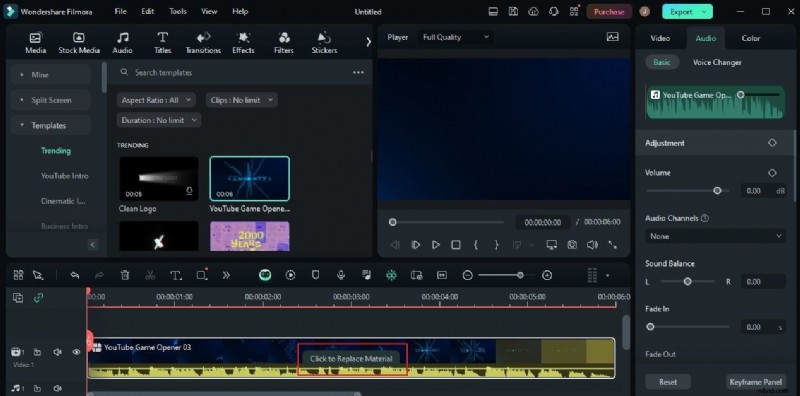
Step 5: Customize the template: replace text, swap clips, and add effects via the Replace Material panel.
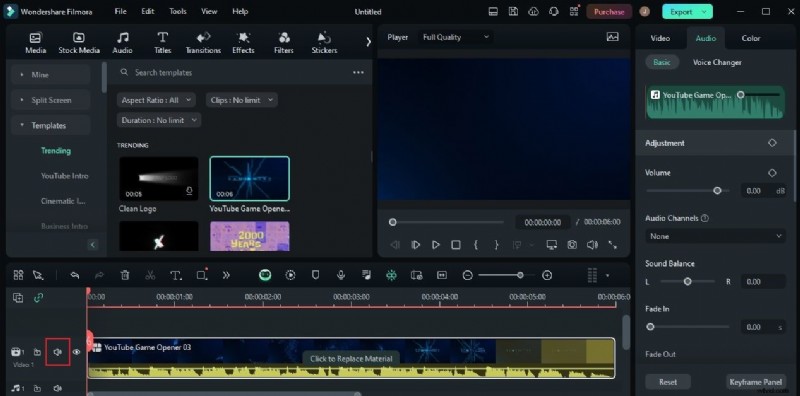
Step 6: Adjust audio—use the default track or mute it to add your own music.
Step 7: Preview and export the finished intro. Choose the desired format, resolution, and frame rate before rendering.
Conclusion
Intros are the first impression your audience receives. With KineMaster, mobile users can harness powerful AI tools and a rich asset library to produce stunning intros swiftly. Desktop users who prefer a different workflow will find Filmora equally capable, offering AI enhancements, professional editing, and an extensive template library. Whichever platform you choose, both deliver the creative freedom and technical excellence needed to craft memorable video intros.