
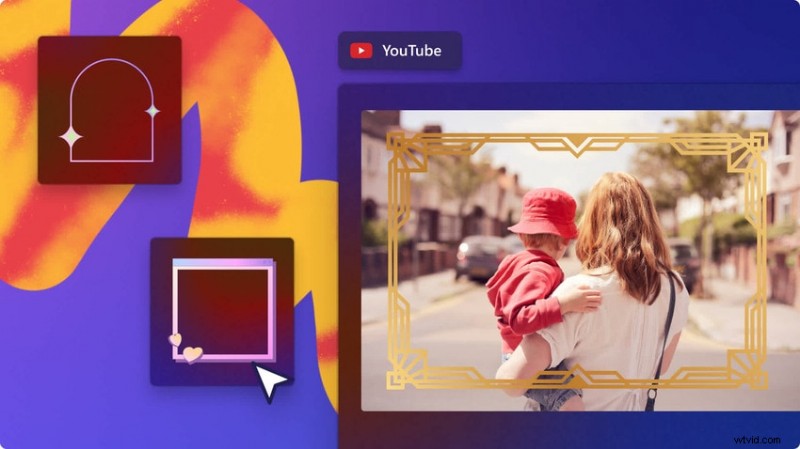
Looking to add stylish borders or cinematic frames to your social‑media clips? An online frame editor gives you that power without installing heavyweight software. Most of the leading tools are free or offer generous trial periods.
Whether you’re creating Instagram stories, YouTube shorts, TikTok reels, or Facebook ads, a well‑chosen frame can transform a simple clip into a headline‑worthy piece. Before diving into our top picks, understand how frames enhance your content.
In this article
- Why Video Frames Matter
- 7 Leading Online Frame Editors
- Choosing the Right Frame for Your Brand
- Bonus: Master Every Frame with Wondershare Filmora
Why Video Frames Matter
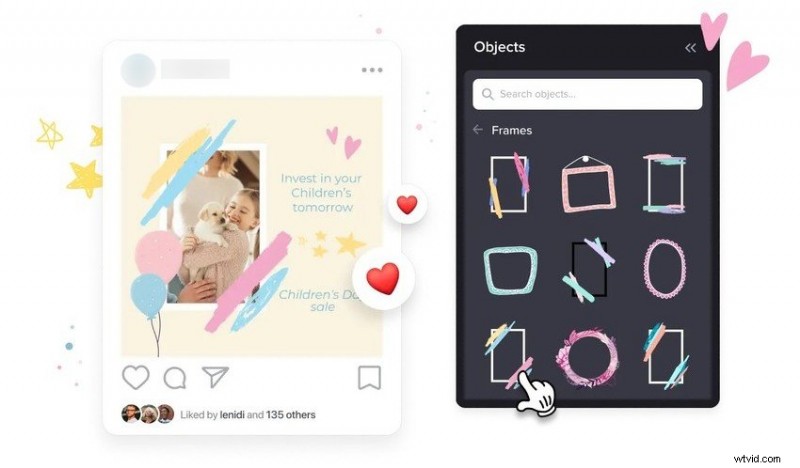
Frames do more than look good—they solve practical problems and reinforce branding:
- Hide letterboxing – When you re‑crop a 1:1 Instagram clip to a 9:16 story, black bars appear. A frame masks these borders, keeping the focus on the content.
- Boost visual appeal – A thoughtfully designed frame complements transitions, adds personality, and keeps viewers engaged.
- Ensure brand consistency – Custom frames become a visual cue for your audience, making your videos instantly recognizable.
7 Leading Online Frame Editors
VEED
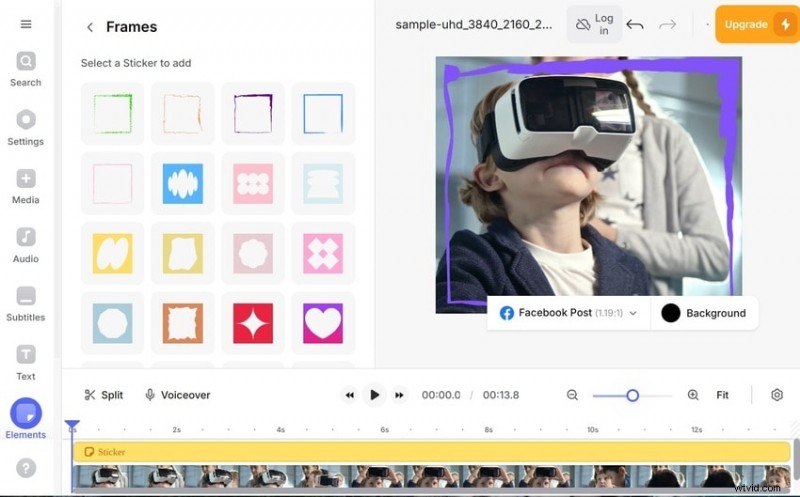
VEED offers a drag‑and‑drop interface, built‑in recording, and a robust frame library. It’s ideal for quick edits and direct uploads to social platforms.
Key Features
- 14 aspect ratios for YouTube, Instagram, Facebook, X, LinkedIn, and more
- Over 64 frames, 81 templates, and 71 mockup designs that can be fully customized
- Full suite of editing tools: music, subtitles, GIFs, icons, transitions, and filters
Pros
- Works on desktop and mobile browsers
- No sign‑up needed for basic use
- Export directly to social media
Cons
- Download requires account creation
- Free tier adds a watermark to exported videos
Flixier
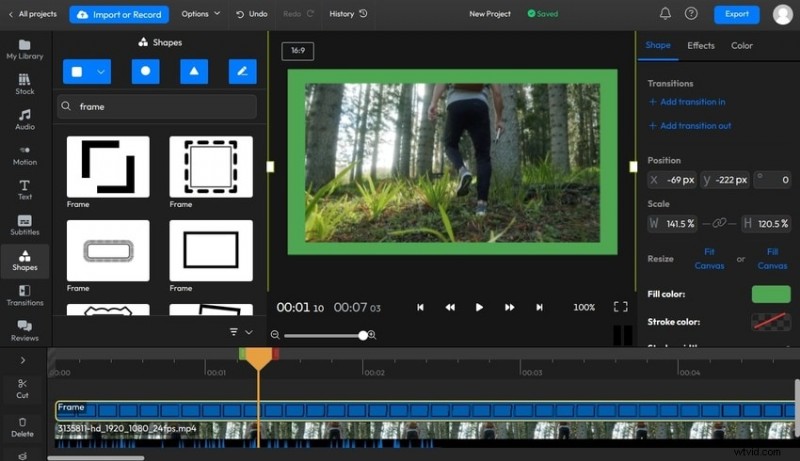
Flixier’s intuitive editor lets you layer borders, animate frames, and add subtitles—all without leaving the browser.
Key Features
- Customizable frames with shapes, colors, and filters
- Motion titles and graphics for social‑media overlays
- AI image generator to create unique visual assets
Pros
- Desktop and mobile support
- No sign‑up for editing or downloading
- Direct sharing to social media and cloud services
Cons
- Limited frame styles and aspect ratios
- Heavy watermark on free exports
FlexClip
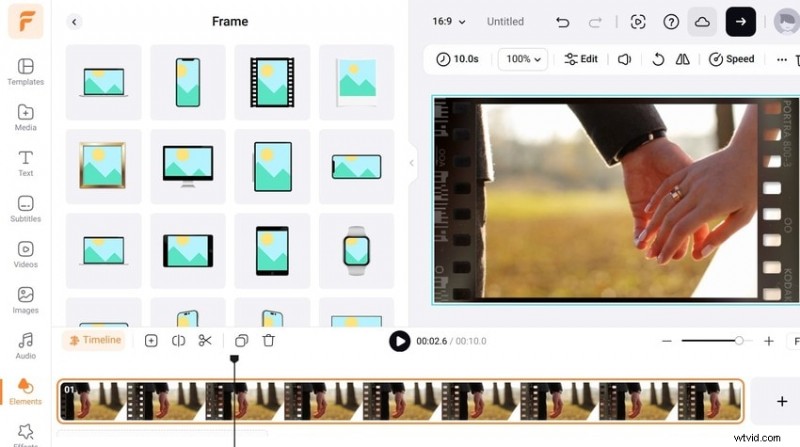
FlexClip offers an expansive library of assets and AI‑powered tools, making it a solid choice for users who need more than basic frames.
Key Features
- 410+ frames, 2,300+ templates, and a wide range of mockups
- Hundreds of animated elements: buttons, stickers, confetti, etc.
- AI tools for subtitles, images, and text‑to‑speech
Pros
- Large stock library for quick content creation
- Template‑driven editing streamlines workflow
- Built‑in branding and recording options
Cons
- Performance slows with complex edits
- Mobile browsers not fully supported
VistaCreate
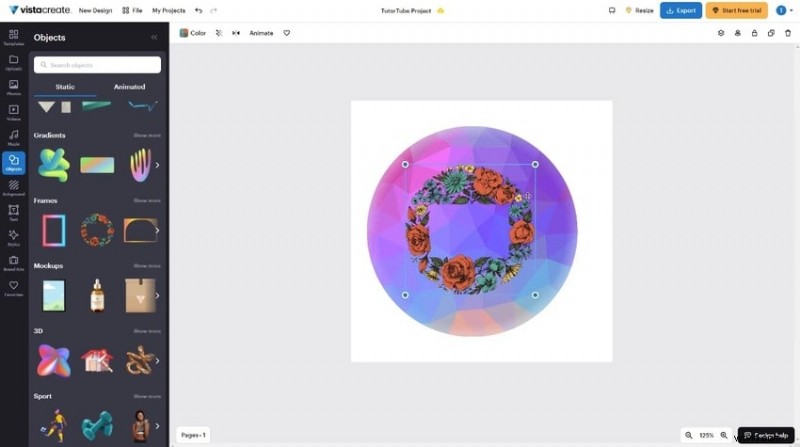
VistaCreate excels in Instagram‑centric design, supporting 32 social‑media formats and offering a dedicated mobile app.
Key Features
- 100,000+ free design templates across platforms
- 60,000+ editable frames and 14,000 animated objects
- Custom video frames with colored borders or image uploads
Pros
- 32 formats spanning Instagram, TikTok, Facebook, etc.
- Cross‑platform editing via mobile app
- Direct sharing and scheduling capabilities
Cons
- Requires account sign‑up
- Watermark on free exports
Kapwing
Kapwing is a powerhouse of AI features, from article‑to‑video generation to automatic subtitles. Its frame editor is fast and versatile.
Key Features
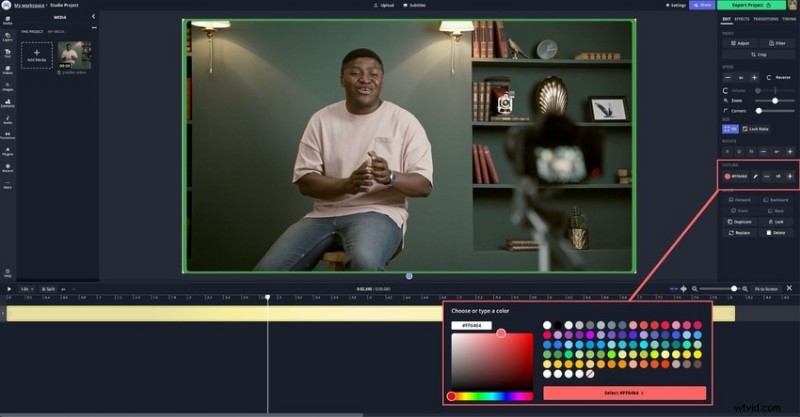
- Hundreds of frame templates, including image, video, and Giphy options
- Custom frames with colored borders or transparent overlays
- Plugin support for Pixabay and Pexels imagery
Pros
- Rich feature set for video editing
- Quick frame application
- Compatible with desktop and mobile browsers
Cons
- Download requires account creation
- Free exports capped at 4 min, 720p with watermark
Biteable
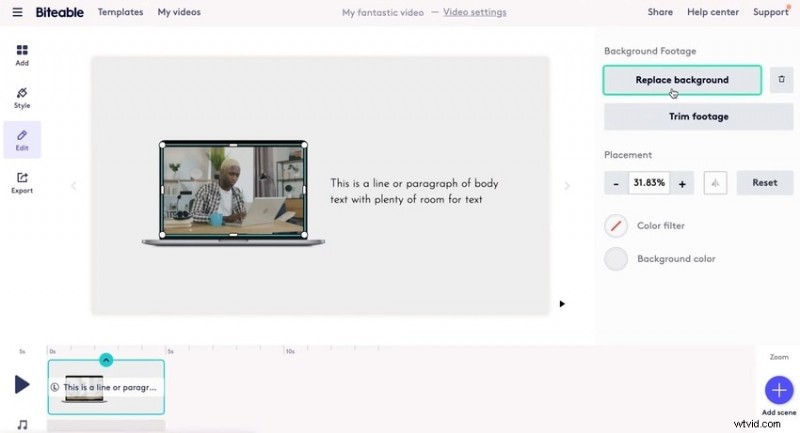
Biteable prioritizes ease of use, offering straightforward frame placement without an overload of templates.
Key Features
- Animated scene stacks with ready‑made frames
- Dozens of frame styles—concept, portrait, shapes, and stock assets
- One‑click sharing to Instagram, Facebook, TikTok, YouTube, LinkedIn, WhatsApp
Pros
- Extensive library of creative assets
- Desktop and mobile support
- Clickable CTA functionality
Cons
- Limited frame options and aspect ratios
- No free tier
Wave.video
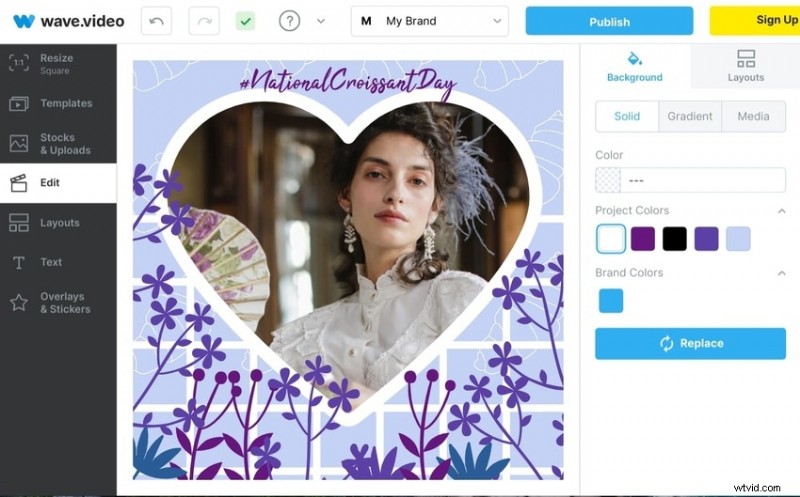
Wave.video shines with heart‑shaped templates and a massive asset pool, making it perfect for videos that need a touch of romance or flair.
Key Features
- Variety of layout styles: shape, collage, device‑specific, artistic
- Hundreds of editable video frame templates with text, stickers, and Giphy frames
- Direct publishing to Instagram, Facebook, YouTube, X, Vimeo, and cloud platforms
Pros
- 200M+ creative assets (2M+ free)
- Automatic auto‑resizing for social media formats
- Desktop and mobile browser compatibility
Cons
- Rendering times can be lengthy
- Limited advanced editing tools
Choosing the Right Frame for Your Brand

With dozens of templates at your fingertips, picking the right frame can feel overwhelming. Here’s a practical approach:
- Align with the story – A subtle neon line works well for product demos; an animated sparkle frame adds elegance to wedding videos. The frame should complement, not compete with, the content.
- Match the platform – Instagram thrives on bold, colorful frames; Facebook and LinkedIn favor minimalistic designs. Tailor the frame to the platform’s aesthetic.
- Stay true to brand identity – Animated frames may excite, but if your brand values understated sophistication, choose sleek, clean designs that reinforce your visual voice.
While online editors excel at adding frames and basic overlays, they lack advanced tools like stabilization, object tracking, and high‑fidelity audio cleanup.
Bonus: Master Every Frame with Wondershare Filmora
Wondershare Filmora brings a full suite of AI and professional editing tools to your desktop, enabling you to fine‑tune every frame, add custom borders, and even interpolate frames for ultra‑smooth motion.
Key Benefits
- Advanced stabilization with minimal distortion
- Vast library of effects, music, and templates
- AI Copilot, music generator, and text‑to‑video capabilities
- Cross‑platform availability (Windows, macOS, iOS, Android)
How to Apply a Frame in Filmora
- Download and install Wondershare Filmora on your computer.
- Open a new project and set the desired aspect ratio.
- Import your video via File → Import Media → Import Media Files and drag it onto the timeline.
- Navigate to Effects and search for a border. Drag the effect onto your clip.
- Use the Properties panel to adjust colors, size, blur, and opacity.
- For decorative frames, go to Effects → Overlay → Frame and place the chosen frame above your video layer.
- Fine‑tune the frame’s duration and opacity by dragging edges and double‑clicking the effect.
- To smooth motion, select Speed → Uniform Speed → AI Frame Interpolation and choose Optical Flow.
- Export your finished video or share it directly to social media.
Conclusion
Online frame editors are excellent for quick, stylish video enhancement—especially when time and budget are limited. For creators who demand full creative control, a desktop solution like Wondershare Filmora delivers unmatched flexibility and power.
Try Filmora’s free trial today and experience the difference between a simple frame and a polished, professional video.

