
In an era where visual storytelling drives engagement, mastering the art of video looping can elevate any project—whether it’s a subtle website background, an eye‑catching social media clip, or a captivating presentation element.
This comprehensive guide shows you how to create flawless, seamless loops on every platform—from powerful desktop editors to mobile apps and browser‑based tools—complete with pro tips for a truly smooth transition.

In this article
- Video types that excel when looped
- Creating loops on PC and Mac
- Looping videos on iPhone and Android
- Quick online loop makers
- Playing videos on loop in media players
- Pro techniques for seamless transitions
- Conclusion
- FAQs
Part 1: Video Types That Excel When Looping
A successful loop starts with the right footage. Look for scenes that naturally return to their beginning—smooth motion, repeating patterns, or rhythmic beats make the most convincing loops.
Typical use‑cases
- Website or event back‑drops – an infinite loop can serve as a subtle, ever‑moving backdrop that enhances the overall aesthetic without distracting the viewer.
- Social media stories & reels – platforms like Instagram and TikTok reward looping content with higher engagement, as viewers can watch a clip repeatedly without noticing the restart.
Part 2: Creating Loops on PC and Mac
For a professional touch, desktop editors offer the most flexibility. Wondershare Filmora is a top‑rated choice, enabling you to duplicate, reverse, and layer clips with ease.

Step‑by‑Step in Filmora
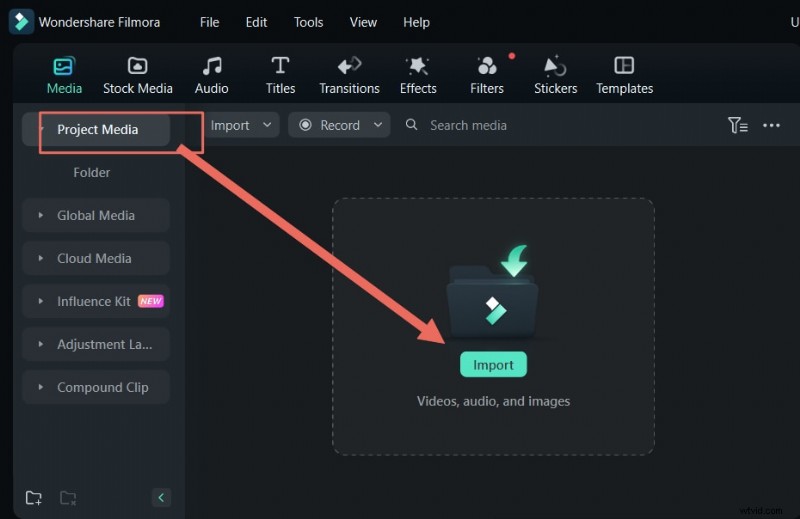
1. Import Your Footage
Open a new project, drag your video into the Media panel, and drop it onto the timeline.
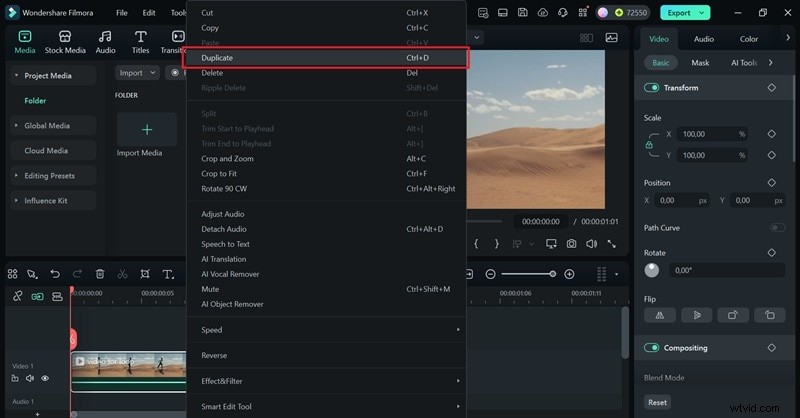
2. Duplicate for Repetition
Right‑click the clip and select “Duplicate.” Repeat until you reach the desired loop length.
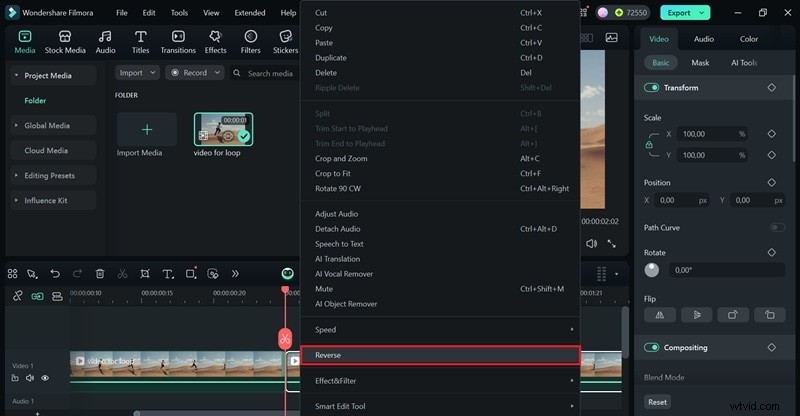
3. Add a Ping‑Pong Effect (Optional)
To avoid abrupt cuts, reverse the second duplicate and place it immediately after the original. This forward‑backward motion creates a natural “ping‑pong” loop.
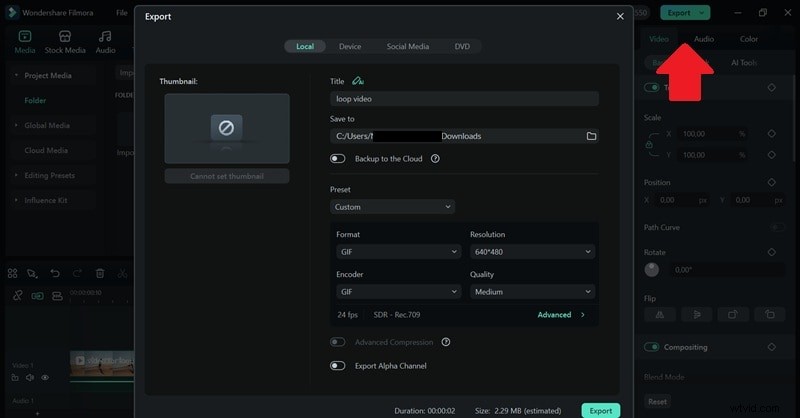
4. Export
Click “Export,” choose your format and resolution, then click “Export.” For social media or messaging, export as a GIF—GIFs loop by default and are ideal for short clips.
Part 3: Looping on iPhone & Android
The Filmora mobile app mirrors many desktop features, letting you craft loops directly from your device.
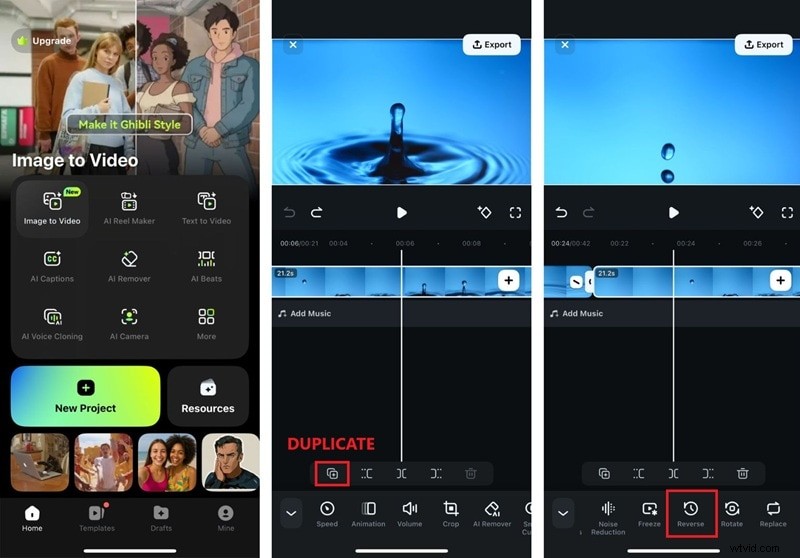
How to Loop with Filmora Mobile
1. New Project
Tap “New Project,” choose a clip from your gallery, and import it.
2. Duplicate & Reverse
On the timeline, tap the clip, then select “Duplicate” or “Copy.” Use the “Reverse” button for a ping‑pong effect.
3. Export
Tap “Export,” set resolution and quality, then save to your gallery or share directly to social platforms.
Part 4: Online Loop Makers
Browser‑based tools are perfect for quick edits when you don’t want to install software. Below are three popular options:
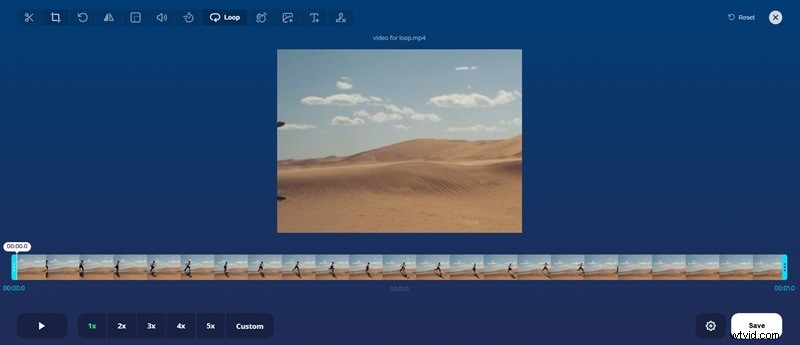
1. Online Video Cutter
Ad‑free, user‑friendly, and dedicated to looping. Upload, set loop count, and download.
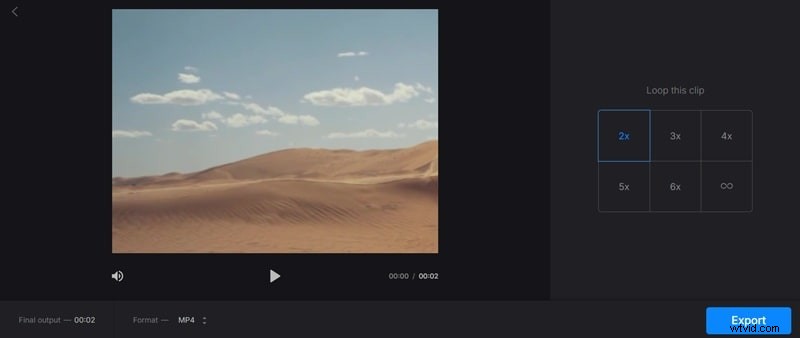
2. Clideo
Versatile suite with a free online looper—loop up to 6x or infinite times.
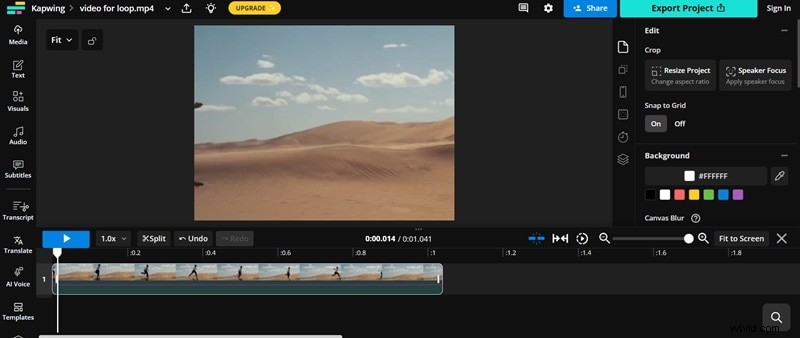
3. Kapwing
All‑in‑one editor. Upload, choose loop count, add captions or effects, then export.
Part 5: Looping Directly in Media Players
Sometimes you just want a video to repeat while you watch it—no editing required. Most modern players support a built‑in loop function.
Windows Media Player
Open your video, enable the “Repeat” button, or press Ctrl+T.
QuickTime
Open the video, go to View → Loop.
VLC
Play the video, click the “Loop” icon in the controls to toggle continuous playback.
Part 6: Pro Tips for Seamless Loops
Even with a perfect clip, a noticeable jump can break immersion. Apply these techniques to create truly seamless loops:
- Match Visuals at the Cut – Trim so the ending frame mirrors the start. Look for identical lighting, motion, or background cues.
- Use Ping‑Pong for Hard Cuts – Reverse the clip after the original; this smooths abrupt transitions, especially with repetitive actions like walking.
- Sync Music to Beats – Choose a track that loops naturally. Trim the audio to the same frame as the visual and apply fade‑in/out to avoid abrupt starts.
Conclusion
Looping videos is straightforward, but delivering a polished, engaging result requires attention to detail. With the right tools—Filmora on desktop, its mobile counterpart, or quick online editors—and these professional techniques, you can create loops that captivate audiences across web, social, and presentation platforms.
FAQs
-
What’s the difference between a loop and a replay?
A loop automatically repeats from start to finish without user intervention, whereas a replay is manually triggered after a single playthrough.
-
How to loop a video on Instagram?
Instagram’s Boomerang feature records a short burst of photos and stitches them into a forward‑and‑backward clip—perfect for instant loops.
-
Can Filmora export loops with transparent backgrounds?
Yes—export in MOV with an alpha channel or as a transparent GIF to maintain the background opacity.