
For someone who likes to use GIFs daily, you must've felt that sometimes the timing of the GIF you found online doesn't feel right, and wish that you could slow down or speed up the GIFs to better suit the moment.
A too-slow GIF can feel boring, while other times, too-fast GIFs can make it hard to catch what's happening. To make it right, our guide here will show you how to edit GIF speed however you want.
In this article
Part 1. Understanding Frame Speed in GIFs
GIFs (short for Graphics Interchange Format) are looping animations made up of individual image frames. The speed of a GIF depends on how quickly each frame shows up. This is called the frame delay.
If the delay is short, the GIF plays fast. If the delay is longer, it plays more slowly. Changing this timing can completely change the feel of a GIF. You can make it funnier when sped up, or more dramatic when slowed down. It all depends on what kind of effect you want to create.
When to Speed Up GIFs:
- ✅ Add humor or exaggerate a reaction
- ✅ Create a quick time-lapse look
- ✅ Shrink the file size by reducing frame delays
- ✅ Match the pace of fast-moving content

When to Slow Down GIFs:
- ✅ Focus on an important moment
- ✅ Make how-to steps easier to follow
- ✅ Add suspense or a dramatic touch
- ✅ Give people time to read any text
- ✅ Break down fast movements so they're easier to see

Part 2. How to Change GIF Speed on Desktop
There are plenty of ways to adjust GIF speed on your computer. The easiest method is to use a program like Wondershare Filmora, and a more advanced method is usually done using GIMP.
Easy Method to Change GIF Speed
Filmora is an intuitive video editing program that supports GIF files. You can use it to change the GIF speed without getting lost in a complex menu. Just import your GIF, adjust the speed using the slider or preset options, and export it to your preferred format.
Not only is it simple, but Filmora is also loaded with useful features that can help you edit your GIFs beyond just changing the speed. In one software, you get many tools to enhance your GIFs with text, filters, effects, and more.
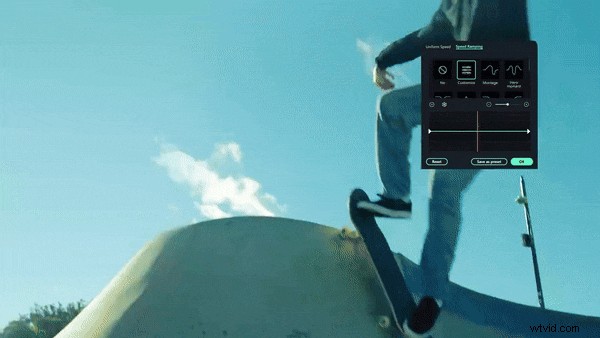
Why we recommend Filmora:
- Board range of speed control (0.01 to 100x). This level of precision is something you won't usually find in most simple editors like Filmora.
- Supports many file formats, not only GIFs. This includes video (e.g., MOV, MP4, MKV) and image (e.g., JPG, PNG) formats.
- Includes built-in editing tools. More than changing the playback speed, you can trim, crop, add music, filters, text, and even stickers.
- Advanced settings for exporting GIF format. You can customize your GIF's resolution, frame rate, and file size before saving.
- Intuitive interface, perfect for beginners. Everything is easy to find, with a drag-and-drop design that makes editing quick.
How to Edit GIF Speed in Filmora
Step1Open Filmora and Start a New Project
Launch Filmora on your desktop and click New Project to begin. Click the Import button or drag your GIF file directly into the media library.

Step2Add the GIF to the Timeline and Adjust the Speed
Drag the GIF from the media library onto the timeline. Select the GIF track on the timeline and head to Speed > Uniform Speed on the property panel.
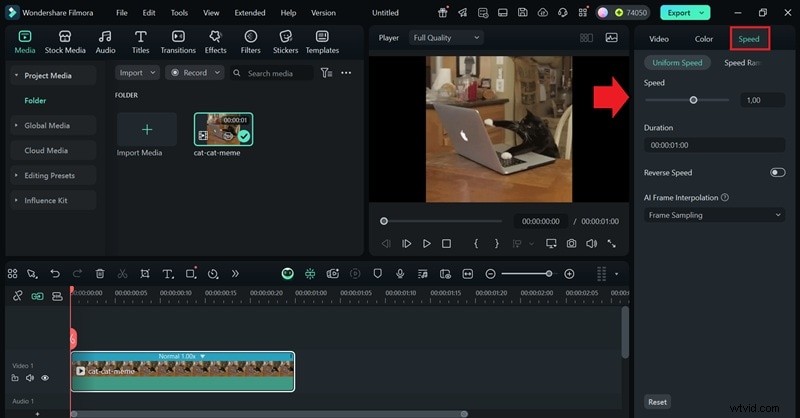
Move the slider to the left to slow down or to the right to speed up. You can also type in a custom speed value for more precision.
Step3Preview Your Changes and Export Your GIF
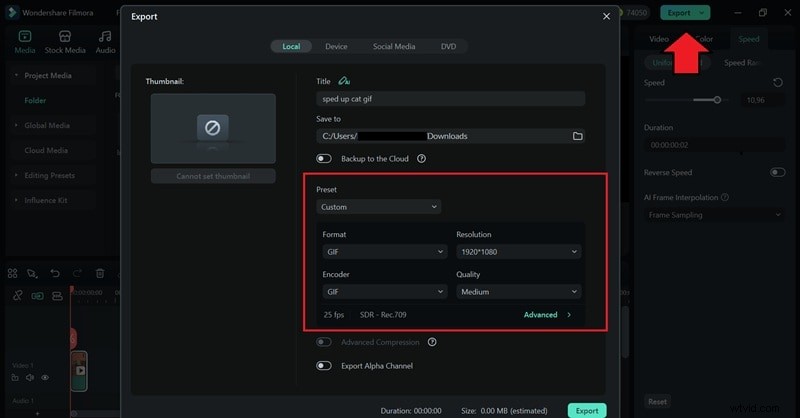
Press Play to check how it looks. When you're happy with the result, click Export, choose the output format, and adjust settings like resolution and frame rate if needed. Hit Export again to save your new GIF.
Advanced Method to Edit GIF Speed
If you wish for more control, as in making frame-by-frame edits of your GIF, GIMP can be an option. GIMP (GNU Image Manipulation Program) is a free, open-source photo editor that supports GIF animation.
While it's not as beginner-friendly as apps like Filmora, you can also use it to make a GIF faster or slower by adjusting the delay time for each individual frame.
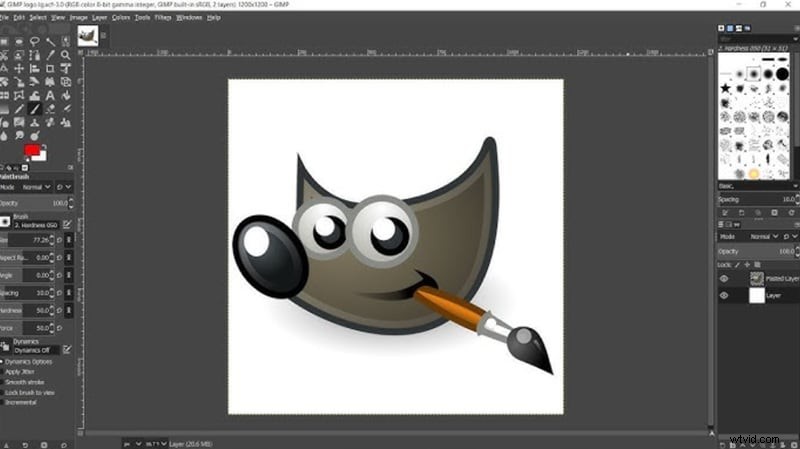
How to Change GIF Speed Using GIMP
Make sure you've installed GIMP on your computer. Then, follow the steps below.
Step1Open the GIF file on GIMP
Launch GIMP and open your GIF file by going to File > Open, then selecting the animated GIF you want to edit.
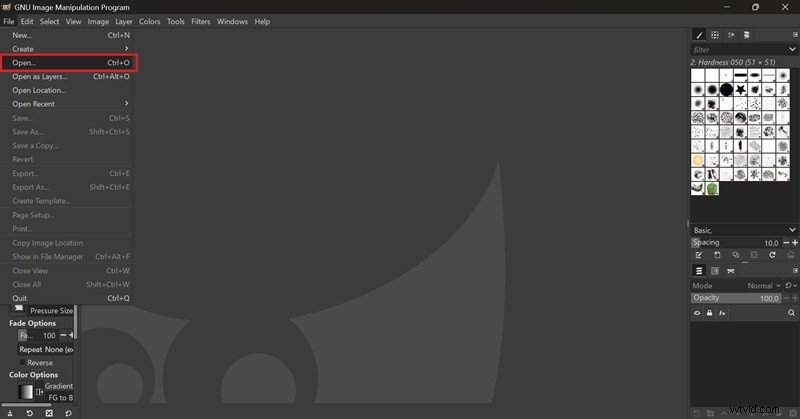
Step2Open the Layers Panel
After your GIF loads, open the Layers panel to see each frame of the animation. If you don't see it, press Ctrl + L to bring it up.
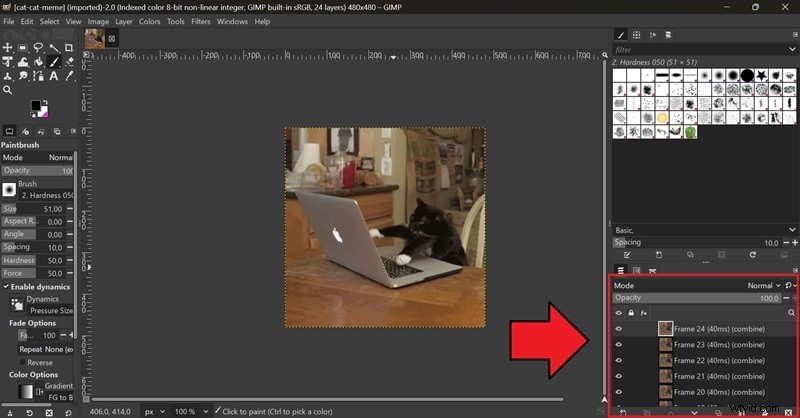
Step3Adjust and Change the Frame Delay
Each layer represents a frame in the GIF. You'll notice a time value written in parentheses next to each layer's name, like (100ms). Double-click on a layer's name and change that time value to adjust how long that frame is shown.
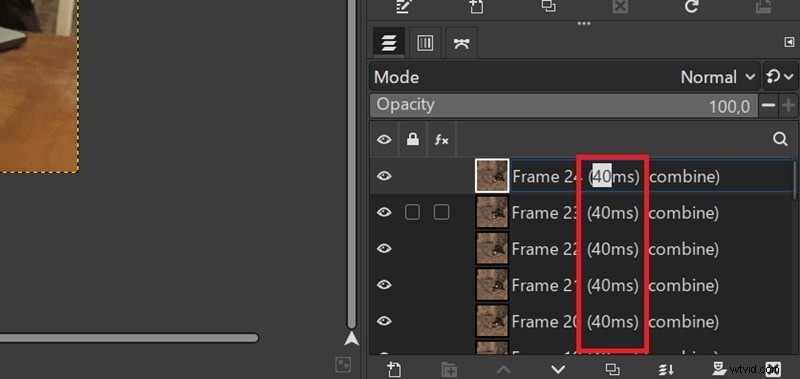
For example, changing it to (300ms) will make the GIF slower and keep that frame visible for a longer time. Hit Enter to confirm your changes. Repeat this for each frame if you want to adjust the entire GIF.
Step4Save or Export Your GIF
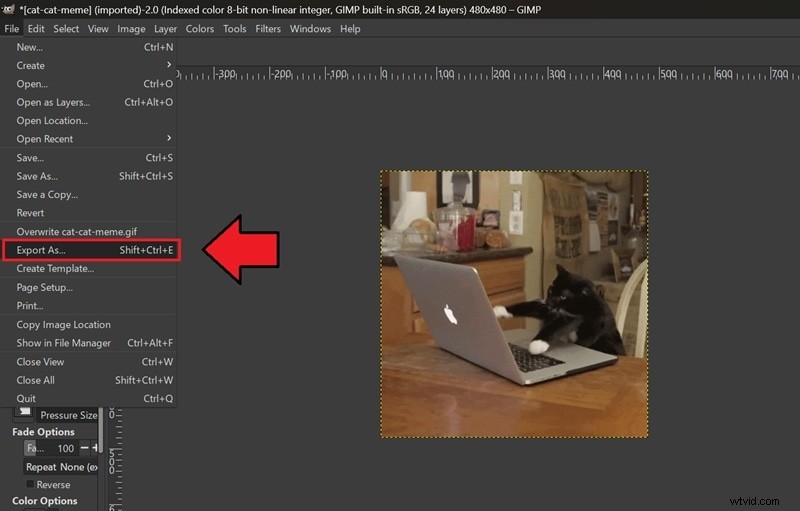
Once you're done, go to File > Export As to save your edited GIF. If you'd like to replace the original, you can go with File > Overwrite.
Part 3. How to Change GIF Speed on Mobile
Enjoyed changing the GIF speed using Filmora? You can do it on your phone, too. The Filmora mobile app also supports GIF files and lets you edit them on the go. The process is as simple as it gets. In minutes, they are ready to save, share, or post wherever you like.
Make sure you have the Filmora app installed on your phone (available on iOS and Android). Then, follow the steps below to adjust your GIF speed.
How to Speed Up/Slow Down GIFs on Mobile
Step1Open Filmora and Import Your GIF
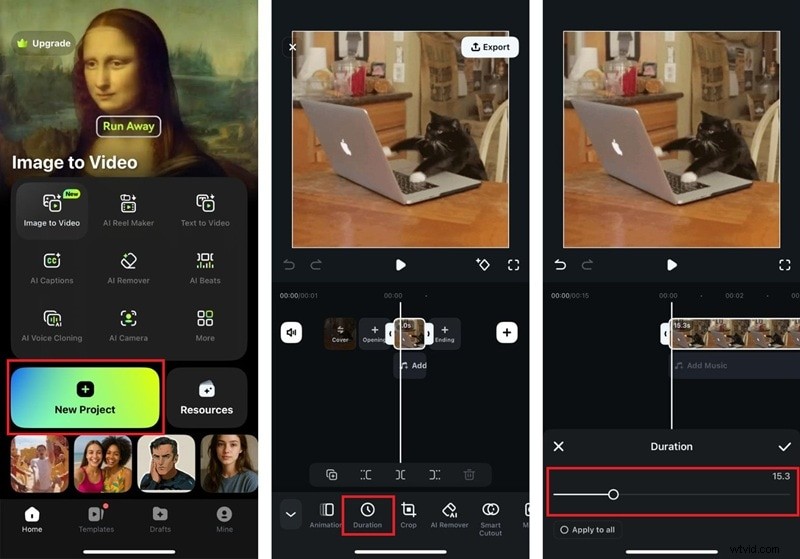
Open the Filmora app on your phone and tap New Project. Then, you'll get to select and import the GIF you want to edit.
Step2Select Duration from the Toolbar
Once your GIF is on the timeline, tap the track and select "Duration" or "Speed" from the toolbar.
Step3Adjust the Speed
Use the slider to change the speed. Slide to the right to speed up the GIF or to the left to slow it down. You can preview the changes to see how it looks.
Step4Export Your Edited GIF
When you're happy with the result, tap Export and select Live Photo (if you want to save it as a Live Photo) or Video. Choose your settings (like resolution and FPS), then save it to your phone or share it directly to social media.
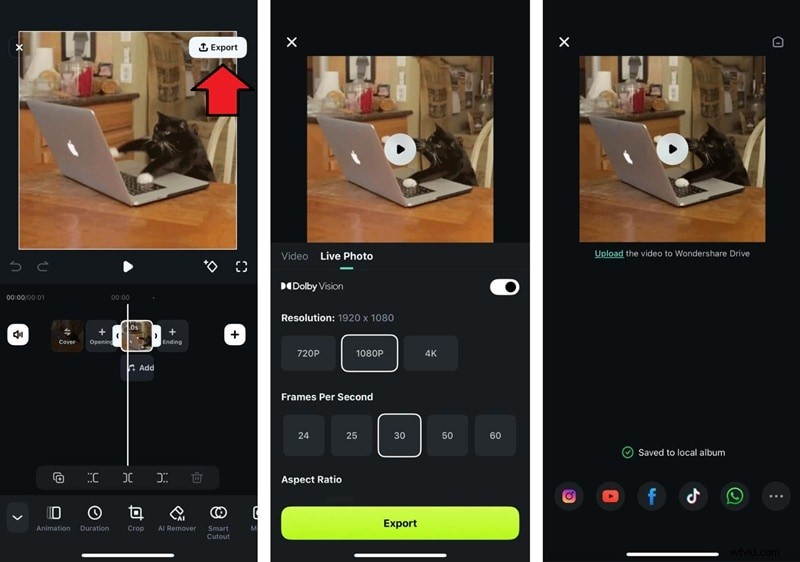
Note: The Filmora mobile app doesn't support GIF export yet. The result will be saved in a video format instead. If you wish to save it as a GIF file, you can use video-to-GIF converters or Live Photo-to-GIF converters.
Part 4. How to Change GIF Speed Online
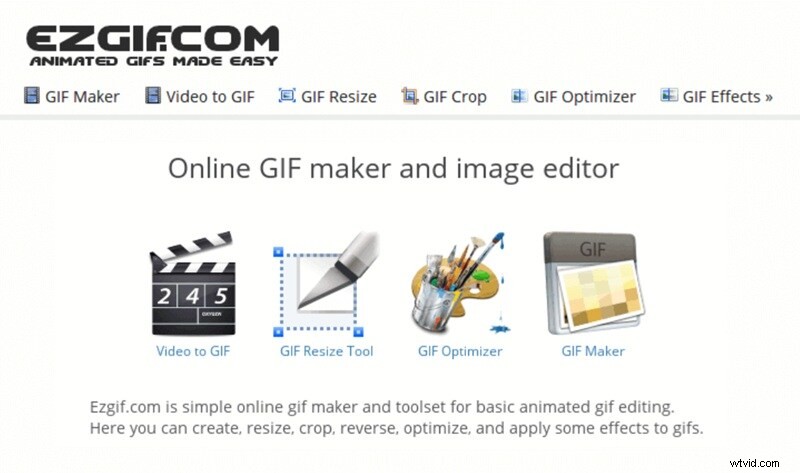
If you're looking to change GIF speed online instead without downloading any apps or software, we recommend using EZGIF. EZGIF is a free online tool for basic animated image editing, including GIFs. It doesn't require any sign-up to use it.
Though it's a simple tool, you can easily switch between features within the platform, like speed adjustment, cropping, and resizing. There are some file size limits (max. 200MB) compared to mobile apps or desktop software. But for quick edits, EZGIF does the job well.
How to Edit GIF Speed Online on EZGIF
Step1Visit the EZGIF Website
Open your browser and go to the EZGIF website.
Step2Upload Your GIF
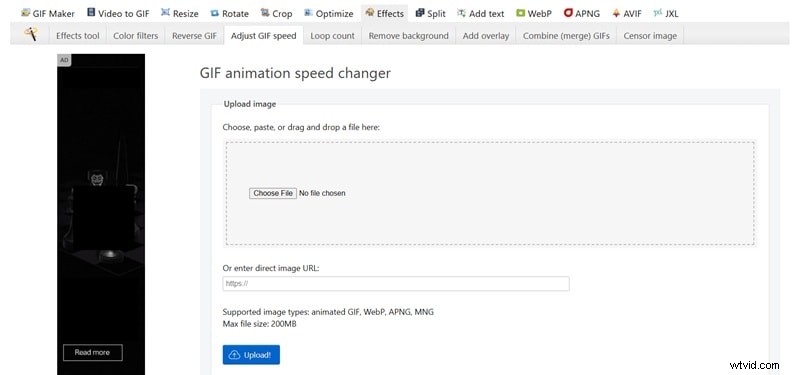
Click Choose File to upload a GIF from your device, or drag and drop the file into the upload area. You can also paste a URL if your GIF is hosted online. Once selected, click Upload to move to the next step.
Step3Adjust the Speed
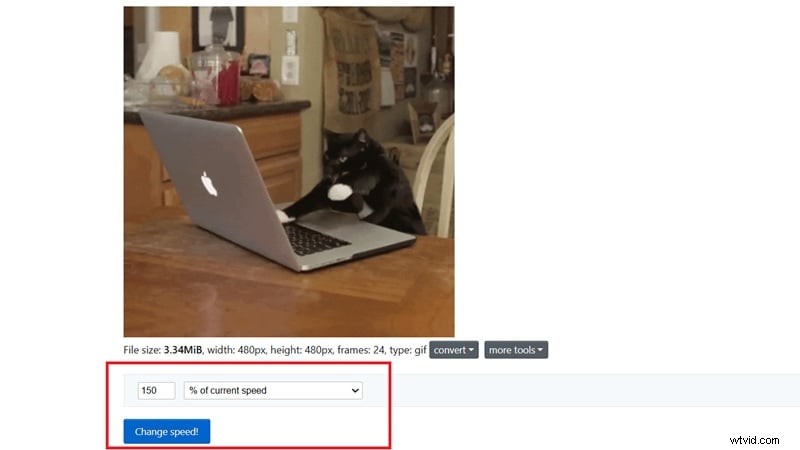
Enter a number in the speed multiplier box. For example, use 2 to double the speed or 0.5 to make it play at half the speed. Then click Change Speed to apply the adjustment.
Step4Download Your GIF
After a few seconds, a preview of your new GIF will appear. If you're happy with how it looks, right-click on the result and choose "Save image as…" to download it to your device.

Part 5. How to Maintain GIF Quality After Editing
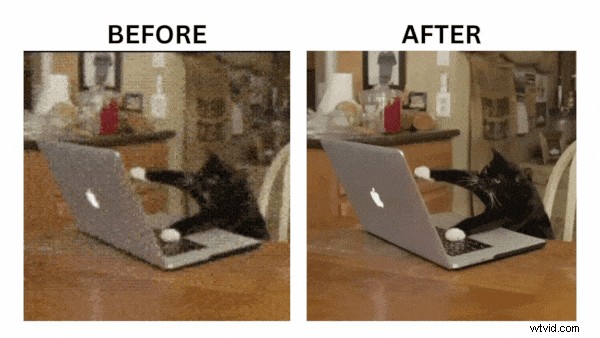
With your GIFs now edited and timed just the way you want, there's one more thing to watch out for: quality loss. Changing the speed of a GIF can affect both how smooth it looks. It might turn out choppy, pixelated, or overly compressed compared to the original.
So, what can you do to keep your GIFs looking clean and sharp even after editing them?
Keep the Original Resolution
The better the original GIF or video, the better the final result. Low-quality input means lower-quality output. After that, stick to original dimensions when possible and avoid resizing it too much.
Maintain Frame Rate Consistency
When changing speed, use consistent frame delays across all frames to avoid stuttered or uneven playback. Or, if you're slowing down a GIF, consider duplicating frames rather than extending delays to make it look smooth.
Avoid Resizing Unnecessarily
Every time you re-export or re-edit a GIF, it can lose more quality. Try to get everything done in one session to minimize repeated compression that would lead to your GIFs looking pixelated.
Conclusion
By following the tutorial in this article, your GIFs are no longer boring. You now know how to speed up GIFs to make them funnier and more energetic, or slow them down to highlight key moments or add a dramatic effect.
The tool you choose also depends on your preferences. If you want something that is quick, easy, and gets the job done well, Filmora gives you everything you need. You can use Filmora to edit GIF speed on both desktop and mobile.

Filmora
⭐⭐⭐⭐⭐
The Best AI-powered Video Editing Software and App
FAQ
-
Will speeding up a GIF reduce its file size?
In most cases, speeding up a GIF can reduce its file size. That's because the total duration gets shorter, and fewer frames may be needed to play the loop. However, results can vary depending on the editing method and export settings you use.
-
What's the best frame delay for smooth playback?
For smooth playback, a good frame delay is usually between 0.03 seconds (30ms) for fast motion and 0.06 seconds (60ms) for moderate speed, which is roughly 15-30 frames per second. You can adjust the delay based on the motion you want to show.
-
Can I change the speed of only part of a GIF?
Yes, but it depends on the tool you use. If you are using Filmora, you can split the GIF into segments on the timeline first and then apply different speed settings to each part. Or, you can use Speed Ramping to adjust the speed at different points within the same GIF.