
Slow motion elevates action scenes, turning rapid movements into dramatic, fluid visuals. The secret lies in capturing thousands of frames per second (fps) and then playing them back at a normal frame rate, creating that hallmark “time‑stretch” effect.
Part 1. How a Slow‑Motion Camera Works
Traditional cameras record at 24‑30 fps, while slow‑motion units push the limits to 120, 240, 1000 fps or higher. When footage recorded at, say, 1000 fps is played back at 24 fps, the action slows down by a factor of roughly 40, revealing intricate details invisible to the naked eye.
For videographers, understanding fps is crucial: the higher the recording rate relative to playback, the smoother and more convincing the slow‑motion effect.
Part 2. What Makes a Good Slow‑Motion Camera?
- Frame Rate: Minimum 120 fps for basic slow motion; 1000 fps+ for professional‑grade work.
- Resolution: High fps often forces a trade‑off in resolution; verify the sensor can maintain quality.
- Low‑Light Sensitivity: Fast shutter speeds increase light demands; good ISO performance is essential.
- Storage & Battery: High‑fps footage consumes gigabytes quickly; choose cameras with ample memory and robust battery life.
- Portability: Compact systems offer flexibility but may sacrifice certain features; balance your workflow needs.
Part 3. Best Slow‑Motion Cameras (2024)
1. Canon EOS 90D
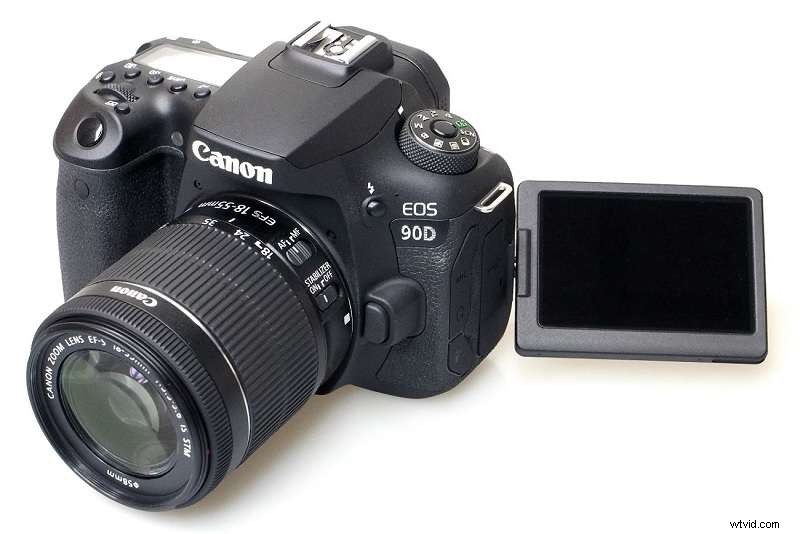
The APS‑C DSLR delivers 120 fps in Full HD and boasts a 32.5‑MP sensor, precise dual‑pixel autofocus, and a responsive touchscreen. Ideal for filmmakers who need a balance between portability and image quality.
- Pros: High resolution, large screen, solid battery life.
- Cons: No all‑I recording; MP4‑only output.
2. Sony ZV‑1
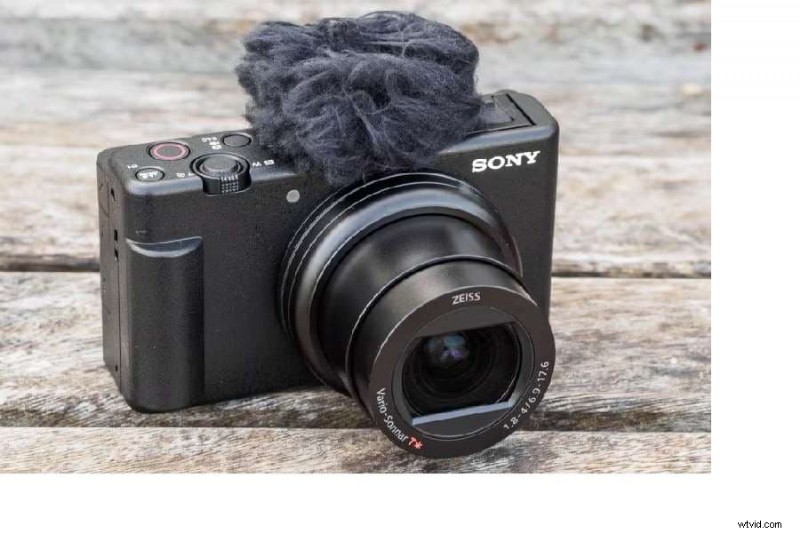
Designed for vloggers, the 1‑inch sensor supports 120 fps (standard) and 960 fps (super‑slow motion). Lightweight, with integrated stabilization and a self‑ie light.
- Pros: Pocket‑sized, vlog‑friendly, external mic/flash support.
- Cons: Limited battery life; face‑tracking struggles with masks.
3. DJI Pocket 2
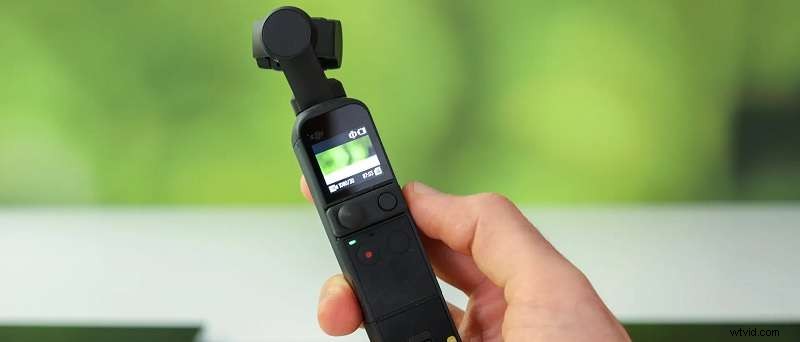
Compact, gimbal‑stabilized, and capable of 240 fps. Offers hyper‑lapse, pro mode, and time‑lapse features—perfect for on‑the‑go creators.
- Pros: Superior stabilization, tracking mode.
- Cons: Weak low‑light performance; heat buildup in 4K.
4. GoPro Hero 11
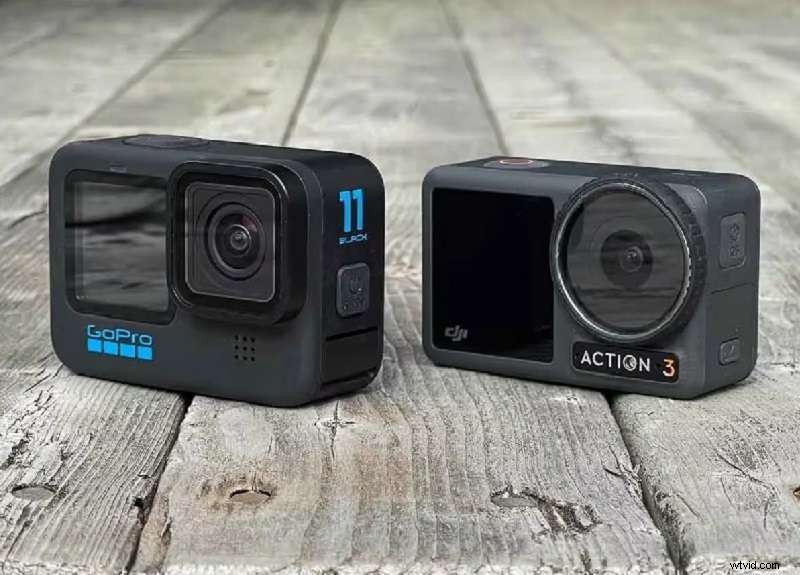
Rugged, waterproof, and capable of 240 fps in 1080p. Night‑mode, excellent stabilization, and a battery that handles prolonged action shoots.
- Pros: Long battery life, accessory ecosystem, beginner‑friendly UI.
- Cons: Confusing indicator sounds; not ideal for low‑light.
5. Panasonic Lumix GH6
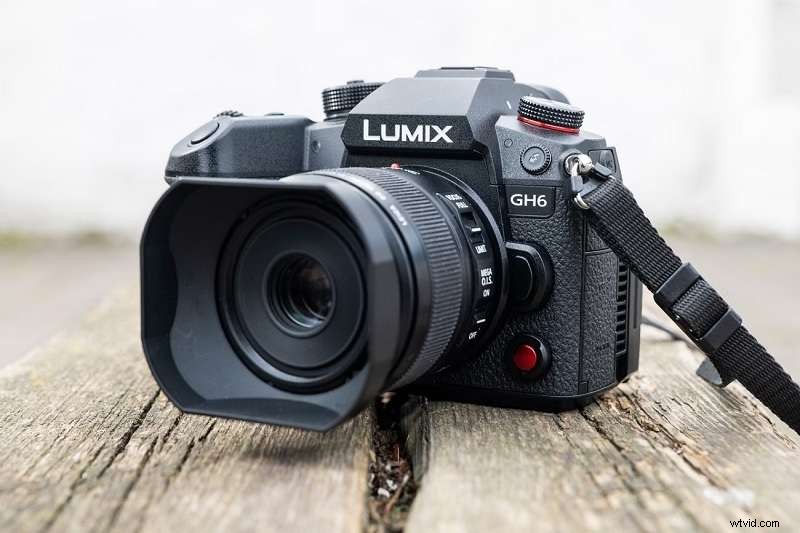
Features internal ProRes 422/422 HQ recording, a dedicated record button, and excellent stabilization. Uses CFexpress cards for high‑speed data transfer.
- Pros: Dust‑resistant magnesium frame, subject recognition, built‑in cooling.
- Cons: Raw still noise in shadows; requires CFexpress for full quality.
Part 4. Creating Slow‑Motion Videos Without a Dedicated Camera
Not everyone owns a high‑fps camera, but software can upscale ordinary footage into smooth slow motion. Wondershare Filmora offers intuitive tools to adjust speed, from 0.01× to 100×.
Method 1: Speed Ramping on Specific Sections
- Download & install the latest Filmora.
- Start a new project and import your clip.
- Right‑click the clip → Speed Ramping → choose a preset (e.g., Hero Moment, Bullet Time).
- Adjust the speed curve to your desired slowdown.
- Preview and export.
Method 2: Uniform Speed for Entire Clip
- Import the clip and right‑click → Uniform Speed.
- Slide the speed slider to the left to slow the clip.
- Preview and export.
Enhancing Smoothness with AI Frame Interpolation
- After selecting Uniform Speed, open the Speed tab.
- Enable AI Frame Interpolation – Optical Flow to generate intermediate frames.
- Preview and export for a fluid slow‑motion finish.
Conclusion
Whether you’re investing in a pro‑grade camera or leveraging editing software, slow motion can elevate your storytelling. The options above—ranging from the affordable Sony ZV‑1 to the feature‑rich Panasonic GH6—ensure you can choose a system that fits your budget and creative vision.
For those on a budget, Filmora offers a cost‑effective pathway to create professional‑looking slow‑motion videos without specialized hardware.
Start experimenting today and unlock the dramatic potential of every frame.