
Premiere Pro offers a wide variety of export formats—from H.264 and QuickTime to AVI, HEVC, and beyond. While this flexibility is great for professionals, beginners often feel overwhelmed when asked: What’s the best format to export Premiere Pro projects in?
In this guide, we’ll break down Premiere Pro’s most commonly used export formats, why they matter, and then show how Filmora V15 simplifies the entire process with presets, batch export, and direct publishing.
In this article
- PR Application & Limitations
- Best Format Options in Premiere Pro
- Filmora V15 as a PR Alternative
- Conclusion
- FAQs – Best Format Export Premiere Pro
PR Application & Limitations
Best Format Options in Premiere Pro
Adobe Premiere Pro gives precise control over export formats. Here’s a breakdown of the most important export formats in Premiere Pro and when to use each one:
H.264 (MP4)

The most recommended and widely used format in Premiere Pro.
- Why it’s great: It delivers excellent quality while keeping file sizes small, making it perfect for uploading to platforms like YouTube, Instagram, Facebook, and TikTok.
- Compatibility: Universally supported across devices—phones, tablets, laptops, TVs.
- Use case: Everyday creators, social media publishers, and professionals delivering web-ready files.
- Pro tip: Combine H.264 with VBR (variable bitrate) 2-pass for the best balance of quality and efficiency.
For 90% of creators, H.264 is the best Premiere Pro export format because it balances quality, size, and accessibility.
QuickTime (MOV)

A professional-grade format, especially popular in production workflows.
- Why it’s great: Supports Alpha channels (transparency), which is crucial for overlays, logos, motion graphics, or lower thirds that need to sit on top of other video layers.
- Flexibility: Works well with intermediate codecs like Apple ProRes or GoPro CineForm, giving editors lossless or near-lossless quality.
- Use case: Editors working with visual effects, TV broadcast workflows, or projects requiring transparent video exports.
- Drawback: File sizes are much larger compared to H.264.
Best for professional workflows where maintaining the highest visual integrity is more important than keeping files small.
HEVC (H.265)
The modern successor to H.264, offering more efficiency.
- Why it’s great: Compresses video better than H.264 while preserving detail, making it perfect for 4K, 8K, HDR, and VR content.
- Compatibility: Not as widely supported on older devices or systems, so playback issues can occur.
- Use case: Delivering ultra-high-definition videos where smaller file sizes are important, like 4K YouTube uploads or cinematic projects.
- Drawback: Heavier on processing power, both for encoding and playback.
A strong option if you’re producing high-resolution or HDR projects, but make sure your audience has modern devices.
AVI

An older but still available format in Premiere Pro.
- Why it’s great: Very little compression, so it preserves original quality.
- Use case: Sometimes used in legacy workflows or for archiving raw-quality files before final delivery.
- Drawback: Extremely large file sizes and limited compatibility with modern devices or platforms.
Today, AVI is mostly for specialized workflows, not for online publishing.
Other Formats Worth Mentioning
- MPEG-2: Still used in DVD and Blu-ray authoring workflows.
- WMV (Windows Media Video): Rarely used now, but was once popular for Windows-based playback.
- Image Sequences (JPEG, PNG, TIFF): Useful for exporting frame-by-frame content in animation or VFX pipelines.
Drawbacks of Premiere Pro Export Formats
- Overwhelming choices: Beginners often don’t know which format to pick.
- Manual optimization required: Export settings must be fine-tuned for each platform.
- No direct publishing: Formats export to your device, but you still have to upload manually.
- Time-consuming: Each platform version requires a separate export.
- High subscription cost: Many creators find Adobe’s pricing too steep for casual or small-business use.
In short: Premiere Pro offers the best export formats for professional use, but the complexity slows down everyday creators.
Filmora V15 as a PR Alternative
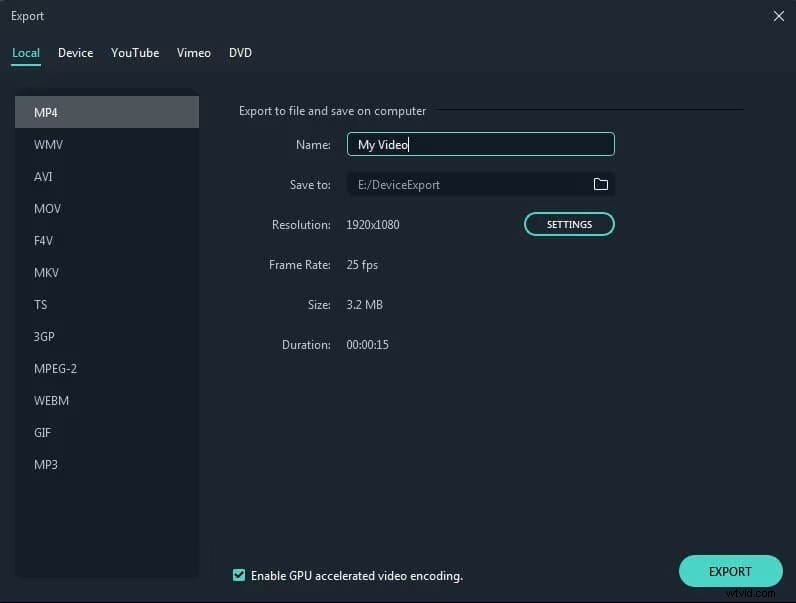
Where Premiere Pro gives you dozens of formats to choose from, Filmora V15 simplifies the process with ready-made export presets that automatically apply the best format for your target platform. Instead of guessing between H.264 or HEVC, you simply select “YouTube 1080p” or “Instagram Reel 9:16,” and Filmora optimizes everything in the background.
Filmora covers all essential export needs found in Premiere Pro—H.264, transparent QuickTime exports, and HEVC—while adding powerful workflow tools that Premiere lacks.
Key Features Filmora Offers Instead of Premiere Pro
1. Platform-Optimized Presets

No more confusion about formats. Just choose the platform (YouTube, Instagram, TikTok), and Filmora automatically sets the best export format along with the correct resolution, bitrate, and frame rate.
2. Batch Export Across Formats
Premiere Pro requires you to export each version separately. Filmora lets you export multiple versions at once—for example, a YouTube widescreen cut in H.264, plus a TikTok vertical cut in HEVC.
3. Built-in Social Media Planner
Filmora takes exporting one step further with direct publishing. Connect your accounts and schedule uploads—something Premiere Pro simply doesn’t offer.
4. Templates & AI Tools
Filmora includes easy-to-use templates and AI features like motion tracking, background removal, and auto audio sync to speed up production.
5. “Coming Soon” Enhancements
Wondershare continues to roll out updates, with upcoming features like cloud project sharing and expanded export presets for niche platforms. This future-proof approach keeps Filmora competitive with industry giants.
Conclusion
Choosing the best format export in Premiere Pro usually means going with H.264 for general publishing, QuickTime for transparent video, or HEVC for advanced 4K projects. These formats deliver outstanding results but require time, knowledge, and manual steps to optimize.
Filmora V15 solves these challenges with automatic presets, batch export, and built-in publishing tools—making it the smarter choice for creators who want efficiency without sacrificing quality.
Try Filmora V15 today and skip the confusion of Premiere Pro’s export menus.
FAQs – Best Format Export Premiere Pro
-
Q1. What is the best format to export from Premiere Pro for YouTube?
H.264 (MP4) is the best choice, using 1920x1080 resolution, 30fps, and 10–12 Mbps bitrate.
-
Q2. What is the best Premiere Pro export format for Instagram Reels?
Export in H.264 with 1080x1920 resolution (vertical). This ensures sharp, smooth playback for Reels or Stories.
-
Q3. Can I export transparent video in Premiere Pro?
Yes. Use QuickTime format with GoPro CineForm codec and enable the Alpha channel.
-
Q4. What is the best format to export 4K videos in Premiere Pro?
HEVC (H.265) is the best choice for high efficiency and smaller file sizes, especially for HDR content.
-
Q5. Does Filmora support the same formats as Premiere Pro?
Yes. Filmora supports H.264, HEVC, and QuickTime exports while offering presets that apply the best format automatically.