
In today's world, video in video effect (put a video in the corner of another video) is widely applied in movies, TV shows, and sports games to tell more threads in the story. When mentioning "video-in-video“, you probably think it‘s very complicated and professional work that can only be done by pros who are well acquainted with the post film production. In fact, everyone can make a great video in video movie once getting a great video tool at hand.
This article introduces a handy video in video movie maker: Wondershare Filmora, to help you put a video in the corner of another video in the most hassle-free way. It also gives you the power to further customize the video in different tracks to achieve the best result. In all, doing video-in-video editing with this program is a snap. Have a quick read now.
Get started to download and install Filmora free trial below:
How to Make Video in Video Effects in Wondershare Filmora
1. Add your video files
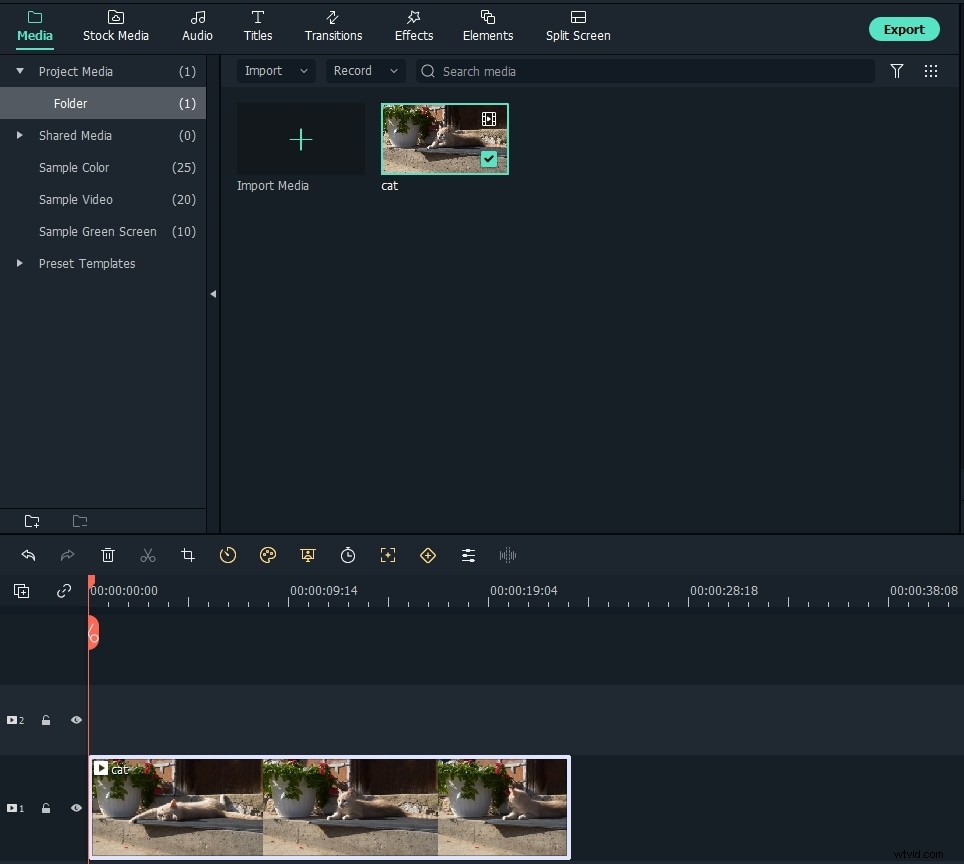
Click "Import“ to browse your file folder and then select the videos you need. This video in video software provides a User‘s Album to help you manage all added videos, so you can gain easy access to in later video editing. When all files displayed in the left item tray, you can double a clip to view it in the right previewing window.
2. Apply video-in-video effect
Insert a video in another video
Drag and drop a source/background video to the first video track , and then drag another video you want to insert to track above the background video track. You can then set the duration of the embed video with the Speed and Duration settings. To change the position of the PIP video, you can drag the handle in the preview window or double click to enter the editing interface. Then drag the sliders to change its size, position or direction.
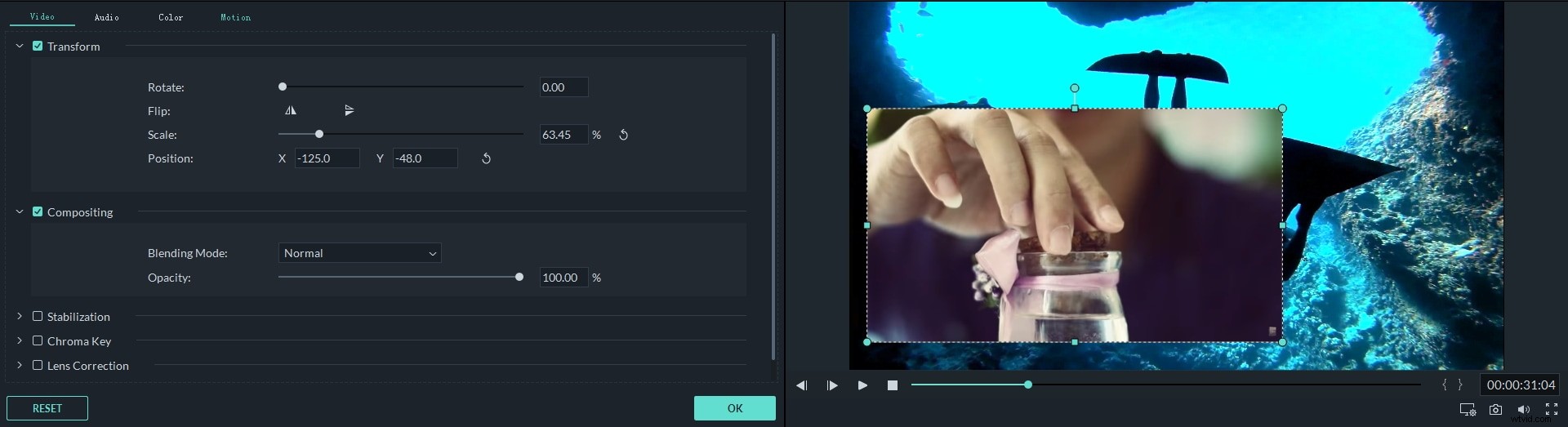
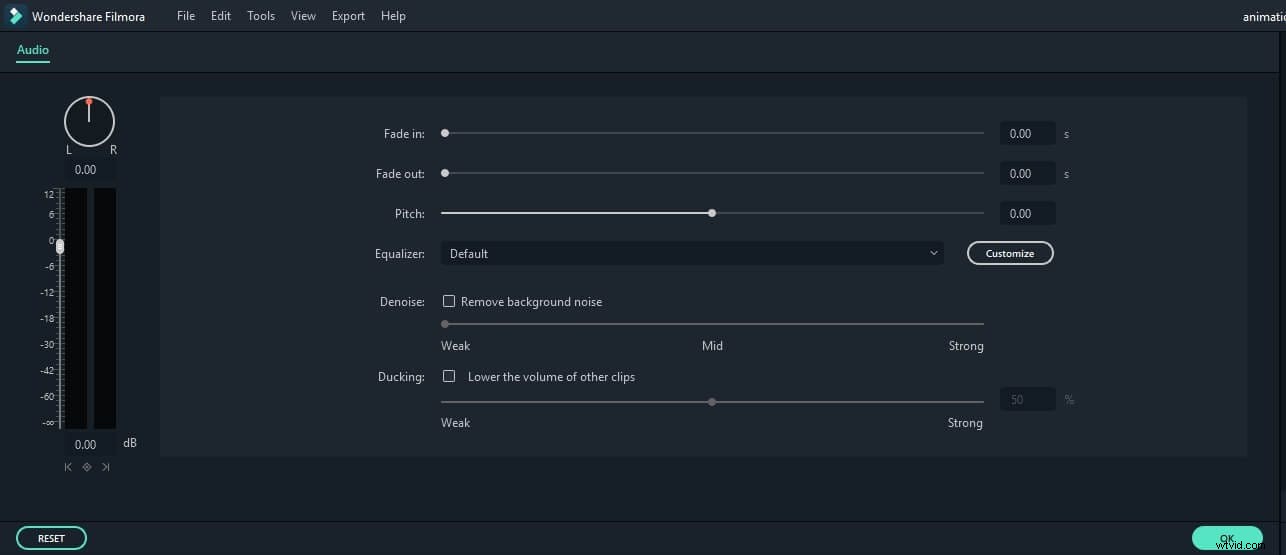
Tips: If you want to change its luminance, video speed, audio pitch, volume, etc., you can double click the clip in the Timeline, and then do video and audio enhancement with handy tools in the Editing panel by swithcing to Audio or Color tab.
Put several videos together to share the same frame
Drag your videos from the media library to the several video tracks one by one (up to 100 video tracks at most), then arrange its showing place, size, and the like in the frame. Now, you‘ll get a raw video in video effect. Click the Play button to preview it.
Note that all the sound will appear in this video in video movie by default. But you can mute them or remove it first and then add a background music or record a voiceover to insert into it with ease.
Do advanced editing to achieve the best effect
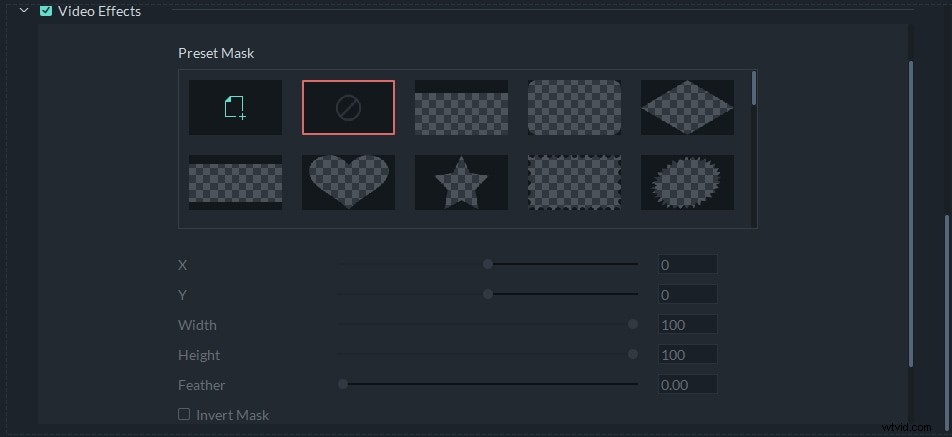
You can make your video more polished using the Effects provided in this video in video editing software. Double click the video in the timeline and then the editing panel will show. Then in the window that appears, you can apply motions, adjust color and audio. Filmora video editing software also allows you to apply masking effects including image mask and shape mask to your footage. YOu can customize the shape, position of the mask and adjust showing effect to achieve the best result.
3. Save and share your creation
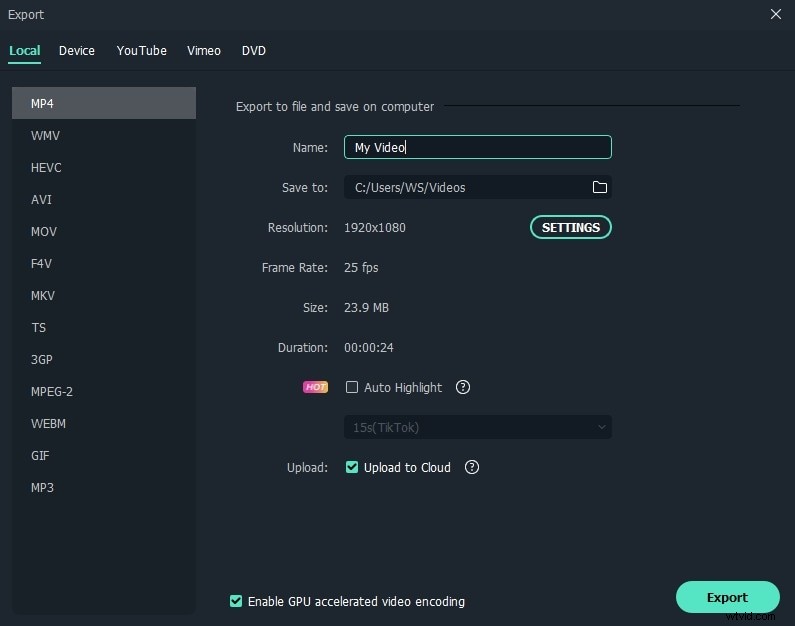
When you‘re satisfied with the result, simply click "Export" to output your masterpiece. Sharing online or offline, you can always get an ideal option. For example, if you want to publish your video online, just click "YouTube" tab and fill your account information to put it on YouTube directly from this program.
Watch the video tutorial below to get more ideas of creating PIP videos: