
There are four really easy ways to add text to your video clips in Final Cut Pro X.
Whether you’re a veteran editor or just opening up Final Cut Pro X for the first time, there’s always a benefit to going over the basics. Adding text or titles to your clip and project sounds like an absolute breeze — and it is! However, it’s not entirely intuitive if you’ve never seen the software’s interface. Not only that, there are a few different types of text and titles to use. So, let’s go over which ones you can use and how you can access them.
1. Add Basic Titles
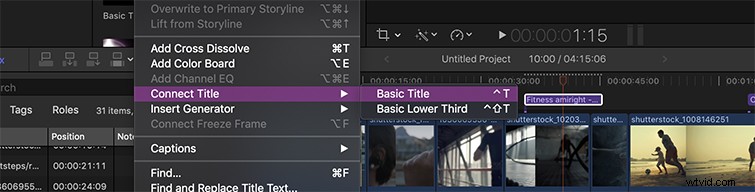
Let’s just get right to the point. To add Final Cut Pro X titles, go to Edit>Connect Title>Basic Title. This will pull up a title in the middle of the clip selected on the timeline. Once you click on the title to start typing, you’ll notice the Text Inspector will open on the right side. This is where you can change the font, size, position, alignment, spacing, tracking, and other small specification details. Easy, right? FCPX makes it pretty simple.
2. Use the Keyboard Shortcut for Titles
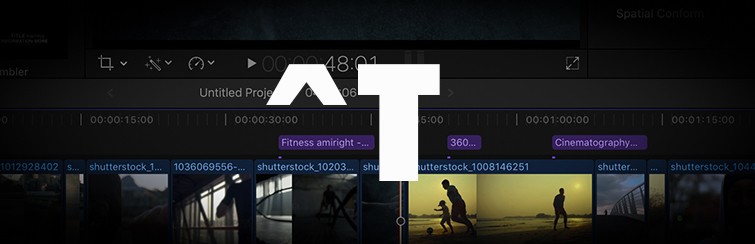
Another totally simple way to add a title is to use the Keyboard Shortcut. To do this, simply hit Control – T (or ^T). This will automatically add a title clip to whichever clip is selected on the timeline. The more you work in the software, the more Final Cut Pro X keyboard shortcuts you’ll memorize, and I promise you’ll find yourself flying through your edits without even thinking about what you’re doing.
3. Try the “Installed Titles” Generator
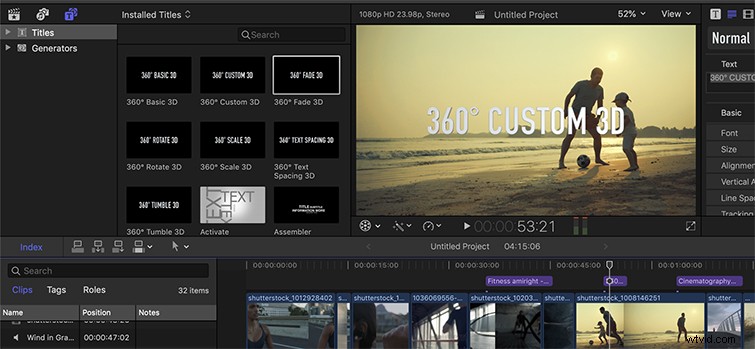
When I recently started editing in FCPX — because I switched over from Premiere — I honestly wasn’t sure where to go to add titles. That’s why I’m writing this article, actually — I really couldn’t figure it out. I first thought it was with the “Installed Titles” generator. The icon is very convincing, but it’s not necessarily the basic titles I hoped for. These are pre-loaded, 3D, and specifically customized titles that Final Cut provides to you for free. Sometimes they’re animated, ever so slightly.
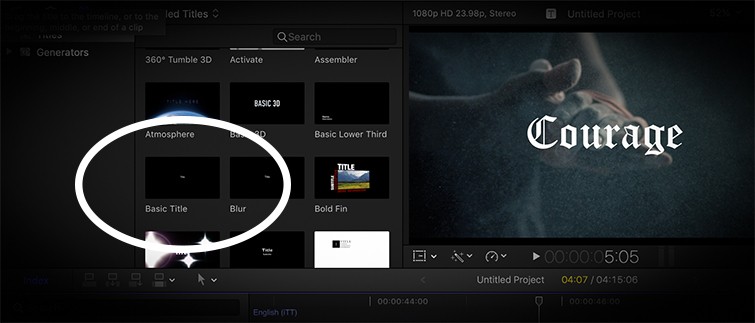
But, one thing I also didn’t realize when I started writing this is that you can access this tool to add a Basic Title to your clip. Here’s where to find it.
4. Add Captions to Your Video
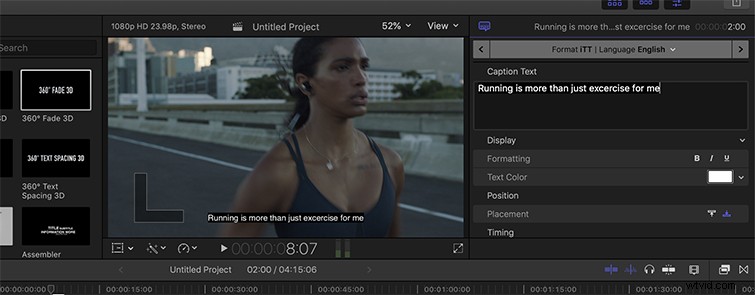
If you want to add subtitles to your video in FCPX, or if there’s a brief section of dialogue in your film or documentary that’s not particularly clear — captions will help. They’re also super easy to insert! Just go to Edit>Captions>Add Captions, and if you want to use the keyboard shortcut, hit Option – C. You can customize the caption text further on the right hand panel.
If you’re looking for a few more quick tips on editing in Final Cut Pro X, I recently made a video on the NLE. Check it out here!
Interested in more FCPX content? Check out our previous posts:
- Exporting Video in Final Cut Pro X
- Final Cut Pro X Editor Kits
- 5 Essential Audio Editing Tutorials for FCPX
- Advanced Audio Features in FCPX
- How to Pull Off Slow Motion in FCPX
- How to Make 3D Titles in FCPX