
When professionals edit their video films, they often need to switch directly between different recorded scenes to create customized outcomes at the end. If these transitions between different scenes are not well optimized then definitely they will affect the flow of the film and make it appear annoying with a little blanking period in between.
If you make use of Final Cut Pro for video editing then it becomes much easier to adjust these transitions so that edited films can run smoothly. The information below will help you to get complete knowledge about managing transitions in videos using FCP.
Those who are not familiar with Final Cut Pro platform and finding it a little complex as a beginner can switch to Wondershare Filmora for Mac as it is one of the easiest professional tools available from Mac devices.
This software is loaded with all powerful features and possesses an interactive user interface for those who are just starting out with Video Editing.
You may also like: How to add effects in Final Cut Pro >>
3 Ways to add or modify the transitions in Final Cut Pro:
- Part 1: Using Shortcut to Apply Transitions >>
- Part 2: Use Browser to Apply Transition >>
- Part 3: Use Menu Bar to Apply Transition >>
Part 1: Using Shortcut to Apply Transitions:
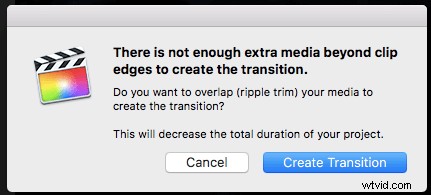
It is possible to apply transitions with a simple shortcut; all that you need to do is either blade your video clip into several scenes as per need or add two or more different scenes to be joined to your software timeline.
It is desired because the transition effect can be applied only if you have more than one clip on the timeline. Also, you can see more keyboard shortcuts here.
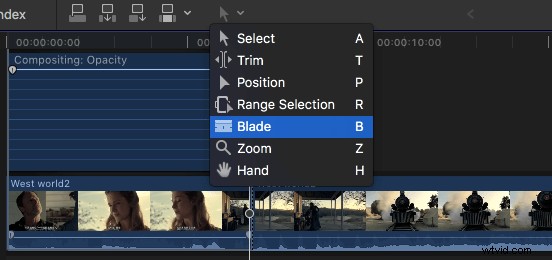
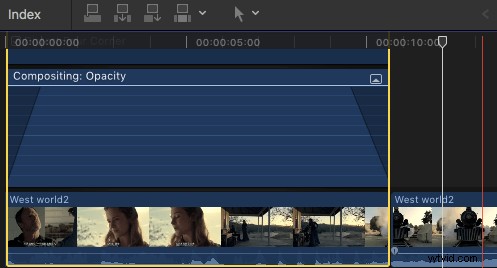
Once you have obtained your two scenes for which you need to add transition effect then select the very first scene from the timeline. Now open the Video animation window on your device, it can be done by pressing Shift+V; find the Compositing option, and then apply default transitions by simply dragging timeline handle towards both sides of the composite window. In FCP, Cross dissolve will be selected as the default transition.
Part 2: Use Browser to Apply Transition:
- Go to the media toolbar and then hit the transition icon. It can be identified as a shaded box over which X is written.
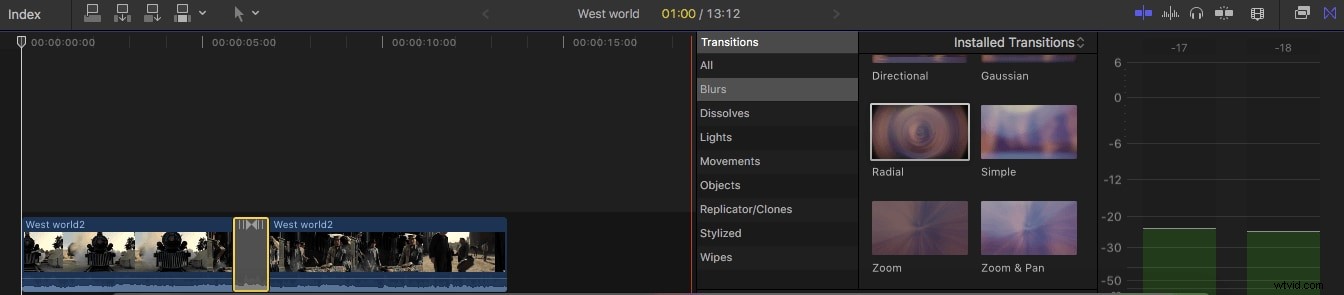
- Now choose your favorite transition from Browser and drag it to your timeline.
- It is time to place the dragged transition between two video clips that you need to edit here.
In order to change the duration of transition:
- Simply right-click on the timeline and select the Change duration option.
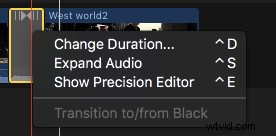
- It can be selected from Ctrl+D options also.
- You can use the precision editor option to adjust transition duration.
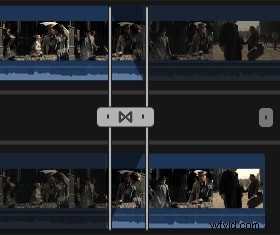
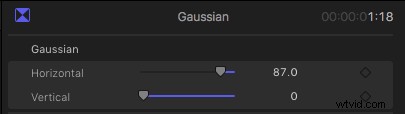
- Users can also edit preferences for transition on Final Cut Pro software tool as per need.
Part 3: Use Menu Bar to Apply Transition:
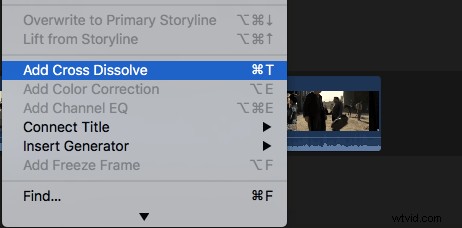
- Click on the available cut between two clips on your timeline.
- Now from the appeared menu bar select Edit and then choose Add Cross Dissolve for your transitions.
Conclusion:
It is much easier to use Final Cut Pro for audio fade-in and out needs. This advanced software tool can be operated with simple to remember keyboard shortcuts and even beginners can develop new customized projects using it.