
DaVinci Resolve to the rescue! Learn three techniques you can use for capturing a still or creating pauses in your next project.
In 2016, DaVinci Resolve went from being the acquaintance application I barely knew to the software that I opened every day. Initially only used for color grading, it’s since become a powerhouse for editing, audio, and VFX.
While it’s brought several new features to the forefront, I do miss one function from my adventures with Premiere Pro—the export frame function.
Creating stills or pauses in Resolve is slightly more involved.
As a creator of screencast tutorials, there are moments when I need to pause while I explain something—or perhaps I’ve skipped too far ahead in the video recording, but I’m still explaining something from the previous tip. I would need to pause the screencast to give my audio a moment to catch up.
In Premiere Pro, it was a simple task: hit the camera icon, save the still, and if you checked Import into project, the still would even import into your project folder, allowing you to create an invisible pause in a matter of seconds.
Premiere also has a hold frame function, but the export frame function was more beneficial in many situations.

This process in Resolve is more tedious. Here are three methods you can use to get a still of your video footage to create a pause.
1. Freeze Frame
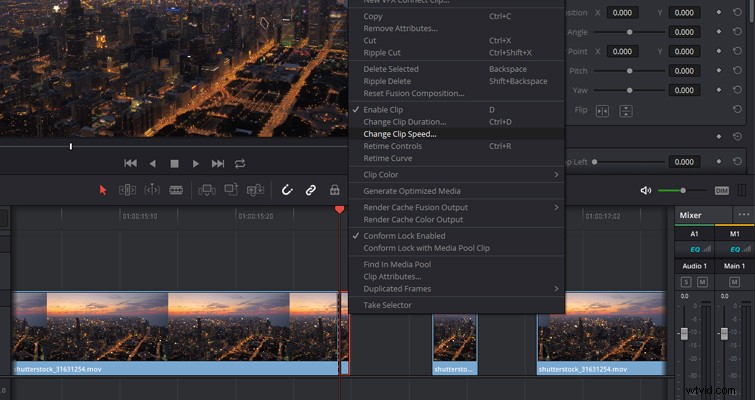
First, head to where you want to begin the pause, and using the blade tool (B), create a splice. Then move one frame forward, and make another splice. This should leave you with a clip length of one frame.
Right-click on the freeze frame and select change clip speed.
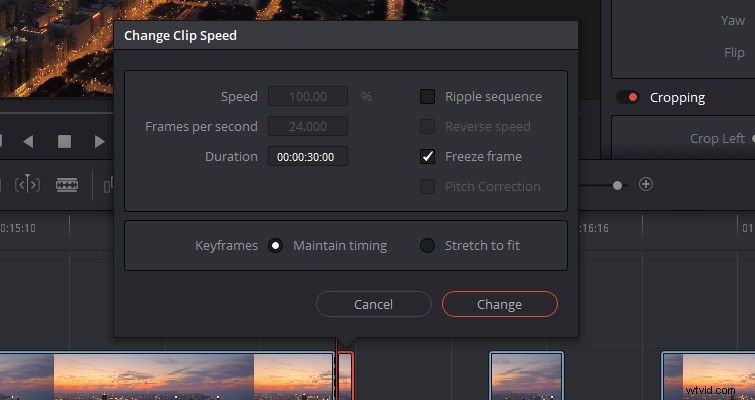
With the change clip speed dialog box open, select Freeze frame, and you’ll now have a still that you can extend to the length you need.
Alternatively, and if the moment calls for it, you can use the freeze frame command to freeze an entire clip. The command shortcut is Shift + R.
You need to select the clip so it’s outlined in red, place the playhead where you want the clip to freeze, and hit Shift + R. However, it’ll freeze the entire clip. This is the caveat in comparison with Premiere’s still capture function.
So, if you hit Shift + R in the middle of the clip, it’ll still freeze everything before it, so use sparingly.
2. Retime Controls
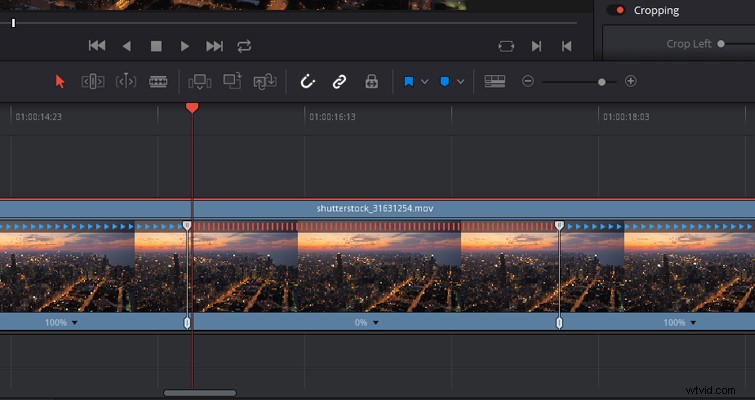
We can also use the Retime controls. Right-click on your media clip and select retime controls.
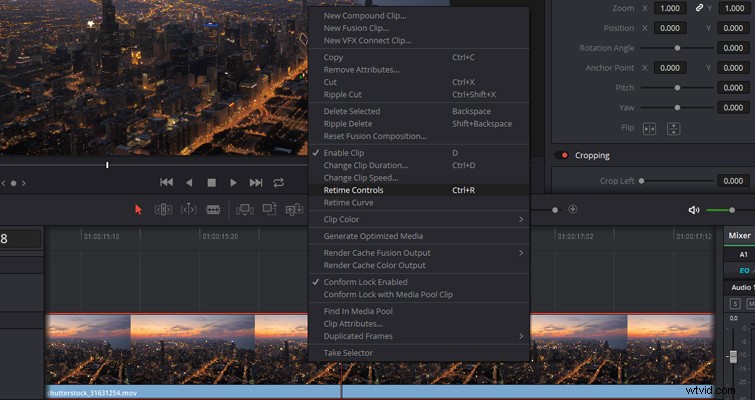
A set of arrows will appear below the video clip with a new drop-down menu for the retime controls. They’ll open when you click the arrow next to the percentage marker.
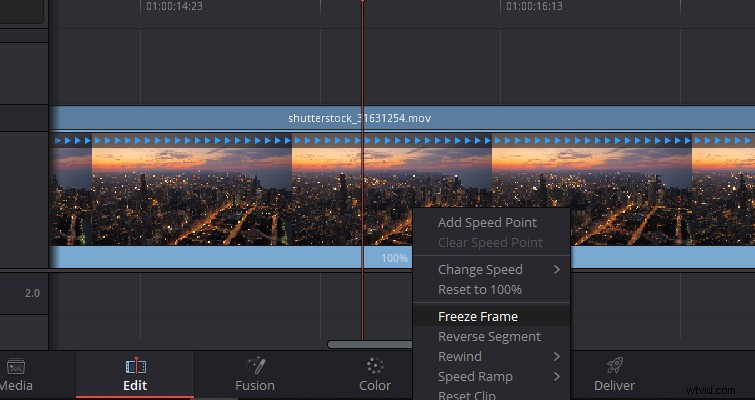
Position your playhead where you want the freeze frame to start, and open the drop-down menu. Select Freeze Frame. And from your playhead position, you’ll now have two-speed points, along with a region set to 0%.
The 0% area is your freeze frame. You can move the second speed point to extend the duration of the freeze frame, and in a ripple edit fashion, an increase in the paused region will increase the overall length of the clip.
3. Export Still
We can also use the color page’s gallery to export a still, and then import it into the project for a Premiere-like export frame function. The primary purpose of the gallery is to save, reference, and copy grades, but we can also use it to create a still for a pause.
Head to the color page, open the gallery, right-click on the viewer, and select grab still.
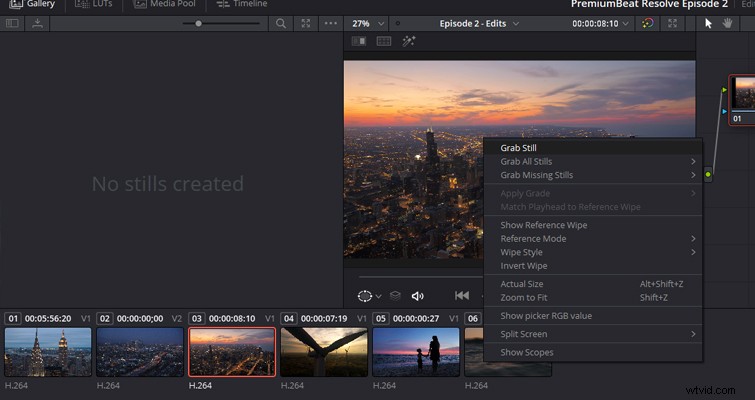
The still will now appear in the gallery. Right-click on the still and select export. You can now save the still under a variety of different formats.
With the still saved, import it back into your media pool and place it onto the timeline.
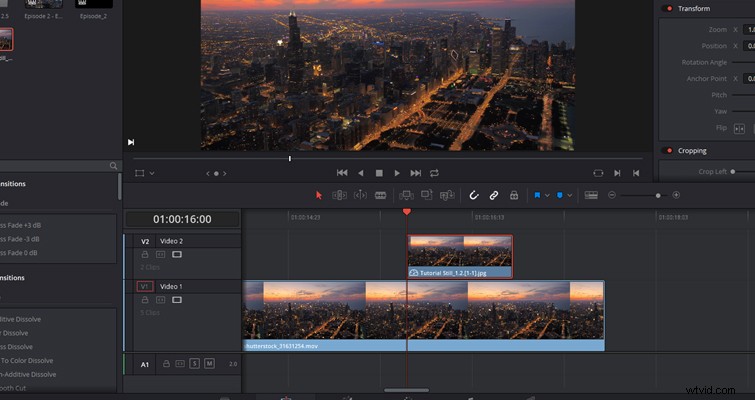
You now have a pause that’s a separate media clip from the video.
These methods may not be as fluid as one would want, but they get the job done. Maybe we’ll see a dedicated export frame function on the edit page in the future.
Lewis McGregor is a certified DaVinci Resolve trainer.