
Composite Modes make it incredibly easy to edit overlay effects and elements in DaVinci Resolve. Just follow these three simple steps!
I was experimenting with DaVinci Resolve’s editing capabilities using RocketStock’s Corruption effects pack when I realized I had a little trouble finding the blending mode options. Well, it’s because I was looking for the wrong thing. My mind was still in Adobe CC mode — DaVinci Resolve doesn’t have “blending modes.” Instead, it uses Composite Modes.
If you need to overlay an effect, grain, or clip in DaVinci Resolve — here’s how.
Step One: In the Edit tab of DaVinci Resolve, place your effect (or overlay) on the track above your footage.
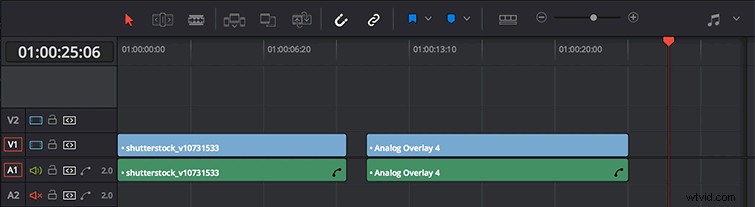
With your footage and overlay in the timeline, move the overlay above your footage on the V2 track (V3, V4, etc).
Step Two: Open the Inspector tool, and click on the V2 effect.
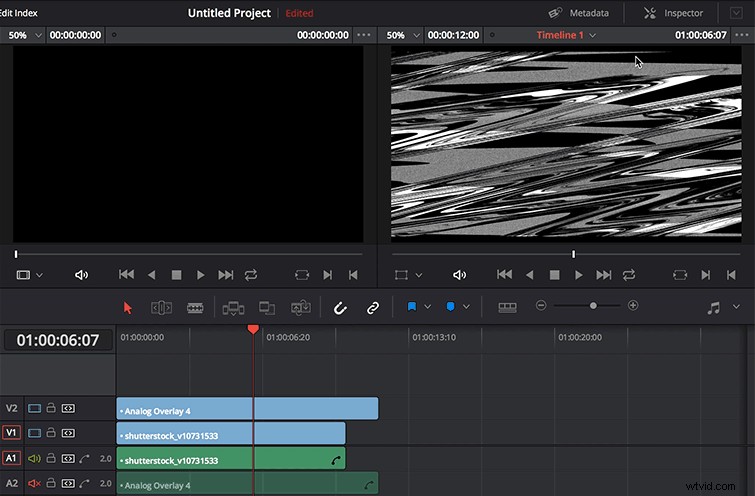
In the top right corner, open up the Inspector. If you don’t have a track selected, there will be nothing to inspect. Click on the overlay to reveal the clip’s information in the Inspector.
Step Three: Select the Video tab in the Inspector. Change the Composite Mode with the drop-down menu. Adjust Opacity as necessary.
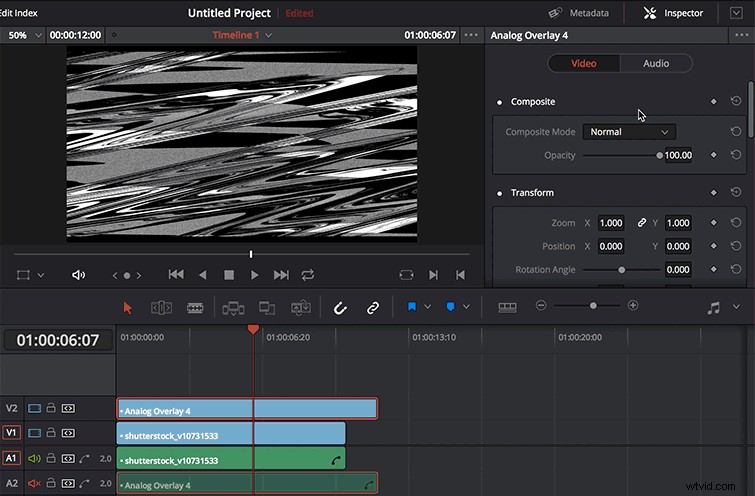
In the Inspector, select the Video tab. You will then see the Composite section. Within that section, select the drop-down menu next to Composite Mode. Select the mode of your choice. You can then adjust the Opacity as necessary to get the final look you want.
For a look at what each of these Composite Modes do, check out this piece with all the math behind blending. Looking for more DaVinci Resolve insight? There’s a blog for that!
Got any DaVinci Resolve tips you’d like to share? Do so in the comments below!