
REC

Recommended: Video Production, Editing & Gear Maintenance Guide

 WTVID >> WTVID >  >> video >> Video production

Streamline Video Editing: Keyboard Shortcuts for Placeholder Titles in Premiere Pro & Final Cut Pro X

Create temporary title placeholders in Premiere Pro and Final Cut Pro X with these simple keyboard shortcuts.

When you’re working with a deadline, it’s frustrating to interrupt your workflow to figure out the placement of titles or subtitles. Luckily, Premiere Pro and Final Cut Pro X offer simple solutions for creating placeholder titles on the fly so you can move on to the next scene or sequence.

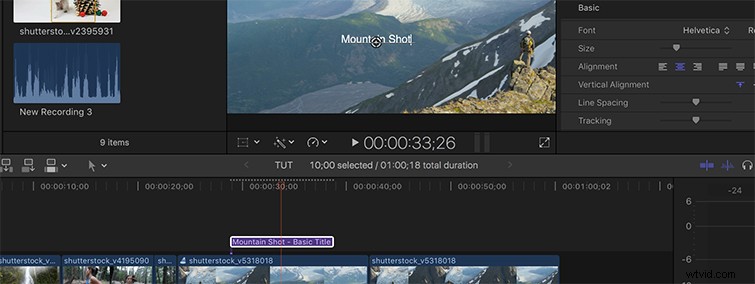
Step 1: Control-T in FCPX
Streamline Video Editing: Keyboard Shortcuts for Placeholder Titles in Premiere Pro & Final Cut Pro X

The Control-T keyboard shortcut will automatically place a “Basic Title” above your clip. From there, simply type your temporary title or cue card for the clip, hit enter, then continue on with your edit. After you’ve finished the heavy stuff, you’ll be able to return to your title and change it however you’d like.

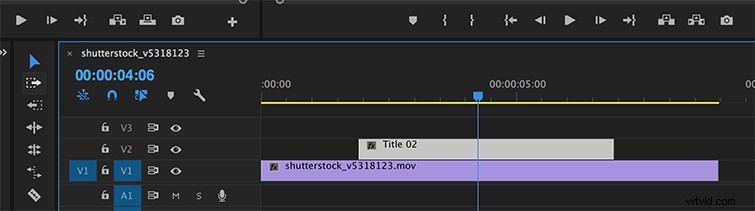
Step 2: Command-T in Premiere Pro
Streamline Video Editing: Keyboard Shortcuts for Placeholder Titles in Premiere Pro & Final Cut Pro X

The shortcut to add a quick title in Premiere Pro includes an extra step; hit Command-T (Control-T for PC), then type your title and drag it to the intended clip. So, it’s not really a temporary placeholder. It is simply a shortcut for creating a title.

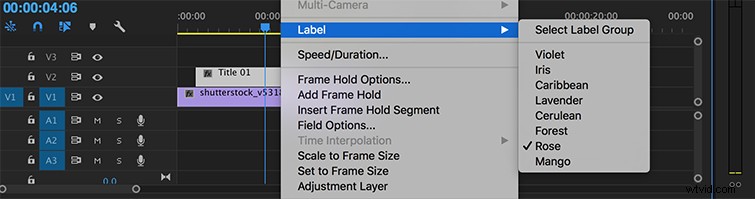
Step 3: Label the Placeholder
Streamline Video Editing: Keyboard Shortcuts for Placeholder Titles in Premiere Pro & Final Cut Pro X

Premiere Pro also offers you the option to assign colors to specific clips. When creating placeholders, right-click on the title, select Label >, then you can change the color’s clip. That way, when you’re finished with your edit, you can quickly see where you need to change placeholders.


Has creating placeholder titles saved you time on a project? Let us know in the comments below.


  1. 5 Quick Tips to Edit Videos Like a Pro with Screencast-O-Matic

  2. How to Become a Pro Video Editor: Build Your Ultimate Editing Suite

  3. 5 Essential Premiere Pro Tips for Beginners: Start Editing Like a Pro

  4. Master Premiere Pro: 10 Essential Workflow Tips for Efficient Video Editing

  5. Best Final Cut Pro Alternatives for Windows PC: Top Professional Picks

Video production
  1. Avid Xpress Pro HD: Expert Review of Professional HD Video Editing Software

  2. Adobe Premiere Pro 2.0 Review: Professional Video Editing Powerhouse

  3. Step-by-Step Guide: How to Add Professional Titles in Final Cut Pro X

  4. 5 Pro Tips for Stunning Video Editing in Adobe Lightroom

  5. 5 Expert Tips for Mastering Vertical Video Editing in Premiere Pro for Instagram TV

  6. Master Multi-Camera Editing in Premiere Pro: Pro Tips Revealed

  7. 5 Expert Tips to Master Music Editing in Video Projects

  8. 10 Essential Premiere Pro Video Editing Hacks to Boost Your Workflow