
In this article
- Benefits of online class recording
- Top 5 recording tools
- Step‑by‑step guide with Filmora
- Best platforms to host your recordings
- Key takeaways
Online class recording has become the cornerstone of modern education, allowing educators to deliver lectures that students can access anytime, anywhere. While the act of recording is straightforward, producing a polished, engaging video demands the right tools and workflow.
Benefits of Using Online Class Recording Software
Recording lectures offers several strategic advantages:
- Content Reusability: Record once, share indefinitely. Students revisit lessons, building a long‑term knowledge base.
- Improved Learning: Learners can pause, rewind, and digest material at their own pace.
- Accessibility & Convenience: Teachers can record from anywhere, simplifying the production process.
- Enhanced Engagement: Integrate slides, annotations, and multimedia to keep students attentive.
Top 5 Online Class Recording Software
Choosing the right recorder is essential. Below are the five most reliable options, ranging from free, open‑source solutions to premium all‑in‑one platforms.
1. Wondershare Filmora – All‑in‑One Screen Class Recorder
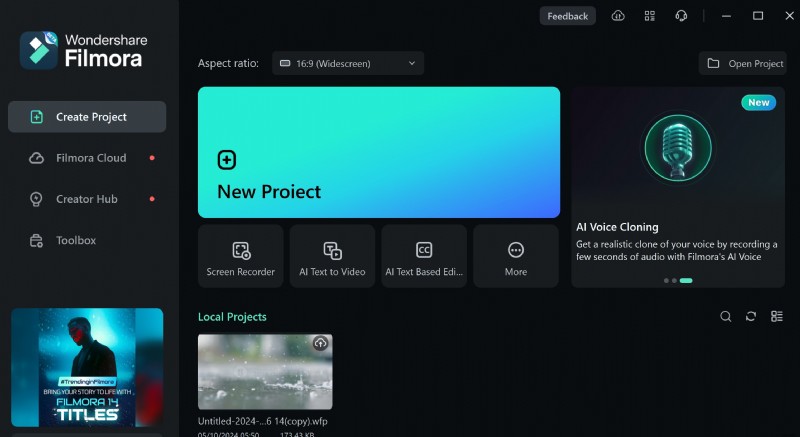
Filmora blends an intuitive interface with powerful editing tools, making it ideal for both beginners and seasoned professionals. Its ability to capture screen, webcam, and audio simultaneously ensures a comprehensive learning experience.
Key Features:
- Customizable screen layouts – split, merge, or overlay camera feeds.
- Real‑time controls for quality, frame rate, and timer.
- Built‑in effects, transitions, and annotation tools.
- GPU acceleration for smooth performance on compatible hardware.
- Supports multiple audio sources (mic, system, and more).
2. OBS Studio – Free, Open‑Source, Cross‑Platform
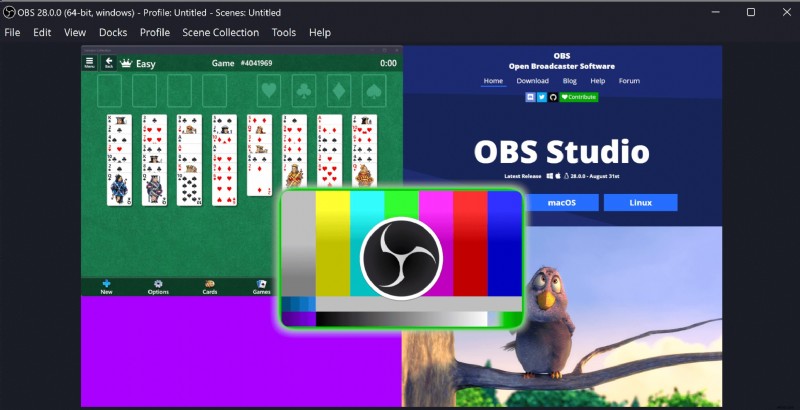
OBS Studio is a powerhouse for those who need robust functionality without a price tag. Its modular interface allows users to create complex scenes from webcams, capture cards, images, and text.
Core Capabilities:
- High‑performance real‑time video and audio capture.
- Custom scenes with transitions and multi‑source mixing.
- Integrated audio mixer and filters.
- Modular dockable layout for personalized workflow.
- Cross‑platform support: Windows, macOS, Linux.
3. Loom – Video Communication Made Simple
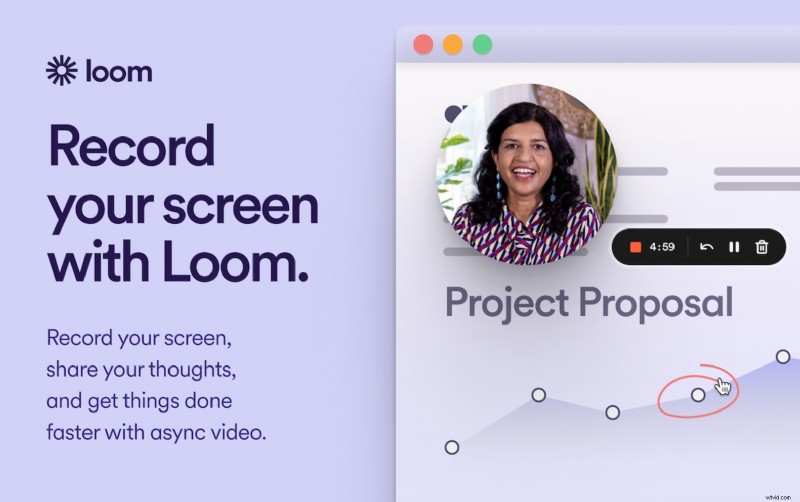
Loom is renowned for its ease of use and instant sharing. Perfect for educators on a tight budget, Loom provides free recording with essential editing features.
Highlights:
- Full‑screen, window, or region recording.
- Trim, stitch, and add emoji reactions.
- Instant sharing via link, email, or embed.
- Transcriptions in 50+ languages with closed captions.
- Custom backgrounds and annotation tools.
- Cross‑platform availability: Mac, Windows, Chrome, iOS, Android.
4. Camtasia – Professional‑Grade Screen Recorder
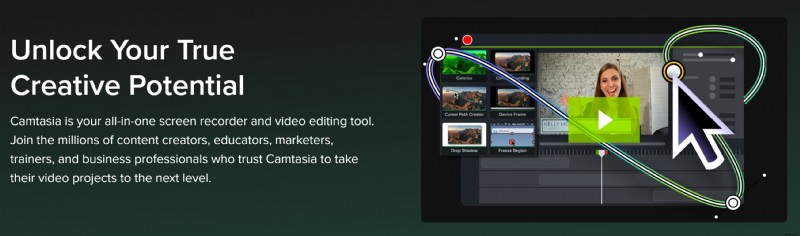
Camtasia delivers a streamlined recording experience coupled with an intuitive editor. Ideal for educators who want polished videos without a steep learning curve.
Features:
- High‑resolution screen capture with adjustable frame rates.
- Simultaneous webcam recording.
- Audio capture from mic and system.
- Drag‑and‑drop editing: resizing, backgrounds, effects, filters.
- Consistent aspect ratio and quality throughout editing.
5. Icecream Screen Recorder – Easy‑to‑Use Capture App
Icecream is a beginner‑friendly option that covers essential recording needs. The free version is adequate for simple tasks, while the paid version unlocks advanced features.
Key Functions:
- Scheduled recordings with a built‑in timer.
- Annotation and logo tools.
- Game recording mode.
- Audio capture for comprehensive sound.
- Video trimming and multi‑monitor support.
How to Record Online Courses with Filmora
Filmora’s straightforward workflow makes it an excellent choice for educators seeking both simplicity and depth. Follow these steps to create a professional‑grade lecture:
- Preparation: Close unused applications, run a test recording, and allocate sufficient system resources.
- Launch Filmora: Install, open, and select Screen Recorder.
- Configure Settings: Choose screen type, microphone, speakers, and camera. Adjust quality, timer, and GPU acceleration as needed.
- Start Recording: Press
F9to start,F10to pause/resume, andF9again to stop. The video is automatically saved. - Edit Your Video: Drag the clip into the timeline. Separate tracks for webcam, screen, and audio allow fine‑tuned adjustments.
- Enhance the Content: Apply trimming, transitions, filters, text, subtitles, background music, voice‑overs, and speed controls to keep learners engaged.
- Export: Choose the desired resolution and format, then export. Your lecture is ready for distribution.
Platforms to Share Your Recordings
Once you’ve polished your lecture, selecting the right hosting platform is key to reaching your audience. Consider the following options:
1. YouTube
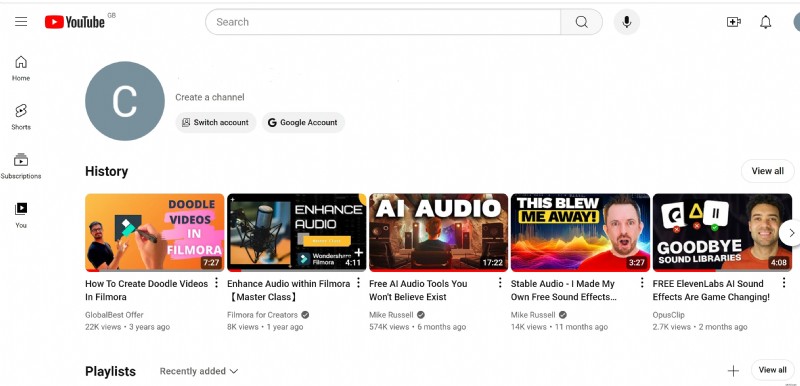
As the world’s largest video platform, YouTube offers extensive reach, monetization, and robust support for high‑resolution uploads.
- Global audience reach
- Monetization via ads, memberships, or subscriptions
- Up to 256 GB file size; 12‑hour maximum length
- Resolution support: 240 p to 4K (2160 p) and beyond
- Compatible formats: MP4, MOV, AVI, WMV, FLV, WEBM, HEVC, 3GPP
2. Vimeo
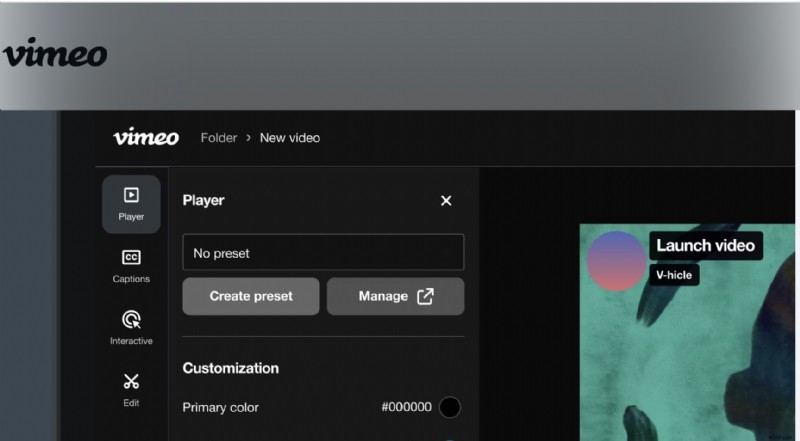
Vimeo prioritizes quality and privacy, making it a favorite for educators who want a controlled environment.
- Ad‑free viewing
- Advanced analytics for viewer engagement
- Upload limit: 250 GB via API; batch uploads up to 120 GB
- Storage tiers from 5 GB (Basic) to 7 TB (Premium)
- Resolution options: 1080 p, 4K, up to 8K
3. Udemy
Udemy is ideal for educators aiming to monetize courses in a global marketplace.
- Millions of learners worldwide
- Maximum file size: 4 GB per video
- Minimum resolution: 720 p (HD)
- Aspect ratio: 16:9
- Accepted formats: MP4, MOV, AVI, MGP, MPEG
4. Teachable
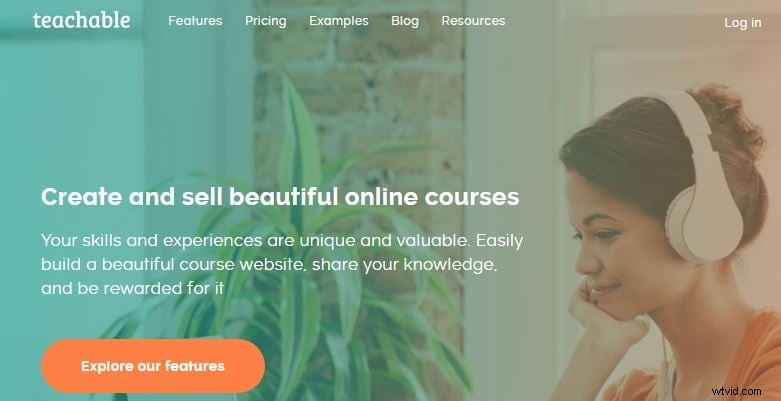
Teachable offers extensive customization for course delivery and branding.
- Drip content to pace learning
- Maximum file size: 2 GB per upload (larger files can be embedded)
- Recommended resolution: 1080 p (1920 × 1080)
- Aspect ratio: Maintain 760 px width on lecture pages
- Supported formats: MP4, M4V, AVI; frame rate 24‑30 fps
Conclusion
Investing in a reliable recording tool is a strategic decision that elevates the quality of your online teaching. Among the options discussed, Wondershare Filmora stands out for its balance of power and usability, making it a top choice for educators who want to create polished, engaging lectures with minimal effort.
Ready to transform your teaching? Download Filmora today and start delivering high‑impact lessons that resonate with learners worldwide.