
It’s estimated that there are well over 500 million people across the globe listening to podcasts, with nearly half of US citizens over the age of 12 reporting that they do so at least once a month.
However, you might wonder, “How do I get podcasts?”
Well, there’s no shortage of options, with over 6 million podcasts available on Spotify alone, not to mention other platforms. That’s why it can be difficult to find the right one for you and the right streaming service.
We’ll show you how to pinpoint the right type based on genre, themes, topics covered, and structure, but we’ll also show you how to cut out the best parts and turn them into fun clips or how to edit out the boring parts.
Stick around to the end to get all the cool tips and tricks.

In this article
-
- Comedy
- Society and Culture
- Lifestyle and Health
-
- Spotify
- Apple Podcasts
- YouTube Music
-
- Use AI Features to Quickly Edit Podcast Clips
- Use the Smart Short Clips Feature to Instantly Create Short Clips from Podcasts
- Use the AI Voice Enhancer to Improve Your Listening Experience
- Use the Smart Audio Denoise Feature to Remove Unwanted Noise from the Podcast
How Do You Find Podcasts with Subject Matters that Interest You?
Podcasts come in many styles and topics. Some are expert-led (science, finance, history), others are interviews or comedy shows.
To start, try popular formats like true crime (exciting stories), comedy (fun and casual), or educational (business, self-improvement).
Explore different types—there’s something for everyone!
Comedy (30% of listening time)
People love comedy podcasts because they offer a fun escape from daily life. These shows often discuss news and pop culture—but with a hilarious twist.
Society & Culture (18% of listening time)
Listeners also enjoy deep dives into politics, history, and art. These podcasts often use interviews or talk-show formats to explore current events and trends.
Health & Lifestyle (15% of listening time)
From fitness tips to cooking hacks, this genre helps people improve their daily lives. It’s a popular choice for those looking for practical advice.
How do You Get Podcasts on Android and iOS: Find the Right Streaming Service
So, how do you get podcasts on your phone? Based on the previous section and the fact that certain podcasts are only available on certain platforms, you need to pick the right streaming service. These are the three most popular streaming services that will cover all your bases.
Platform 1: Spotify
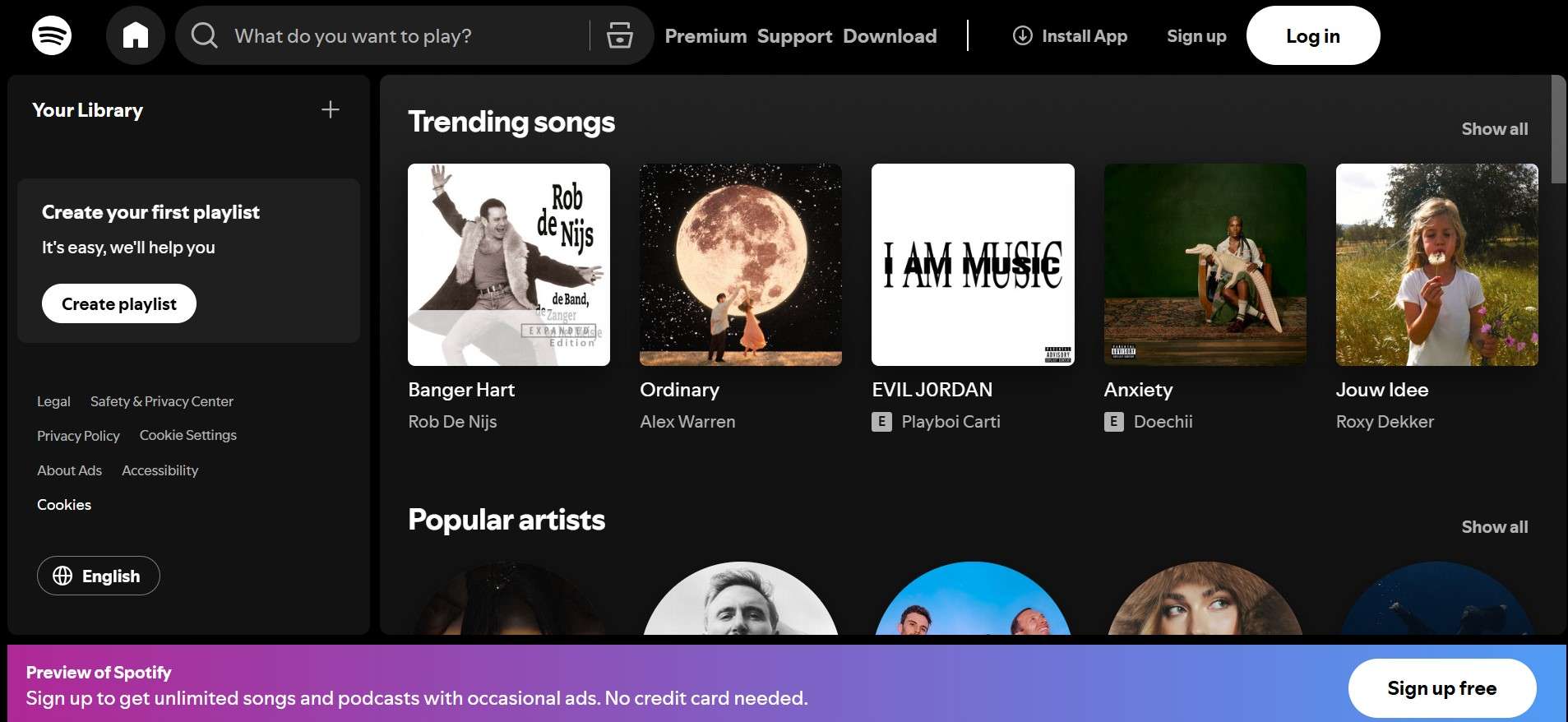
This is a widely known option, offering big deals to popular creators from all walks of life, famously one of the most popular comedy/interview podcasts in the world, JRE. How do you get a podcast on Spotify? Well, simply browse the platform and subscribe to the ones you like – if you have a paid subscription, you can even download episodes and listen to them offline.
Platform 2: Apple Podcasts
This app is probably the most accessible platform for listening to podcasts, as it is already installed on all Apple phones and other devices. The search function isn’t great, though, so you may need to do a bit of digging to find what you need or do some research beforehand and look for a specific title.
Platform 3: YouTube Music
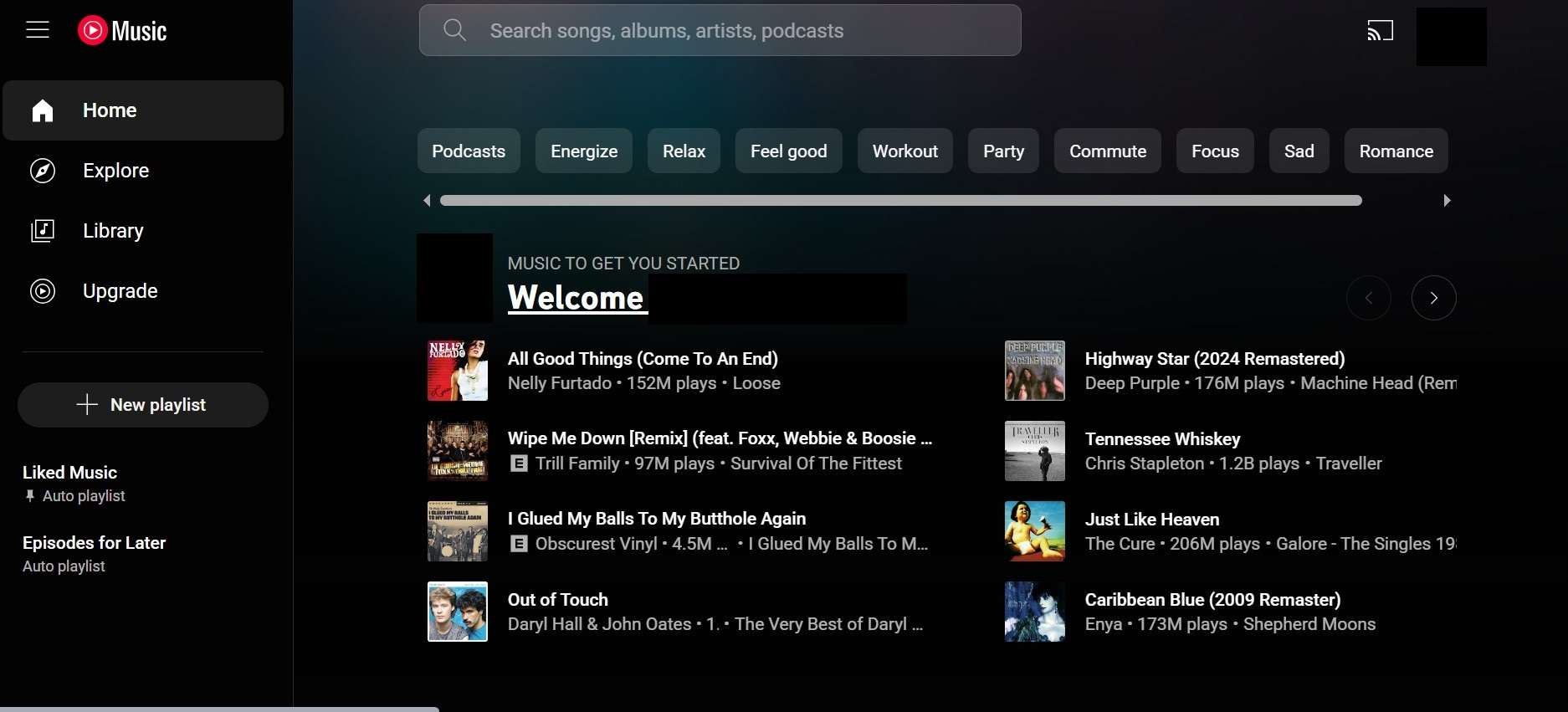
Being essentially the Android counterpart to Apple Podcasts, this Google app offers a lot of different podcasts for free and has a great search function that makes it easy to find anything you need. There is also no need for a premium subscription – you can just subscribe and then listen to or download whatever you like.
Bonus 1: How do You Get a Podcast Best-Of Clip on Your Computer
Now that you have an idea of what you should look for and where you can find it, we should talk about an important part of the podcast experience – how to get through the ad reads and lulls in the conversation and cut straight to the good parts.
Well, you’ll need capable and user-friendly video editing software, and Wondershare Filmora fits the bill. You can get the desktop version for Windows or MacOS, and it has all the features you need to cut up longer clips and even add transitions, effects, stickers, and filters to make cool montages of the best parts.
First, you’ll need to download the video that you will later work on, or you can use Filmora to record the screen.
Step 1: Open the app and go to the Toolbox tab on the left side, then scroll down to find the Screen Recorder.
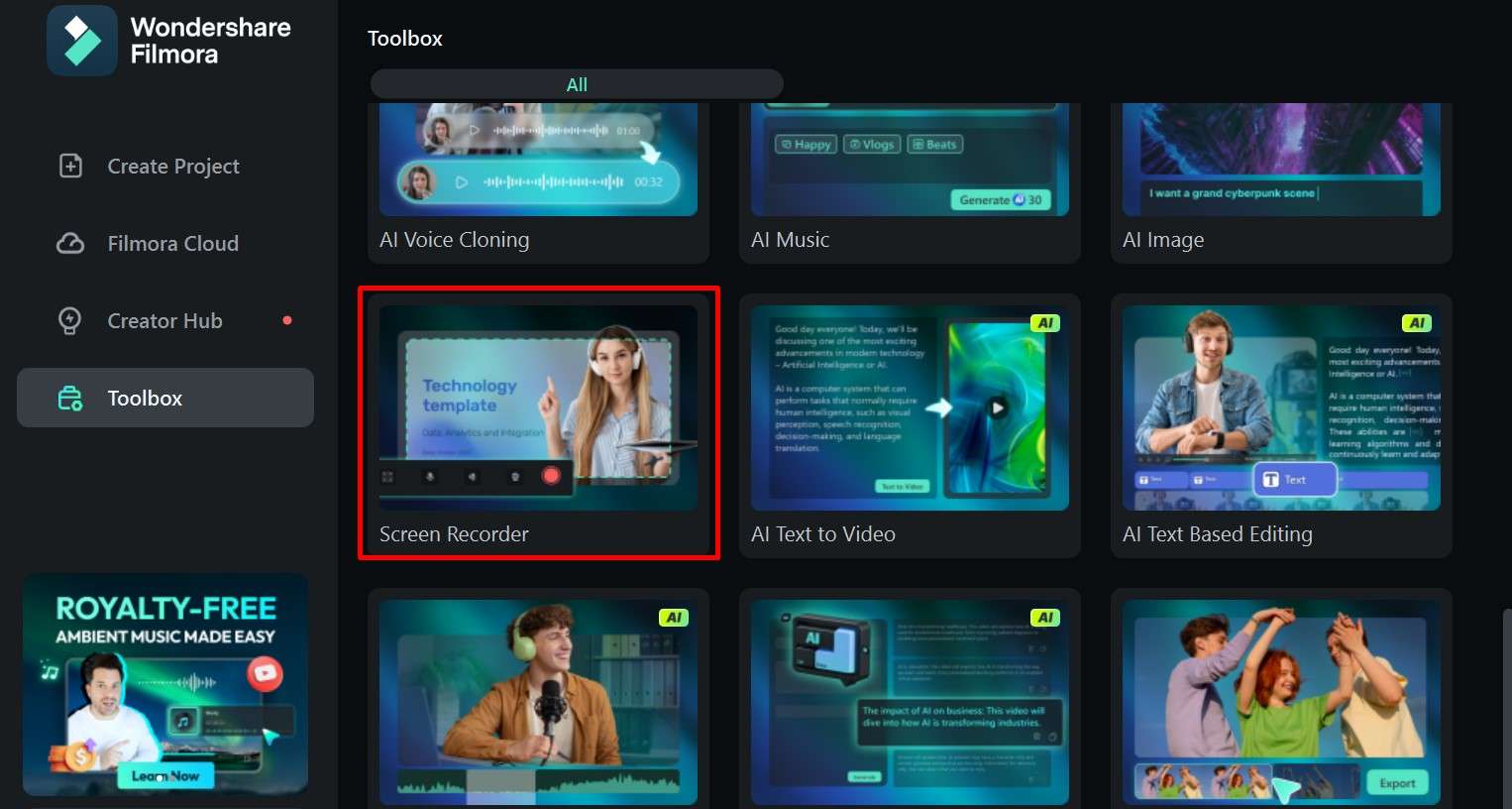
Step 2: Set up the options you want and click the big red button to start recording.
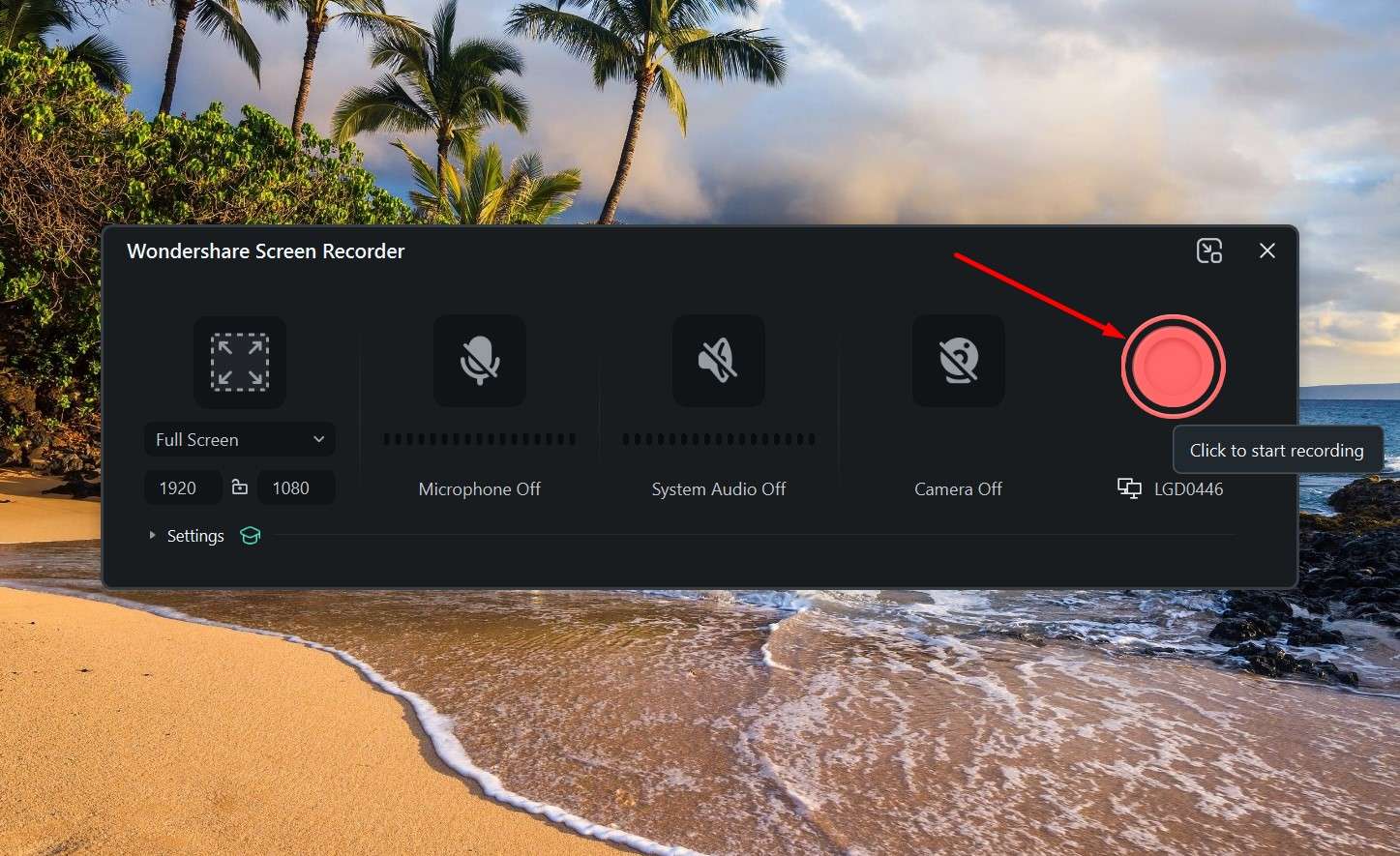
Step 3: When you’re done, just stop the recording and save it to your computer.
Now that you have everything you need, you can proceed to delete the boring parts and ad reads, add transitions between shorter clips, and customize the video however you like. Here’s what you’ll need to do.
Cut down a long video into clips using the following steps.
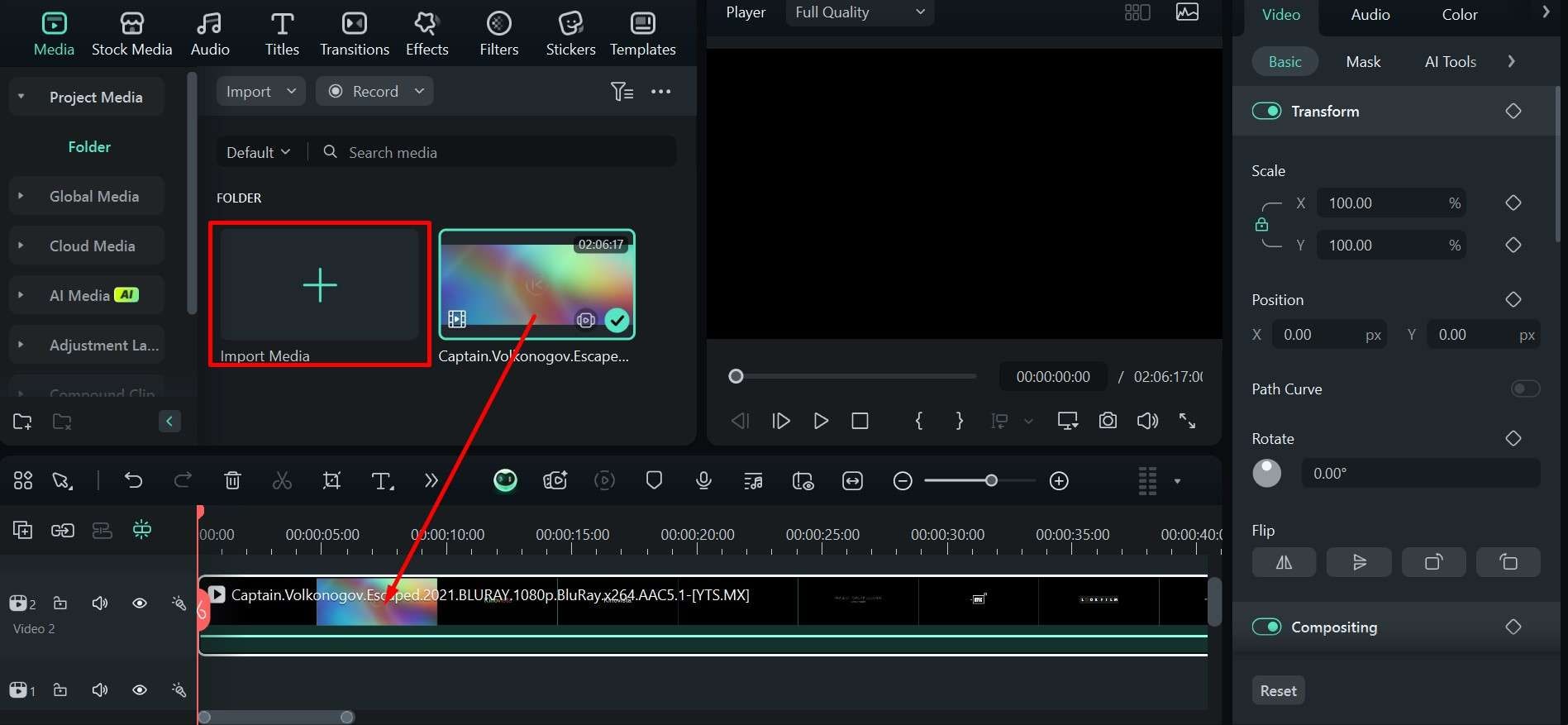
Step 1: Import the video and then drag it down to the timeline.
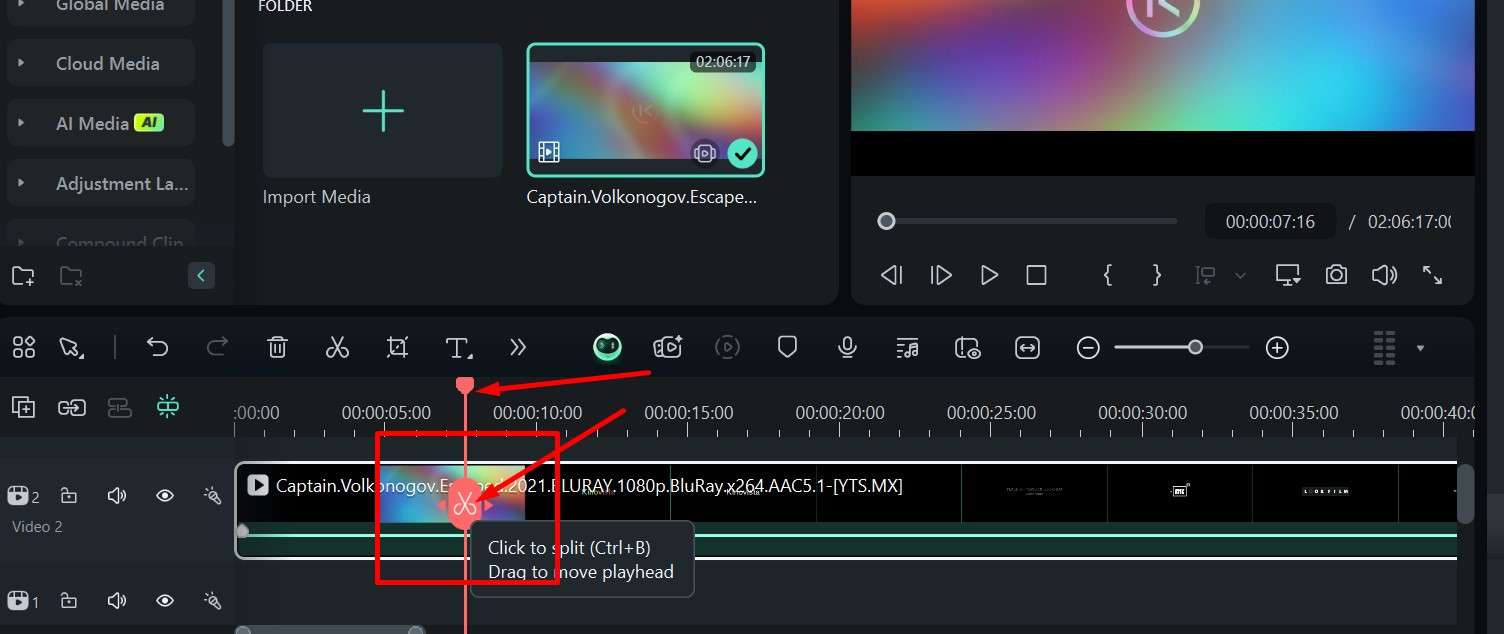
Step 2: Move the orange playhead to where you want to make a cut, then press the Scissors icon. Repeat this step as many times as you want to cut.
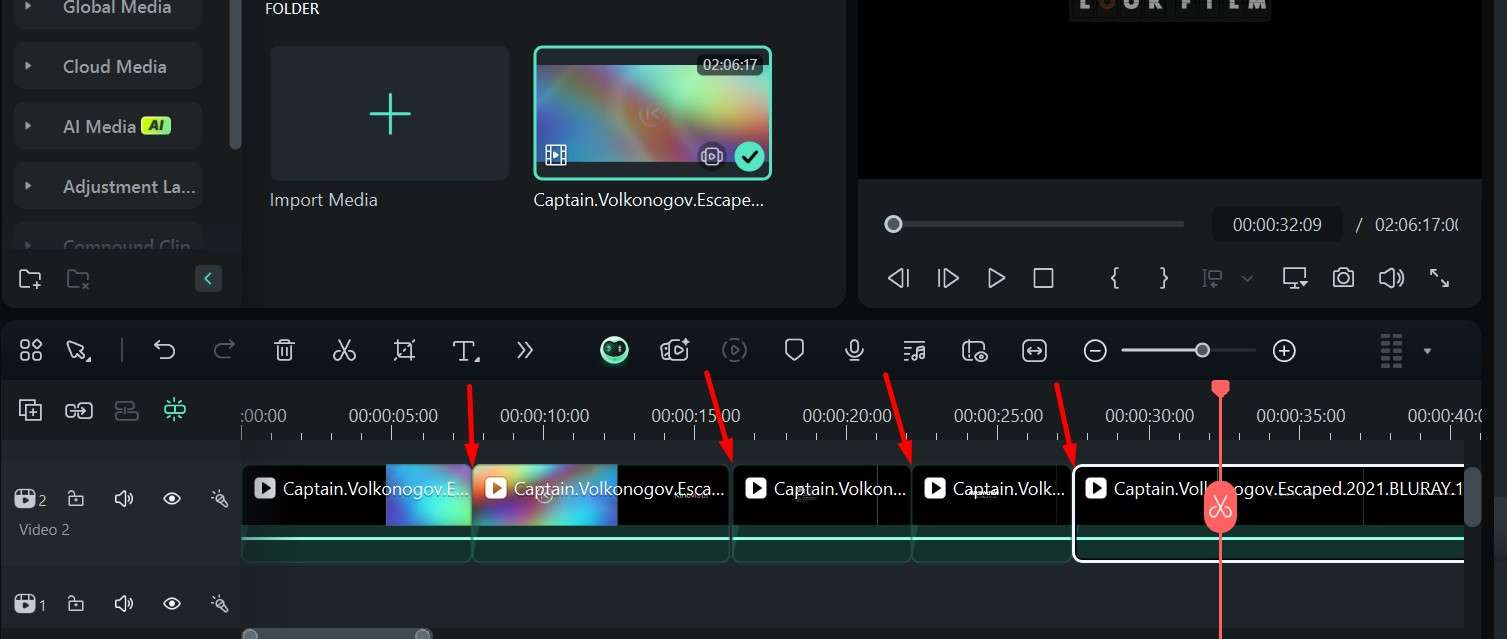
Step 3: You can click on any of the clips and press Delete on your keyboard to remove it so that you are only left with the good parts of the podcast.
Now, you can create transitions between the clips to make the whole video more entertaining.
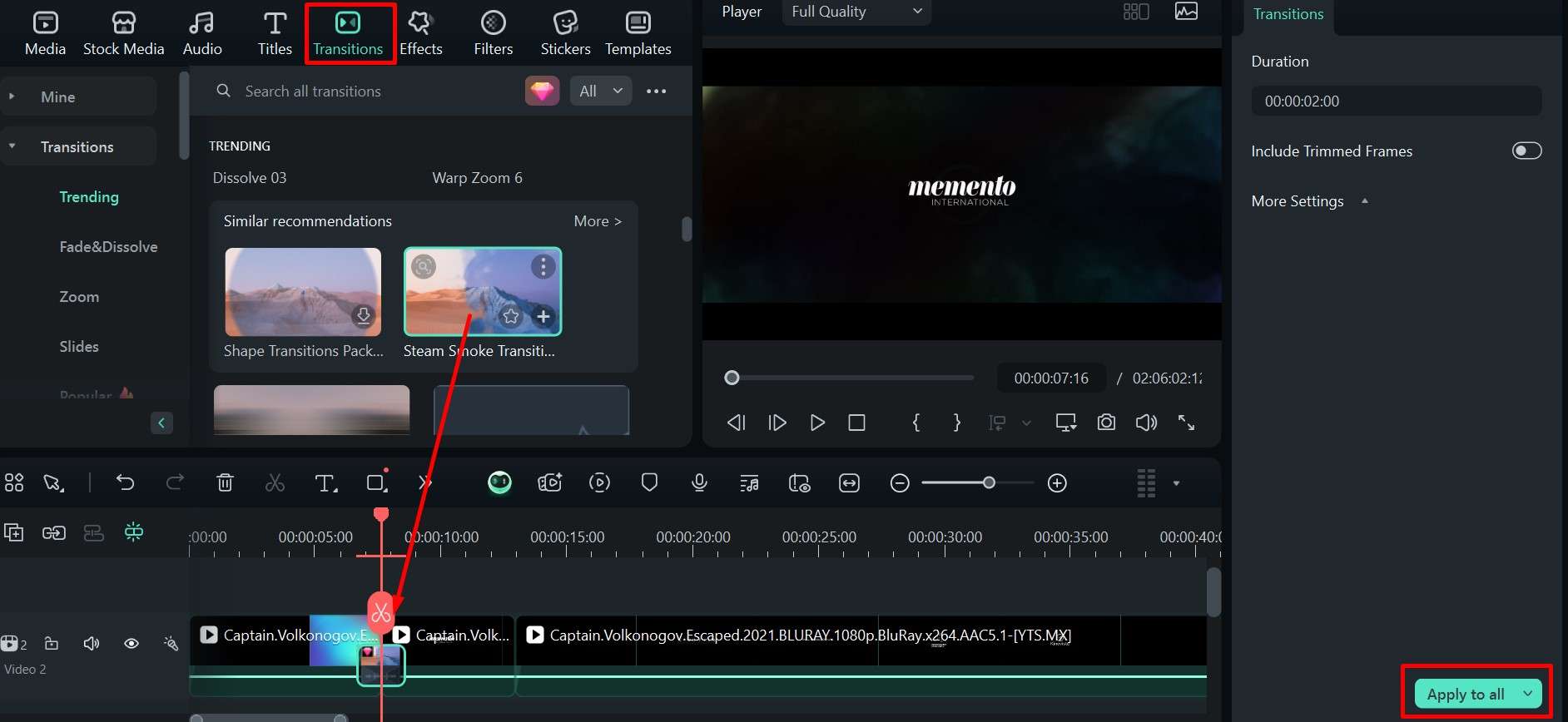
Step 1: Go to the Transitions tab and scroll down to find an option you like. You can preview each one by simply clicking on it.
Step 2: When you’ve found a good option, drag it down to the timeline on the edge of two clips.
Step 3: You can click Apply to all to duplicate the transition on other clips, or you can add different transitions between various clips.
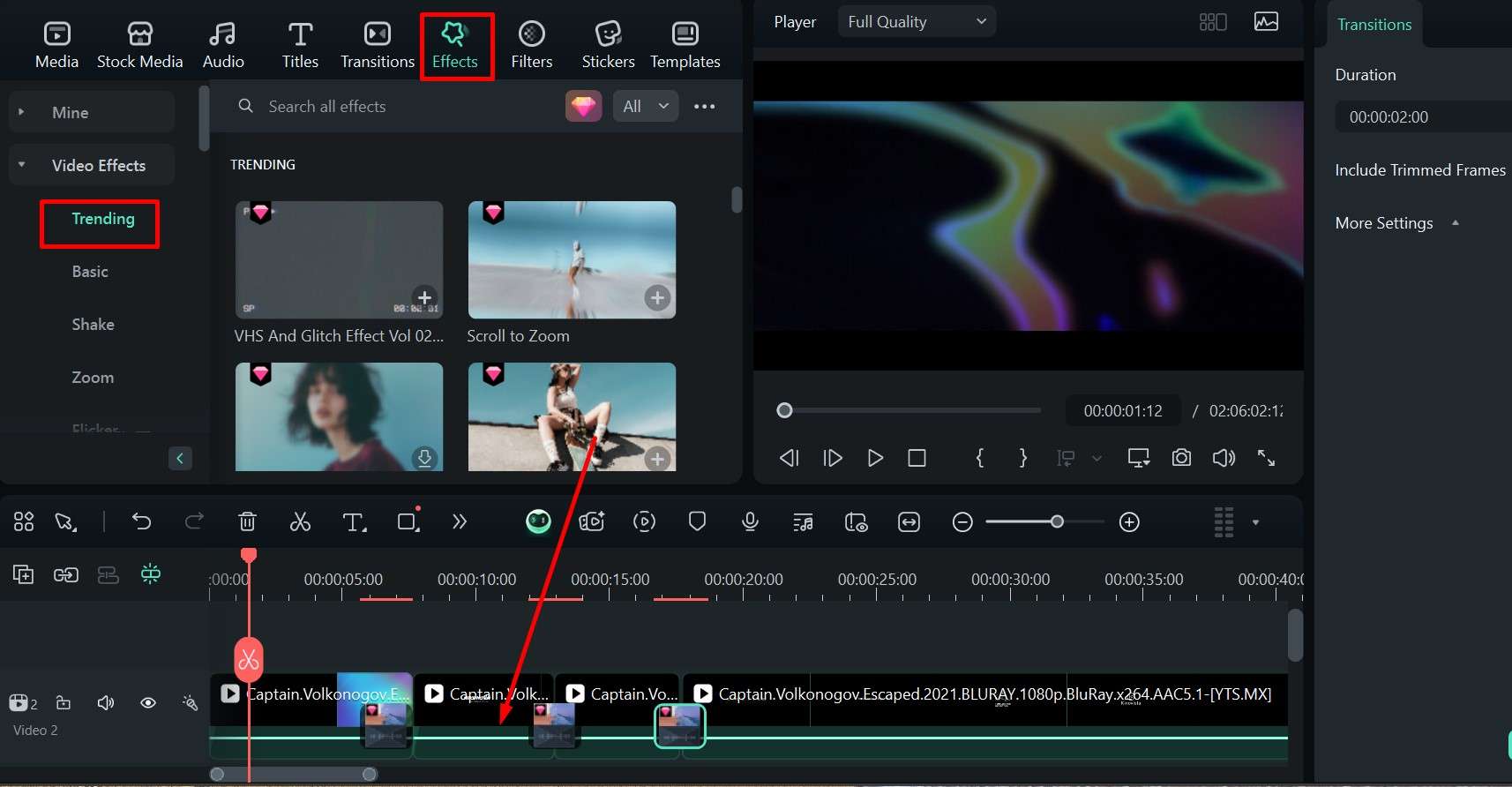
To finish, you can add different effects, filters, and stickers to different parts of the video to make engaging short clips you can share with your friends and family.
Step 1: In the Effects tab, find an option you like and drag it to the timeline just above the clip.
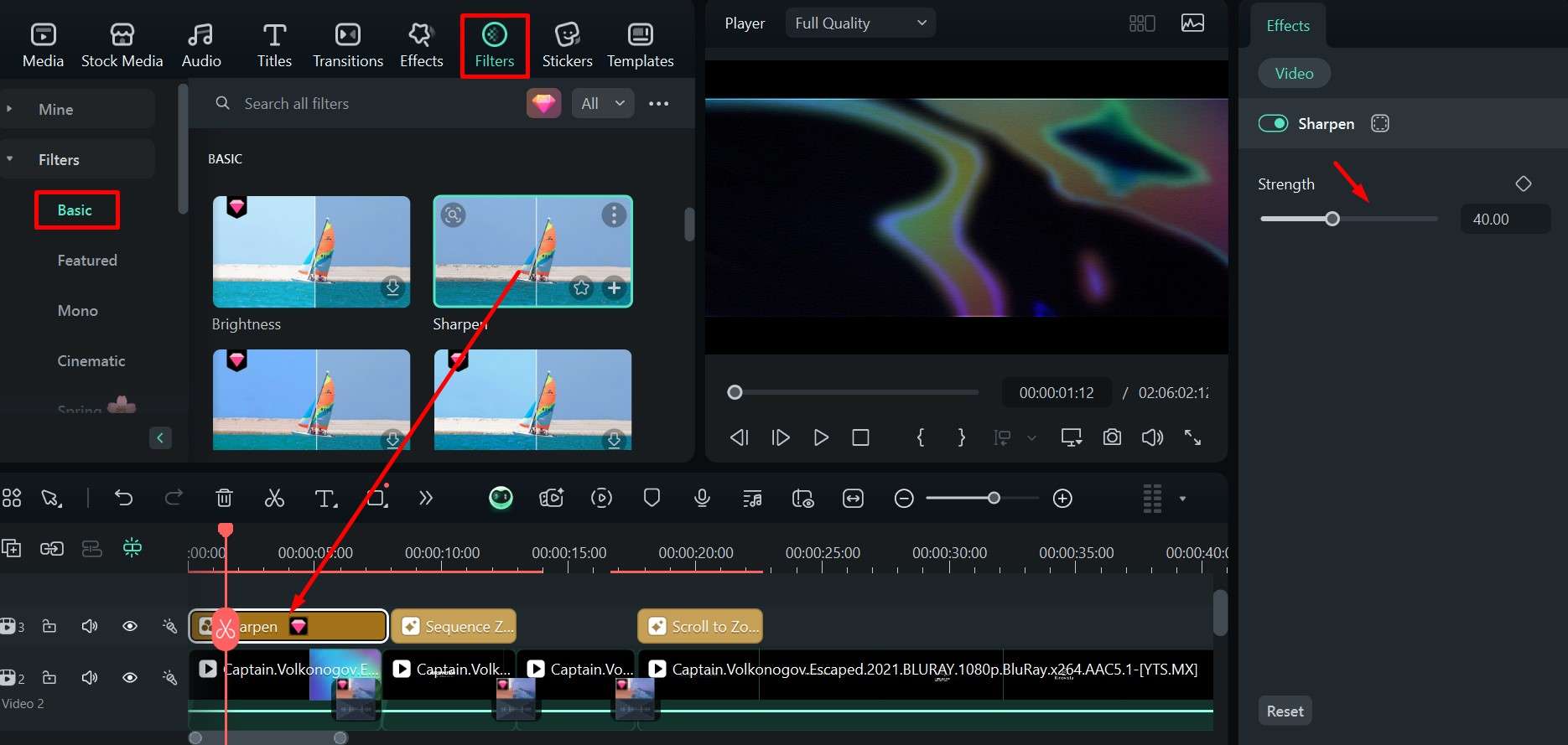
Step 2: Do the same in the Filters tab and drag it above the clip.
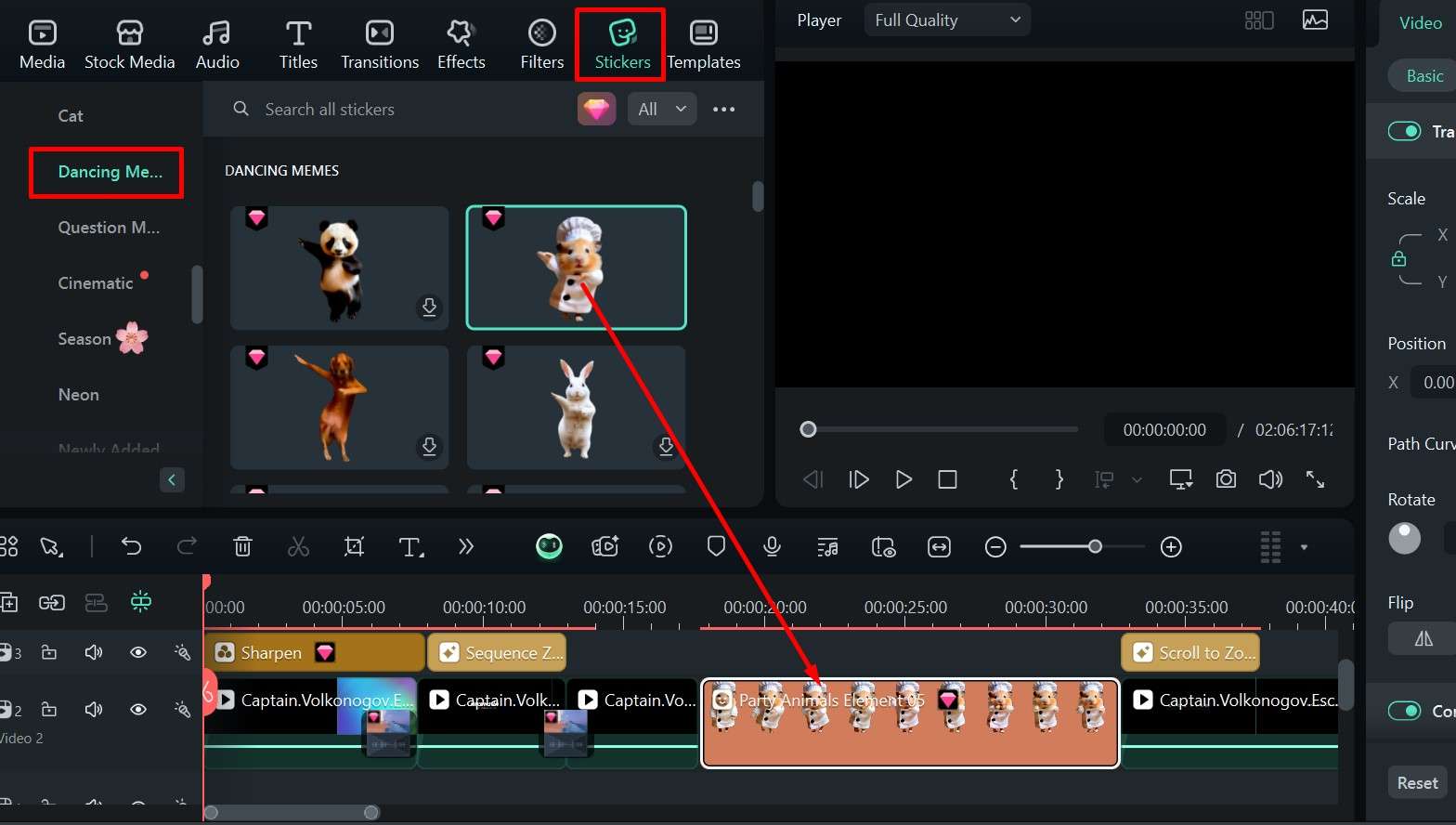
Step 3: Repeat the process again in the Stickers tab, only you can now drag a sticker on the same timeline as the clips.
Of course, this is just scratching the surface when it comes to Filmora, as there are a ton of extra features that you might find useful for various video-editing projects.
Bonus 2: How Do You Get Podcasts on Android and iOS Sized Down and Easier to Listen To?
Well, you should know that Filmora also has a mobile app available on Android and iOS. It packs almost all the power of the desktop version but in a more compact and streamlined package. You can just take the clip you recorded on your computer, send it to your phone, and edit it in almost the same way as you would on the PC.
You Can Use AI Features to Quickly Edit Podcast Clips
Unlike some of the more basic tools you can find online, Filmora has a host of useful AI features that give you a lot more freedom to come up with engaging content of your own or fix and fine-tune the podcasts you like to listen to.
When it comes to editing your clips, though, you should focus on the following three AI features. They can save you lots of time and help remove background noise or make the voices sound clearer in parts where someone is mumbling or moves a bit too far away from the mic.
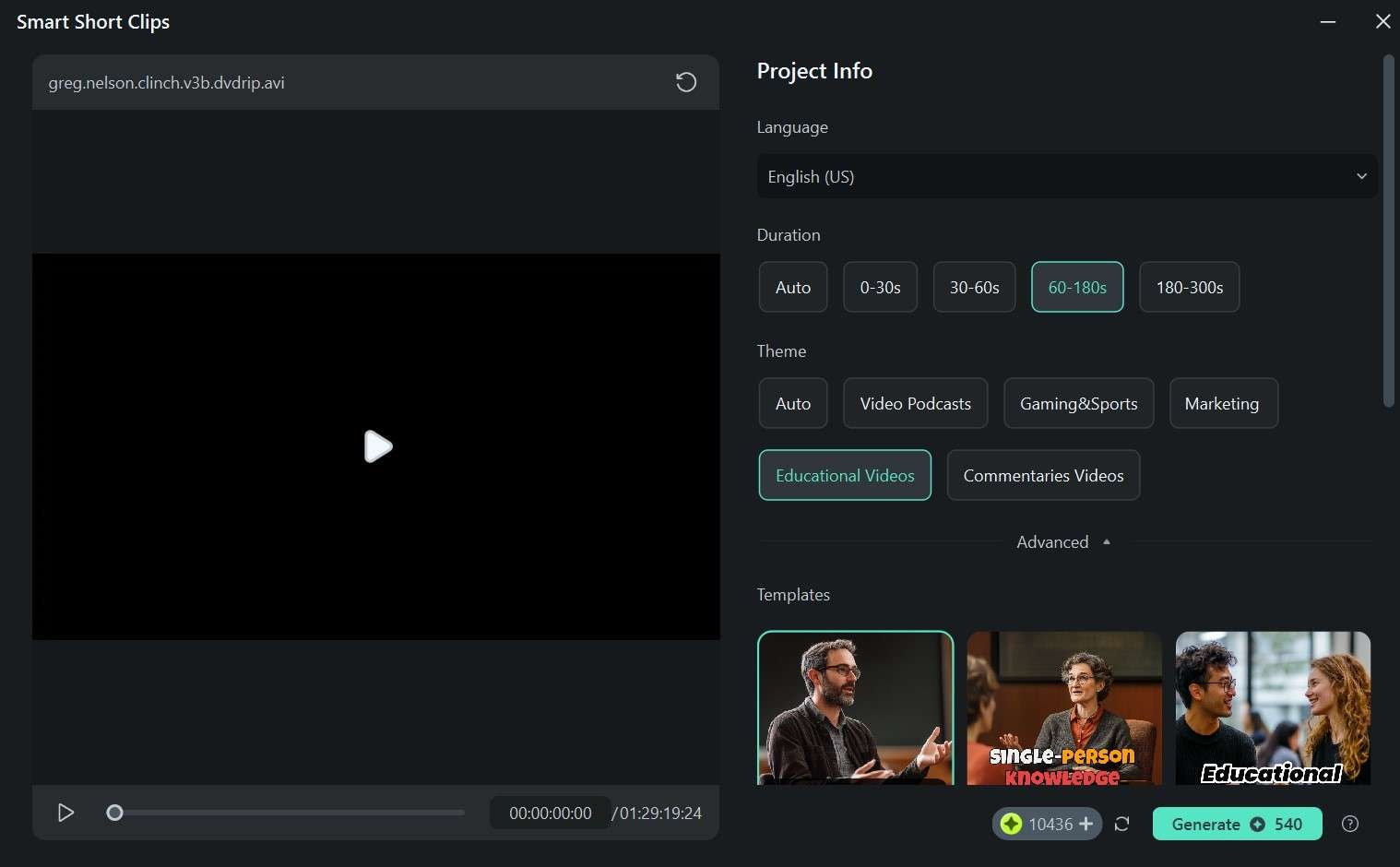
Use the Smart Short Clips Feature to Instantly Create Short Clips from Podcasts
If you want to speed things up even further and get a bunch of clips in roughly similar lengths within seconds, go to Smart Short Clips from the Toolbox menu and let the AI do the work for you. Then, you can cut out the clips you don’t need and make any additional modifications.
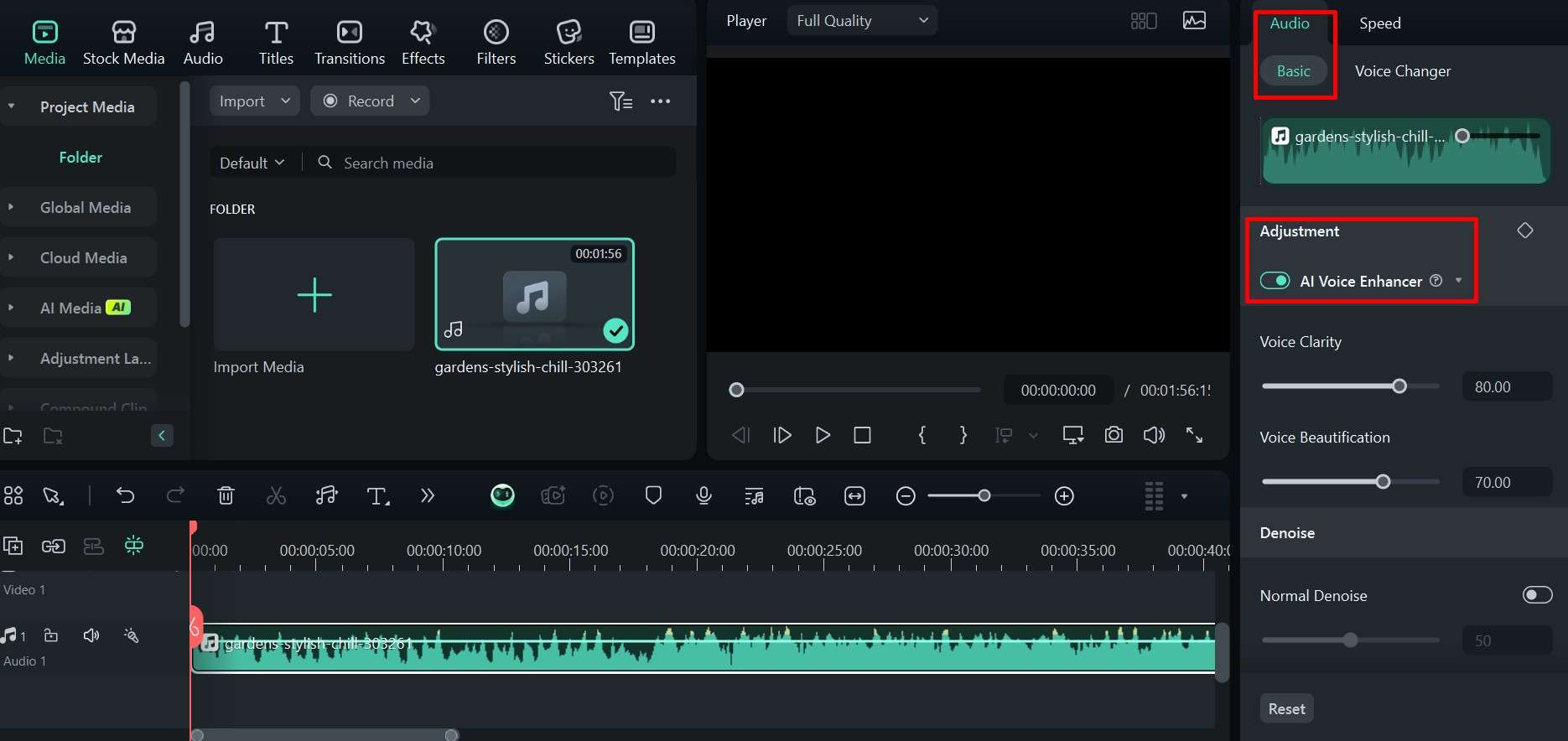
Use the AI Voice Enhancer to Improve Your Listening Experience
The sound of the clips may not always be great, especially in comedy podcasts, as the guests and hosts tend to break into laughter, move away from the mic, or talk over each other. That’s where you can use the AI Voice Enhancer to clean up the speech, so it’s easier to understand what everyone is saying.
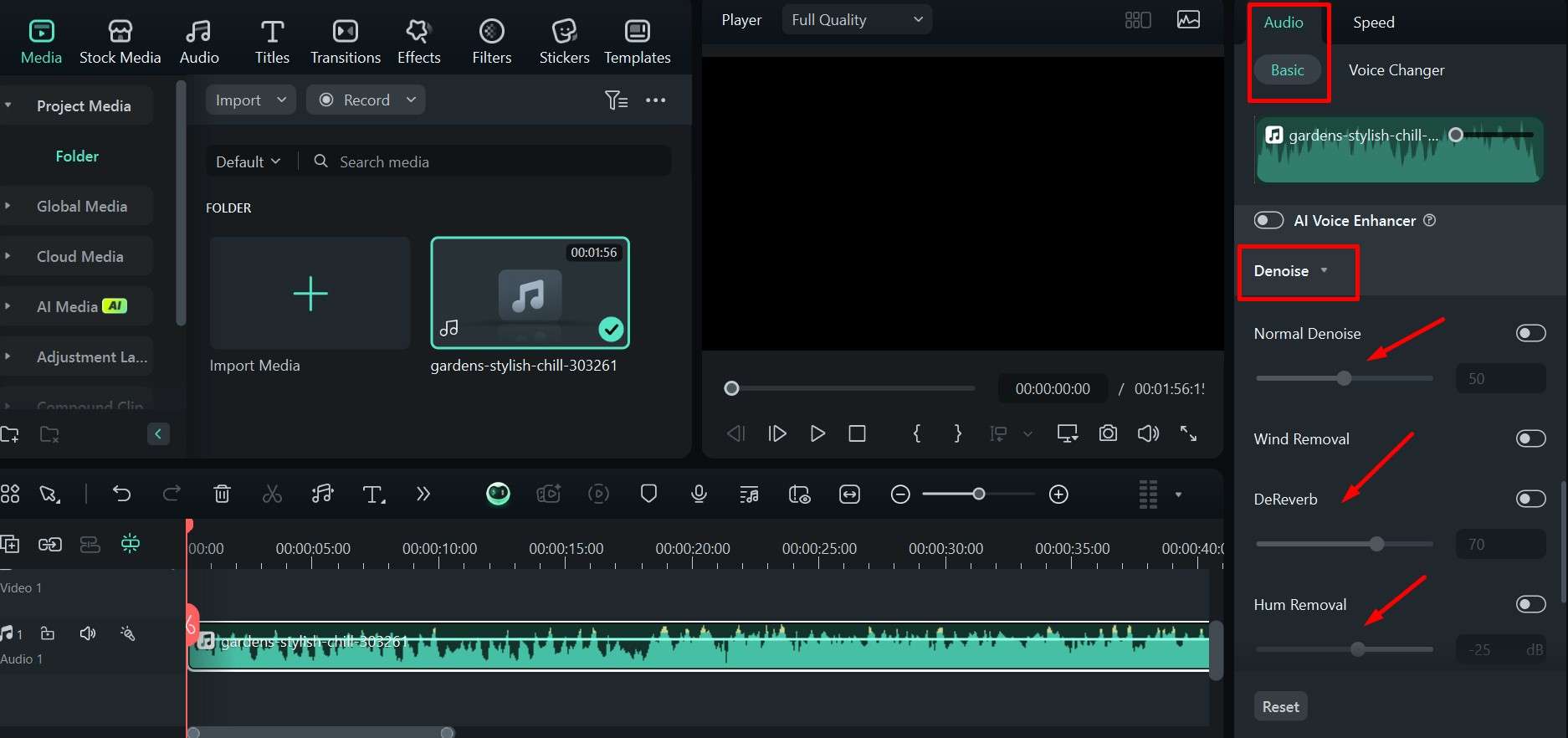
Use the Smart Audio Denoise Feature to Remove Unwanted Noise from the Podcast
Finally, there may also be some background noise, static, or hum that makes it hard to follow certain parts, which you can easily clean up with the Smart Audio Denoise option. There are several presets you can use, and it does a great job of making the whole thing sound much smoother.
Conclusion
As long as you can sit down and define what it is that you find interesting, what topics you can listen to for hours, and what style is the easiest for you to follow, you can find several popular podcasts that will be perfect for you.
All you need then is to follow our simple instructions on which streaming service to choose based on your needs, and you are set. You can use Wondershare Filmora to chop up long episodes into more manageable chunks or cut out important parts and insightful quotes from guests.
Alternatively, you can make 10–15 minute recaps or “best moments” videos that you can listen to when you want to motivate yourself, have a laugh, or refresh your knowledge about a topic.