

May 12, 2025 • Proven solutions
Long‑exposure photography transforms ordinary scenes into striking, cinematic images by capturing light over an extended period. With the advanced processing in recent iPhone cameras, you can achieve professional‑grade results without an expensive DSLR.
Below is a step‑by‑step guide tailored for iOS 11 users and work‑arounds for earlier versions.
How to Capture Long‑Exposure Shots on iPhone
- iOS 11 and later
- Older iOS versions
In traditional SLRs, a slow shutter and adjustable aperture create the long‑exposure effect. The iPhone’s Photos app now replicates this process automatically, so follow the instructions below.
For iOS 11 Users
1. Enable Live Photos. Open the Camera app, tap the circular button in the top center; the icon turns yellow and a “Live” label appears.
2. Take a Live Photo of a dynamic scene—think traffic, moving water, or crowds—while keeping the phone steady. The app records a brief video clip.
3. Open the photo in Photos, swipe up or tap Details to reveal effects. Choose Long Exposure and the phone will automatically process the image into a smooth, professional long‑exposure photograph.
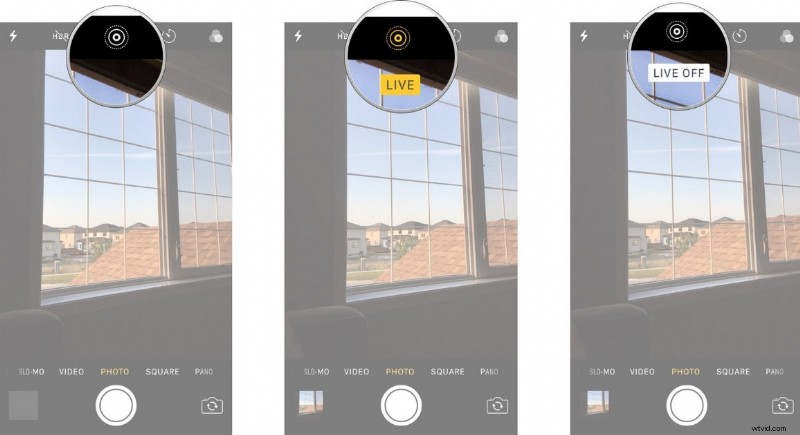
Image source: imore

Image source: iPhoneMod
For iOS Versions Earlier Than 11
If your device can’t run iOS 11, third‑party apps can simulate the effect by stitching multiple exposures. Popular choices include:
- Slow Shutter Cam
- Ultra Slow Shutter Cam PRO
- Slow Shutter Insta
- LongExpo
Experiment with these tools to find the one that best fits your shooting style.
Pro Tips for Superior Long‑Exposure Shots
- Use a tripod. Even the slightest shake can blur the scene; a sturdy tripod is essential.
- Secure attachment. Choose a mounting system that keeps the phone stable during exposure.
- Shutter via headphones. Turn on the “volume‑shutter” feature in Settings > Accessibility > Touch; this lets you trigger the capture without touching the device.
- Focus on motion. Long‑exposure works best when there’s a moving element against a static background.
These techniques maximize the iPhone’s built‑in processing and help you avoid common pitfalls.
Creative Ideas for Long‑Exposure iPhone Photography
- Water: Capture rivers, waterfalls, or ocean waves; the flowing motion will appear silky.
- Light trails: At night, shoot cars, street lamps, or fireworks to create luminous streaks.
- Motion blur: Photograph fast‑moving subjects—cars, cyclists, animals—to add dynamic energy.
- Low‑light scenes: Extend exposure to reveal details in dimly lit settings such as bridges or fountains.
Try varying exposure times and lighting conditions to discover new visual possibilities.
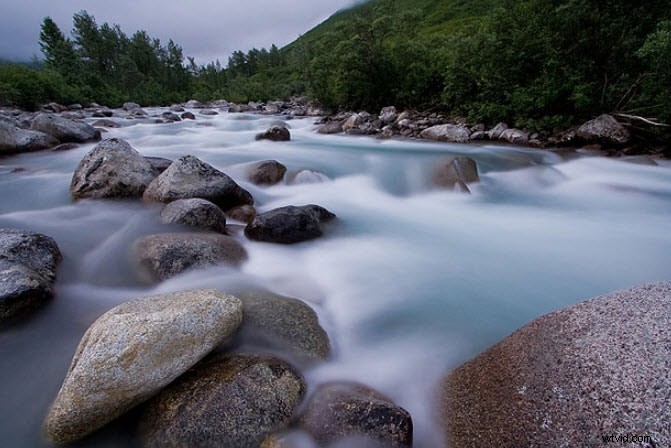
Image source: Photography Mad
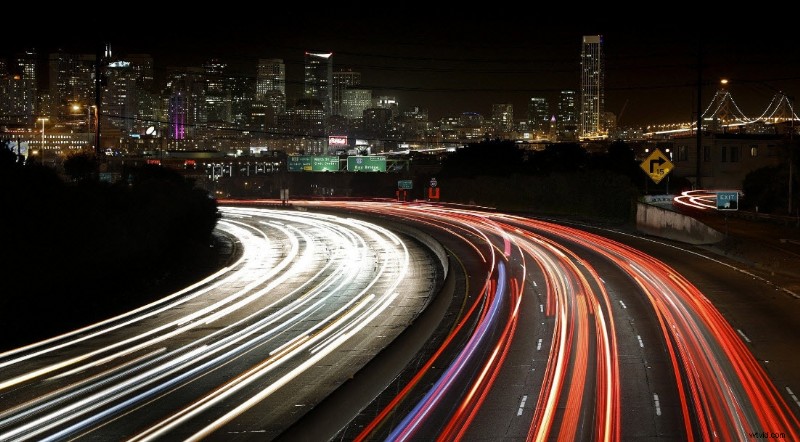
Image source: WallDevil
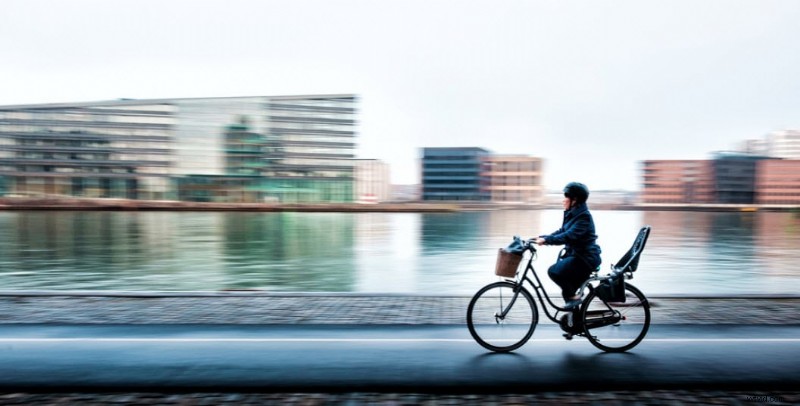
Image source: Digital Photo Secrets

Image source: Nikonites
Conclusion
With iOS 11’s integrated Long‑Exposure effect, and versatile app alternatives for older systems, iPhone users can produce stunning images that once required a DSLR. Whether you’re a travel enthusiast, a budding stock photographer, or an Instagram curator, long‑exposure shots are a powerful way to elevate your visual storytelling.
Start experimenting today—grab a tripod, enable Live Photos, and let your phone capture light like never before.
Ollie Mattison
Ollie Mattison is a writer and a lover of all things video.
Follow @Ollie Mattison