
Every Mac user who frequently captures screenshots, records tutorials, or shares visual content will benefit from a dedicated snipping tool. While macOS provides built‑in options, specialized software adds powerful features such as video capture, advanced annotations, and seamless cloud integration, making editing and sharing effortless. This guide evaluates the most reliable snipping tools for Apple computers in 2026, helping you pick the best fit for your workflow.
Below is a curated list of the eight leading snipping tools for Mac users.
In this article
- How to Choose the Right Snipping Tool for Your Needs
- Top 8 Snipping Tools for Mac You Must Try
Part 1: How to Choose the Right Snipping Tool for Your Needs
When evaluating a snipping tool, consider these key criteria:
- Ease of Use: Is the interface intuitive, especially for beginners?
- Customization: Can you capture precise regions, entire screens, or specific windows effortlessly?
- Editing Capabilities: Does the tool offer annotation, masking, cropping, or text recognition?
- Export & Sharing: How easily can you export images or share them across platforms?
- Cost: Is the solution free, subscription‑based, or one‑time purchase?
Answering these questions will narrow your options and lead you to the ideal tool for your tasks.
Part 2: Top 8 Snipping Tools for Mac You Must Try
1. Filmora Screen Recorder (All‑in‑One Capture & Editing)
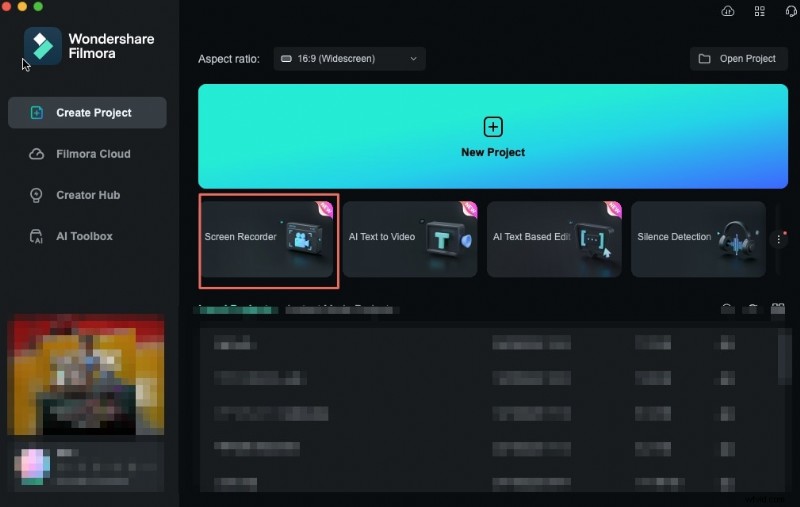
Filmora Screen Recorder excels at both video and screenshot capture. Its intuitive interface lets you select any screen region or window, and the integrated editor adds annotations, text, and effects before saving.


Key Features:
- Instant screen capture of any area
- Customizable snip dimensions and resolution
- Full‑screen, window, or region recording
- Integrated video editor for on‑the‑fly annotations
- High‑definition output with adjustable frame rate
- Direct sharing to YouTube, Vimeo, and cloud services
How to Use:
- Launch Filmora and select the Screen Recorder mode.
- Choose a recording type: screen, window, or region.
- Start and stop recording; the clip appears in the media library.
- Drag the video onto the timeline and pause at the desired frame.
- Click the camera icon to capture a still image.
- Save the snapshot in your preferred format.
2. macOS Built‑In Snipping Tool (Free & Fast)
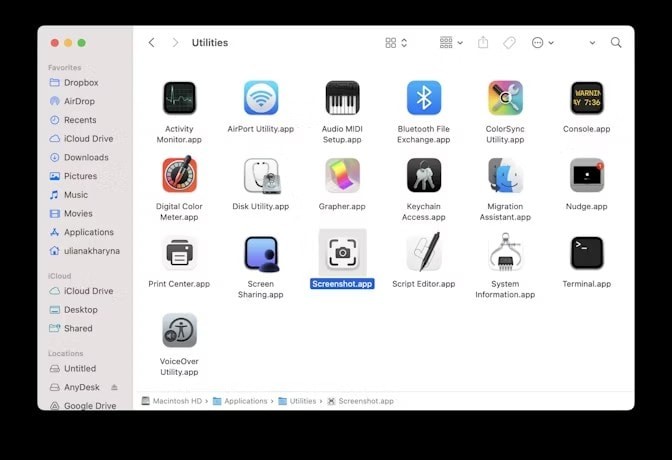
macOS includes a native screenshot utility activated with Shift + Command + 5. It offers quick capture of the entire screen, a specific window, or a custom area, and saves images directly to the desktop.
Key Features:
- No download required – fully integrated
- Customizable capture options and hotkeys
- Options to annotate, crop, and save to different locations
3. Monosnap (Versatile Capture & Cloud Sync)
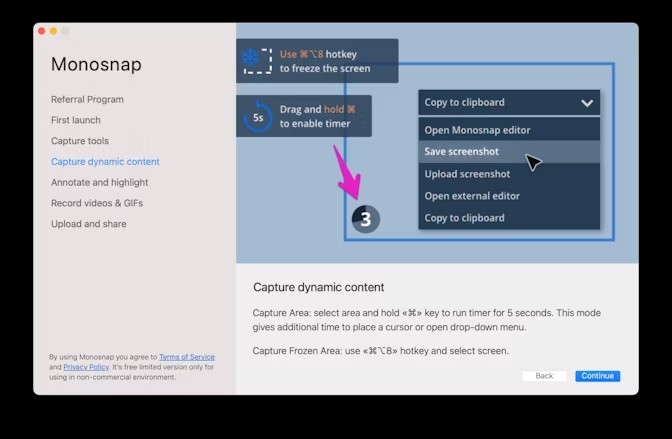
Monosnap combines screenshot and screen‑recording capabilities with cloud integration. It supports annotations, blurring, and direct uploads to Dropbox, Google Drive, Amazon S3, and more.
Key Features:
- Screenshot and video capture on Mac
- Instant editing: highlight, blur, crop
- Seamless cloud and third‑party sharing
4. Snagit (Professional Capture & Editing)
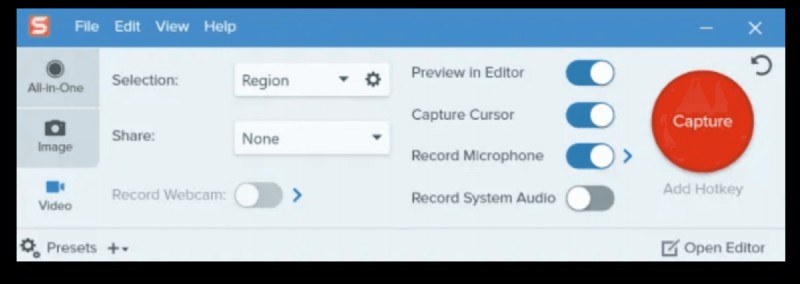
Developed by TechSmith, Snagit delivers powerful screen capture, HD recording, and extensive editing tools. It supports scrolling windows, video with audio, and webcam overlay.
Key Features:
- Rounded corners, backgrounds, and watermarks for polished screenshots
- OCR text recognition and redaction
- Custom presets for quick re‑use
- Instant sharing to social media and cloud services
5. Droplr (Instant Cloud Sharing)

Droplr is a cloud‑based capture tool that auto‑uploads screenshots and recordings, generating shareable links in seconds. Ideal for team collaboration and rapid distribution.
Key Features:
- Automatic cloud storage and link generation
- Integrated annotation tools
- Quick sharing via URL to teammates or clients
6. Lightshot (Simplicity & Speed)
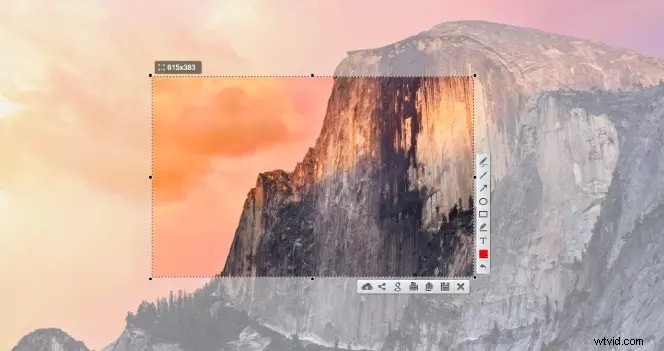
Lightshot prioritizes a clean interface and fast capture. It supports custom hotkeys, online editing, and direct sharing to social media or the Lightshot cloud.
Key Features:
- Rapid region capture with hotkeys
- Web‑based editing and annotation
- URL sharing and cloud backup
7. CleanShot X (Professional Editing & Cloud)
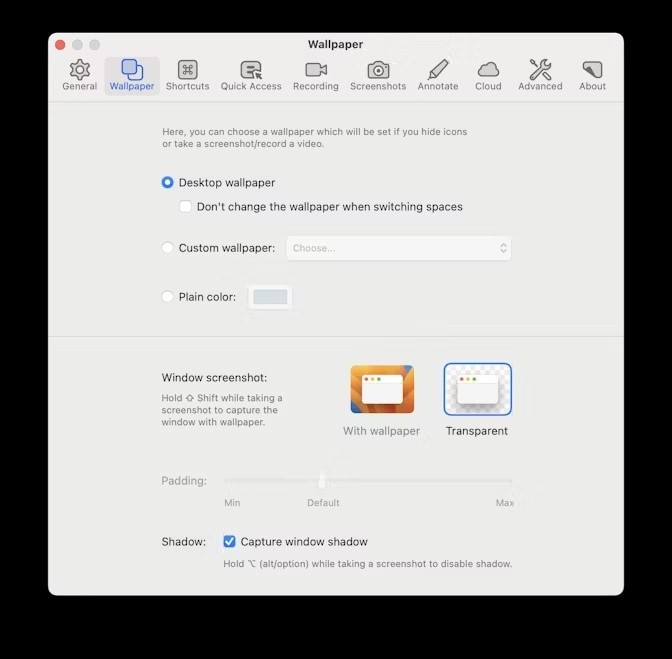
CleanShot X offers a comprehensive suite of capture, annotation, and cloud tools. It excels at creating polished screenshots, managing multiple captures, and integrating with CleanShot’s own cloud service.
Key Features:
- Text, arrows, shapes for detailed annotations
- Cloud upload to CleanShot’s secure storage
- Desktop clean‑up for professional looks
- History panel for bulk management of screenshots
8. TextSniper (Text Extraction from Images)
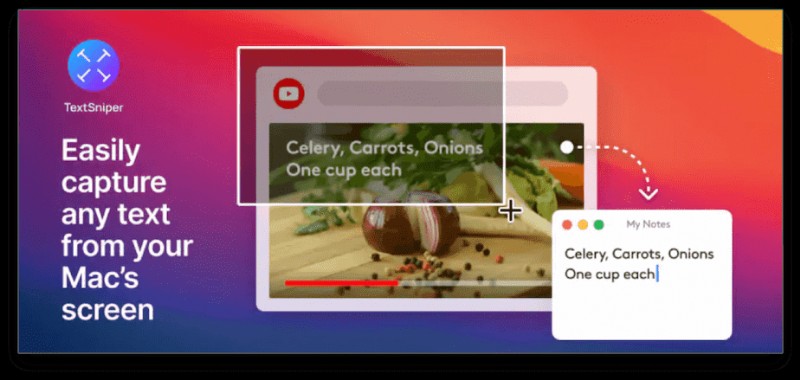
TextSniper specializes in extracting selectable text from images and PDFs, converting it to editable text or speech. It supports multiple image formats and includes QR code and barcode scanning.
Key Features:
- Works with JPG, PNG, TIFF, GIF, and more
- Text‑to‑speech for accessibility
- Reads links, QR codes, and barcodes
- Extracts text from eBooks and PDFs
Conclusion
Whether you’re a professional, educator, or casual user, there’s a macOS snipping tool that fits your needs. From Filmora’s all‑in‑one recording and editing to Lightshot’s quick capture, each option offers unique strengths. Consider your workflow—do you need advanced annotation, cloud sharing, or simple screenshots? By aligning your requirements with the features above, you can choose the perfect tool to enhance your productivity and visual communication.