
Since its launch, the Nintendo Switch has become a household name, letting players enjoy blockbuster titles like The Legend of Zelda and Pokémon on the go. For creators and gamers who want to capture that experience, recording Switch gameplay is surprisingly straightforward once you know the right tools.
Below you’ll find a clear, step‑by‑step guide to the four best approaches: using a PC with a capture card (via Filmora or OBS), and leveraging the Switch’s built‑in recorder. Each method is explained with practical tips, pros and cons, and screenshots to help you get started.
| Tool | Compatible OS | Best for | Key Features |
| Wondershare Filmora | Windows & macOS | All‑in‑one screen recording & editing | Capture card support, webcam overlay, custom region, AI audio enhancement, instant editing, cross‑platform |
| OBS Studio | Windows & macOS | Advanced recording & streaming | Scene transitions, multiple sources, high customization, free and open source |
| Switch Built‑In Recorder | Switch console | Quick, on‑device captures | 30‑second clips, game‑specific, no extra gear required |
In this article
- Using a PC to record Switch gameplay
- Filmora option
- OBS Studio option
- Switch’s built‑in recorder
- Limitations
- How to use
Part 1. Record Switch Gameplay with a PC
To capture your Switch on a PC, the essential hardware is a capture card. This device streams the console’s video output to your computer, letting software record the feed without taxing the Switch’s resources. The result is smoother, higher‑quality footage—especially during graphically intense moments.
Below are two popular recording tools that accept capture card input and provide a workflow from capture to editing.
Option 1: Wondershare Filmora
Filmora is best known as an intuitive video editor, but its built‑in screen recorder makes it a one‑stop solution for Switch captures. You can record, edit, and publish without switching between applications.
- Screen & webcam capture: Record gameplay while simultaneously filming your reaction.
- Custom region selection: Choose the exact portion of the Switch display you want to record.
- Audio controls: Mute or adjust microphone levels on the fly.
- AI audio enhancer: Removes background noise and improves voice clarity automatically.
- Smart short‑clip extraction: Generates highlight reels ideal for social media.
- Cross‑platform: Works on Windows and macOS; edited clips can be exported to mobile apps.
How to record with Filmora:
1. Install and launch Filmora, then log in with your preferred account.
2. Go to Toolbox > Screen Recorder.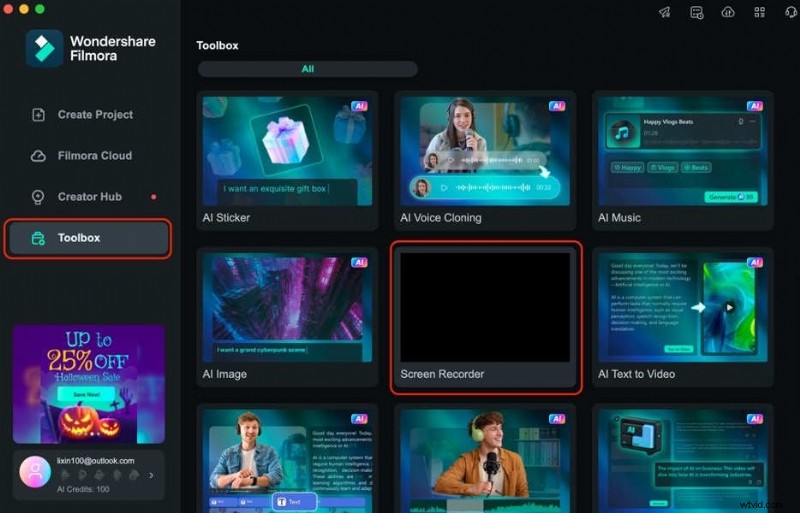
3. In the recording interface, select your capture card from the Camera drop‑down menu.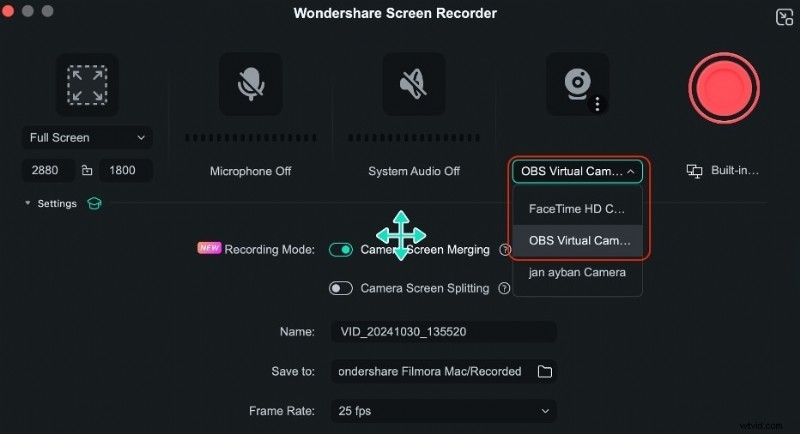
4. Press the red Record button to start; press it again to stop.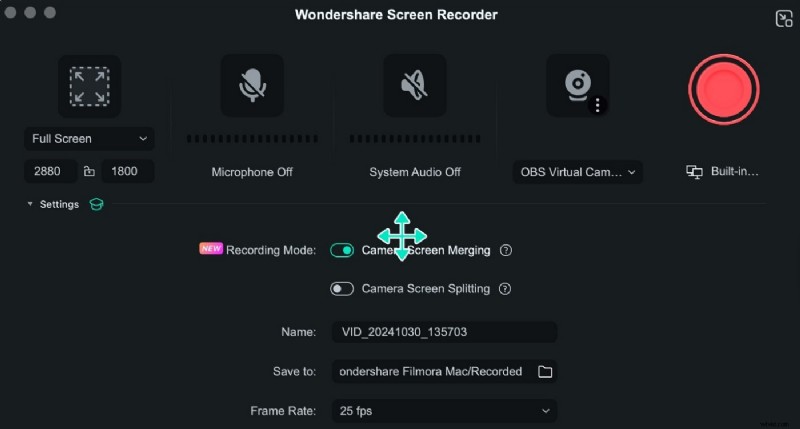
5. After recording, the clip appears automatically in Media. Drag it onto the timeline for editing.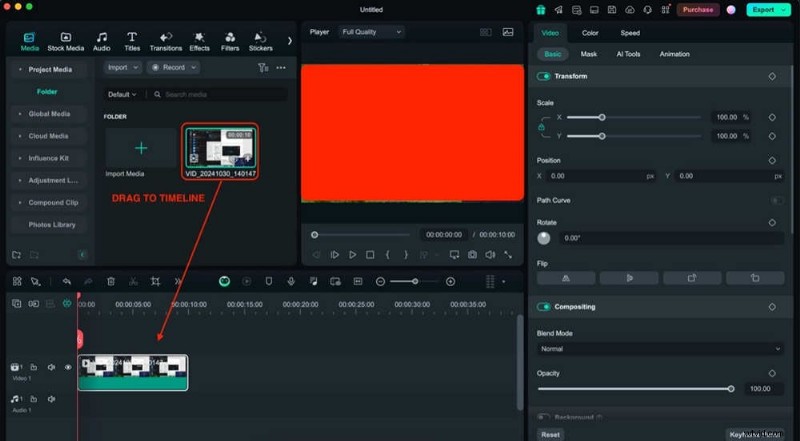
6. Filmora saves the file instantly; you can locate it by right‑clicking the clip and choosing Reveal in Finder/Files.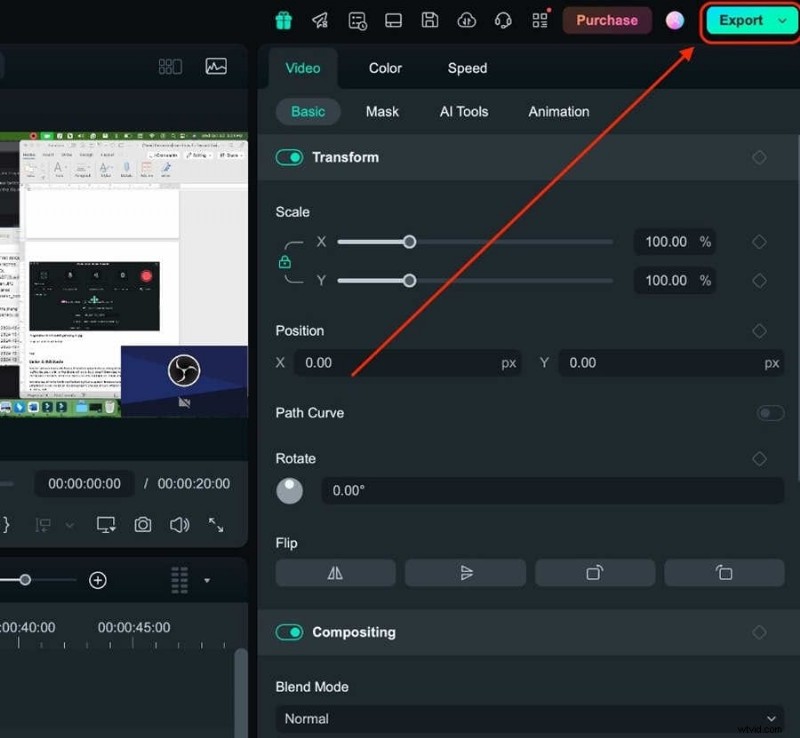
Option 2: OBS Studio
OBS Studio is a free, open‑source powerhouse favored by streamers. While it lacks built‑in editing, its recording features are highly configurable.
Quick setup:
1. In OBS, click the + icon under Sources and choose Video Capture Device.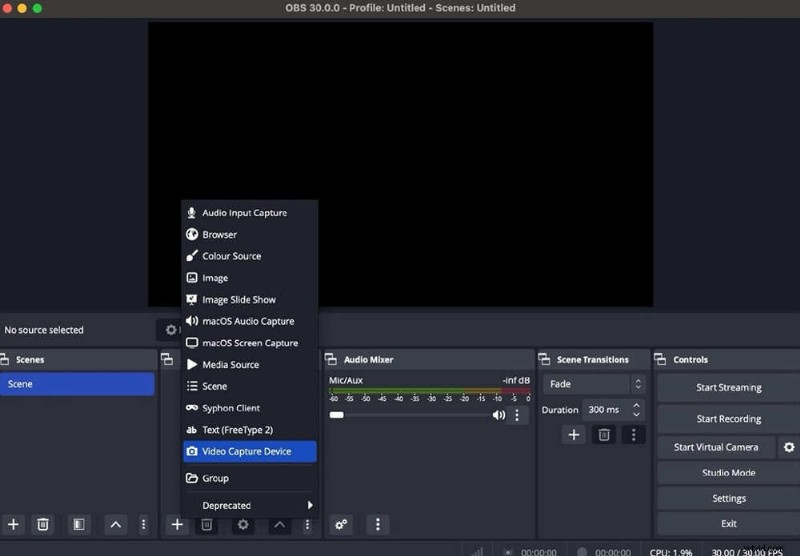
2. Select your capture card as the device and hit Start Recording to begin.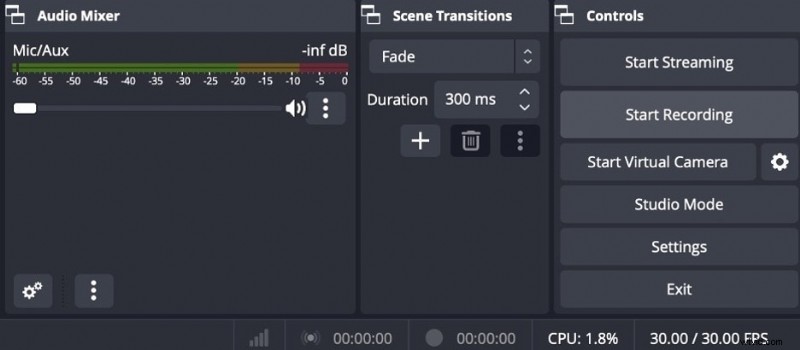
Part 2. Record Directly on the Switch
For a quick, no‑setup option, the Switch offers a built‑in recorder. It’s handy for capturing short moments, especially if you’re on the move.
Limitations to Note
- Requires system menu version 4.0.0 or newer.
- Only works in specific titles: Breath of the Wild, Mario Kart 8 Deluxe, ARMS, and Splatoon 2.
- Captures are capped at 30 seconds per clip.
How to Use the Switch Recorder
1. While playing, press and hold the Capture button on the left Joy‑Con.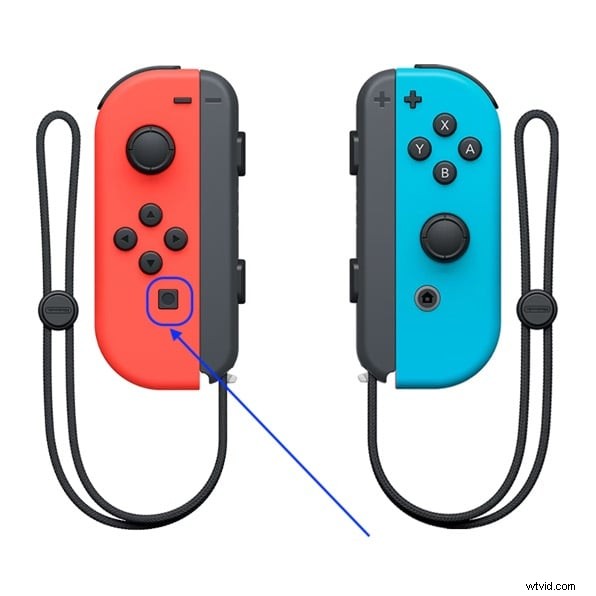
2. View your footage in Album > All Screenshots and Videos.
3. Use the Editing & Posting options to trim or share instantly.
Conclusion
For the best quality and flexibility, pairing a capture card with a PC is the recommended route. It bypasses the Switch’s 30‑second restriction and keeps the console free to run games at full speed. Between Filmora’s all‑in‑one workflow and OBS’s advanced customization, you’ll find a solution that fits your skill level and goals.
If you prefer a simple, on‑device capture, the Switch’s built‑in recorder remains a viable quick‑save option for supported titles.
FAQ
- 1. Can I record my Switch without a capture card?
Yes—use the built‑in recorder for up to 30‑second clips in four supported games. - 2. How do I export recordings from Switch to a PC?
Share clips to social media, download them, or transfer via QR code to a smartphone and then to your computer. - 3. How can I record longer than 30 seconds on Switch?
Only by connecting a capture card to a PC or Mac.