
Have you ever struggled to explain your SaaS product clearly? A SaaS explainer video can help! It simplifies complex features, making it easier for potential customers to understand how your software works. This boosts user engagement and eventually drives conversions.
Many think creating a video of a SaaS explainer is complicated, but it doesn't have to be! In this article, we'll show you how Wondershare Filmora makes it easy to produce high-quality videos—even without advanced editing skills.
Keep reading to learn how to create one and check out some of the best SaaS explainer video examples!
In this article
- Why is the video for SaaS explainer so crucial?
- Key Elements of an Effective SaaS Explainer Video
- Type of SaaS Explainer Videos
- How to Create a SaaS Explainer Video
- Edit Your SaaS Video in Filmora
- Slack for Beginners | How To Use Slack In Just 6 Minutes
- Introducing Goodnotes 6: Notes Reimagined
- How to keyframe animate in Clip Studio Paint | Dadotronic
Part 1. What's A SaaS Explainer Video?
A SaaS (Software as a Service) explainer video is a short video that simplifies complex software concepts. The purpose is to help potential customers understand how a SaaS product works. These videos are essential for SaaS companies as they help communicate product value, showcase features, and address customer pain points effectively.
Why is the video for SaaS explainer so crucial?
According to research by EyeView Digital, adding videos to landing pages can increase conversion rates by up to 80% (SalesLion). Thus, creating these videos can help businesses attract more trial sign-ups, boost software adoption, and ultimately drive more sales.
However, effectiveness can vary based on implementation. Unbounce's analysis suggests that while videos can improve conversions, in some cases, they might have a negative impact (Unbounce). This highlights the importance of using the right type of SaaS explainer video and ensuring it aligns with your audience's needs.
Key Elements of an Effective SaaS Explainer Video
To create a compelling SaaS explainer video, focus on these essential elements:
- Clear and concise script: Keep the message simple and engaging, focusing on the problem your software solves and how it benefits users.
- Engaging visuals and animations: Use eye-catching graphics, motion design, or real-life footage to enhance viewer engagement.
- Professional voiceover and background music: Professional voiceover and background music – A good narration and soundtrack can add credibility and keep the audience interested.
- Strong call-to-action (CTA): End with a clear CTA, encouraging viewers to take action, whether it's signing up for a free trial or booking a demo.
Type of SaaS Explainer Videos
There are several styles of SaaS explainer videos, each catering to different styles, audiences, and marketing goals. Here are the most common types:
| Type | Features |
| Animated Explainer Videos | 1. Uses motion graphics, 2D, or 3D animation.
2. Ideal for simplifying complex software concepts. 3. Engages viewers with visually appealing storytelling. |
| Live-Action Explainer Videos | 1. Features real people demonstrating the software.
2. Builds trust and authenticity. 3. Great for humanizing a brand and connecting with the audience. |
| Whiteboard Explainer Videos | 1. Uses hand-drawn illustrations on a whiteboard-style animation.
2. Effective for breaking down processes step by step. 3. Simple yet engaging, often used for educational content. |
| Screen Recording Demos | 1. Showcases the actual software interface.
2. It helps users see exactly how the software works. 3. It's ideal for onboarding tutorials and product walkthroughs. |
Choosing the right type of SaaS explainer video depends on your audience, product complexity, and brand style. Then, you can effectively communicate your product's value and increase user engagement.
Now that you understand what a SaaS explainer video is, let's move on to how you can create one using the best video editor!
Part 2. Create a SaaS Explainer Video with the Best Video Editor
You don't need a professional video editor to make a SaaS explainer video. With the right tool, you can easily produce high-quality explainer videos that engage and convert your audience. One of the best video editors in the market is Wondershare Filmora.
Filmora is a powerful tool for editing videos. It offers features that simplify the editing process with high quality. Here's why it's the best choice:
- AI-Powered Copywriting: Use Filmora's AI Copywriting tool to generate engaging video scripts tailored to your SaaS product.
- Screen Recording Tool: Capture high-quality demos and tutorials with Filmora's screen recorder to highlight key features and user benefits.
- Preset Templates: Use professionally designed preset templates for a polished and visually appealing SaaS explainer video.
- Text-to-Speech for Voiceover: Convert text into natural-sounding voiceovers with Filmora's AI Text-to-Speech feature, eliminating the need for recording or hiring a voice artist.
- Engaging Visuals and Animations: Use eye-catching graphics, motion design, or real-life footage to enhance viewer engagement.
- Professional Voiceover and Background Music: A good narration and soundtrack can add credibility and keep the audience interested.
- Strong Call-to-Action (CTA): End with a clear CTA, encouraging viewers to take action, whether it's signing up for a free trial or booking a demo.


Now, let's go through the step-by-step process of creating a SaaS explainer video using Filmora.
How to Create a SaaS Explainer Video
Create a SaaS Explainer Video in 3 Steps- Step 1. Write a Script
- Step 2. Create a Storyboard
- Step 3. Record or Collect Visuals
Step 1. Write a Script
A well-structured script is the backbone of any great explainer video. Start by outlining:
- The problem your SaaS product solves.
- How your software works and its key features.
- A strong call to action (CTA) that guides viewers on what to do next.

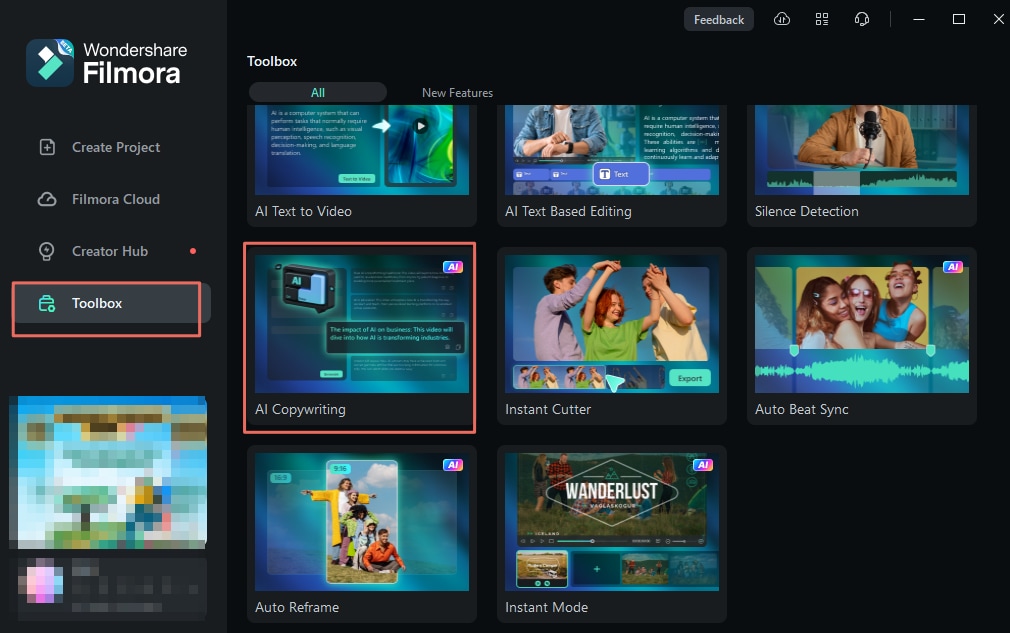
Tip🔍:You can use Filmora's AI Copywriting tool to generate a polished script quickly!
To use this feature, open Filmora on your computer and go to the Toolbox panel on the left side of the interface. Then, select AI Copywriting to open a new window where you can generate a script with AI for your SaaS explainer video.
Step 2. Create a Storyboard
A storyboard helps you visualize the flow of your video. Sketch out each scene, including animations, text, and transitions. This ensures a smooth and engaging storyline before you start recording or editing.

Step 3. Record or Collect Visuals
Your SaaS explainer video should visually demonstrate how your software works. You can:
- Use the built-in screen recording tool to capture real-time demos.
- Use stock footage, icons, or illustrations to enhance the storytelling.
- Integrate animations or graphics to make complex concepts more digestible.
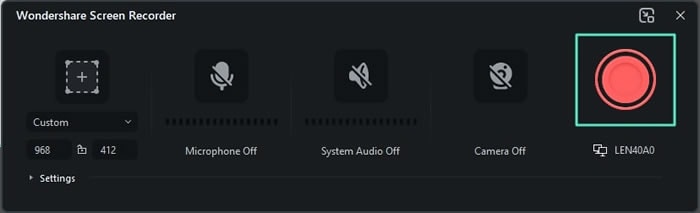
Tip🔍:You can use Filmora's Screen Recording tool to capture real-time demos!
To record your computer screen with Filmora, go to Toolbox > Screen Recorder to open the screen recorder window. Adjust the type of recording and other settings before selecting the Red Record button.
Edit Your SaaS Video in Filmora
Once you have your recorded clips and visuals ready, it's time to edit your video in Filmora. Follow these steps to refine and enhance the video of SaaS explainer:
Step 1. Import Your Footage & Organize Your Timeline
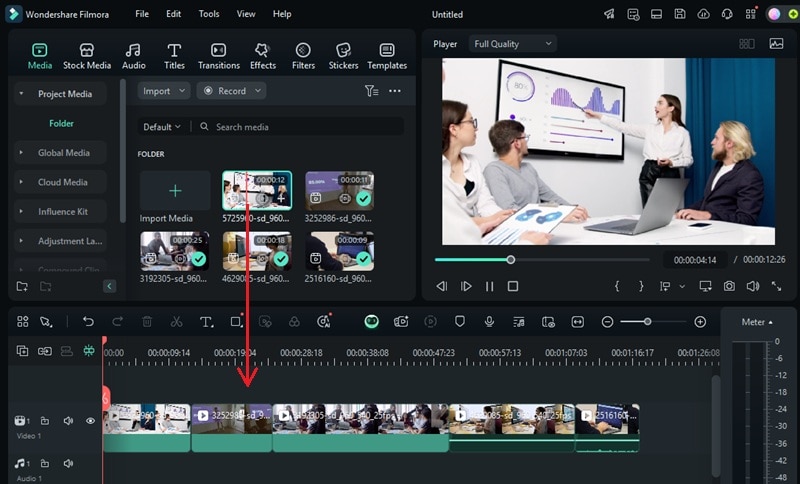
Open Filmora and go to Create Project > New Project. Once in the video editing interface, import your recorded clips by navigating to Media > Project Media > Import.
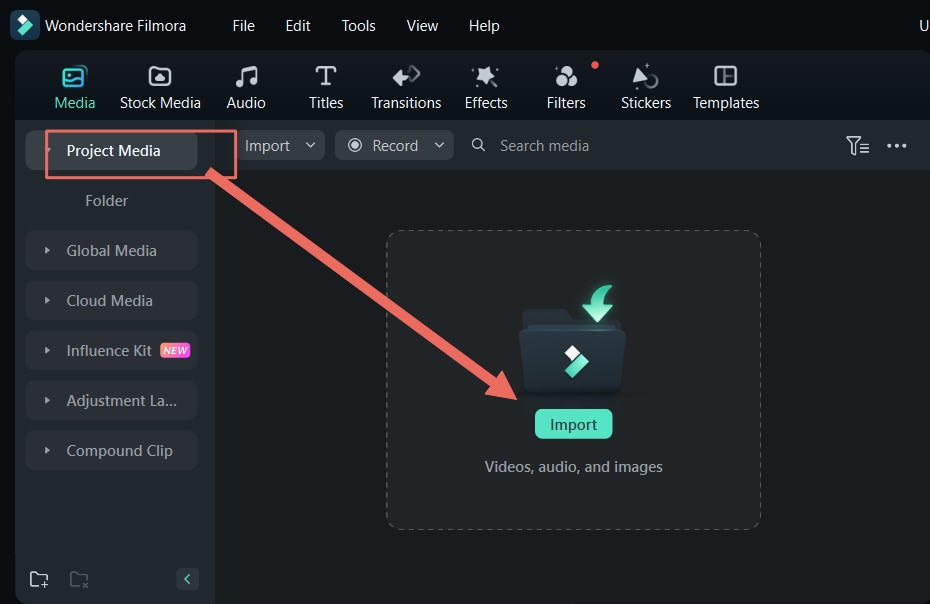
Then, drag and drop the clips into the timeline and arrange them in the correct order.
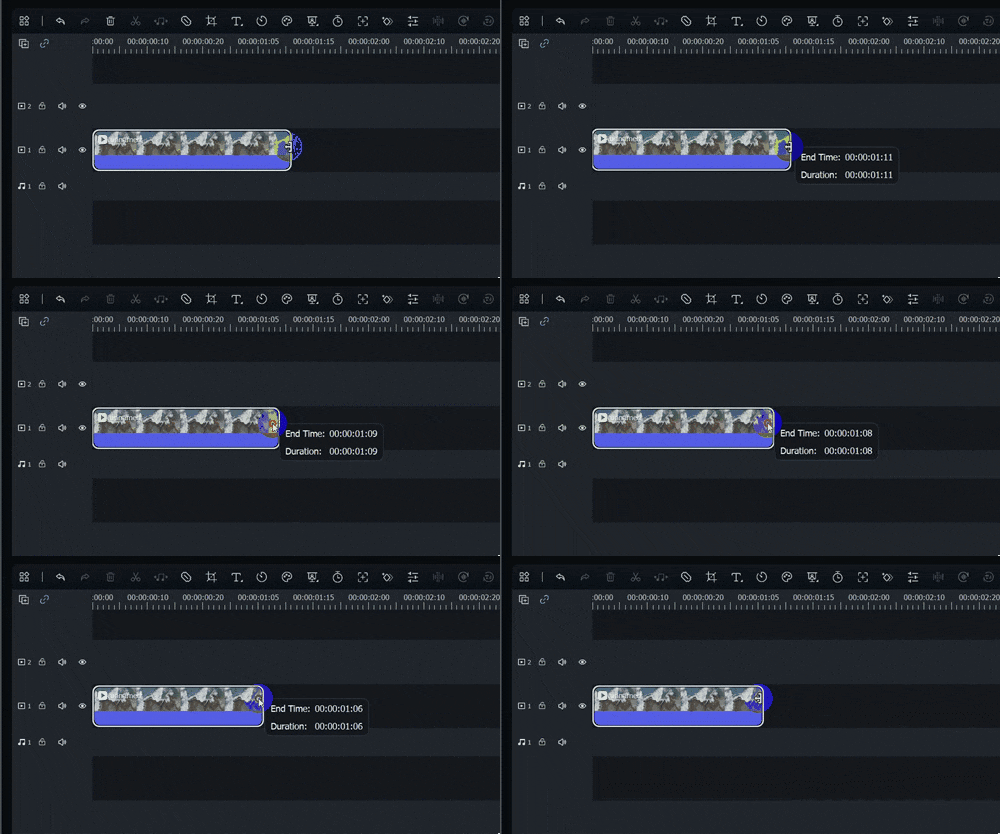
To trim unwanted parts, hover your cursor on the edge of a clip until a trim icon appears. Then, click and drag to shorten the clip and remove any unnecessary parts.
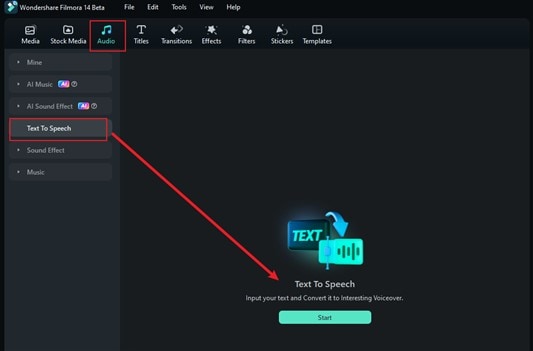
Step 2. Include a Voiceover or AI Text-to-Speech (TTS)
Use Filmora's AI Text-to-Speech (TTS) to generate a natural-sounding voiceover for your SaaS explainer video. To access this feature, go to Audio > Text-to-Speech > Start.
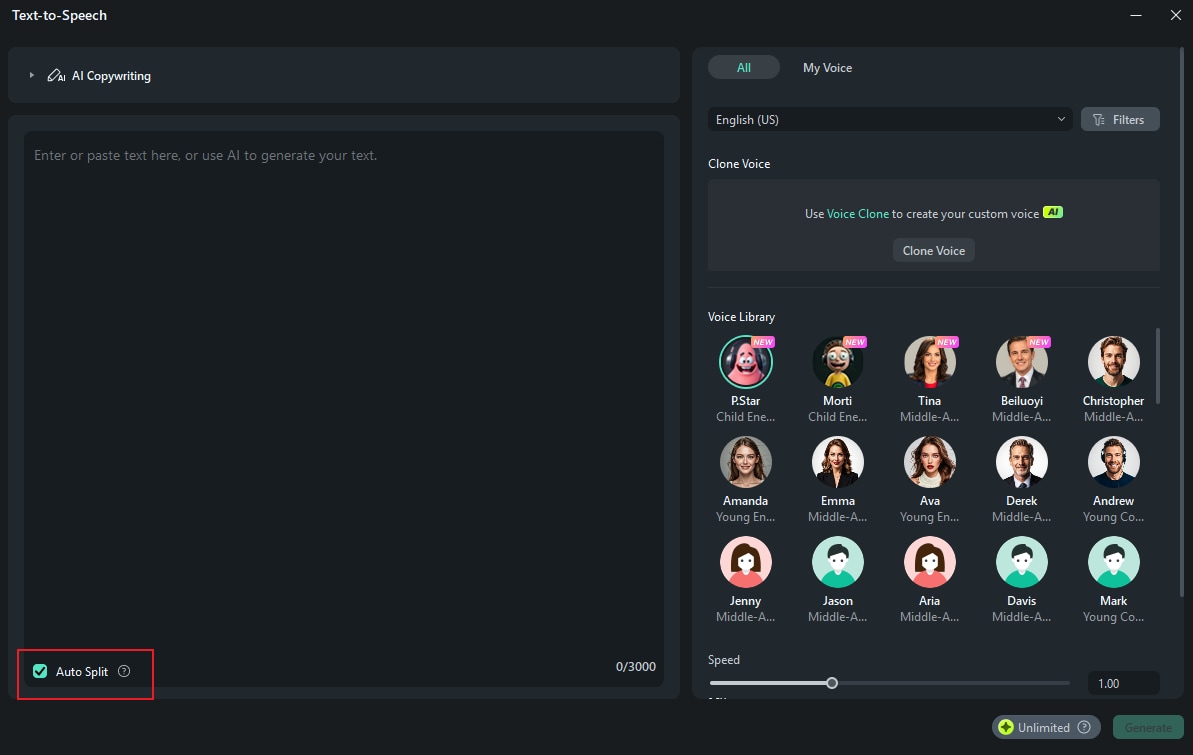
Convert the text into speech by typing or pasting your script into the text box. If you need help creating the script, use the AI Copywriting tool. Once your text is ready, select a voice from the Voice Library and click Generate to convert it into speech.
Tip: Enable the Auto Split feature to automatically break long paragraphs into shorter speech segments.
Step 3. Enhance with Background Music & Sound Effects
Adding background music and sound effects can make your SaaS explainer video more engaging and immersive. With Filmora's AI-powered audio tools, you can integrate high-quality sound elements without needing advanced editing skills.
Step 4. Add Sound Effects with AI
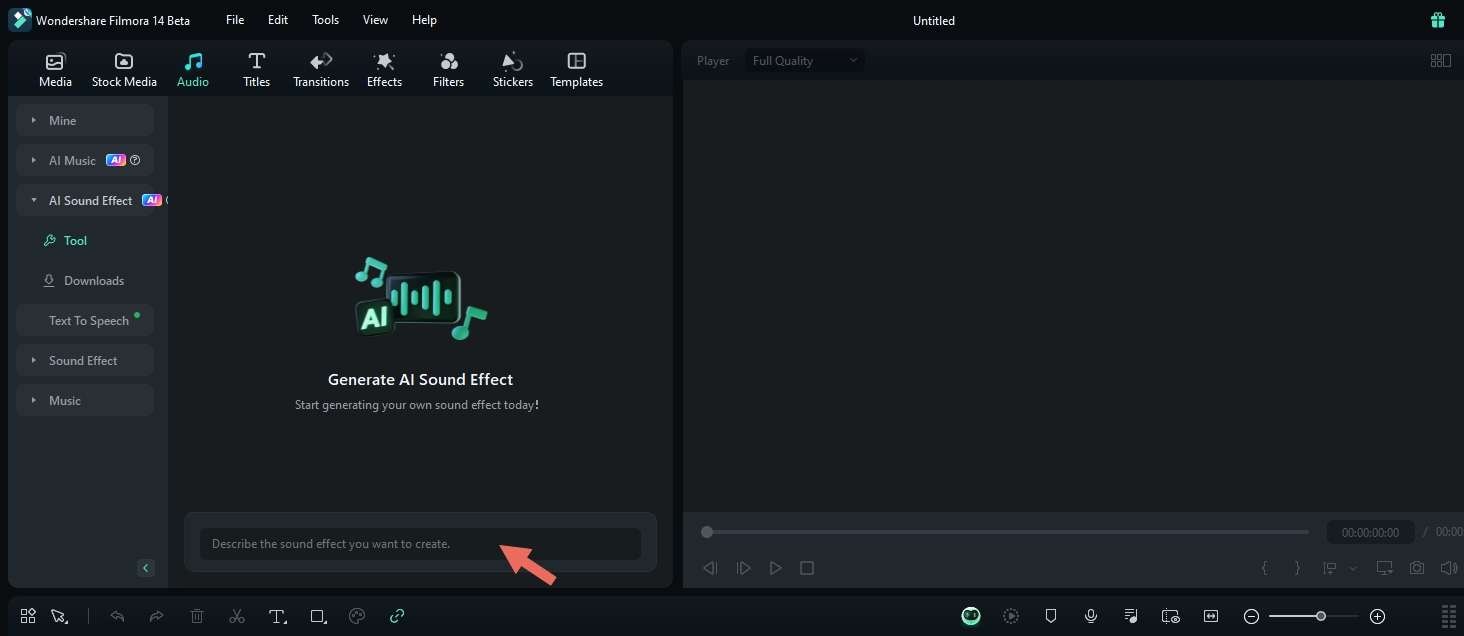
Use the AI tool to generate unique sound effects in just a few clicks. Navigate to Audio > AI Sound Effects and describe the type of sound effect you want. Click Settings to adjust the duration and number of variations. Hit Generate to create the requested sound effects.
Step 5. Finalize & Export Your Video
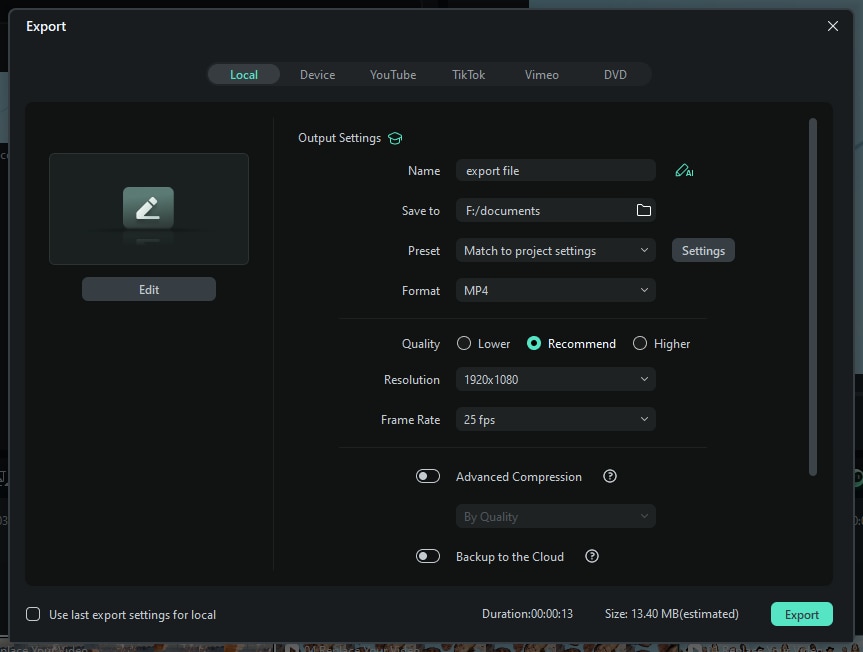
Before publishing, preview your video to ensure everything flows smoothly. Once satisfied, click Export at the top of your screen and navigate to the Local tab. Here, you can set the video format, resolution, frame rate, and more. Click Export to save the video to your device.
With Wondershare Filmora, making a SaaS explainer video is easier than ever. By following these steps, you can create a professional video that effectively showcases your product and drives conversions. Next, let's take a look at some of the best SaaS explainer video examples for inspiration!
Part 3. Examples of the Best SaaS Explainer Videos
We've gathered some of the best SaaS explainer videos from top companies to help you get inspired. These examples are engaging and can effectively communicate the software's value. Here are some of the examples:
1. Slack for Beginners | How To Use Slack In Just 6 Minutes
This tutorial provides a quick overview of Slack's essential features. It guides beginners through account setup, navigation, and basic functionalities to enhance team communication.
Analysis of success factors:
- Simplicity: The video distills Slack's core features into a brief tutorial, making it accessible to new users.
- Clear Narration: Straightforward explanations ensure viewers can easily follow along.
- Visual Demonstrations: On-screen examples reinforce the instructions, aiding comprehension.
2. Introducing Goodnotes 6: Notes Reimagined
In this video, Goodnotes unveils its latest digital note-taking app. They highlights AI-powered features like Spellcheck, Word Complete, and AI Math Assistance, designed to enhance user productivity and learning.
Analysis of success factors:
- Innovative Features: The video showcases the app's advancement in digital note-taking.
- User-Centric Design: It focuses on functionalities that directly benefit users. The video appeals to both students and professionals seeking efficient note-taking solutions.
- Engaging Presentation: The use of clear visuals and concise explanations effectively communicates the app's value proposition.
3. How to keyframe animate in Clip Studio Paint | Dadotronic
Dadotronic demonstrates the process of keyframe animation in Clip Studio Paint. It offers step-by-step instructions to help artists animate without drawing new frames for each movement.
Analysis of success factors:
- Educational Content: The tutorial offers valuable insights into animation techniques, catering to both beginners and experienced users.
- Step-by-Step Guidance: Detailed instructions make complex processes more approachable.
- Engaging Delivery: The presenter's clear and enthusiastic approach maintains viewer interest throughout the tutorial.
Conclusion
Creating a SaaS explainer video is one of the most effective ways to simplify complex software concepts and communicate your product's value. It can boost engagement, drive conversions, and help potential customers understand how your software works. Choose the right type of explainer video and create high-quality content with Wondershare Filmora.
This guide also highlights some of the best SaaS explainer videos for inspiration. Keep your message concise and compelling, and use an approach that resonates with your audience. Ready to create your own? Try Filmora today and start making an impact!