If you want to continue shooting with your favourite Canon EF and EF-S lenses on your Canon EOS R series camera, you’ll need one of the four different Canon Mount Adapter EF-EOS R options. Read on to see why, and how they work.
Why is an EF to RF adapter needed?
The Canon RF mount has a relatively short ‘flange focal distance’ – the distance between the mounting flange (where the camera and lens connect) and the camera sensor. In fact, it’s less than half that of an EOS DSLR.
This is why an EF/EF-S lens designed for a DSLR cannot form a sharp image on the sensor of an EOS R system camera.
A lens adapter is essentially a tube that puts the correct distance between the back of an EF/EF-S lens and the camera sensor. Canon’s adapters also maintain the electronic connection between EF/EF-S lenses and your EOS R series camera, so you can use autofocus and other features.
- Check out our guide to the best Canon RF lenses to start your collection
Official Canon EF to RF adapters
Canon currently offers four different EF-EOS R mount adapters:
- The standard one (shown at top)
- A version that includes a customisable control ring similar to the one featured on RF lenses
- Two different ‘drop-in filter’ options that are especially useful for wide-angle and super-telephoto lenses, where the front element may be too large to accommodate a filter. One version comes with a variable neutral density filter, the other with a circular polarising filter. A clear drop-in filter is also available to use when the effect of the creative filter isn’t required.
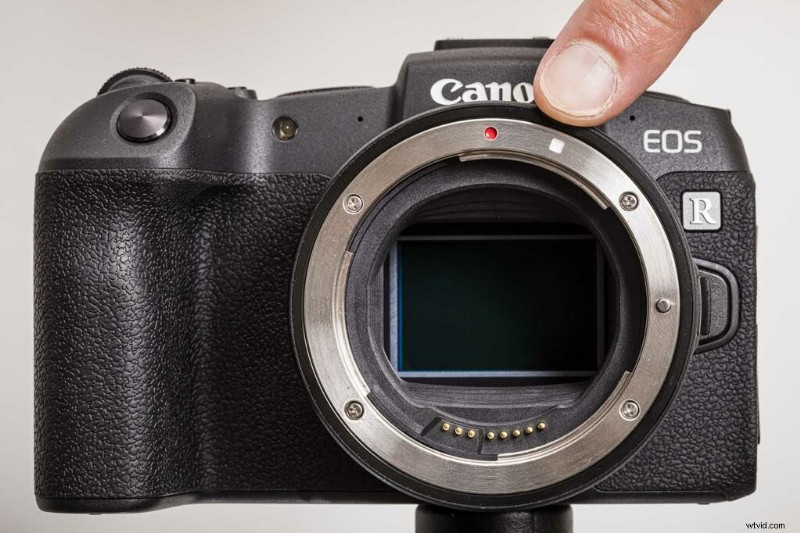
They all attach the same way: line up the red index mark on the adapter with the red index mark on the camera, and rotate the adapter clockwise (looking at the camera from the front).
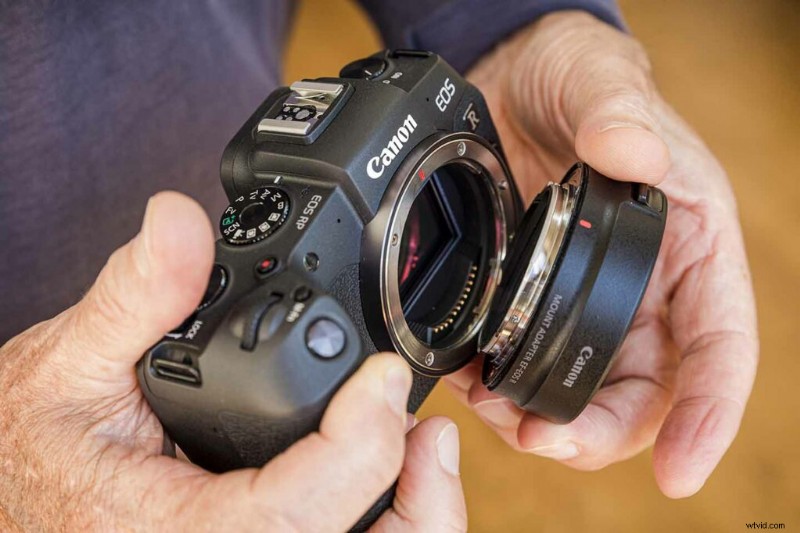
Using EF-S lenses on the RF mount
Canon’s EF-S lenses are designed for EOS cameras that have smaller APS-C-sized sensors, but you can still use them on the RF mount via an EF-EOS R adapter.
You’ll need to line up the white index marker on the lens with the white mark on the adapter. For EF lenses, line up the red index markers.
Automatic crop
The image projected by an EF-S lens doesn’t fill a full-frame EOS R series camera’s sensor corner to corner, so the camera automatically crops the image to match the smaller image circle of the lens.
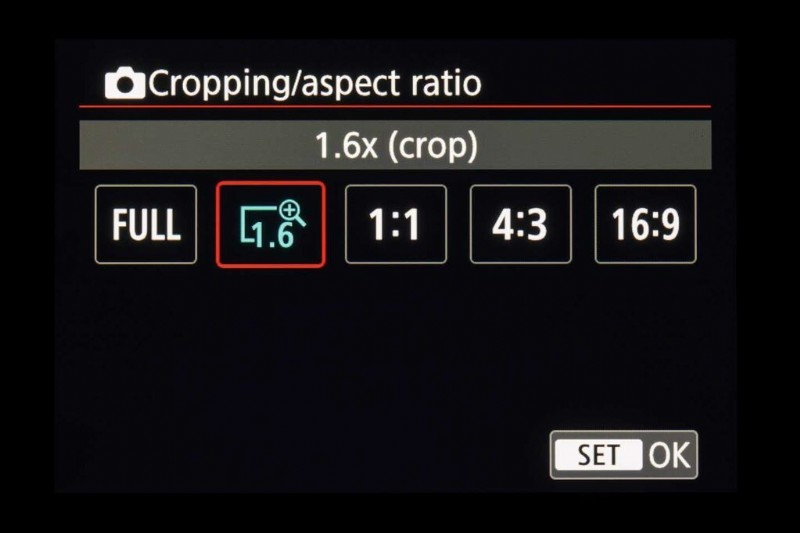
The image will be magnified in the viewfinder and rear screen to indicate the 1.6x crop, and the resolution of the files will also be reduced (from 26MP to 10.1MP in the case of Large JPEG/RAW).
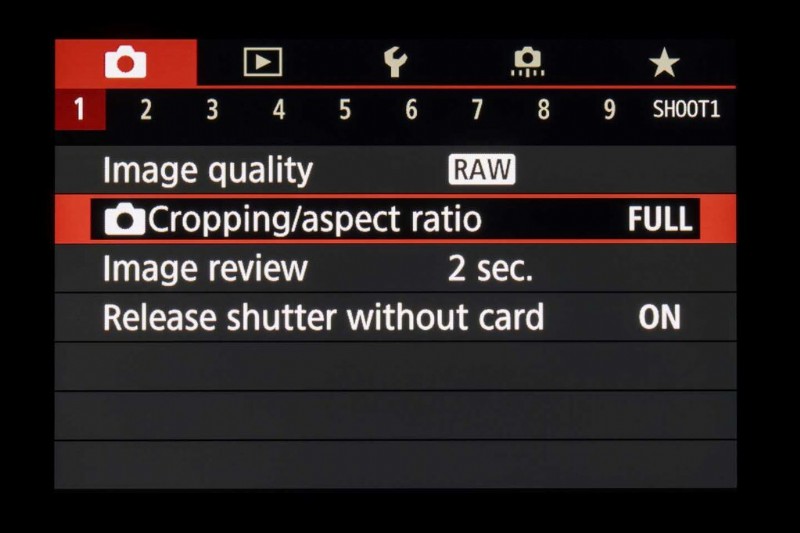
Some non-Canon APS-C lenses aren’t always identified as EF-S lenses by EOS R series cameras, which means the image they record isn’t automatically cropped. You can manually set the 1.6x crop under ‘Cropping/aspect ratio’ on page 1 of your camera’s red Shooting menu.