
Ever notice your iPhone start recording a voice message in the Messages app without you touching the microphone? That’s the “Raise to Listen” feature, which is on by default. While it can make audio messaging feel natural, it sometimes misfires, especially when you’re simply picking up the phone, moving it near your face, or even scrolling through conversations.
For users who understand the gesture, it’s a handy shortcut. For others, it can feel intrusive or confusing, as the phone seems to “listen” when you’re not expecting it.
In this article we’ll clarify what’s happening, why the feature triggers unexpectedly, and how to turn it off so your iPhone stops recording audio on its own.
What is Raise to Listen and Why Does It Trigger?
“Raise to Listen” is an audio‑messaging prop in iOS that uses the proximity sensor and motion detection to detect when you lift the device toward your ear. When the system thinks you’re about to play or record a voice message, it starts the corresponding action automatically.
Because the sensor can be triggered by everyday movements—picking up the phone while scrolling, brushing it against your face, or simply walking with it in your hand—the feature can activate without you intending to record. Once triggered, you’ll hear the familiar recording chime, a waveform icon will appear, and the voice‑message UI will open, ready to capture your audio.
For users unfamiliar with the setting, this can create the impression that the phone is constantly listening or that it’s secretly recording them.
How to Disable Raise to Listen on iPhone
- Open the Settings app.
- Scroll to Messages.
- Under the Audio Messages section, toggle Raise to Listen OFF.
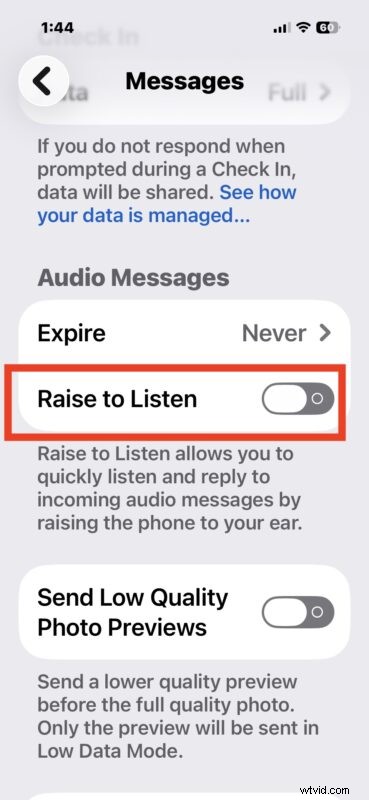
The option is intentionally named “Raise to Listen” rather than “Raise to Record,” which can cause confusion. The description beneath the switch explains: “Raise to Listen allows you to quickly listen and reply to incoming audio messages by raising the phone to your ear.” Turning it off stops accidental recordings while still letting you record manually by tapping the mic icon.
Is the iPhone Secretly Recording Me?
No. The feature only records when Raise to Listen is enabled, you perform the raise gesture, and the Messages app is active in a conversation thread. It does not silently capture audio in the background.
Real‑World Experience
I’ve logged dozens of accidental voice messages over the past year. Like many others, I found the feature annoying enough to disable it permanently. Apple’s support forums have hundreds of similar reports, suggesting that the default behavior could be improved or set to OFF.
If you’ve encountered accidental recordings, disabling Raise to Listen is a quick fix. It eliminates unexpected voice messages while preserving the convenience of manual audio messaging.
Do you use Raise to Listen? Have you faced accidental recordings? Share your thoughts below.