
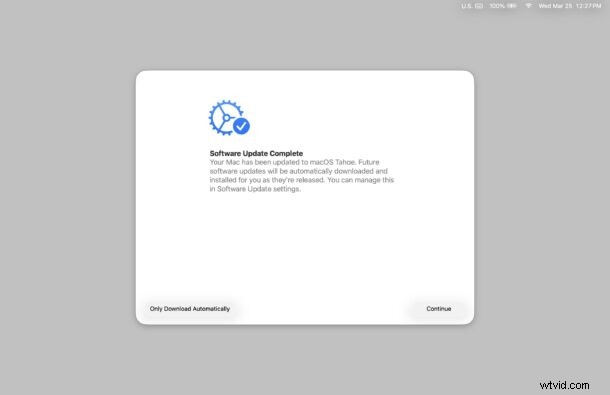
If you’re the type of Mac, iPhone, or iPad user who likes to update their operating systems manually, you will want to pay attention to your devices after you have installed the latest iOS 26.4, iPadOS 26.4, and MacOS Tahoe 26.4 software updates, because installing those updates will enable automatic updates for system software.
If you’re just breezing through the post-update screens as many users do, this is easy to overlook, and while there is a discrete option to choose “Only Download Automatically” as you go through the setup screens, it’s small font and out of the way, making it likely that many users will miss the option entirely.
Some users may like to have automatic updates and automatic downloads enabled on their Mac, iPhone, or iPad, for the convenience and hands-off approach, but many advanced users prefer to manually download and install updates at their own fruition. If you’re in that latter camp, use the instructions below for Mac, iPhone, and iPad, to disable the automatic download and automatic system software update features.
How to Disable Automatic Updates for iOS & iPadOS
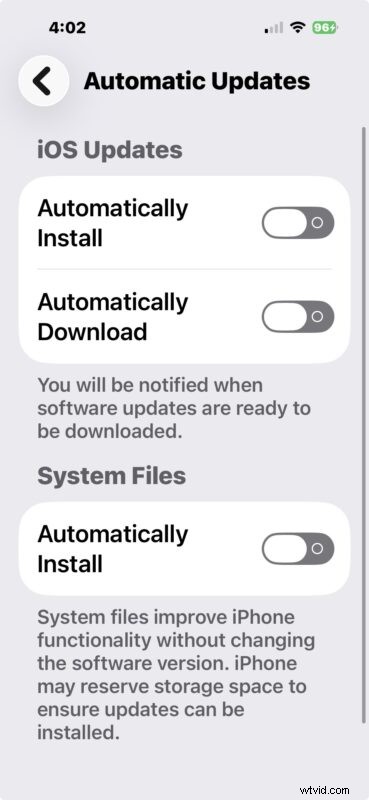
- Open the “Settings” app on iPhone or iPad, then go to “General”
- Go to “Software Update”, then tap on “Automatic Updates”
- Toggle the settings OFF for “Automatically Install” and “Automatically Download”
How to Disable Automatic Update on MacOS
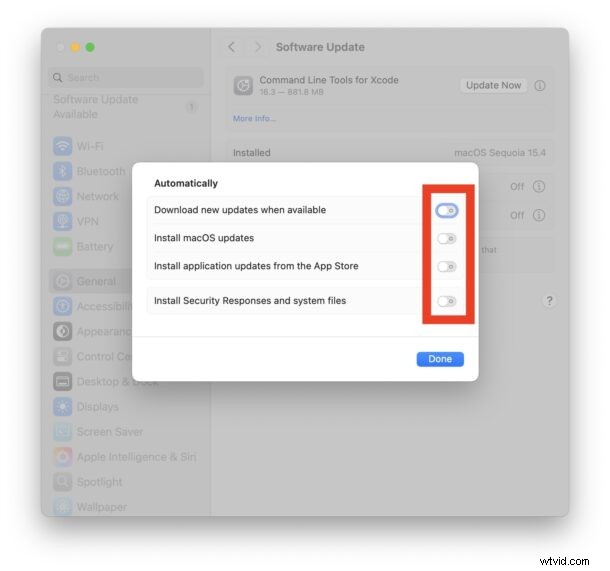
- From the Apple menu, go to “System Settings”
- Open “General” and then go to “Software Update”
- Click the tiny (i) button next to “Automatic Updates”
- Toggle the switch for “Install macOS updates” to OFF, and toggle off the automatic download feature too if desired
While this might be undesirable for some users, it’s not completely unheard of. Apple has enabled this automatically on several occasions in the past with various system software versions, so that we’re seeing this again is just something to be aware of.
There’s undeniable convenience to having iOS, MacOS, and iPadOS automatically update themselves, and there’s a benefit to always having the latest security patches installed on your system automatically, but there’s also plenty of valid reasons why this is undesirable behavior. Whether you’re on bandwidth constraints, prefer to update on your own schedule, prefer to manually update, or simply prefer to manage all downloads and installs on your own, you’ll want to pay attention, and make any needed adjustments to your settings after installing the latest system software versions.
Do you like automatic updates and automatic downloads for iOS, MacOS, and iPadOS? Do you keep these features enabled, or do you turn them off and prefer to manage updates manually? Share your thoughts and experiences in the comments.