
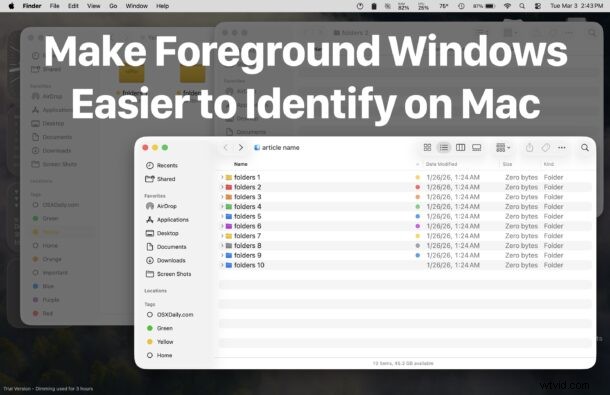
One common complaint of MacOS Tahoe users is that it can be difficult to determine which window is active or in the background. With all of the flatter and low contrast design elements in Tahoe, there is a significant reduction in contrast between background and foreground apps and windows, which can make visual focus less clear than it should be or used to be.
This is where HazeOver comes in, a long-standing Mac utility that dims the background and background windows to help highlight the foreground active window. Basically HazeOver makes it very obvious where your focus and foreground window is.
If you find the MacOS Tahoe (or even Sequoia or Sonoma) interfaces to be visually ambiguous when seeing which window is active in the foreground against all the background windows, HazeOver offers a simple and effective fix for that complaint, and it looks pretty good too.
- Grab HazeOver here at the developer site for the free trial, or buy it on the App Store for $5
HazeOver is super simple to use, just download the app and launch it, then configure how strong of a shadow you’d like to cast onto the background windows.
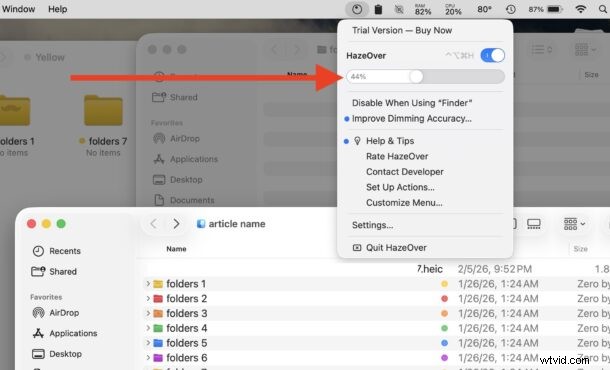
The level of opacity you want to use is personal preference and likely depends on your individual setup, display settings, and how much (or little) the lack of contrast between foreground and background windows bothers you in whatever MacOS version you are running. Personally I started off pretty high, near 50%, but ended up tweaking it down to about 25% after I got more accustomed to the HazeOver effect.
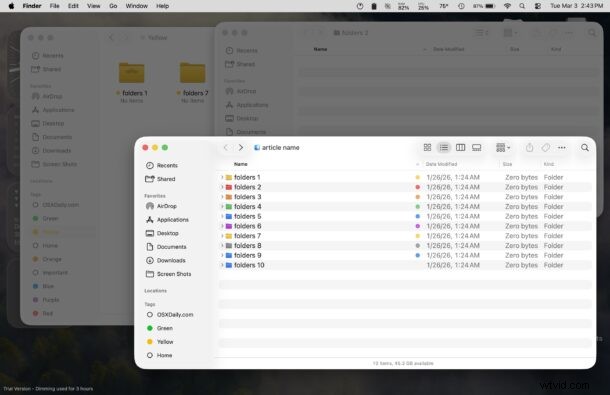
The screenshot below shows the HazeOver shadow effect on background windows at 50%, and you can see how much contrast that creates with the foreground window. There’s now no question as to what window is active or inactive:
HazeOver has a free trial that you can presumably use for as long as you want, though it does start placing some kind of amusing messages in Comic Sans on the HazeOver portion of your screen if you go for too long without paying the $5 for the app.
I first covered HazeOver just over 15 years ago (!), and not only does the utility still persist, but it’s arguably more useful and effective than ever before with the modern flat designs of MacOS Tahoe. While apps like Tinkle and Alan aim to make the foreground window obvious, HazeOver has a similar benefit for highlighting the active window but with a much more subtle and gracious appearance. I’d sort of forgotten about HazeOver as a solution to this problem, but one of our readers left a comment pointing out it’s added utility with macOS Tahoe, and it was also recently covered by DaringFireball for the same purpose.
The embedded video below, via the developer, demonstrates HazeOver on the Mac:
With the number of user complaints about macOS Tahoe and it’s lack of contrast between active and inactive windows, and the general reduction in obvious visual separation between apps and background windows, some users have found it more difficult to multitask and actively switch between other apps and windows. Some users have even complained the contrast between active and inactive windows in Tahoe is such that they didn’t recognize they were not engaging with an active foreground window while typing or performing other tasks. If you have any struggles or complaints in this regard, or you just find the Tahoe interface to be needing more contrast between inactive and active windows, HazeOver is almost certainly the best solution out there and the most visually appealing. It restores a sense of clarity that earlier versions of MacOS provided naturally, and that some users really feel is lacking in the modern MacOS Tahoe releases. And again, HazeOver works on older versions of MacOS too, so if you have the same complaints about Sequoia or Sonoma or earlier, you can use the app on those systems too.
Give HazeOver a try on your Mac, it will help to differentiate between active and foreground windows and apps, and it just might improve your workflow and MacOS Tahoe experience with Liquid Glass. Hopefully a future version of MacOS will improve the interface contrast a bit, but in the meantime, HazeOver is an excellent choice. Another more dramatic option is to try using Single Application Mode but that makes the Mac only display a single app at a time, which can be great for focused work but not so helpful for multitasking with multiple apps and windows on screen at the same time.
Have you tried HazeOver on a Mac? Does it help with focus or make the macOS Tahoe interface easier to use for you? Share your experiences and thoughts in the comments.