
Heading off to a foreign country? A well‑prepared phone can turn a stressful connection nightmare into a seamless travel experience. By planning ahead, you’ll stay in touch, save money, and focus on the adventure.
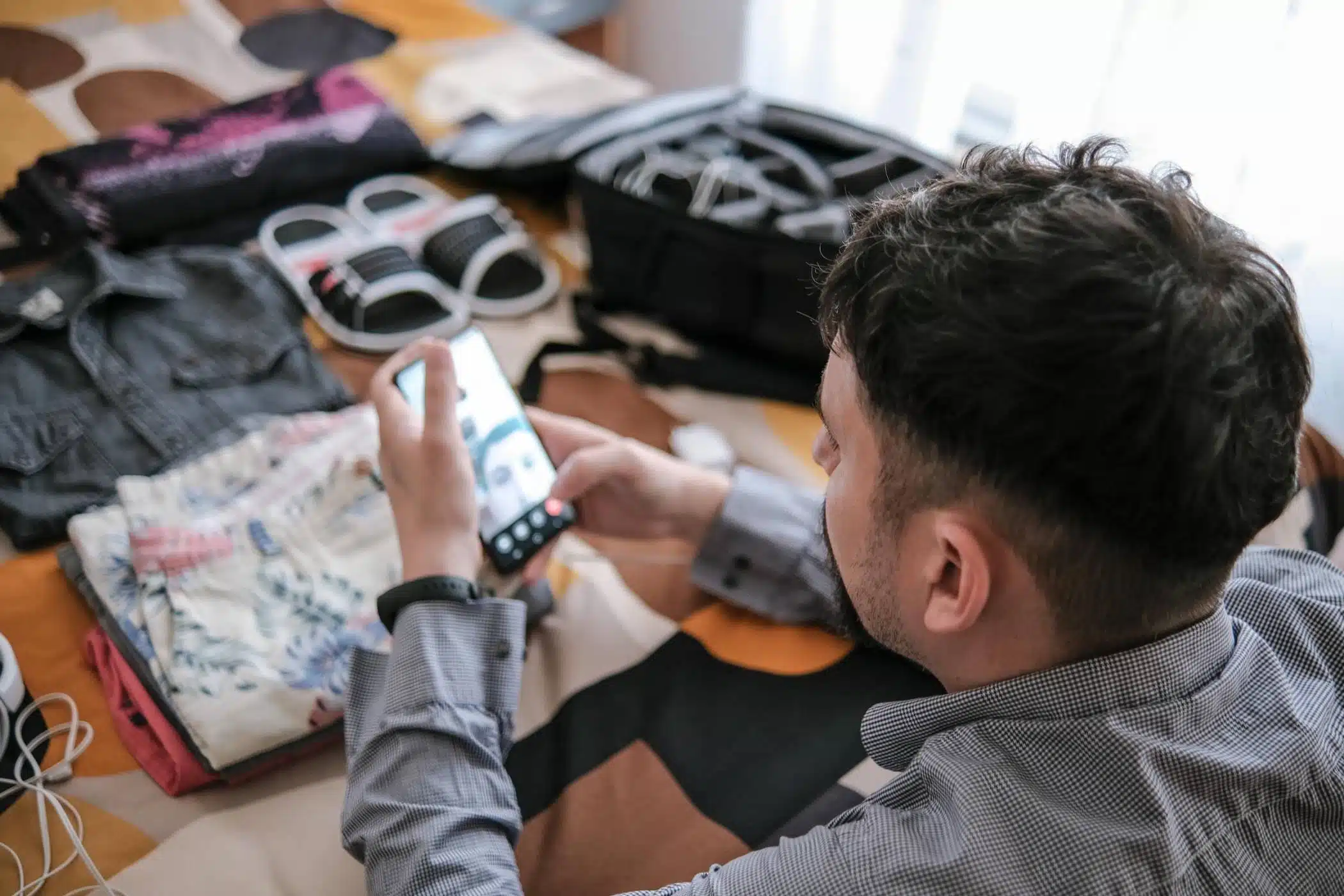
Here’s how to ensure your device is ready for smooth, cost‑effective use around the globe.
1. Review Your Carrier’s International Plans
Start with a quick call or chat with your mobile provider. Most carriers offer roaming packages—daily, weekly, or monthly—each with varying data caps, texting and calling rates, and coverage zones. If a plan feels steep, ask whether a local SIM or eSIM might be more economical.
2. Verify Your Phone Is Unlocked
To switch to a foreign SIM, your device must be unlocked. Contact your carrier to confirm its lock status and request an unlock if necessary. Many providers unlock phones once the device is paid off or the contract is fulfilled, granting you flexibility to choose local or global plans.
3. Consider Local SIM Cards or eSIMs
Purchasing a local SIM often delivers the best rates for data and calls. Airports, mobile shops, and convenience stores typically sell them—just remember to bring your passport for ID verification. For a truly seamless switch between countries, explore eSIM services such as Holafly or Alosim. Newer phones support eSIM downloads, allowing you to activate a local profile before you even land.
4. Enable Wi‑Fi Calling and Messaging Apps
When a reliable cellular connection isn’t available, Wi‑Fi can be a lifesaver. Install apps like WhatsApp, Signal, or Telegram to send messages and place calls over any Wi‑Fi network. If your carrier supports it, enable Wi‑Fi calling in your phone’s settings so you can ring a friend’s landline without incurring roaming charges.
5. Pre‑Download Offline Maps and Travel Tools
To avoid surprise data fees, download offline maps via Google Maps or Maps.me before departure. Save translation helpers, currency converters, and local guides to your phone. Having these resources on hand keeps you oriented and communicative even in spotty coverage areas.
6. Pack the Right Power Accessories
Never underestimate the value of a universal power adapter and a portable charger—especially if you’ll spend long days exploring. If you’ll use a local eSIM, a small SIM tool or paperclip can help you slide the SIM tray open.
7. Turn Off Unnecessary Background Data
Before you board, tweak your settings to prevent unexpected charges. Disable automatic app updates, enable low‑data mode, or switch to airplane mode until you’re connected to Wi‑Fi. These simple steps keep your data consumption under control.
Stay Connected, the Smart Way
International travel doesn’t have to break the bank. By prepping your phone ahead of time, you’ll stay connected, protect your budget, and immerse yourself fully in the experience.
Need help confirming your device’s international readiness? Visit The Lab and let our experts ensure your phone is travel‑ready when you are.
Our Hours
Monday: 10am – 5pm
Tuesday: 10am – 5pm
Wednesday: Closed
Thursday: 10am – 5pm
Friday: 10am – 7pm
Saturday: 10am-2pm
Sunday: Closed