
I’ve been talking to a few people lately about deleting catalog backup files. If you backup and optimize your catalog every time you close Lightroom then, over time, you will end up with a lot of excess catalog backups.
Each of these backups will consume disk space so the question becomes – what is in these backups? What use are they? And can they be deleted safely?
Backup your catalog
When you set Lightroom to make a backup of the catalog what it does is to make a backup of just the catalog and not your images, or your previews, or the sidecar xmp files for your raw files, or your presets. While having a catalog backup is undoubtedly a useful thing, it is incomplete so you will need to have a system backup system in place to backup what Lightroom does not.
In fact, because Lightroom’s backup is only a catalog backup, some people don’t do a backup this way and instead rely on their regular system backup to take care of backing up everything – catalog included. I prefer to at least have Lightroom do a regular catalog backup but that’s my personal preference.
Which backups to keep?
Because the catalog backup files are all stored in different folders by date they will build up over time and keeping them all is not a necessity.
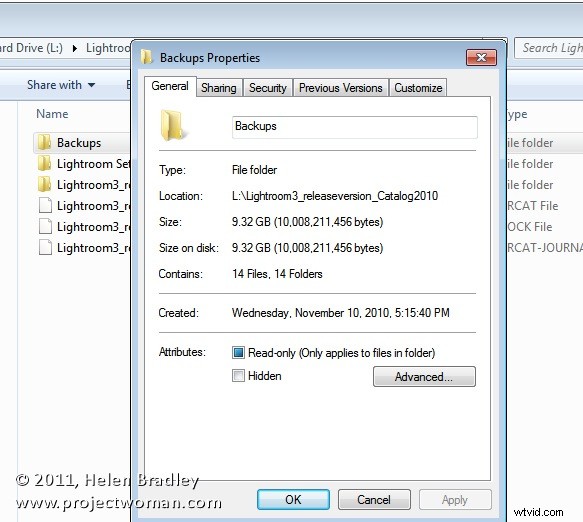
You can be selective about which ones you keep – you should, at least, keep the most recent backups because if your catalog is corrupt you will want to be able to recover using these. If the most recent backup has issues then you would progress backwards until you get one which isn’t corrupt.
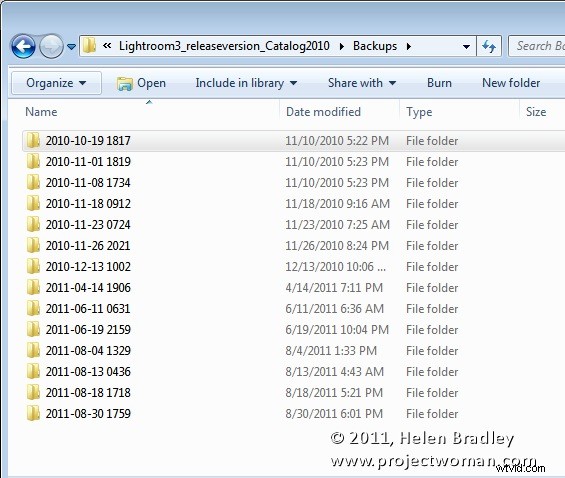
So, if I use Lightroom every day, I would keep the backups from this week and then one from last week and one from last month and beyond that I could feel pretty safe about deleting the others.
Delete a catalog backup
To delete a backup, locate the backup folder and identify the backup folders to delete and go ahead and delete them.
You will find your catalog backups, if you didn’t change the default location for them, in a folder called Backups inside your Lightroom catalog folder.
If you changed its location you can find the location you selected when you’re next prompted to backup Lightroom – the location is reported in the dialog prompting you to backup. Here too you can change that location if desired.
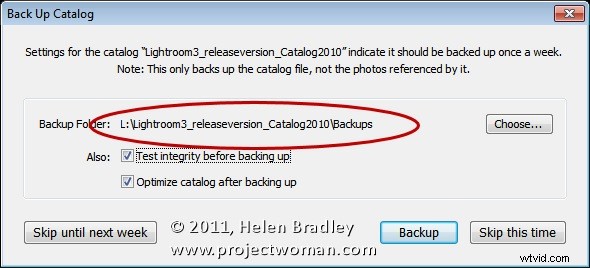
One issue with the Lightroom catalog backups is that the location, by default, is inside the folder that contains the Lightroom catalog. So, if the disk containing the catalog becomes corrupt you could lose your Catalog backups too. You may prefer to backup to a different disk to protect against this likelihood.
Every one of us will have different preferences for how we backup, where we backup to, the frequency of backup and what we backup. It’s over to you now – do you use the Lightroom Catalog backup tool? If you do, do you store your backups in the default location? Do you delete excess backups regularly.