
In an era where concise, high‑quality video content is king, choosing the right editing tool can make or break your workflow. Kapwing Video Trimmer has quickly risen in popularity among creators for its straightforward, browser‑based trimming capabilities. But does it truly deliver on its promise? This in‑depth review evaluates its core features, strengths, and limitations, and compares it with a proven desktop alternative, Wondershare Filmora.
In this article
- Kapwing Video Trimmer: Description and Features
- Best Alternative for Trimming Videos: Wondershare Filmora
- How to Cut/Split/Trim Video with Wondershare Filmora
Part 1: Kapwing Video Trimmer – Description and Features
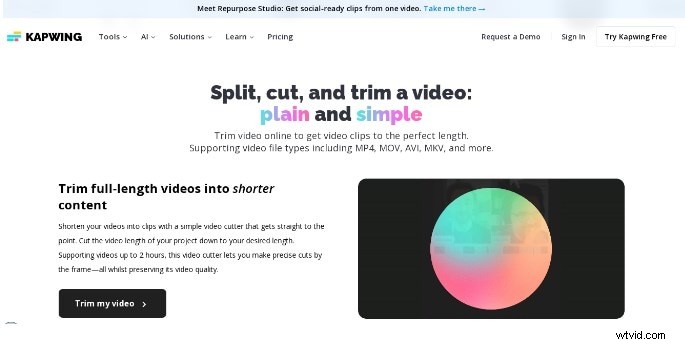
Kapwing’s Video Trimmer is a lightweight, free online tool that allows you to cut, split, and join video clips directly in your browser. Designed for speed and simplicity, it’s a popular choice for quick edits and social‑media content creators.
Key strengths include:
- Multi‑format support: MP4, AVI, MOV, and many others.
- Zero installation: Edit entirely in the web browser.
- Advanced trimming tools such as frame‑precise cutting and real‑time preview.
- Undo/Redo history for error recovery.
- Real‑time collaboration – share projects and invite teammates to edit.
Pros
- Free tier with optional paid upgrades.
- Intuitive drag‑and‑drop workflow.
- Fast rendering and export times.
- Broad format compatibility.
- Built‑in collaboration tools.
Cons
- Limited advanced editing options for seasoned professionals.
- Basic color correction and audio controls.
- Performance can lag with very large or high‑resolution files.
Overall, Kapwing Video Trimmer excels for casual users, educators, and social‑media managers who need quick, fuss‑free edits. It may not satisfy the demands of a professional video editor handling large batches or complex timelines.
Part 2: Best Alternative for Trimming Videos – Wondershare Filmora
For creators who require a richer feature set, Wondershare Filmora offers a robust desktop solution that extends far beyond basic trimming. With a full timeline, advanced audio sync, and a library of effects, Filmora delivers a professional editing experience without the steep learning curve of high‑end software.
Core advantages:
- Fine‑grained trimming – set exact start and end frames.
- Multiple‑segment splitting and merging.
- Extensive format support: MP4, AVI, MOV, WMV, F4V, 3GP, MP3, WEBM, TS, and more.
- Auto Beat Sync for music‑driven edits.
- Preset assets: transitions, overlays, titles, and effects.
Pros
- Comprehensive editing toolkit for both beginners and pros.
- Automatic audio‑beat matching for engaging video cuts.
- Large selection of transitions, overlays, and templates.
- Cross‑platform availability (Windows & macOS).
Cons
- Free version adds a watermark.
If you’re looking to elevate your video projects beyond simple cuts, Filmora’s feature set warrants a closer look.
Part 3: How to Cut/Split/Trim Video with Wondershare Filmora
Below is a step‑by‑step guide to mastering Filmora’s core trimming functions.
Split Video
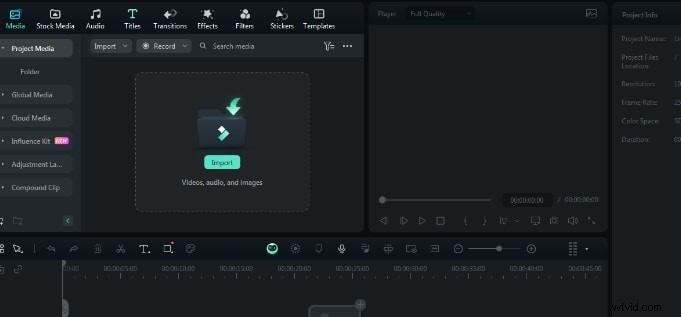
Step 1: Import Media
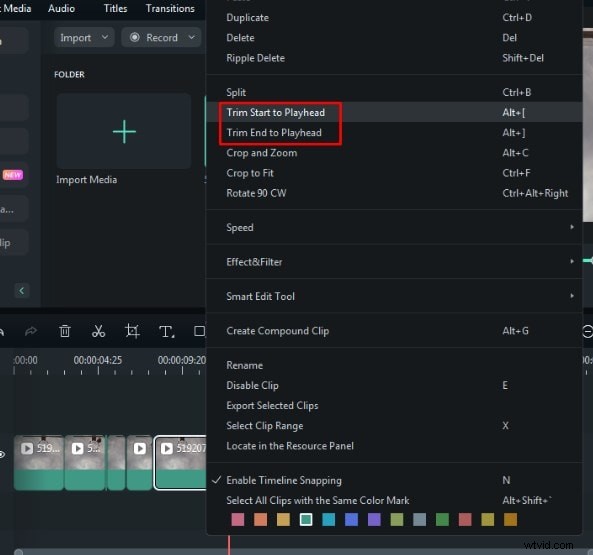
Step 2: Trim on the Timeline
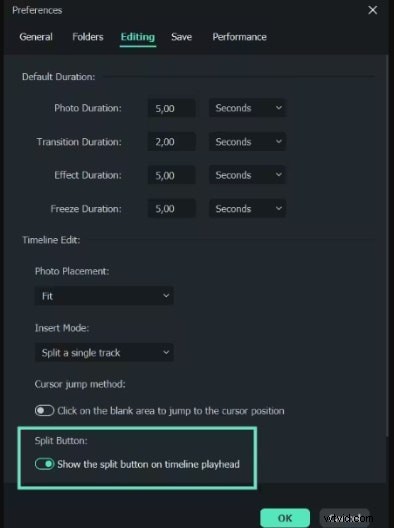
Select the clip on the timeline, move the playhead to the desired split point, and click the Split icon.
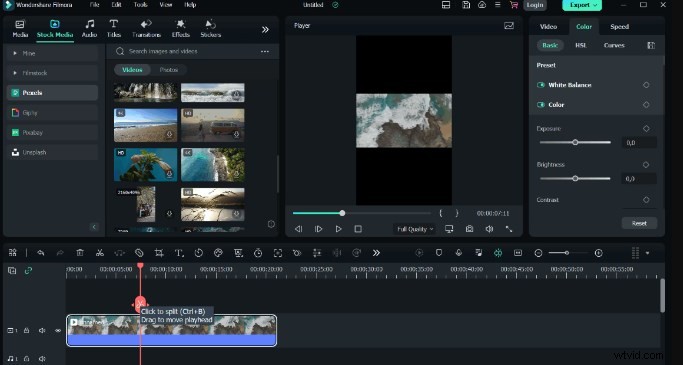
Ensure the clip is highlighted before splitting to avoid affecting other tracks.
Trim/Cut Video
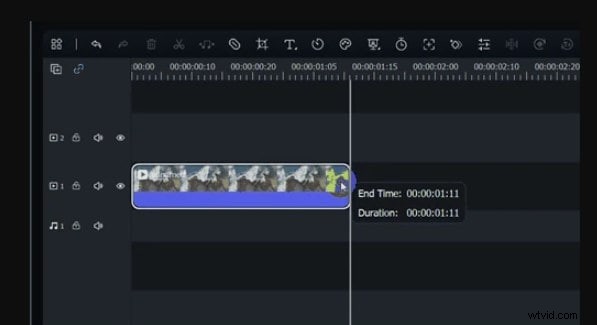
Hover over a clip’s edge to reveal the trim handles. Drag to set the exact start and end points.
Enhance with Auto Beat Sync
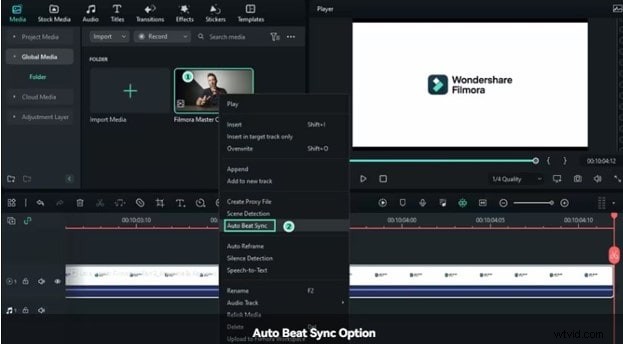
Right‑click a clip, choose Auto Beat Sync, and let Filmora match the audio beats to the visual cuts.
Step 1: Apply Auto Beat Sync
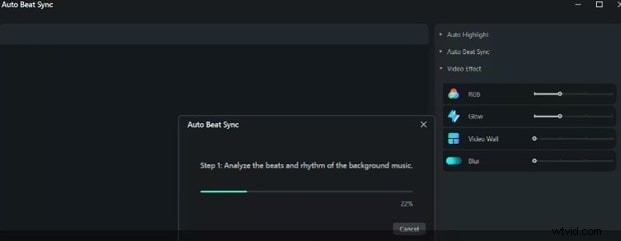
Step 2: Adjust Settings
Fine‑tune the options on the right panel and hit Analyze.
Step 3: Create Highlights
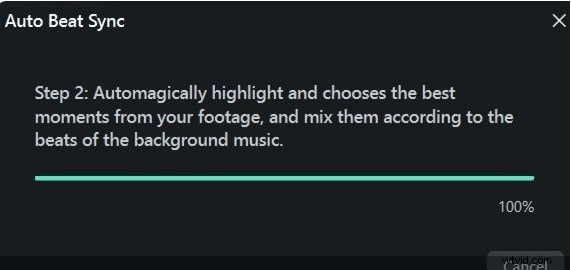
Step 4: Export to Timeline
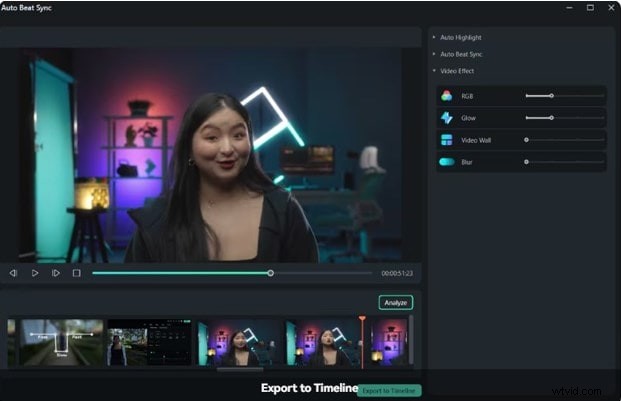
Finalize your edits, then export from the top‑right menu to save the project.
Conclusion
Kapwing Video Trimmer is an excellent choice for quick, browser‑based cuts thanks to its simplicity and speed. However, its limited advanced options may leave power users wanting more. For those seeking deeper customization, richer audio‑visual tools, and a professional workflow, Wondershare Filmora offers a compelling desktop alternative. Choose Kapwing for convenience, and Filmora when you need a full editing suite.