
Camtasia and OBS Studio rank among the leading tools for screen recording and video production, trusted by business professionals, educators, gamers, and content creators alike.
Whether you’re capturing tutorials, product demos, or live streams, both platforms offer powerful features. Below is a detailed, side‑by‑side comparison to help you choose the best fit for your workflow.
Table of Contents
- Overview
- Key Features
- Recording Performance
- Editing Performance
- Pros & Cons
- Pricing
- Alternative: Wondershare Filmora
- Conclusion
Camtasia vs. OBS Studio: Overview
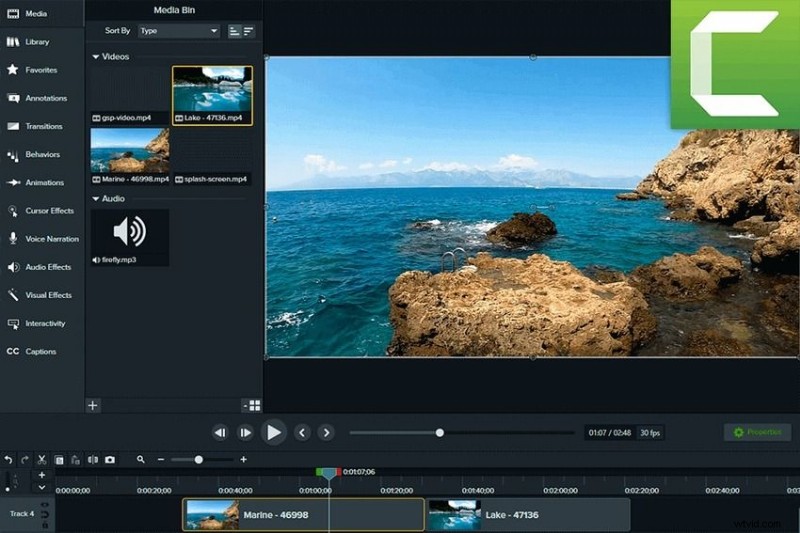
Camtasia (TechSmith) is a user‑friendly screen recorder and editor available on Windows 10/11 and macOS 12.0 (Monterey) and later. It captures your screen, webcam, microphone, and system audio while offering a rich set of post‑production tools.
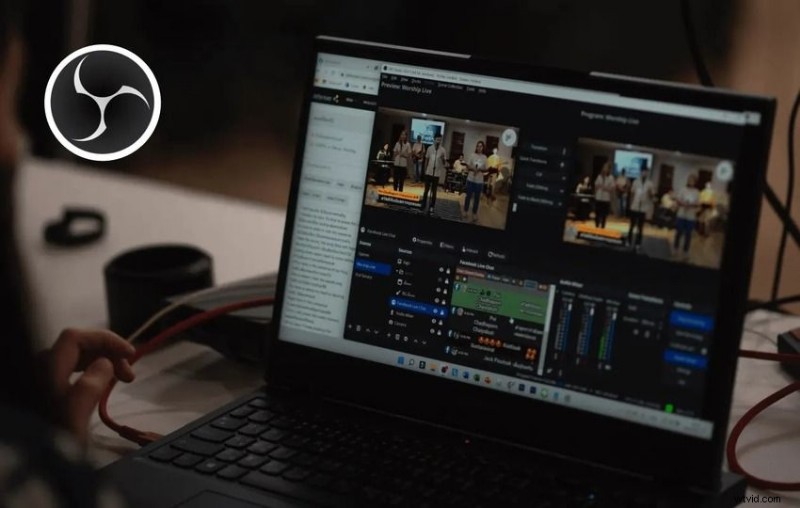
OBS Studio is a cross‑platform, open‑source recording and streaming suite that runs on Windows, macOS (Big Sur and newer), and all major Linux distributions. It excels at live broadcasting but lacks built‑in editing capabilities.
Camtasia vs. OBS Studio: Key Features
Both tools support screen recording with webcam overlays, yet they differ in workflow and feature set.
Camtasia
- Screen recorder – capture screen, webcam, mic, or system audio simultaneously.
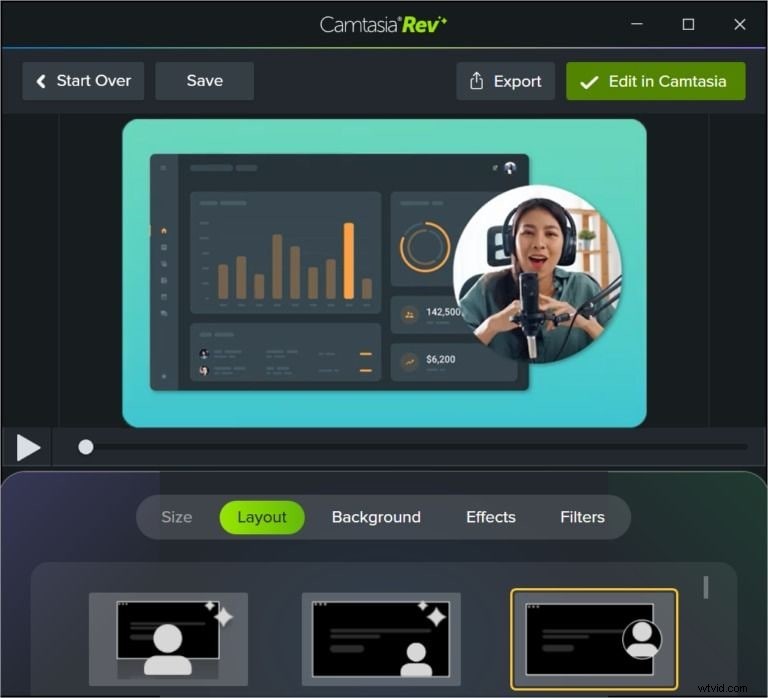
- AI‑powered Camtasia Rev – adjust size, layout, background, and filters post‑recording.
- Video & audio editor – add voiceovers, annotations, transitions, animations, effects, and captions.
- Extensive media library – download 100+ million royalty‑free assets directly within the editor.
- Multi‑track editing – isolate and tweak video, audio, and effect layers independently.
- PowerPoint plugin – record presentations without leaving MS PowerPoint.
- Multi‑format export – AVI, GIF, MP4, MPG, MPEG, MOV, WMV, MTS, M2TS, MP3, M4A, WAV, WMA.
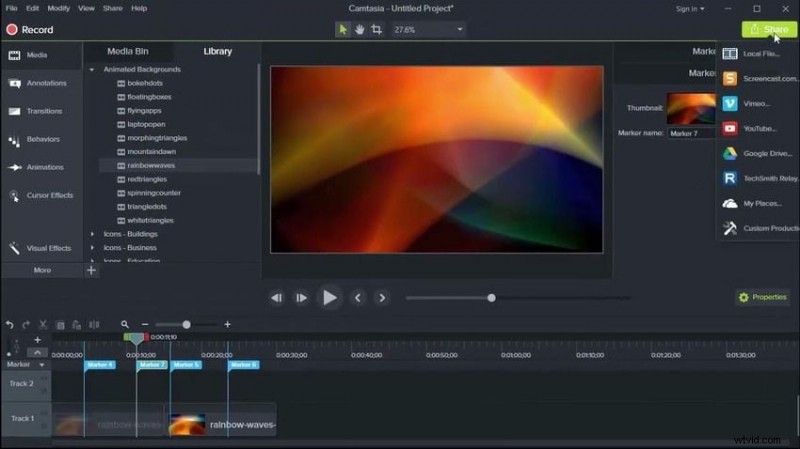
- Cloud sharing – save locally, to Google Drive, Screencast, TechSmith Video Review, YouTube, Vimeo, and more.
Camtasia does not support live streaming, but its robust editing suite makes it ideal for tutorials, demos, and instructional videos.
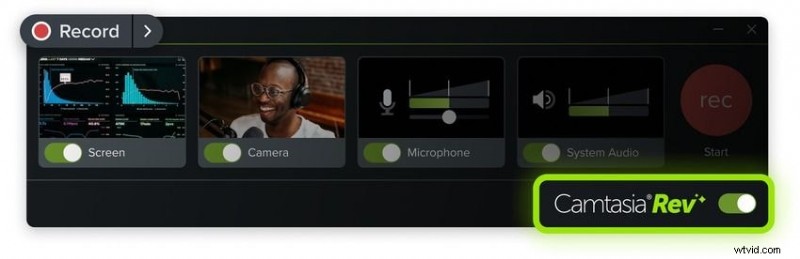
With Camtasia Rev (2024), you can fine‑tune visual elements immediately after recording, such as resizing the screen capture or applying a background blur to the webcam overlay—no need to launch the full editor.
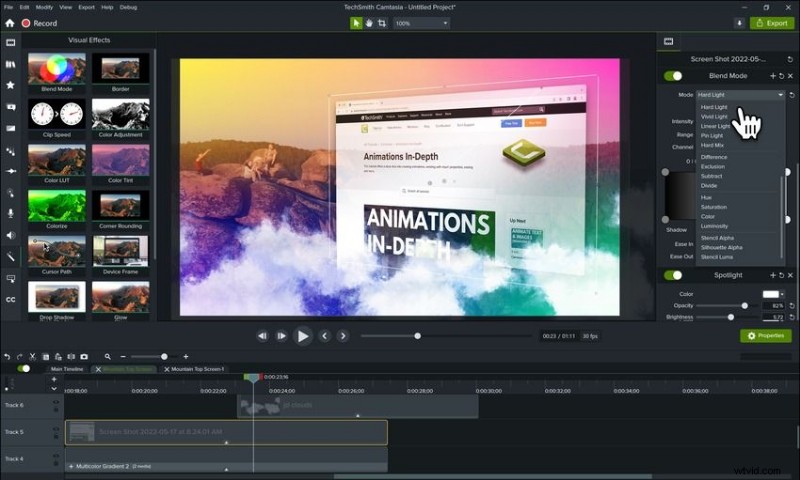
The editor adds advanced tools: voiceovers, transitions, cursor effects (spotlight, highlight, glow), audio filters (noise removal, pitch adjustment), visual effects (color grading, motion graphics), and more.
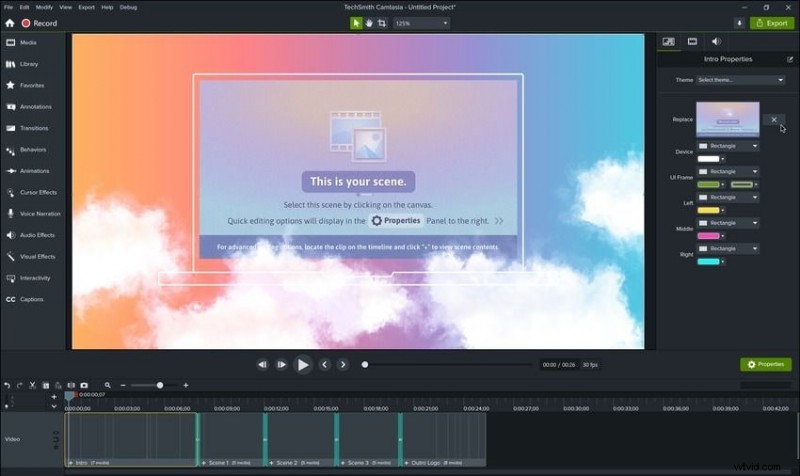
Mac users can leverage gesture effects—pinch, swipe, tap simulations—created via TechSmith Capture on iOS and imported into Camtasia.
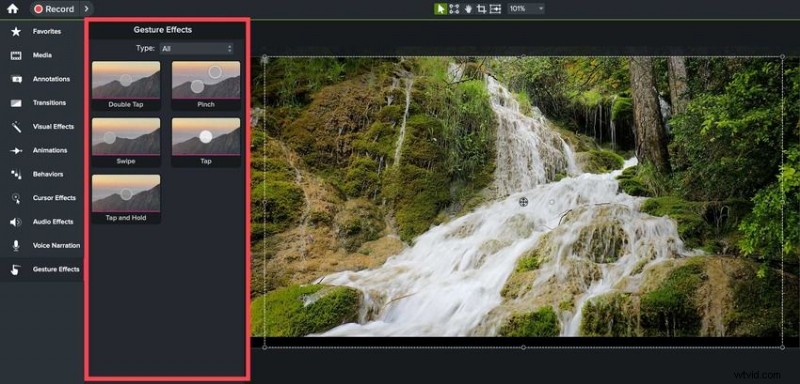
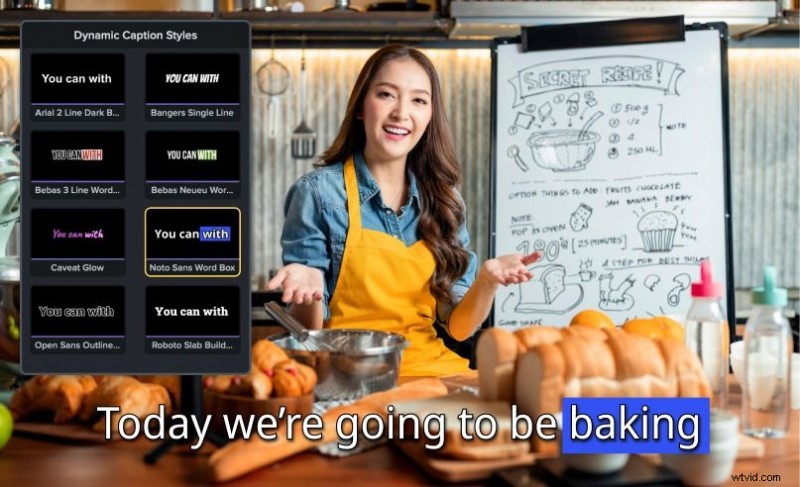
Dynamic captions automatically transcribe audio and allow brand‑consistent styling, a feature uncommon among competitors.
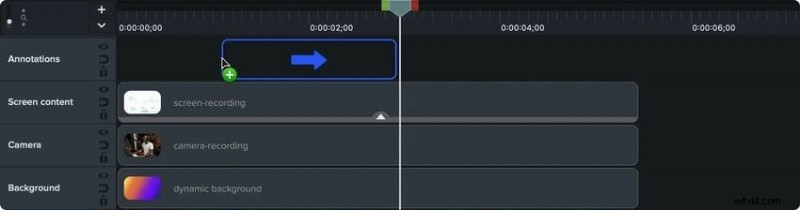
The timeline supports multi‑track editing, letting you fine‑tune each layer—video, audio, effects—separately.
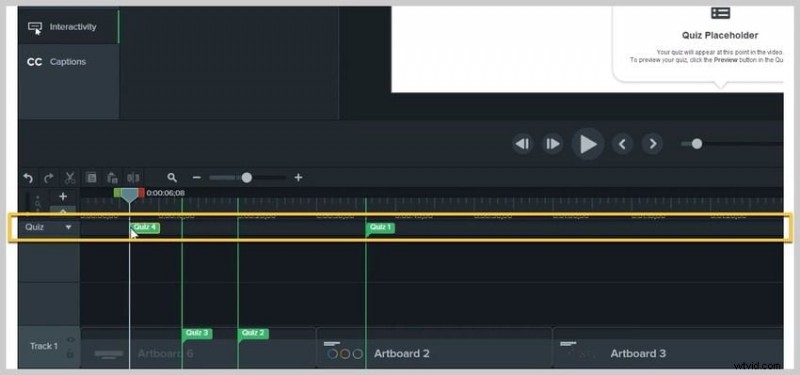
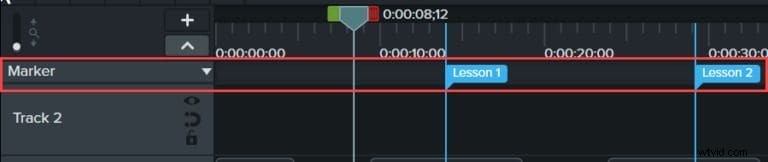
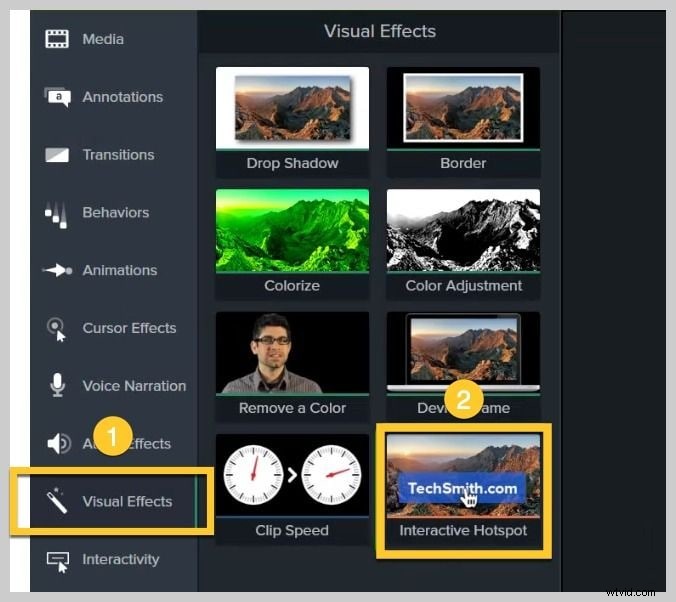
Interactive elements—quizzes, hotspots, markers—enable educators to create engaging e‑learning content without external plugins.
After finalizing, export or share directly to cloud services or social platforms.
OBS Studio
- Multi‑source support – choose displays, cameras, windows, browsers, games, or capture cards.
- Multi‑track audio – record up to six sources (mic, system audio, game audio, chat, etc.) separately.
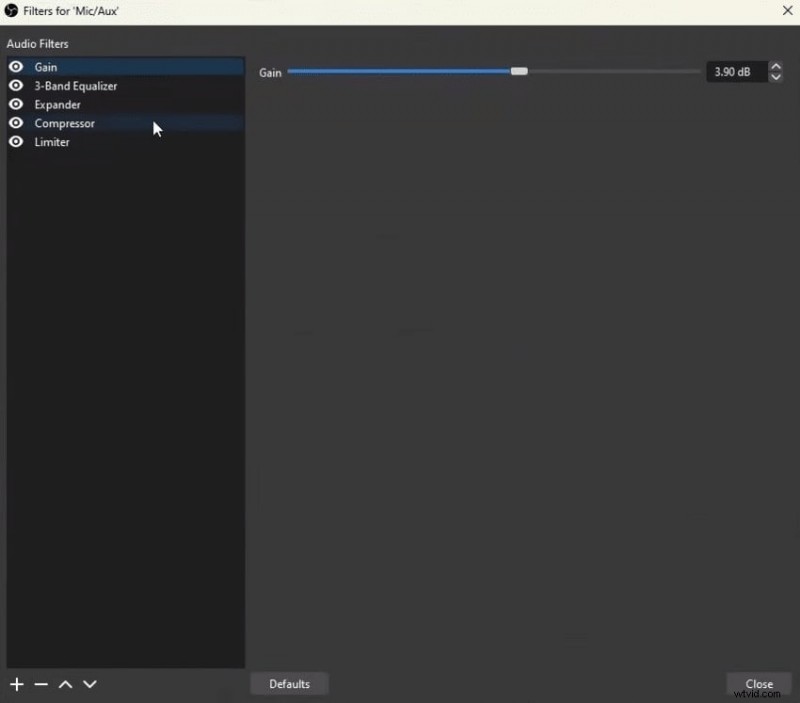
- Audio mixer – volume control, compression, gain, noise suppression, and gating.
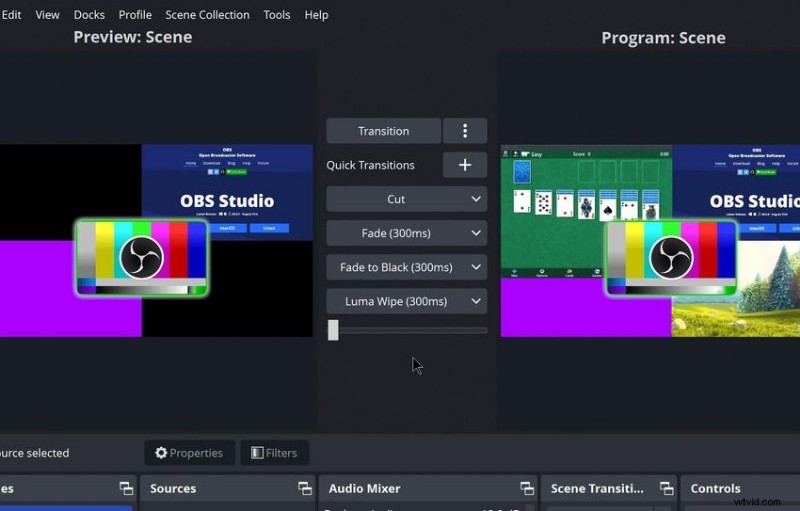
- Scene transitions – custom scenes, fade‑ins/outs, and filter effects.
- Live streaming – YouTube, Twitch, Facebook Live, and other platforms.
- Export formats – FLV, MKV, MOV, MP4, HLS (M3U8), TS.
While OBS offers extensive source manipulation, it does not provide post‑production editing; you must use a separate editor for advanced cuts.
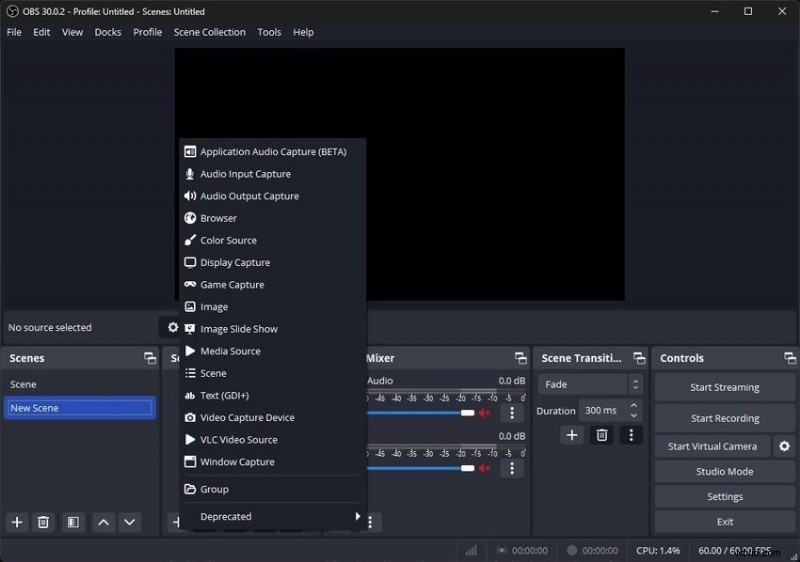
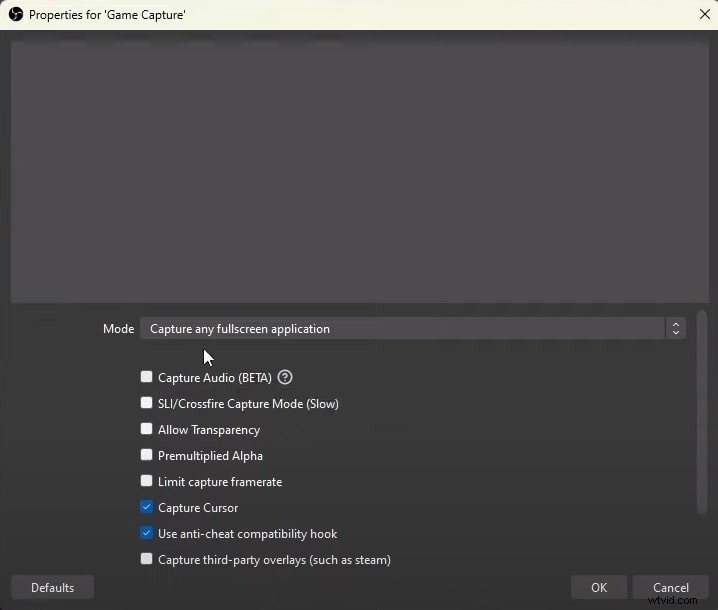
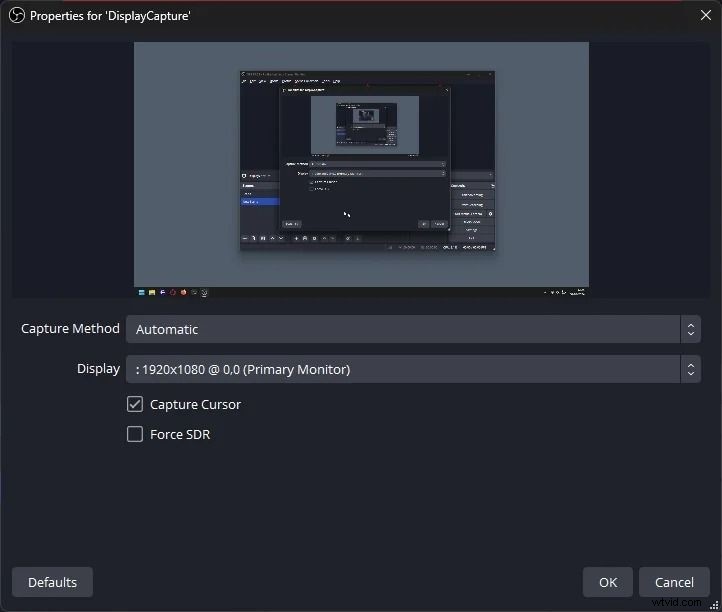
Sources can be configured per scene: Game Capture includes cursor tracking and anti‑cheat compatibility; Display Capture supports multi‑monitor setups.
Audio mixing allows independent control of each track, crucial for podcasts or multi‑person streams.
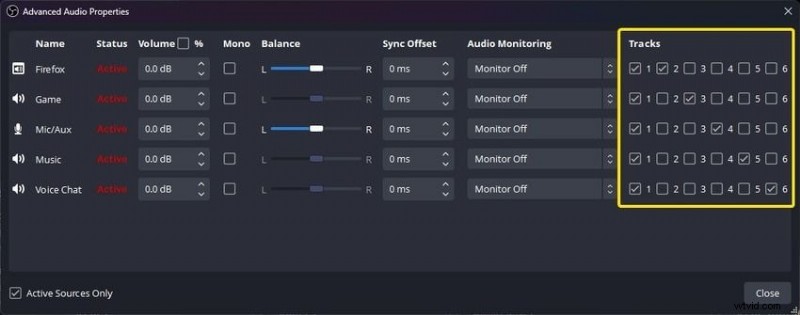
OBS’s Audio Mixer also offers noise reduction, gain control, and distortion prevention.
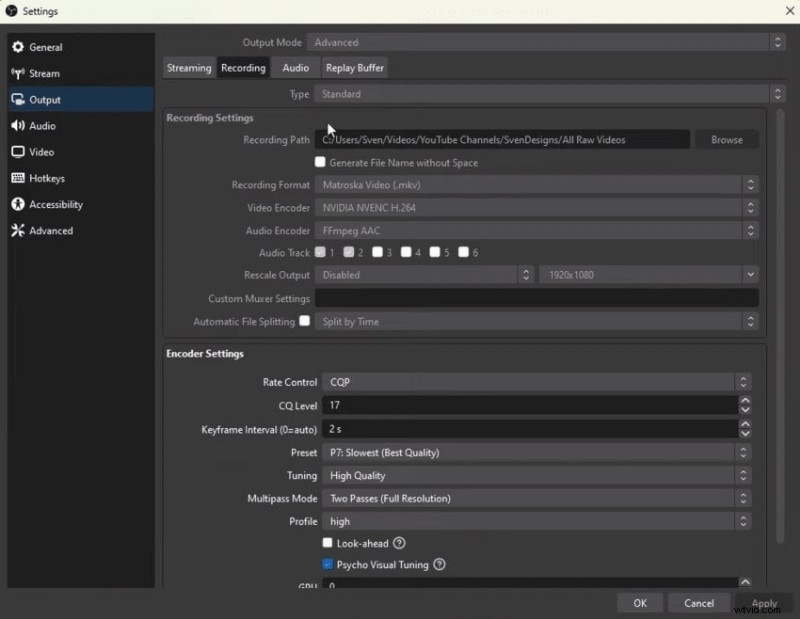
The suite’s customization is deep: frame rate, bitrate, resolution, codecs, hotkeys, and more—all adjustable via the Settings dialog.
Studio Mode lets you edit scenes live without disrupting the stream, and the dock system anchors chat, thumbnails, or other widgets alongside the broadcast.
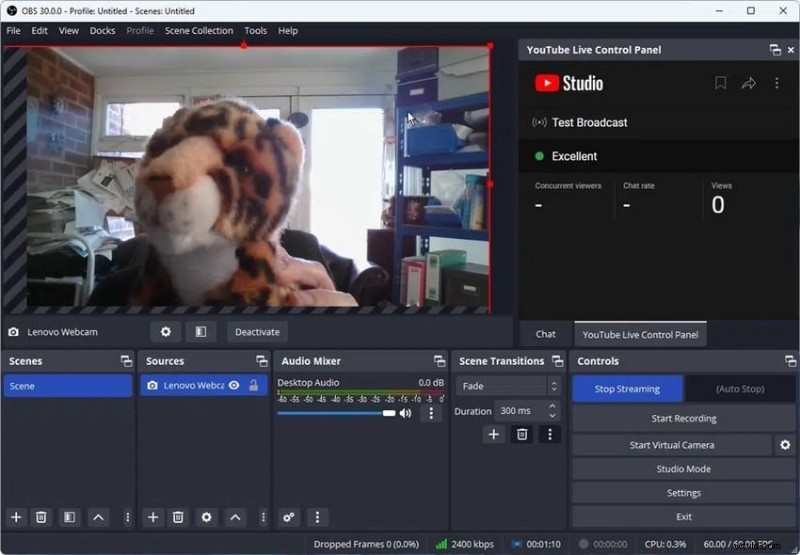
For those who need simultaneous screen and webcam capture, OBS allows separate recording streams for each source.
OBS Studio vs. Camtasia: Recording Performance
OBS Studio delivers high‑quality, low‑latency recordings on powerful machines, but it can be CPU‑intensive on older hardware. Reducing resolution, frame rate, or disabling GPU scheduling can mitigate lag.
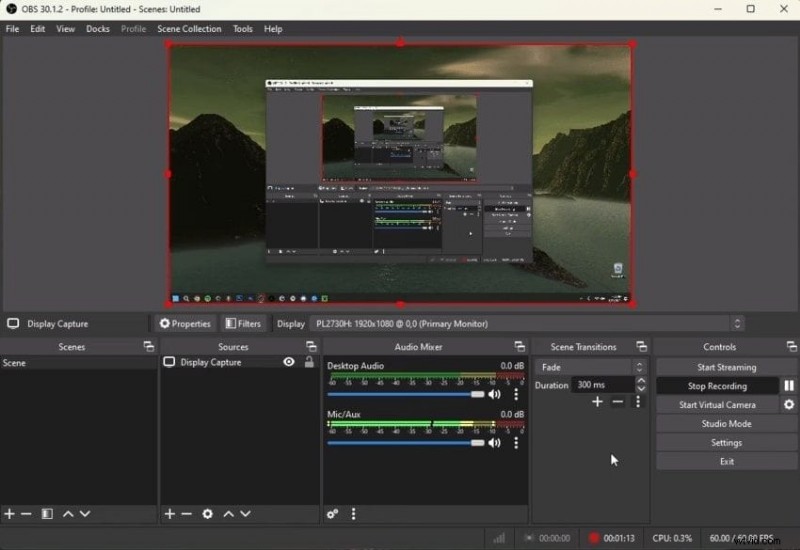
Windows users should disable hardware‑accelerated GPU scheduling in Settings > System > Display > Graphics Settings to improve OBS performance.
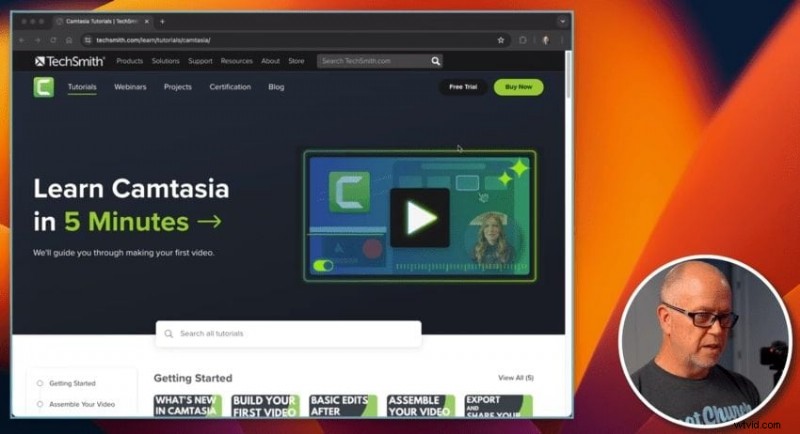
In contrast, Camtasia is lightweight and runs smoothly on virtually any computer, thanks to its efficient encoder and minimal resource usage.
OBS Studio vs. Camtasia: Editing Performance
OBS lacks post‑production editing; you must export and edit elsewhere. It does allow on‑the‑fly source adjustments (color correction, transforms) before capture.
OBS Studio
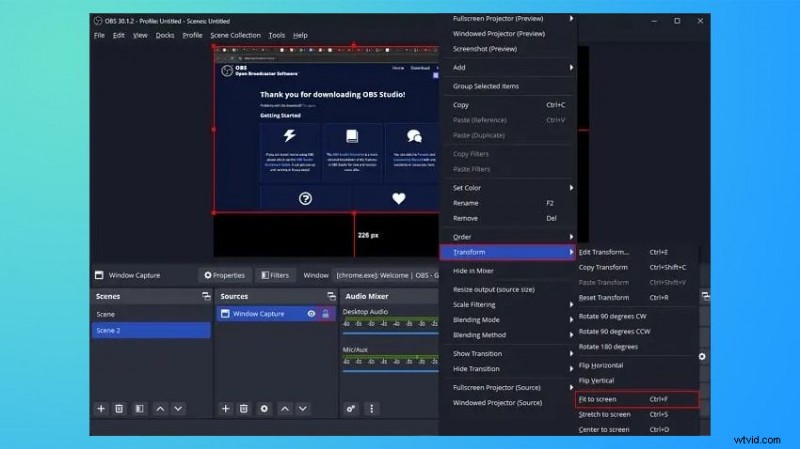
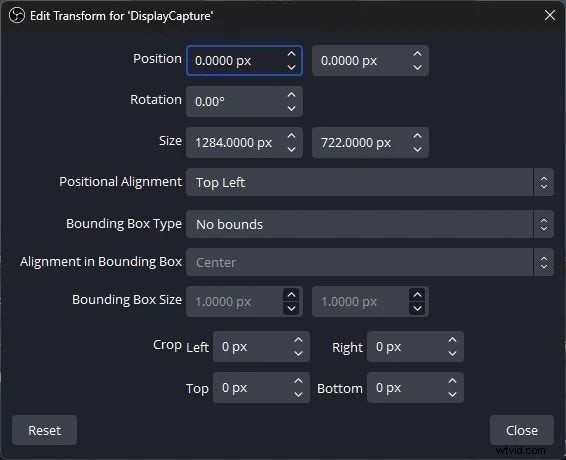
Transforms—resize, rotate, flip, crop—are applied per source. Color correction filters (saturation, hue, brightness) are available for SDR videos.
Camtasia
Its editor remains responsive even under heavy editing loads, ensuring a smooth experience while adding effects, transitions, and multi‑track layers.
OBS Studio vs. Camtasia: Pros & Cons
OBS Studio
- Free, open‑source
- Unlimited scenes & sources
- Multi‑track audio recording
- Built‑in audio mixer
- Live streaming capabilities
- Extensive customization options
- Maximum video quality capped at 1080p (unless using plugins)
- No built‑in screen drawing tools
- No advanced post‑production editing
- Steep learning curve for beginners
Camtasia
- Intuitive, beginner‑friendly interface
- Excellent performance on all hardware
- Export quality up to 4K
- Comprehensive editing toolkit
- Interactive features for e‑learning
- Large royalty‑free media library
- No live‑streaming support
- Limited customizability compared to OBS
- No screen drawing tools
- Not available on Linux
- Higher cost for advanced plans
Camtasia vs. OBS: Pricing
OBS Studio is free and open source.
Camtasia offers tiered subscriptions billed annually:
| Camtasia Essentials | $179.88/year |
| Camtasia Create | $249/year |
| Camtasia Pro | $599/year (occasionally discounted to $499) |
Note that lower tiers lack AI‑driven text editing, TTS, script generation, translation, and audio enhancement, features often included in competitors’ base plans.
Related comparisons: Camtasia vs Movavi, Camtasia vs Bandicam
A New Alternative to Consider: Wondershare Filmora
Wondershare Filmora blends screen recording, webcam capture, and advanced editing into one affordable package.
Wondershare Filmora
With AI copilot, text‑based editing, auto‑reframing, voice removal, music generation, and a host of professional effects, Filmora offers a versatile workflow for creators who need both recording and editing in a single tool.
Key features include: keyframing, motion tracking, silence detection, audio ducking, speed ramping, chroma key, stabilization, auto beat sync, and more.
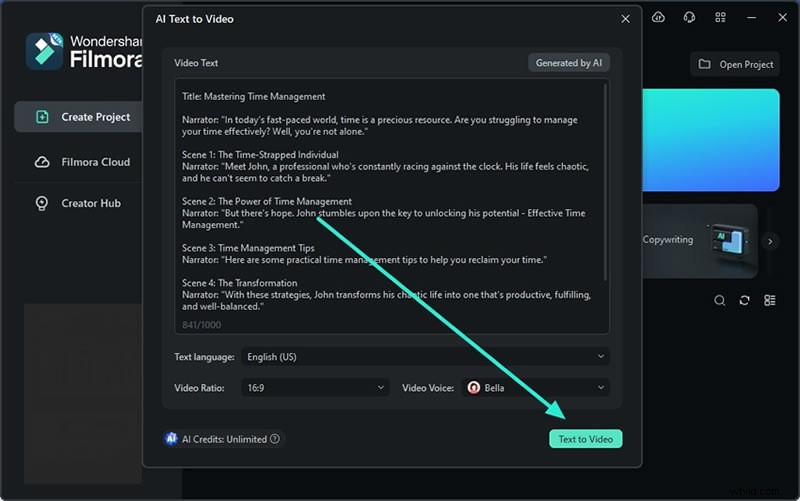
AI enhancements—text‑to‑video, translation, thumbnail creation, ChatGPT‑based copywriting—accelerate production while maintaining creative control.
Filmora’s asset library incorporates Boris FX, NewBlue FX, Giphy, Unsplash, Pixabay, and Pexels, providing a vast selection of royalty‑free content.
For a practical introduction, check out our detailed Filmora tutorial with 3M‑influencer Kevin Stratvert.
Conclusion
Choosing between Camtasia and OBS Studio hinges on your priorities: if you need a polished editor with interactive learning tools, Camtasia is the clear choice; if live streaming and source flexibility are paramount, OBS excels. For those seeking a balanced, cost‑effective solution, Wondershare Filmora delivers powerful recording and editing features without the steep learning curve.